# Delay node
In order to hold a workflow up for some time before it continues to the next nodes, you can use the Delay node.
#### When can you use it
- In profile-oriented scenarios. For example, in [an abandoned cart scenario](/use-cases/save-abandoned-cart#prepare-a-workflow), the workflow is delayed for some time after a product is added to a cart. When the delay period passes, the system checks if a purchase was made. If not, the system sends a reminder email with the products from the abandoned cart.
The maximum time limit a profile can spend in the **Delay** node is 60 days. If your workflow contains more than 1 **Delay** node, the total time in all **Delay** nodes cannot exceed 60 days.
- In the workflows triggered by the **Business Event** and **Scheduled Run** nodes which require delays in some parts of the scenario.
#### Delay possibilities
During the node configuration, you can use two delay options:
- **Defined** allows you to set a universal delay period for each passage of every profile in the workflow. Every time a profile passes through the Delay node, the delay period is the same.
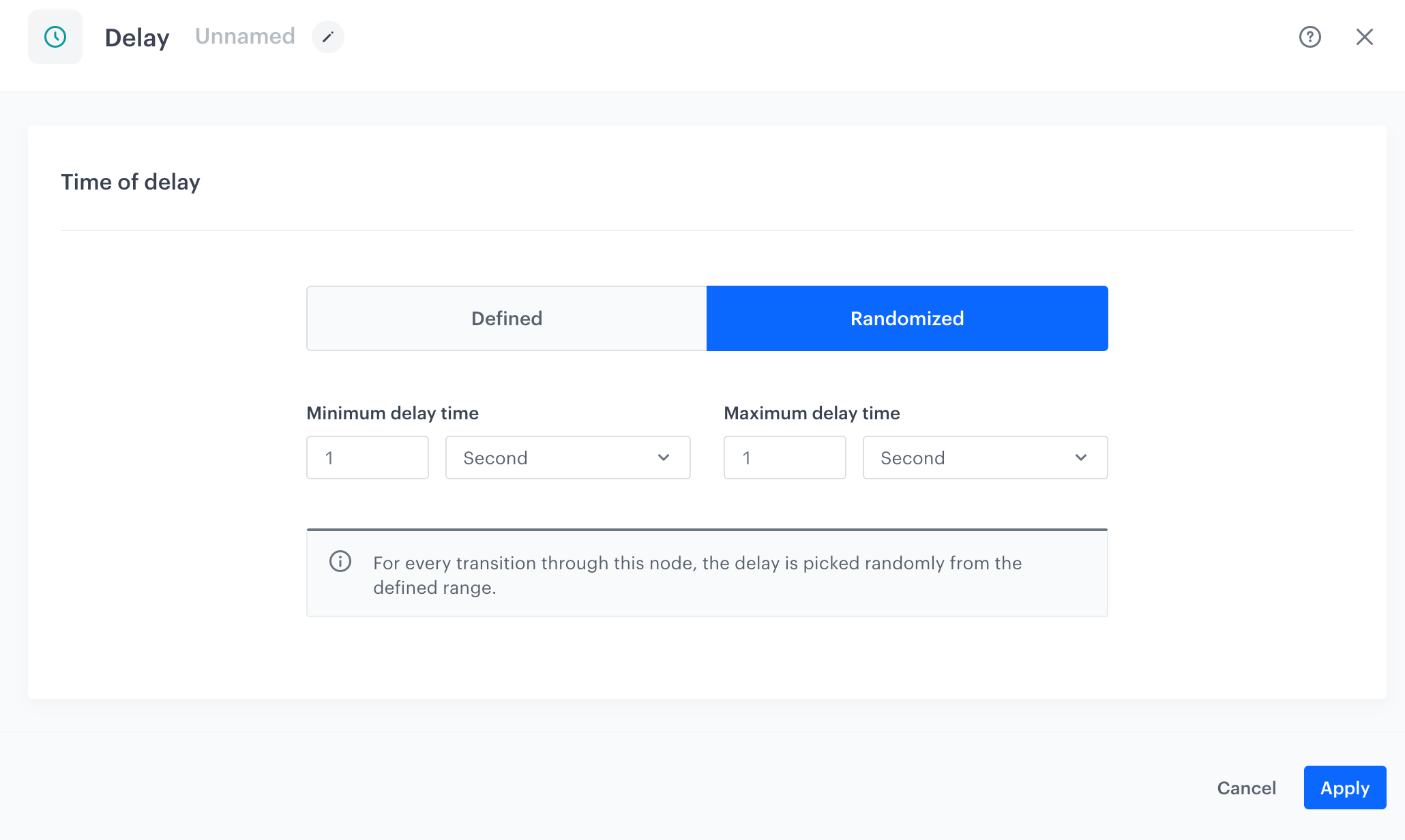
- **Randomized** allows you to choose a range. Every time a profile passes through the node, a delay is randomized from that range. Even if the same profile goes through the workflow several times, a new delay is randomized every time.
## Node configuration
---
1. Click **THEN** on the node after which you want to have the **Delay** node.
**Result**: A dropdown list opens.
2. From the dropdown list, select **Delay**.
3. Click the node.
**Result**: A pop-up opens.
4. Select one of two tabs:
- **Defined** - If you want to set a universal delay period for each passage of every profile in the workflow, select this tab.
- **Randomized** - If you want to randomize the time of delay for each passage of every profile, select this tab. Even if the same profile goes through the workflow several times, a new delay is randomized every time.
5. Perform the steps according to the tab you selected in the previous step:
1. In the **Delay** field, enter the value of delay time.
2. From the **Unit** dropdown list, select the time unit.
1. From the **Minimum delay time** dropdowns, select the lowest value with the time unit for the delay interval.
2. From the **Maximum delay time** dropdowns, select the highest value with the time unit for the delay interval.
The Delay node configuration
6. To confirm the settings, click **Apply**.
## Example of use
---
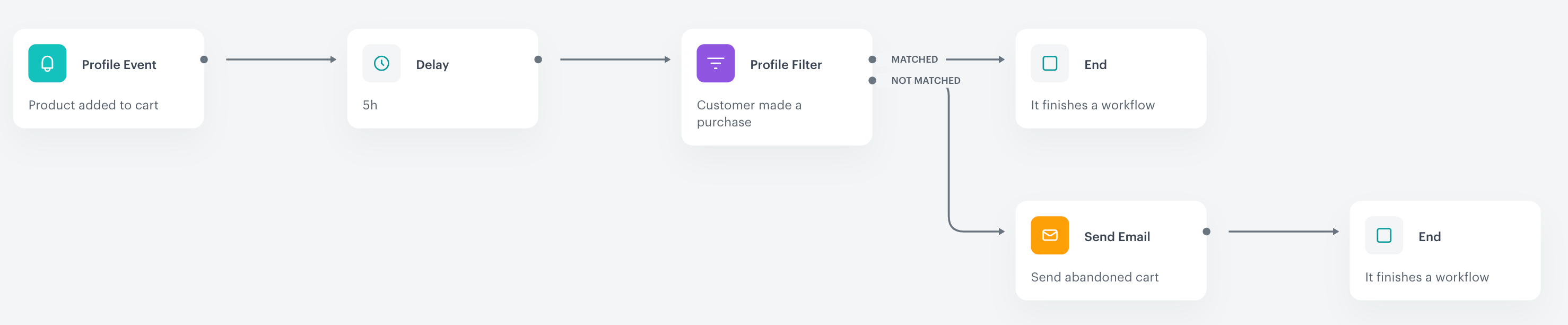
Example of a workflow that uses the Delay node
This workflow sends an email containing products added to the cart as a result of not purchasing them.
1. It starts with the **Profile Event** trigger node. In the settings of the trigger, select the `product.addToCart` event.
2. As the next step of the workflow, add the **Delay** node and set it to 5 hours.
3. Add the **Profile Filter** node and create a segmentation which checks whether the customer made a purchase while being on hold for 5 hours.
4. If a customer didn't make a purchase, the system sends emails with products from the cart. If a customer **did** buy the products, they won't continue the workflow.
5. When the email is sent, the workflow is completed.