The **Optimize Time** node delays the execution of the nodes that follow it until the predicted best date and time for a specific profile in the workflow. The time of executing the nodes after the **Optimize Time** node is calculated for every profile individually based on the activity time of every profile that goes through a workflow (you can read more about [defining scope of data to be analyzed for time optimization here](/docs/settings/configuration/time-optimizer)).  

This way, not only can you personalize the details of actions towards the profiles (such as content of the message) but also you can personalize the time of executing them.

### Node features
---
This node lets you:
- pick the [model](/docs/settings/configuration/time-optimizer#modes) to base the calculation on 
- select the date range during which the AI engine must predict the best time:
   - within next seven days (**Next 7 days**),
   - within a specific number of hours in the next 166 hours (**Custom time period**),
   - until a specific deadline (**Optimize until specific date and time**),
- exclude days and hours from calculating the best time

### Calculating the best time
---
The calculation of the prediction (the optimal time and date to let a profile continue the journey) starts at the moment a profile arrives at the **Optimize Time** node. The system processes about 30 000 predictions per minute. So if one million profiles reach the **Optimize Time** node at once, it may take 30 minutes to calculate the predictions for all of them.  

Once a prediction is calculated, an `snr.ate.prediction` event is generated. It contains the following parameters:  

| Parameter name     | Description                                                                                                                                                                                                             |
|--------------------|-------------------------------------------------------------------------------------------------------------------------------------------------------------------------------------------------------------------------|
| `isFallback`       | This parameter can take two values: `true` or `false`. It describes whether there was enough data to make a prediction. If there was not enough data, this parameter takes `true` value. In such case, the system takes the most used time from the distribution of other profiles.            |
| `nextNhours`       | This parameter is the value used in the **Custom time period** option.                                                                                                              |
| `expireAt`         | This parameter contains the result of the prediction: the best date and time proposed by the algorithm given in UTC. Example value: `2022-12-04T19:39:47.398318+00:00`                                                  |
| `topN`             | This parameter takes numerical values and it informs how many best hour predictions matched the conditions and exclusions. Usually the value is `1`.                                                                                   |
| `mode`             | This parameter returns the name of the [mode](/docs/settings/configuration/time-optimizer#modes) used for calculating the prediction.                                                                                       |
| `timeIndexExclude` | This parameter returns the days and hours that are excluded from the time proposed by the algorithm.                                                                                                                    |
| `predictedHour`    | This parameter returns the predicted hour in the form of an hour of the week (for example, according to the example in the `expireAt` description, the value for the `predictedHour` parameter is 163 - Sunday, 7 P.M. UTC) |


<div class="admonition admonition-important"><div class="admonition-icon"><svg xmlns="http://www.w3.org/2000/svg" fill="none" viewBox="0 0 24 24" stroke="currentColor" stroke-width="2.5"><path stroke-linecap="round" stroke-linejoin="round" d="M12 8v4m0 4h.01M21 12a9 9 0 11-18 0 9 9 0 0118 0z" /></svg></div><div class="admonition-body"><div class="admonition-content">

To the best predicted time proposed by the algorithm, the system adds extra 15-45 minutes to facilitate fluent flow of profiles in the workflow, for example, if the algorithm predicts the best time to be 10 A.M, the real time is between 10.15 and 10:45 A.M.
</div></div></div>


### Exclusion of days and hours
---
This option allows you to avoid continuation of the workflow (as a consequence, performing actions) at the specified day(s) and time, for example, you can exclude [weekends](#optimize-time-excluding-weekends) or [nighttime during the week](#optimize-time-excluding-nighttime).  

If a profile arrives at the **Optimize Time** node at the hour included in the excluded time, in such case, this hour will be ignored as the excluded hour for this profile. 

### Optimize Time and sending messages
---
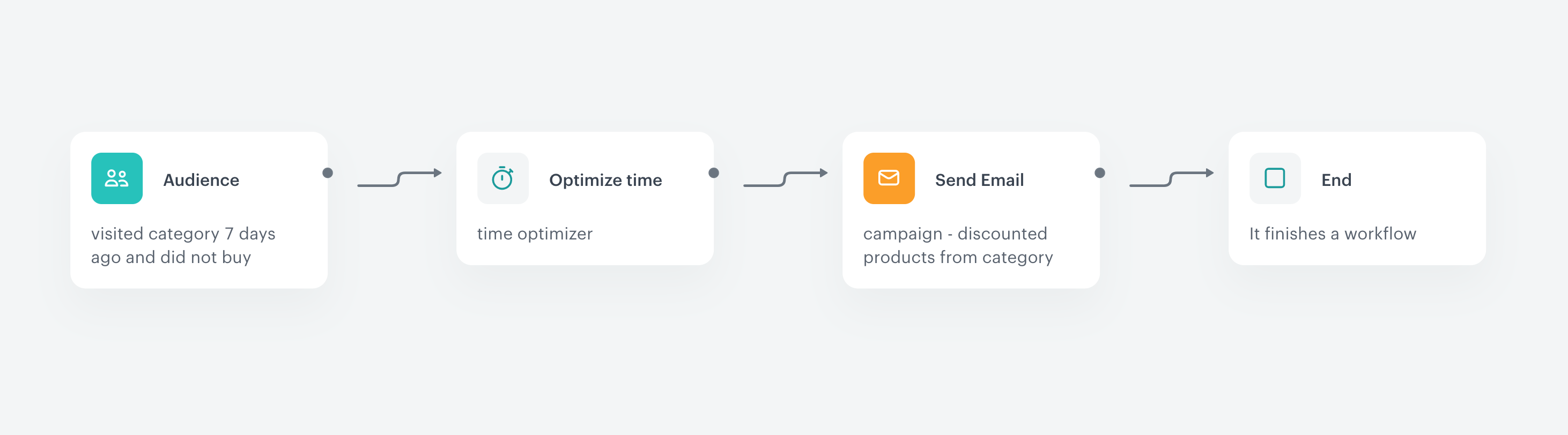
If the **Optimize Time** node is followed by [Send email](/docs/automation/actions/send-email), [Send SMS](/docs/automation/actions/send-sms-node), [Send mobile push](/docs/automation/actions/send-mobile-push), or [Send Web Push](/docs/automation/actions/send-webpush-node), the exact delivery time of the message may be extended. It is affected by:
- the size of the audience
- the external systems involved in sending out the messages

<figure><img src="/api/docs/image/54176ad07f146575310749eba44b7c2f42c1b327/use-cases/all-cases/_gfx/optimizer4.png"" class="large" alt="Example configuration of the workflow with the Optimize Time node followed by the Send Email node"><figcaption>Example configuration of the workflow with the Optimize Time node followed by the Send Email node</figcaption></figure>


## Prerequisites
---
- Make sure that [time optimizer](/docs/settings/configuration/time-optimizer) is enabled.  

  <div class="admonition admonition-note"><div class="admonition-icon"><svg xmlns="http://www.w3.org/2000/svg" fill="none" viewBox="0 0 24 24" stroke="currentColor" stroke-width="2.5"><path stroke-linecap="round" stroke-linejoin="round" d="M13 16h-1v-4h-1m1-4h.01M21 12a9 9 0 11-18 0 9 9 0 0118 0z" /></svg></div><div class="admonition-body"><div class="admonition-content">

  After time optimizer is enabled, it starts being trained. This may take a few hours.

  </div></div></div>
 
- Optionally, you can [create custom modes that match your business needs](/docs/settings/configuration/time-optimizer#creating-modes) or use the default modes.

## Node configuration
---
1. On the node after which you want to add **Optimize Time** node, click **THEN**.   
**Result**: A dropdown list opens.
2. In the list, select the **Optimize Time** node.  
**Result**: A pop-up opens.
3. From the **AI optimization method** dropdown list, select one of the modes which calculate the optimal time for performing an action.   
    
   <div class="admonition admonition-tip"><div class="admonition-icon"><svg xmlns="http://www.w3.org/2000/svg" fill="none" viewBox="0 0 24 24" stroke="currentColor" stroke-width="2.5"><path stroke-linecap="round" stroke-linejoin="round" d="M9.663 17h4.673M12 3v1m6.364 1.636l-.707.707M21 12h-1M4 12H3m3.343-5.657l-.707-.707m2.828 9.9a5 5 0 117.072 0l-.548.547A3.374 3.374 0 0014 18.469V19a2 2 0 11-4 0v-.531c0-.895-.356-1.754-.988-2.386l-.548-.547z" /></svg></div><div class="admonition-body"><div class="admonition-content">

   Learn more about creating time optimizer modes [here](/docs/settings/configuration/time-optimizer#creating-modes).

   </div></div></div>
    
4. If you want to restrict time optimization to a specific date, you can select the following options:  
    - **Next 7 days** - The AI engine selects the best time to perform an action defined in the node following **Optimize Time** in the next 7 days for a single customer, counting from the arrival at the **Optimize Time** node. The calculation time doesn't include the hour a profile arrived at the node.
    - **Custom time period** - The AI engine predicts the best time to perform an action for a single customer in X hours (up to 166 hours). The calculation time doesn't include the hour a profile arrived at the node.  
        
      <div class="admonition admonition-tip"><div class="admonition-icon"><svg xmlns="http://www.w3.org/2000/svg" fill="none" viewBox="0 0 24 24" stroke="currentColor" stroke-width="2.5"><path stroke-linecap="round" stroke-linejoin="round" d="M9.663 17h4.673M12 3v1m6.364 1.636l-.707.707M21 12h-1M4 12H3m3.343-5.657l-.707-.707m2.828 9.9a5 5 0 117.072 0l-.548.547A3.374 3.374 0 0014 18.469V19a2 2 0 11-4 0v-.531c0-.895-.356-1.754-.988-2.386l-.548-.547z" /></svg></div><div class="admonition-body"><div class="admonition-content">

      We recommend 12 hours as the minimum custom time period.

      </div></div></div>

    - **Optimize until specific date and time** - You can select a specific date and time until which the AI engine predicts the best time to perform an action defined after the **Optimize Time** node for a single customer. This option gives you more control in managing your campaigns.  
    When the selected time range expires, the nodes after **Optimize Time** node won't be activated.  
    **Example**: If the date and time expire at 08.08.2022 at 11.00 A.M. and the profile starts the workflow on 08.08.2022 at 11.05 A.M., the profile will be stuck in this node and the profile won't move on in this workflow. The profile will be stuck for 60 days and after that time, the workflow is automatically finished. 
5. If you know you don't want to perform marketing activities at specific days and specific time, switch the **Time range exclusions** toggle on.
    1. Select the day(s) of the week.  
        
       <div class="admonition admonition-important"><div class="admonition-icon"><svg xmlns="http://www.w3.org/2000/svg" fill="none" viewBox="0 0 24 24" stroke="currentColor" stroke-width="2.5"><path stroke-linecap="round" stroke-linejoin="round" d="M12 8v4m0 4h.01M21 12a9 9 0 11-18 0 9 9 0 0118 0z" /></svg></div><div class="admonition-body"><div class="admonition-content">

       If you select only the days, the time for every selected day is set to `00:00-23:59` (in accordance with the time zone selected for a workspace) by default.

       </div></div></div>

    2. Click **Add range**.
    3. If you selected more than one day, from the left dropdown list, define the day for which you want to define the time range exclusion.
    4. From the middle dropdown list, select the starting time of the limit.
    5. From the right dropdown list, select the ending time of the limit. The following table explains how the limit is applied:
    
        | Interface configuration | Resulting time configuration |
        |--------------------------------|----------------------|
        | 8-20                           | 8.00 AM to 8.59 PM   |
        | 0-23                           | 0.00 AM to 23.59 PM  |
        | 13-19                          | 1.00 PM to 7.59 PM   |
    6. If needed, add more time ranges by repeating steps **b-e**.
            
6. To confirm the settings, click **Apply**.  

## Examples of use
---

### Optimize Time in the next 11 hours until the specific date
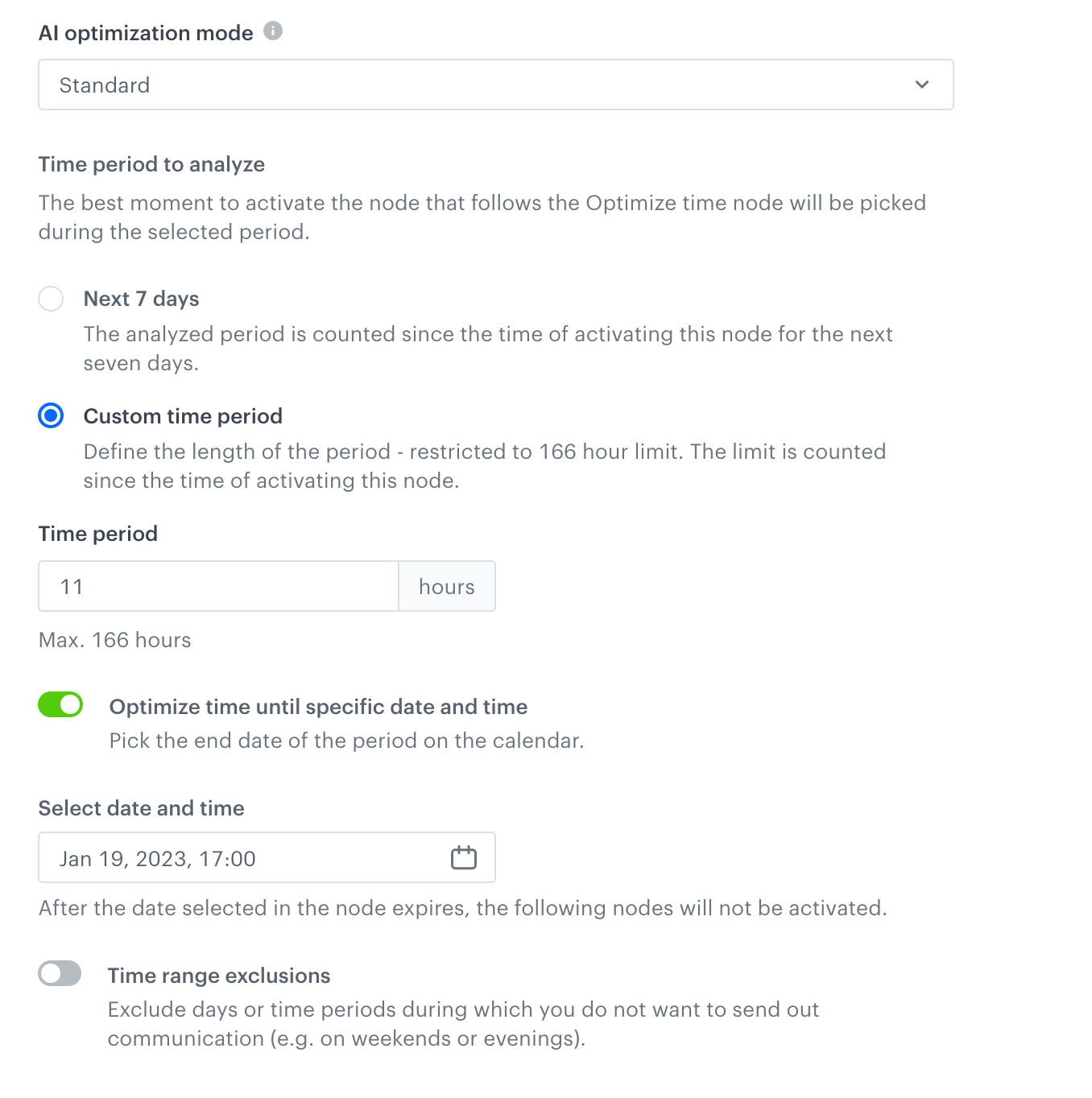
In the configuration below, the node calculates the best time to execute the rest of the nodes in the workflow in the 11 hours since arriving at the **Optimize Time** node.

<figure><img src="/api/docs/image/54176ad07f146575310749eba44b7c2f42c1b327/docs/automation/_gfx/deadline-next-hours.png" class="large" alt="Configuration of the node excluding nighttime"><figcaption>Configuration of the node excluding nighttime</figcaption></figure>

In such configuration, profiles who arrive at the Optimize Time node at 6:58 on the 19th of January, 2023 will continue the workflow at the best time calculated by the algorithm. The last release from the Optimize Time node occurs at 16:45 on the 10th of October.

The rest of the profiles who arrived later than 17:00 on the 19th of January, 2023 will be stuck in the node.

### Optimize Time excluding nighttime

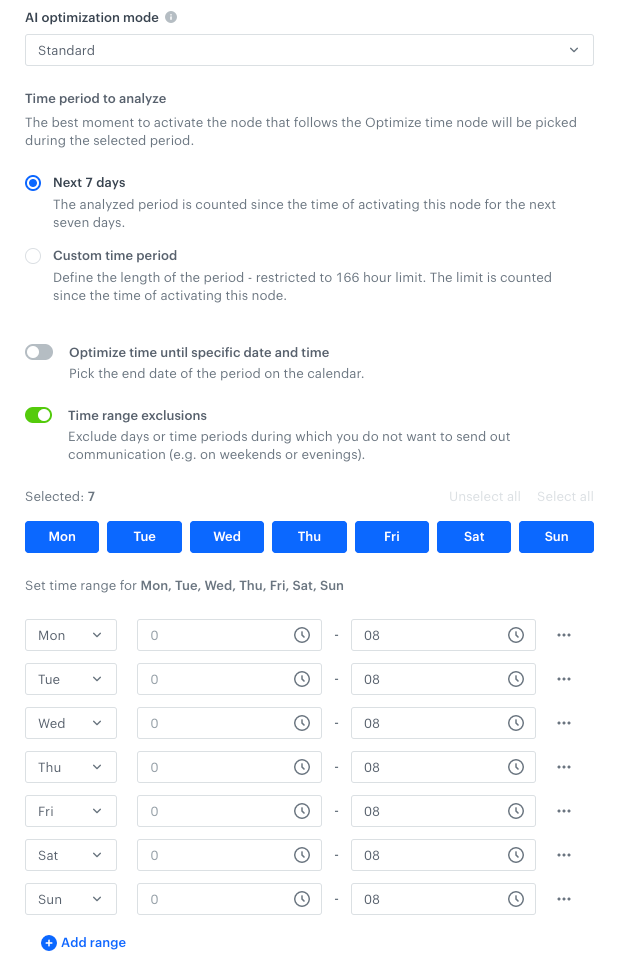
In the configuration below, the node calculates the best time to execute the rest of nodes in the workflow for the next 7 days excluding the nighttime.

<figure><img src="/api/docs/image/54176ad07f146575310749eba44b7c2f42c1b327/docs/automation/_gfx/optimize-time-nighttime.png" class="large" alt="Configuration of the node excluding nighttime"><figcaption>Configuration of the node excluding nighttime</figcaption></figure>

Such node settings will effectively exclude all night hours (00:00 - 09:00) for the next 7 days.

### Optimize Time excluding weekends
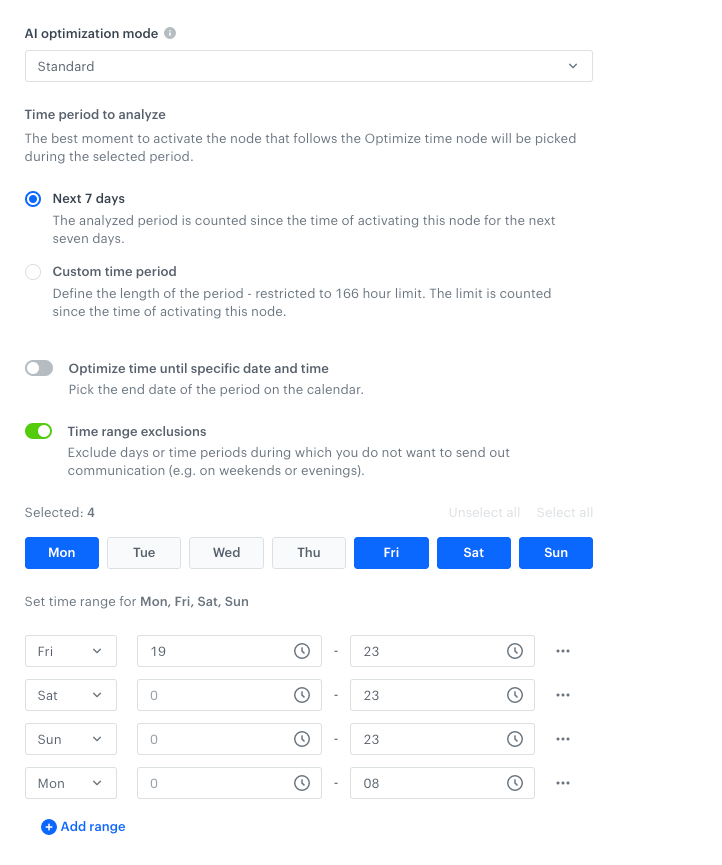
In the configuration below, the node calculates the best time to execute the rest of nodes in the workflow for the next 7 days excluding the weekends.

<figure><img src="/api/docs/image/54176ad07f146575310749eba44b7c2f42c1b327/docs/automation/_gfx/optimize-time-weekend.png" class="large" alt="Configuration of the node excluding weekend"><figcaption>Configuration of the node excluding weekend </figcaption></figure>

Such node settings will effectively exclude hours between Friday at 19:00 and Monday at 09:00.

## Business examples of use
---
Check out the list of [use cases that showcase the Optimize Time node](/use-cases/?ordering=DESC&sortBy=publishDate&filters=tags%3D%3D"time+optimizer")

## FAQ
---

#### What is the recommended optimization time?

The recommended optimization time is 12 hours or more.

#### What are the recommended mode settings?

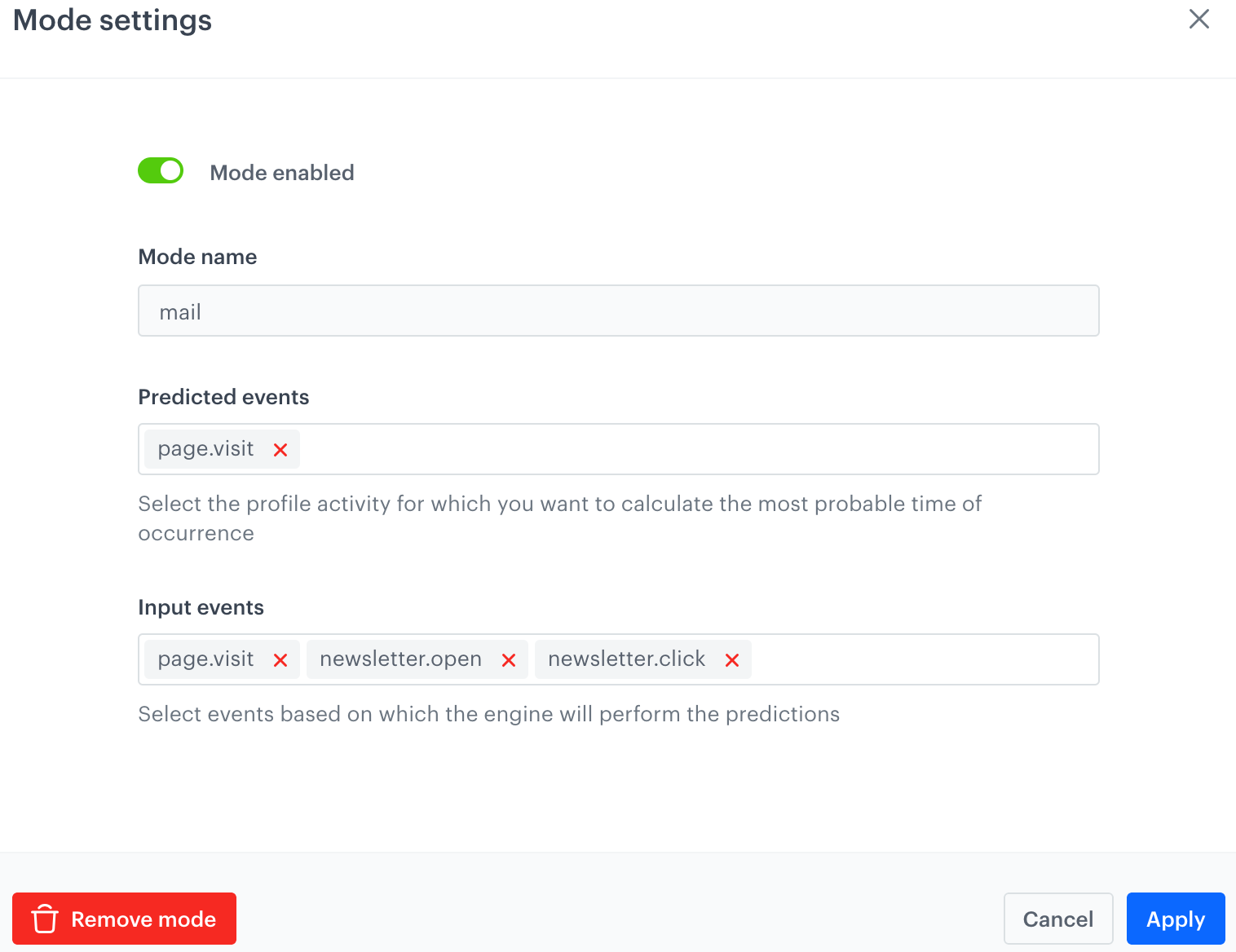
- Email mode:
<figure><img src="/api/docs/image/54176ad07f146575310749eba44b7c2f42c1b327/docs/automation/_gfx/time-optimizer-recommended-mail.png" class="medium" alt="Recommended settings for the email mode"><figcaption>Recommended settings for the email mode</figcaption></figure>

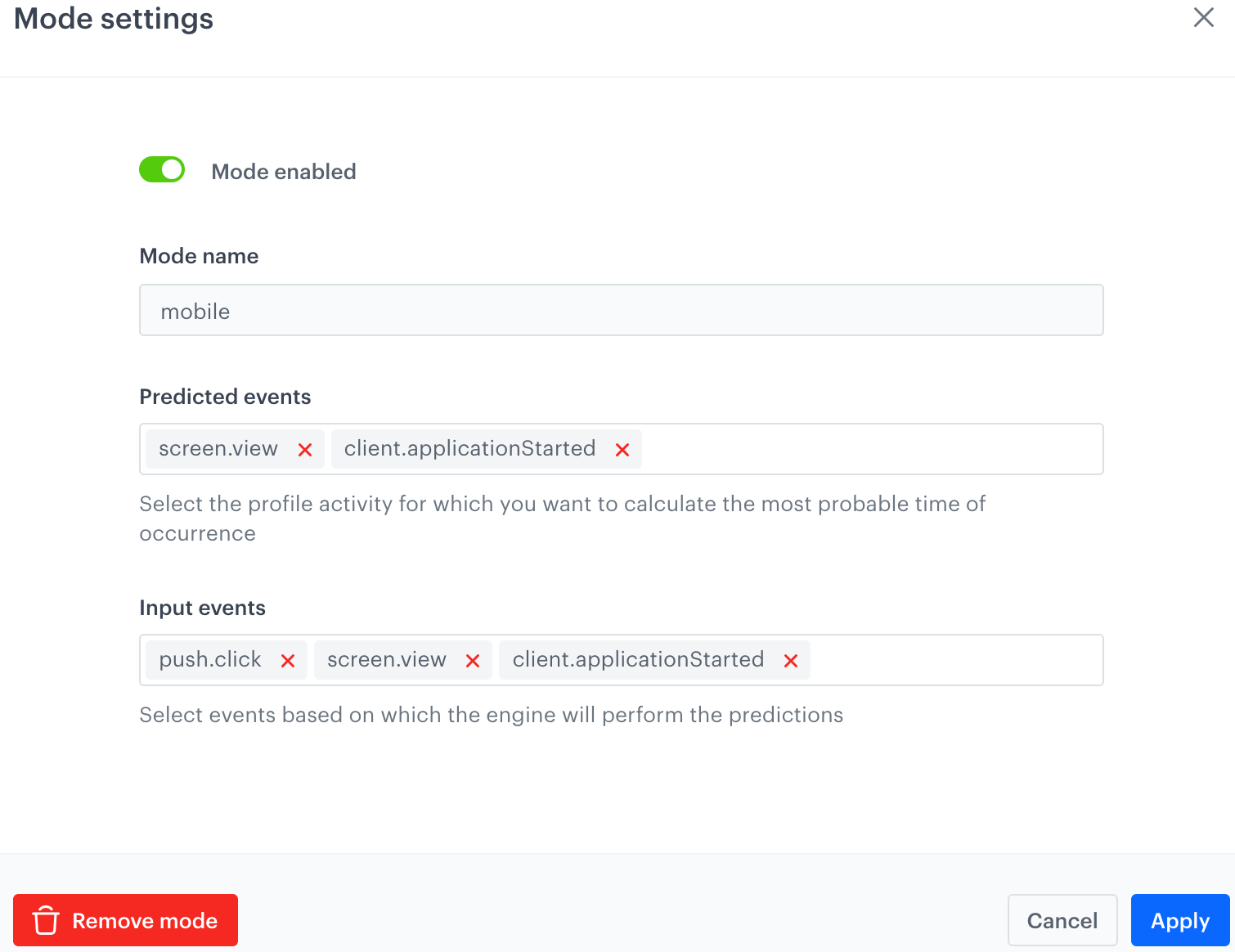
- Mobile push mode:  
<figure><img src="/api/docs/image/54176ad07f146575310749eba44b7c2f42c1b327/docs/automation/_gfx/time-optimizer-recommended-mobilepush.png" class="medium" alt="Recommended settings for the mobile push mode"><figcaption>Recommended settings for the mobile push mode</figcaption></figure> 

#### What are the recommended settings for the time optimizer for sending daily messages?  

1. Start the workflow with the [Audience node](/docs/automation/triggers/audience-node). In the configuration of the node:  
    1. Define the **Run trigger** option to **repeatable**. Define the exact interval of launching the workflow.  
    2. Before the node that sends a message to your customers, add the **Optimize time** node.  
        1. Select the optimization mode in accordance to the channel in which the message will be sent.  
        2. Select the **Custom time period** option. In the **Time period** field, enter `12`. This means the engine will define the best time to send a message in the next 12 hours.
    3. Finish the configuration of the workflow according to your business requirements.

#### What if I select a rare event for time optimizer?

In such cases, we suggest changing the settings of the model to include a combination of frequently occurring (for example, page.visit) and rare events. 

#### Is it possible that the model will not be able to make a prediction before the set date (for the "Optimize until a specific date and time" option)? 

Yes, but only if you set up a node for a very narrow time frame (for 1 or 2 hours in advance) or exclude all hours before the set date for a given customer. In such a case, the profile will be stuck in this node for the next 60 days. 

#### What happens if a profile enters the Optimize Time node after the set date (for the "Optimize until a specific date and time" option)?

In such a case, the profile will be stuck in this node for the next 60 days.

#### What is the last prediction time slot for a profile who entered a node at 10:03 (the Optimize Time node is set for the next 11 hours)?

The first prediction is made in the first full hour after activation (so after 11:00). Predictions are always made for the hh:15-hh:45 period, so the first prediction is made for 11:15-11:45, and the last for 20:15-20:45.

#### What is the last prediction time slot for a profile who entered a node at 10:53 (the Optimize Time node is set for the next 11 hours)?

The first prediction is made in the first full hour after activation (so after 11:00). Predictions are always made for the hh:15-hh:45 period, so the first prediction is made for 11:15-11:45, and the last for 21:15-21:45.