The following instructions will show you how to configure a native integration with Google Ads that lets you remove customers stored in Google Ads customer list.
Depending on the configuration of the **Scheduled Run** trigger, you may create different types of workflows that remove customers from the customer lists:
- **one time** that removes a single set of customers from the Google Ads list on demand,
- **cyclical** that runs periodically.

Taking the above into account, you may remove contacts that belong to the specific [segmentation](/docs/automation/actions/synerise-integrations/get-profiles), a [static file with contacts](/docs/automation/operation/local-file-node) or contact list fetched from [the external service](/docs/automation/integration).

## Prerequisites
---

Access to a Google Ads Account that meets the requirements to access [Customer Match](https://support.google.com/adspolicy/answer/6299717).

## Node configuration
---
1. To create a workflow that lets you remove customers from the customer list in Google Ads, go to Automation Hub > Workflows > New workflow.
2. Select one of the business trigger nodes, for example [Scheduled Run](/docs/automation/triggers/scheduled-run).
3. Click **THEN > Google Ads > Remove From Customer List**. 
2. Familiarize yourself with the required data to be provided, then click **Next**.  
3. Click **Select connection**. From the dropdown list, select the connection.  
   - If no connections are available or you want to create a new one, see [Create a connection](#create-a-connection).
   - If you selected an existing connection, proceed to [defining the integration settings](#define-the-integration-settings).

### Create a connection
To allow the data exchange, establish a connection between Synerise and Google Ads.  

1. At the bottom of the **Select connection** dropdown list, click **Add connection**.  
2. On the pop-up, click **Sign in with Google**.
3. Select a Google Ads Account that meets the requirements to access [Customer Match](https://support.google.com/adspolicy/answer/6299717).
4. Follow the instructions on the interface.
5. After the successful authentication, click **Next**.  
6. In the **Connection name** field, enter the name of the connection.  
    It's used to find the connection on the list.
7. Click **Apply**.  
        **Result**: A connection is created and selected.

### Define the integration settings
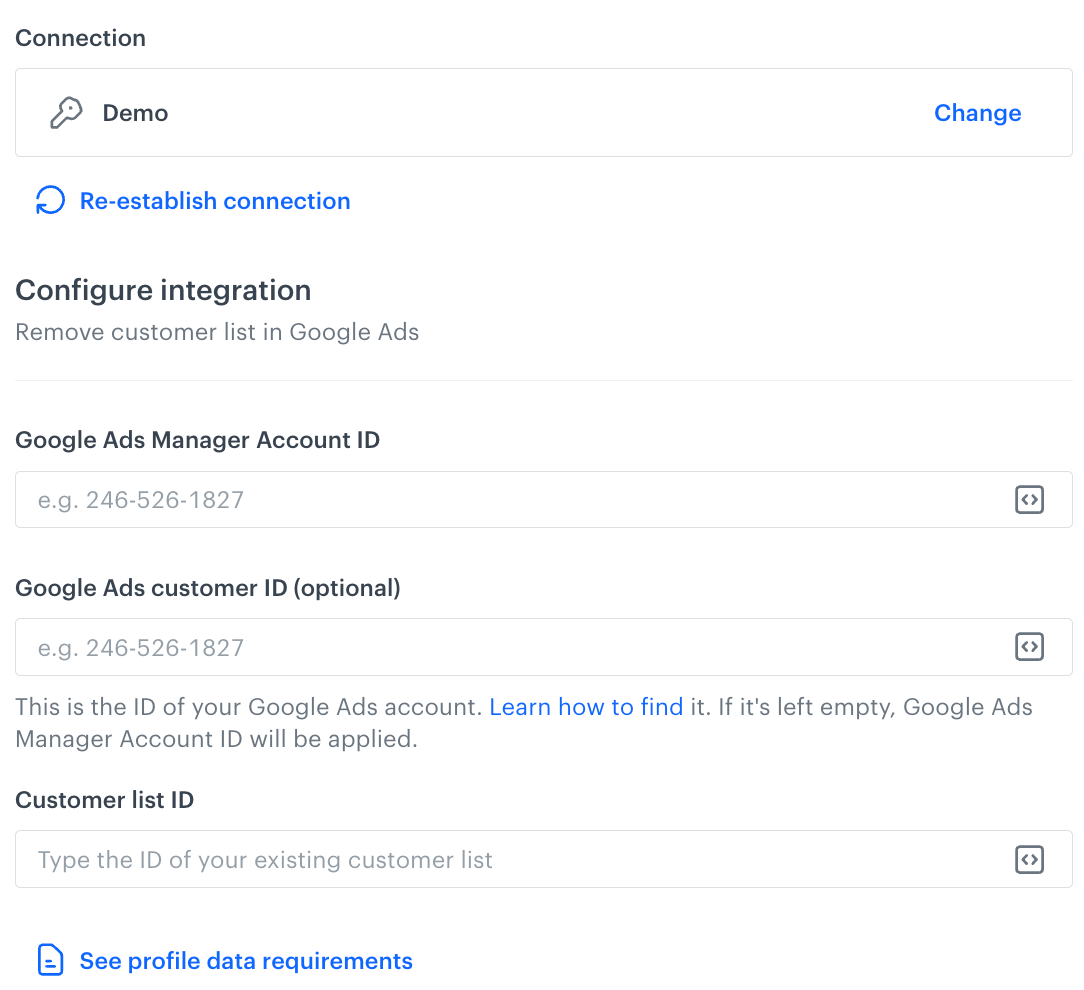
In this step, fill in the form that allows you to remove customers from the Google Ads customer list.  

<figure><img src="/api/docs/image/54176ad07f146575310749eba44b7c2f42c1b327/docs/automation/_gfx/google-ads-remove-customer-list.png" class="medium" alt="A blank configuration form in Remove from Customer List"><figcaption>A blank configuration form in Remove from New Customer List (Google Ads)</figcaption></figure>  


<div class="admonition admonition-note"><div class="admonition-icon"><svg xmlns="http://www.w3.org/2000/svg" fill="none" viewBox="0 0 24 24" stroke="currentColor" stroke-width="2.5"><path stroke-linecap="round" stroke-linejoin="round" d="M13 16h-1v-4h-1m1-4h.01M21 12a9 9 0 11-18 0 9 9 0 0118 0z" /></svg></div><div class="admonition-body"><div class="admonition-content">

Fields marked with the <img src="/api/docs/image/54176ad07f146575310749eba44b7c2f42c1b327/icons/snippet-icon.png" alt="Snippet icon" class="icon" > icon accept [snippets](/docs/assets/snippets) or [inserts](/developers/inserts). But, you can’t use profile-related inserts.

</div></div></div>


1. In the **Google Ads Manager Account ID** field, provide the manager account number.
2. In the **Google Ads customer ID (optional)** field, provide the number of your Google Ads account. If it's left empty, Google Ads Manager Account ID will be applied. Learn how to find a [Google Ads customer ID](https://support.google.com/google-ads/answer/1704344).
3. In the **Customer list ID** field, enter the identifier of the customer list from which would like to remove customers.
4. Confirm by clicking **Apply**.

## Example of use
---
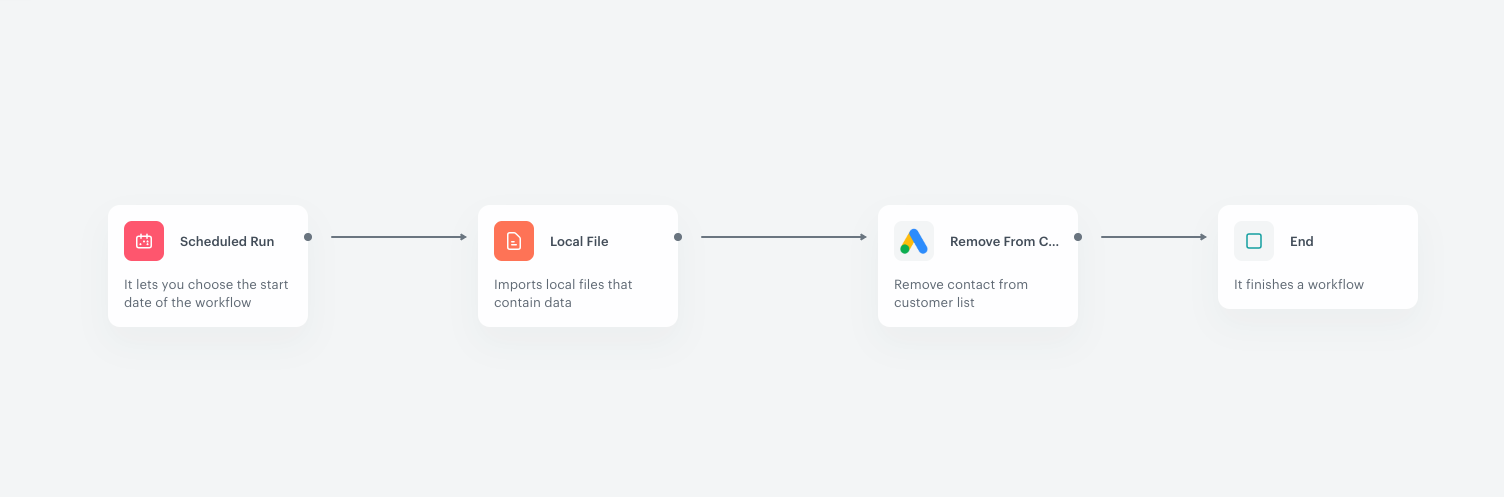
The workflow demonstrates the process of removing customers from Google Ads customer list. Initially, a static file containing the customer list is provided to the workflow. Next, the file is sent to the Google Ads list, from which the listed customers will be deleted.

### Prerequisites
1. [A customer list must exist in your Google Ads account](https://support.google.com/google-ads/answer/6276125?hl=en).
2. Create a file with customers to be removed. The file must meet the following formatting guidelines in order to be accepted.
- the file must be in the CSV format with comma-separated values,
- the file must contain one of the required ID listed below:
    - **Email address matching**: Use `Email` as the column header name in your data file.
    - **Phone matching**: Use `Phone` as the column header name in your data file.
    - **Mobile Device ID matching**: Use `mobileDeviceId` as the only column header in your data file.
    
   <div class="admonition admonition-note"><div class="admonition-icon"><svg xmlns="http://www.w3.org/2000/svg" fill="none" viewBox="0 0 24 24" stroke="currentColor" stroke-width="2.5"><path stroke-linecap="round" stroke-linejoin="round" d="M13 16h-1v-4h-1m1-4h.01M21 12a9 9 0 11-18 0 9 9 0 0118 0z" /></svg></div><div class="admonition-body"><div class="admonition-content">

   Regardless of the method of providing a file (using local file to export contacts or [fetching contacts from the specific segmentation](/docs/automation/actions/synerise-integrations/get-profiles)), you may use [Data Transformation rules](/docs/automation/data-transformation-and-imports/creating-data-transformation) to adjust your file to the required specification, for example by changing column names.

   </div></div></div>


<details class="accordion"><summary>Click here to see an example file</summary><div class="accordion-content"><pre><code class="language-csv">Email,First Name,Last Name,Country,Zip,Phone, test@gmail.com,john,smith,us,94016,1-800-888-8888, test2@gmail.com,joanna,smith,cn,101300,101500 test4@gmail.com,zoë,pérez,sg,WC2H 8LG,1(800)888-8888</code></pre></div></details>

### Process

Create a one-time workflow that sends the file with contacts to the customer list in Google Ads.
1. Start the workflow with the **Scheduled Run** node. In the configuration of the node:
    1. Set the **Run trigger** option to **one time**. 
    2. Select the **Immediately** tab. 
2. As the next node, select **Local File**. In the configuration of the node:
    1. Upload the file.
    2. Confirm by clicking **Apply**.
4. To send the file with customers data, add **Google Ads > Remove From Customer List**. Fill in the configuration form in the node.  
5. Add the **End** node.  
    **Result**:
    <figure><img src="/api/docs/image/54176ad07f146575310749eba44b7c2f42c1b327/docs/automation/_gfx/googleAds-remove-contacts.png" class="full" alt="Final configuration of the workflow"><figcaption>Final configuration of the workflow</figcaption></figure>
