The following instructions will show you how to configure a native integration with Google Ads that lets you add contacts stored in Synerise to Google Ads customer list.
You may create different types of workflows that add contacts to customer lists:
- **one time export** that adds a single set of contacts to the Google Ads list on demand,
- **cyclical export** that runs periodically.

Taking the above into account, you may export contacts that belong to the specific [segmentation](/docs/automation/actions/synerise-integrations/get-profiles), a [static file with contacts](/docs/automation/operation/local-file-node) or contact list fetched fron [the external service](/docs/automation/integration).


## Prerequisites
---

Access to a Google Ads Account that meets the requirements to access [Customer Match](https://support.google.com/adspolicy/answer/6299717).

## Node configuration
---
1. Click **Google Ads > Update Customer List**. 
2. Click **Select connection**.  
3. From the dropdown list, select the connection.  
   - If no connections are available or you want to create a new one, see [Create a connection](#create-a-connection).
   - If you selected an existing connection, proceed to [defining the integration settings](#define-the-integration-settings).

### Create a connection
To allow the data exchange, establish a connection between Synerise and Google Ads.  

1. At the bottom of the **Select connection** dropdown list, click **Add connection**.  
2. On the pop-up, click **Sign in with Google**.
3. Select a Google Ads Account that meets the requirements to access [Customer Match](https://support.google.com/adspolicy/answer/6299717).
4. Follow the instructions on the interface.
5. After the successful authentication, click **Next**.  
6. In the **Connection name** field, enter the name of the connection.  
    It's used to find the connection on the list.
7. Click **Apply**.  
        **Result**: A connection is created and selected.

### Define the integration settings
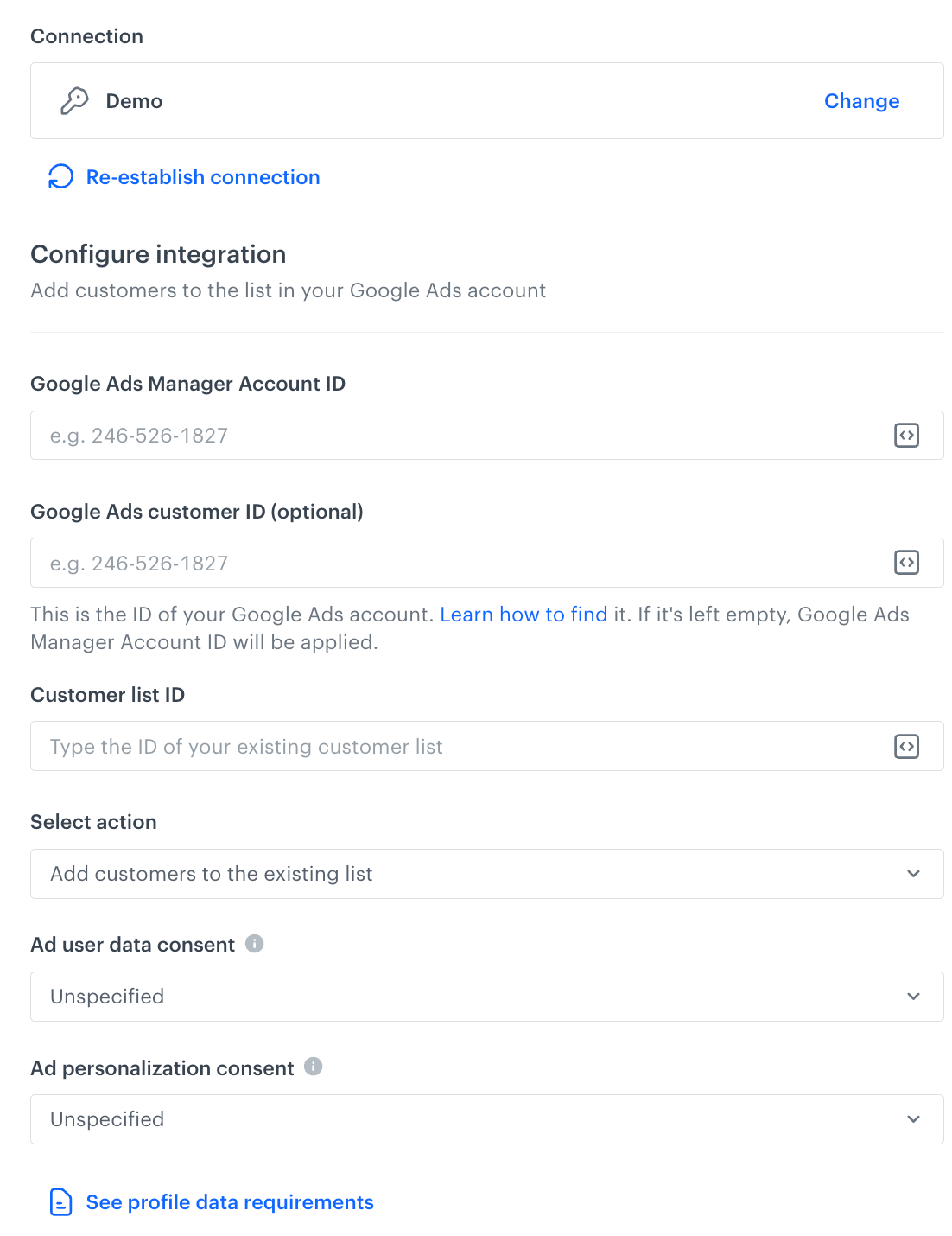
In this step, fill in the form that allows you to send data from Synerise to Google Ads.  

<figure><img src="/api/docs/image/54176ad07f146575310749eba44b7c2f42c1b327/docs/automation/_gfx/google-ads-update-customer-list.png" class="medium" alt="A blank configuration form in Update Customer List"><figcaption>A blank configuration form in Update Customer List (Google Ads)</figcaption></figure>  


<div class="admonition admonition-note"><div class="admonition-icon"><svg xmlns="http://www.w3.org/2000/svg" fill="none" viewBox="0 0 24 24" stroke="currentColor" stroke-width="2.5"><path stroke-linecap="round" stroke-linejoin="round" d="M13 16h-1v-4h-1m1-4h.01M21 12a9 9 0 11-18 0 9 9 0 0118 0z" /></svg></div><div class="admonition-body"><div class="admonition-content">

Fields marked with the <img src="/api/docs/image/54176ad07f146575310749eba44b7c2f42c1b327/icons/snippet-icon.png" alt="Snippet icon" class="icon" > icon accept [snippets](/docs/assets/snippets) or [inserts](/developers/inserts). But, you can’t use profile-related inserts.

</div></div></div>


1. In the **Google Ads Manager Account ID** field, provide the manager account number.
2. In the **Google Ads customer ID (optional)** field, provide the number of your Google Ads account. If it's left empty, Google Ads Manager Account ID will be applied. Learn how to find a [Google Ads customer ID (optional)](https://support.google.com/google-ads/answer/1704344).
3. In the **Customer list ID** field, enter the identifier of the customer list to which would like to add profiles.
4. In the **Select action** dropdown list, select one of available options:
    1. **Add customers to the existing list** - adds new records to the existing records in the list
    2. **Overwrite the existing list** - existing records will be overwritten by new ones, you will lose previous data.
5. From the **Ad user data consent** dropdown list, select the consent status (**Granted**, **Unspecified**, and **Unknown**) of all customers whose data you send to Google Ads. Consent status will be applied to all records you will send.
6. From the **Ad personalization consent** dropdown list, select the consent status (**Granted**, **Unspecified**, and **Unknown**) for ads personalization. Consent status will be applied to all records you will send.
7. Confirm by clicking **Apply**.

## Example of use
---
The exemplary workflow shows the process of sending contacts from a static file to Google Ads list.

### Prerequisites
1. [Create a customer list in your Google Ads account](https://support.google.com/google-ads/answer/6276125?hl=en).
2. Create a file with contacts to be exported. The file must follow specific formatting guidelines in order to be accepted. Incorrect formatting can lead to an upload error or a low number of matched records:
- the file must be in the comma separated CSV format,
- the columns in the file must follow one of the specifications below:
    - **Email address matching**: Use `Email` as the column header name in your data file.
    - **Phone matching**: Use `Phone` as the column header name in your data file.
    - **Postal address matching**: For postal address matching, your data file must contain these 4 column headers: `First Name`, `Last Name`, `Country`, and `Zip`. If any of the required column header names are missing, your upload will fail.
    - **Combined email address, postal address, and phone matching**: Your file must contain these 6 column headers: `Email`, `Phone`, `First Name`, `Last Name`, `Country`, and `Zip`. If you have multiple email addresses, postal addresses, or phone numbers for a single customer, your file may include multiple `Email`, `Zip`, or `Phone` columns. You only have to include data fields that you find relevant to your customers. You may upload one data field, such as email addresses, or multiple data fields, such as postal addresses and phone numbers.
    - **Mobile Device ID matching**: Use `Mobile Device ID` as the only column header in your data file. 
    
   <div class="admonition admonition-note"><div class="admonition-icon"><svg xmlns="http://www.w3.org/2000/svg" fill="none" viewBox="0 0 24 24" stroke="currentColor" stroke-width="2.5"><path stroke-linecap="round" stroke-linejoin="round" d="M13 16h-1v-4h-1m1-4h.01M21 12a9 9 0 11-18 0 9 9 0 0118 0z" /></svg></div><div class="admonition-body"><div class="admonition-content">

   Familiarize with the full specification of preparing a file with contacts [here](https://support.google.com/google-ads/answer/7475964). Regardless of the method of providing a file (using local file to export contacts or [fetching contacts from the specific segmentation](/docs/automation/actions/synerise-integrations/get-profiles)), you may use [Data Transformation rules](/docs/automation/data-transformation-and-imports/creating-data-transformation) to adjust your file to the required specification, for example by changing column names.

   </div></div></div>


<details class="accordion"><summary>Click here to see an example file</summary><div class="accordion-content"><pre><code class="language-csv">Email,First Name,Last Name,Country,Zip,Email,Zip,Phone,Phone test@gmail.com,john,smith,us,94016,,,1-800-888-8888, test2@gmail.com,joanna,smith,cn,101300,test4@gmail.com,101500,, test4@gmail.com,zoë,pérez,sg,WC2H 8LG,test6@gmail.com,,18008888899,1(800)888-8888</code></pre></div></details>


### Process

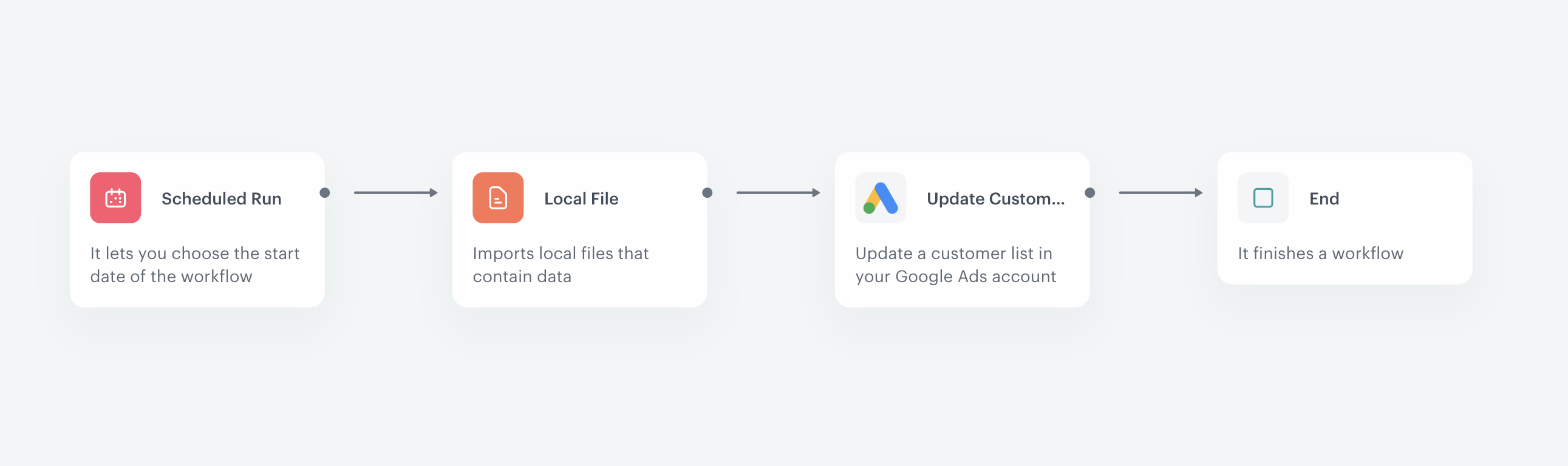
Create a one-time workflow that sends the file with contacts to the customer list in Google Ads.
1. Start the workflow with the **Scheduled Run** node. In the configuration of the node:
    1. Set the **Run trigger** option to **one time**. 
    2. Select the **Immediately** tab. 
2. As the next node, select **Local File**. In the configuration of the node: 
    1. Upload the file.
    2. Confirm by clicking **Apply**.
4. To send the file with customers data, add **Google Ads > Update Customer List**. Fill in the configuration form in the node.  
5. Add the **End** node.  
    **Result**: 
    <figure><img src="/api/docs/image/54176ad07f146575310749eba44b7c2f42c1b327/docs/automation/_gfx/wflow.png" class="full" alt="Final configuration of the workflow"><figcaption>Final configuration of the workflow</figcaption></figure>

Refer to this use case for more detailed information on how to use this node:
- [Send a list of profiles from Synerise to Google Ads](/use-cases/send-customer-segmentation-to-google-ads)