The "Send Event" to Google Analytics (v4) node facilitates sending events from Synerise to Google Analytics.
## Prerequisites
---
- Create an API secret in your Google Analytics panel. To create a new secret, navigate to **Admin > Data Streams > {stream name} > Measurement Protocol > Create**.
- Get the measurement ID associated with a stream in your Google Analytics panel. Navigate to **Admin > Data Streams > {stream name} > Measurement ID**.
- [Enable saving Google Analytics ID in profiles](#getting-the-customer-id-from-google-analytics)
## Node configuration
---
In this part of the process, you can create a workflow that contains the **Send Event** node. This node allows you to send an event to Google Analytics with the data defined in this node. In the settings of the integration, you will use the value of `cid` attribute as a customer identifier.
If you haven't saved Google Analytics IDs in profiles, see [Getting the customer ID from Google Analytics](#getting-the-customer-id-from-google-analytics)
1. Click the node.
2. Click **Select connection**.
3. From the dropdown list, select the connection.
If you haven't established a connection yet, see [Create a connection](#create-a-connection).
### Create a connection
To allow the data exchange, establish the connection between Synerise and Google Analytics.
1. At the bottom of the **Select connection** dropdown list, click **Add connection**.
2. In the **Measurement ID** field, enter the ID you retrieved as a part of [prerequisites](#prerequisites).
3. In the **API secret** field, enter the API secret you created as a part of [prerequisites](#prerequisites).
3. Click **Next**.
4. In the **Connection name** field, enter the name for the access token you generated.
5. Click **Apply**.
**Result**: A connection is created and selected.
### Define the integration settings
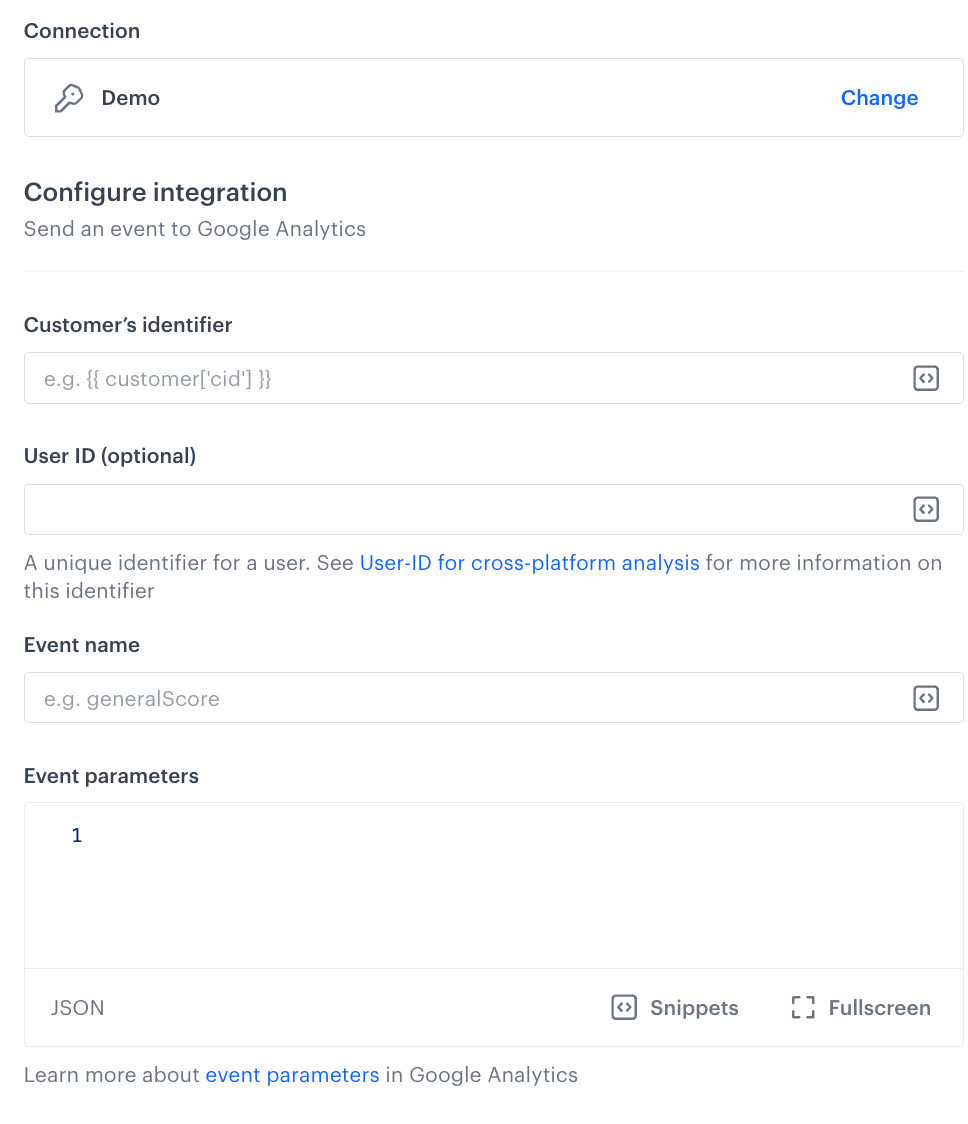
In this step, fill in the form that allows you to send an event from Synerise to Google Analytics.
A blank configuration form in Send an Event (Google Analytics)
Fields marked with the icon accept [snippets](/docs/assets/snippets) or [inserts](/developers/inserts). This integration allows usage of profile-related inserts.
1. In the **Customer's identifier** field, enter `{{ customer['cid'] }}`. This way, you will retrieve the value of the `cid` attribute.
2. Optionally, in **User ID** field, provide the ID of the user.
2. In the **Event name** field, enter the name of the event you want to send to Google Analytics.
- You don't have to use an existing event.
- We recommend using the event nomenclature consistent with the Synerise events (such as `page.visit`, `message.send`, and so on).
- The event you send within this node won't be added to the list of events in Synerise.
3. In the **Event parameters** field, enter parameters of the event in the form of the JSON object.
Refer to the [Google Analytics documentation](https://developers.google.com/analytics/devguides/collection/protocol/ga4/sending-events?client_type=gtag) for the event requirements.
4. Confirm the settings by clicking **Apply**.
**Result**: When the Send Event node is executed, a `googleAnalytics.sendEvent` event is generated on the activity list of the profile who is the actor in the workflow.
### Test integration
---
You can run a test request. If the request body contains a dynamic reference to a profile attribute and/or an event data from preceding nodes, then you can define the context using [test profile data](/docs/settings/configuration/test-profiles).
Complete description of the feature is available in [Testing outgoing integrations](/docs/automation/test-requests-for-outgoing-integrations).
1. In the **Test integration** section, click **Send test request**.
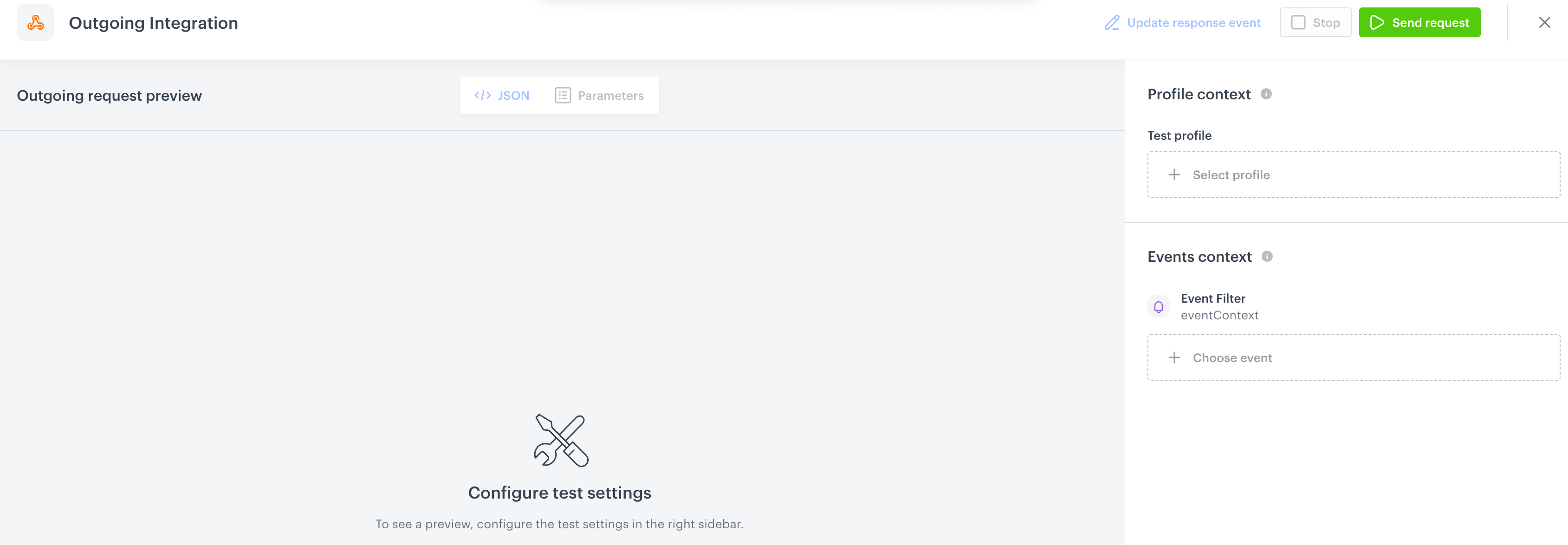
**Result**: A test request builder opens. If:
- a request body contains dynamic references, the request preview appears after you select the context of test profiles and events.
- a request body contains static data, the preview of the body request appears immediately.
An empty test request builder
2. If your request contains dynamic references (otherwise, the options aren't available):
- From the **Test profile** dropdown, select a test profile in the context of whom the test request will be performed.
- From the **Event context** dropdown list, you can select a particular occurrence of an event whose values/information will be used for the test request.
1. Select a test profile.
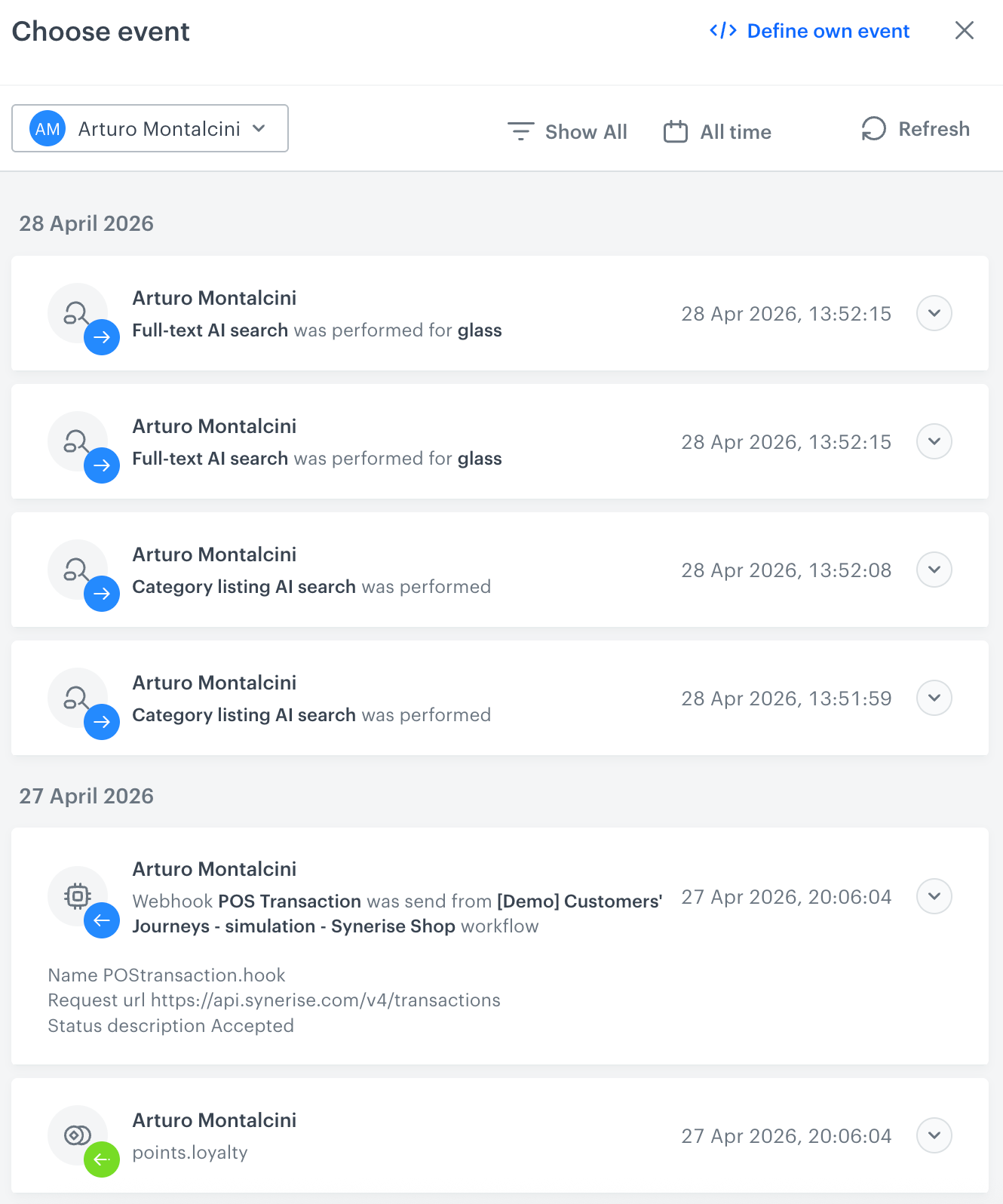
**Result**: A history of test profile events appears.
A stream of events of a test profile
2. From the list of events, select one whose data you want use as a context. If there is no event you can use, in the upper-right corner of the pop-up, click **Define own event** and provide the body of the event.
3. Confirm by clicking **Apply**.
3. Verify the request body. If there is something you want to change, come back to the node settings from previous steps.
3. If the request body is ready to test, in the upper-right corner, click **Send request**.
**Result**: The response section appears and the **Update response event** button becomes active.
4. Optionally, you can update response event with new parameters by clicking **Update response event** in the upper-right corner.
## Getting the customer ID from Google Analytics
---
To send events from Synerise to Google Analytics, you must use the customer identifier generated by Google Analytics. It is stored on the website in the `_ga` cookie. You need to retrieve this ID from the cookie and save it as a custom attribute (`cid`) of a Synerise profile.
You can do this by using [dynamic content](/docs/campaign/dynamiccontent/creating-dynamic-content) as a tag manager. You don't have to prepare a template, you can use the predefined template that already contains the Javascript code that sets the cookie value as the value of the `cid` attribute in Synerise. The instruction below describes how to use this template.
1. In Synerise, go to **Experience Hub > Dynamic content > Create new**.
2. As the dynamic content type, select **Insert object**.
3. In the **Audience** section, leave the settings at default (**Everyone**).
4. Confirm by clicking **Apply**.
5. In the **Content** section:
1. Leave the content type at **Simple message**.
2. Set the **CSS selector** to **Before (in div)**.
3. In the text field, enter `.snrs-modal-wrapper`
4. Click **Create message**.
5. Select the folder with predefined script templates.
6. Select the **Map Google Analytics ID to...**.
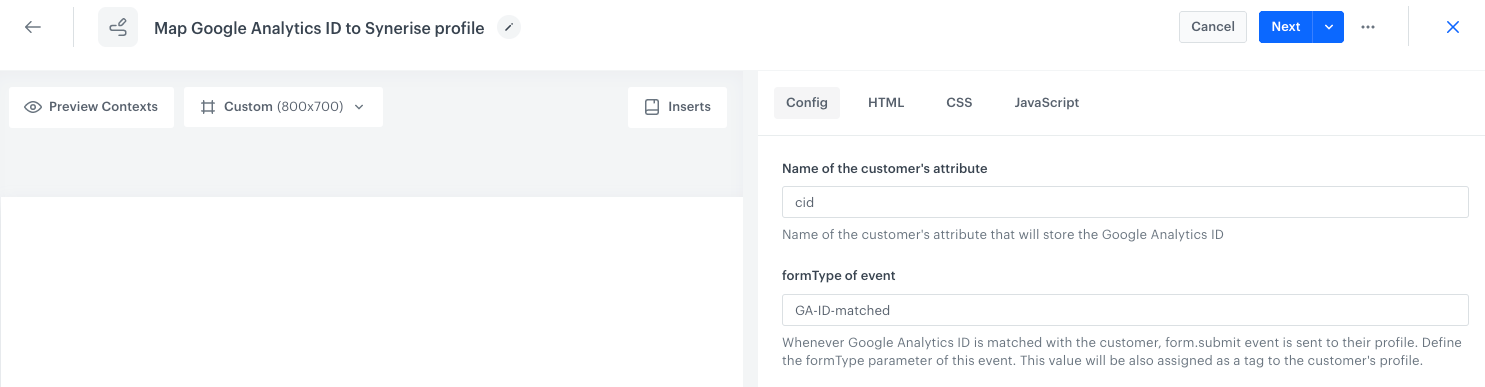
7. In the **Config** tab, leave the values in the form at default.
When the Google Analytics ID is matched with the customer, the `form.submit` event will be sent with the `formType` parameter set to the value defined in the **formType of event** field (`GA-ID-matched`).
The form in the predefined template
7. Click **Next**.
**Result**: You leave the dynamic content builder and go back to the dynamic content settings.
7. Confirm by clicking **Apply**.
6. In the **Schedule** section:
1. Select **Display immediately**.
3. Expand **Advanced options**.
4. Select **Display every hour every day**.
5. Confirm by clicking **Apply**.
7. In the **Display settings** section:
1. Leave **Triggers** at default (**On landing**).
2. Leave **Pages** at default (**All pages**).
3. Set **Frequency** to **Once per visit**.
4. Leave **Stop display** at default (**Never**).
5. In **Devices**, select **desktop** and **mobile**.
6. Leave **View count capacity** empty.
7. Confirm by clicking **Apply**.
8. In the **UTM & URL parameters** section, click **Skip this step**.
9. In the top right corner, click **Activate**.
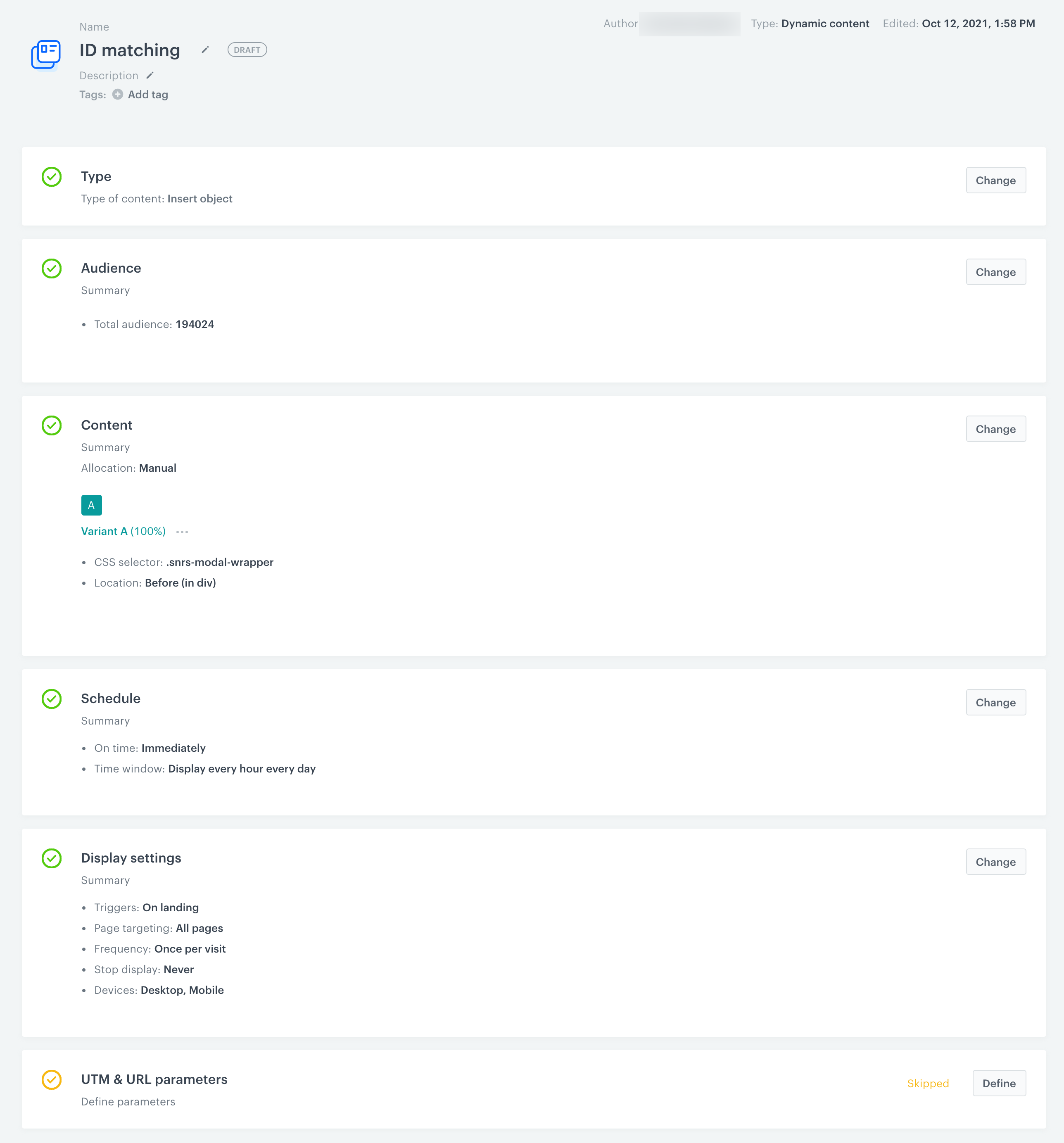
**Results**: A tag is initialized on all pages for all users (both recognized and unrecognized). It retrieves the current value of the `_ga` cookie and sets its identifier value as the `cid` attribute.
The dynamic content configuration of the matching pixel
## Example of use
---
For example of use, refer to the [use case that describes sending the score of RFM analysis to Google Analytics](/use-cases/google-analytics-integration).
 icon accept [snippets](/docs/assets/snippets) or [inserts](/developers/inserts). This integration allows usage of profile-related inserts.