The integration allows you to download files embedded on Google Cloud Storage to Synerise. You can use this connection in various scenarios such as importing transactions, event data, customer information (such as marketing agreements).
## Prerequisites
---
- You must have a Google Cloud account.
- Create a project in Google Cloud.
- Maximum file size: 5 GB (5 000 000 000 bytes).
### Node configuration
---
1. Click **Google Cloud Storage > Get File**.
2. Click **Select connection**.
3. From the dropdown list, select the connection.
- If no connections are available or you want to create a new one, see [Create a connection](#create-a-connection).
- If you selected an existing connection, proceed to [defining the integration settings](#define-the-integration-settings).
### Create a connection
To allow the data exchange, establish a connection between Synerise and Google Cloud Storage.
1. At the bottom of the **Select connection** dropdown list, click **Add connection**.
2. On the pop-up, click **Sign in with Google**.
3. Select a Google account which has write access to the dataset that contains your destination table.
[Learn about required permissions](https://cloud.google.com/bigquery/docs/streaming-data-into-bigquery#required_permissions).
4. Follow the instructions on the interface.
5. After authentication, click **Next**.
6. In the **Connection name** field, enter the name of the connection.
It's used to find the connection on the list.
7. Click **Apply**.
**Result**: A connection is created and selected.
### Define the integration settings
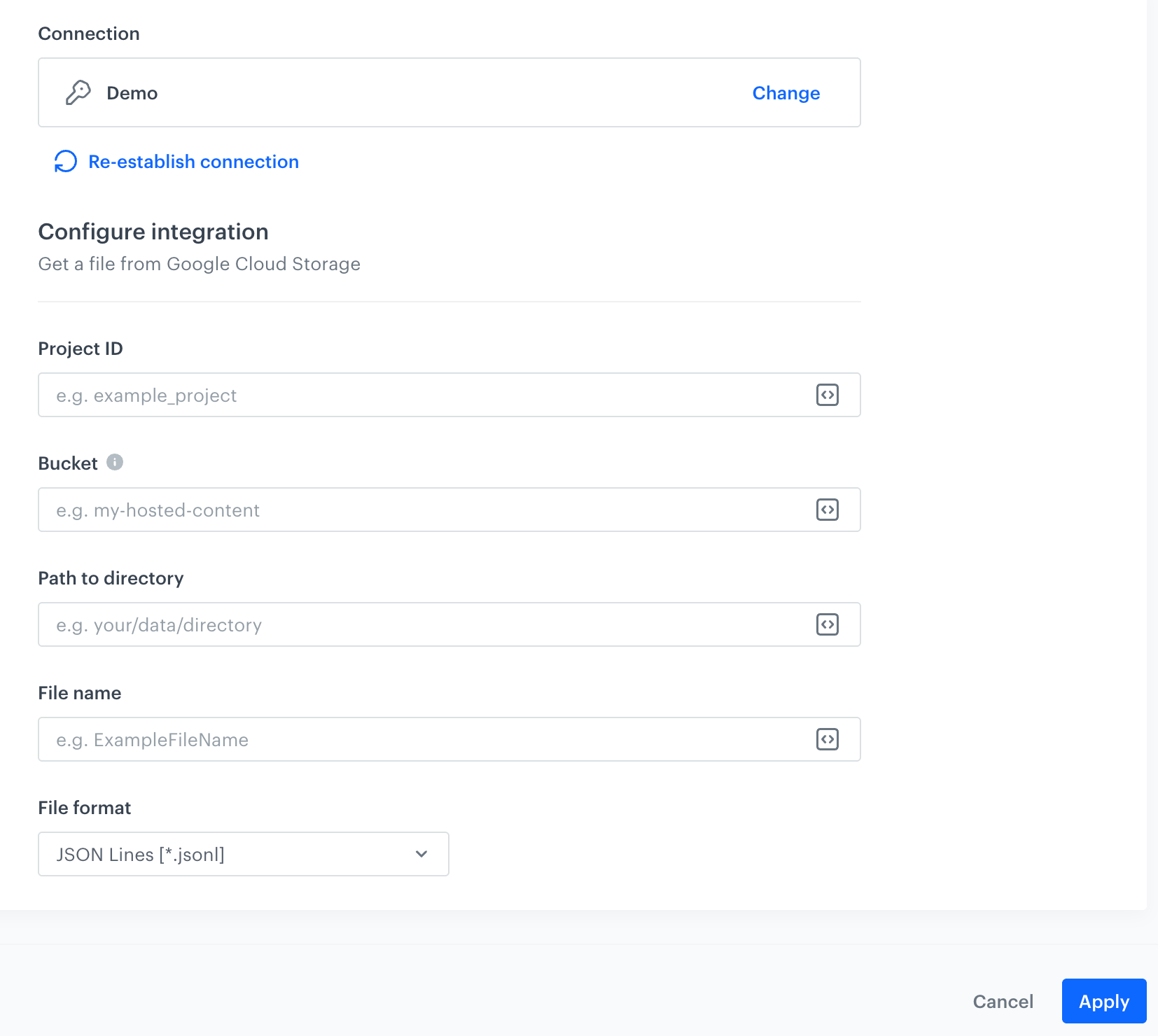
In this step, fill in the form that allows you to get a file with data from the storage.
A blank configuration form in Get File node (Google Cloud Storage)
Fields marked with the icon accept [snippets](/docs/assets/snippets) or [inserts](/developers/inserts). But, you can’t use profile-related inserts.
1. In the **Project ID** field, enter the unique identifier of your project in Google Cloud.
You can learn how to find the project ID [here](https://support.google.com/googleapi/answer/7014113).
2. In the **Bucket** field, enter the name of the existing bucket (container) from which the file will be downloaded.
3. In the **Path to directory** field, enter the path to the existing bucket from which the file will be downloaded.
4. In the **File name** field, enter the name of the file you want to get from the storage. You can use Jinjava to build dynamic file name configuration.
5. From the **File format** dropdown list, select the format in which the file will be delivered.
If you select the **CSV [*.csv]** option, follow the instructions below:
1. From the **Delimiter** dropdown, select the character that splits the column.
2. From the **Quotation mark** dropdown list, select the characters that contain the text.
3. From the **Escape character** dropdown lists, select the character that changes the default interpretation of a character or a string followed by the escape character.
6. Confirm by clicking **Apply**.
## Example of use
---
As an example of use, you can create a workflow that is triggered one time in order to import the customer database (email addresses and newsletter agreements) to Synerise.
In the configuration of the workflow:
1. Start the workflow with the **Scheduled Run** node. In the configuration of the node, set the **Run trigger** to **one time**. Select the **Immediately** tab.
2. To feed the workflow with data, as the next node, select **Google Cloud Storage > Get File**. Fill in the configuration form in the node.
4. To import data to Synerise, select **Synerise > Import Profiles**. Make sure the data in the retrieved file meet the requirements defined in the Import profile node. If you need to adjust your data, you can use [Data Transformation node](/docs/automation/operation/data-transformation-node) to transform values in your file.
5. Add the **End** node.
**Result**:
Final configuration of the workflow
 icon accept [snippets](/docs/assets/snippets) or [inserts](/developers/inserts). But, you can’t use profile-related inserts.
