You can use the **Get File** node to transfer the files from your server to the workflow using HTTP protocol.

- Maximum file size: 5 GB (5 000 000 000 bytes).

## Node configuration
---
### Set up a connection

In this part of the process, you must define how you will get access to your source. By selecting the authentication method and providing required information, you establish a connection.

1. Select **HTTPS > Get File**.
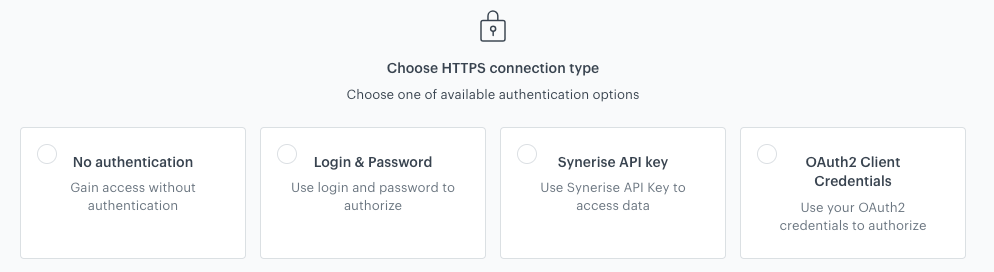
    <figure><img src="/api/docs/image/54176ad07f146575310749eba44b7c2f42c1b327/docs/automation/_gfx/https-connection-type.png" class="large" alt="Selecting the authentication method"><figcaption>Selecting the authentication method</figcaption></figure>  
1. Select the authentication method:
    - **No authentication** - No authentication is required.
    - **Login & Password** - This method lets you use basic authentication to authenticate with the remote server.  
    
      <details class="accordion"><summary>Click here to see the instructions</summary><div class="accordion-content"><ol> <li>Click <strong>Select connection</strong>.</li> <li>If the connection you want to use is in the list, select it and proceed to <a href="#fill-out-the-configuration-form">Filling out the configuration form</a>.<ul> <li>If the connection list is empty or you don&#39;t see a connection, you must:<ol> <li>At the bottom of the dropdown list, click <strong>Add connection</strong>. </li> <li>In the <strong>Connection name</strong> field, enter the name of your connection (it&#39;s visible only on the <strong>Select connection</strong> dropdown list).</li> <li>In the <strong>Login</strong> field, enter a login.</li> <li>In the <strong>Password</strong> field, enter the password.</li> <li>Click <strong>Create</strong>.<br> The connection you created can be used later in other nodes and workflows.</li> </ol> </li> </ul> </li> </ol></div></details>

    - **Custom connection** - This method sends an authentication token request before executing the main request defined in the Outgoing integration node settings. The token is fetched when the request data is uncached, then cached according to its TTL, and added to the target request.  

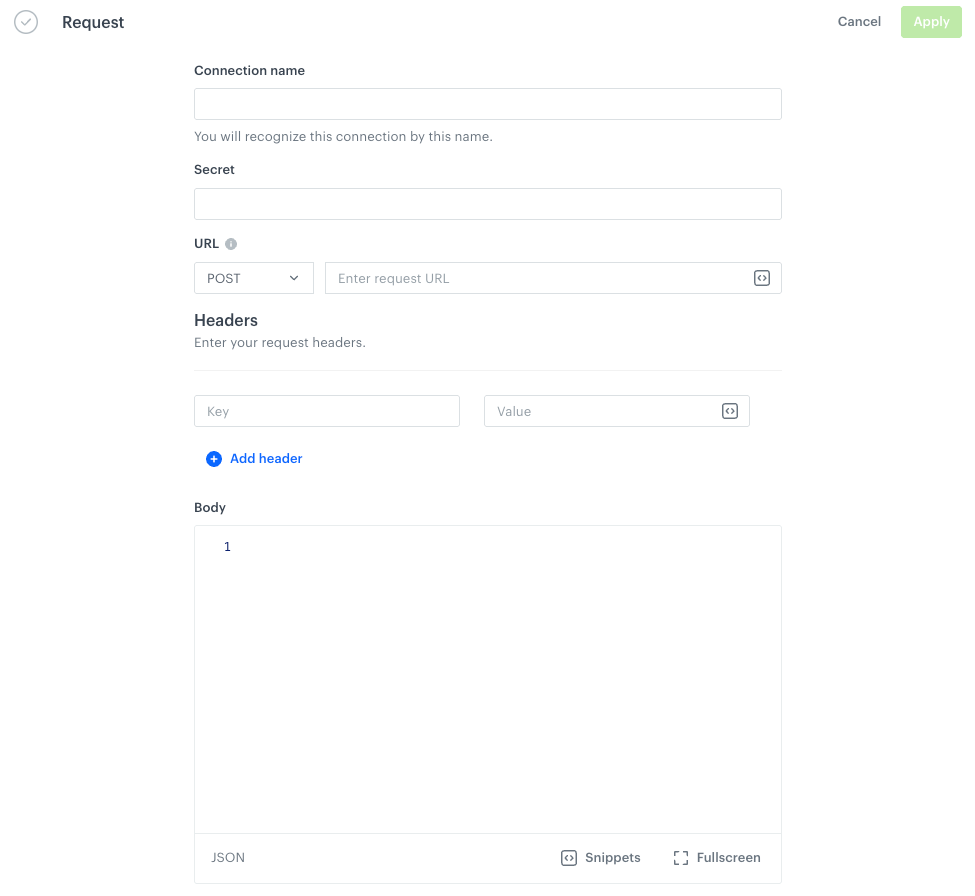
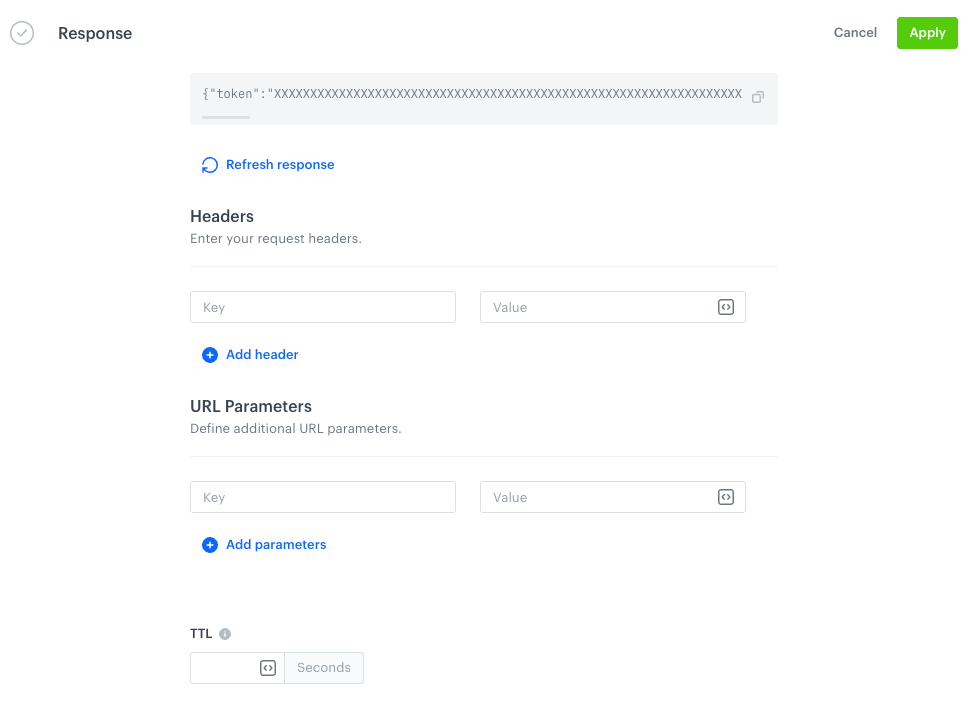
      <details class="accordion"><summary>Click here to see the instructions</summary><div class="accordion-content"><ol> <li>Click <strong>Select connection</strong>.</li> <li>In the connection list:<ul> <li>If the connection you want to use is in the list, select it and proceed to Defining the request section in this article.</li> <li>If the connection list is empty or you don&#39;t see a connection, you must:<ol> <li><p>At the bottom of the dropdown list, click <strong>Add connection</strong>. </p> </li> <li><p>In the <strong>Authorization request</strong> tab, click <strong>Define</strong>.<br> <strong>Result</strong>: </p> <figure><img src="/api/docs/image/54176ad07f146575310749eba44b7c2f42c1b327/docs/automation/_gfx/custom-connection-request-empty.png" class="large" alt="The Request section in the configuration of a custom connection"><figcaption>The Request section in the configuration of a custom connection</figcaption></figure></li> <li><p>In the <strong>Connection name</strong> field, enter the name of your connection (it&#39;s visible only on the <strong>Select connection</strong> dropdown list or on the list of connections in <strong>Settings &gt; Connections</strong>).</p> </li> <li><p>In <strong>Secret</strong>, enter a value which is required in the request to obtain a token. This value will be anonymized and displayed as asterisks. </p> </li> <li><p>In the <strong>Headers</strong> section, add request headers (in the left field, enter the key; in the right, enter its value).</p> </li> <li><p>In the <strong>Body</strong> field, enter the request body.<br> For example: </p> <pre><code class="language-json">{ "api-key": "{{secret}}" }</code></pre> <p> where <code>{{secret}}</code> retrieves the value of the <strong>Secret</strong> field to anonymize the token. </p> </li> <li><p>Confirm the settings in the <strong>Authorization request</strong> tab by clicking <strong>Apply</strong>. </p> </li> <li><p>In the <strong>Token placement settings</strong> section, click <strong>Define</strong>. </p> </li> <li><p>Click <strong>Retrieve response</strong>.<br> <strong>Result</strong>: </p> <figure><img src="/api/docs/image/54176ad07f146575310749eba44b7c2f42c1b327/docs/automation/_gfx/custom-connection-response.png" class="large" alt="Retrieved token in the Response section in the custom connection configuration form"><figcaption>Retrieved token in the Response section in the custom connection configuration form</figcaption></figure></li> <li><p>If you:</p> </li> </ol> <ul> <li><p>specify the value in the <strong>Headers</strong> section, the extracted authorization data from the response will be added as a header to the target request. </p> </li> <li><p>provide the value in the <strong>URL Parameters</strong> section, the data will be appended to the target request’s URL as a parameter.<br> You can use the following values to retrieve values from the response: </p> <ul> <li><p><code>authResponseBody</code> - a variable that contains the full body of an authentication response</p> </li> <li><p><code>authResponseStatusCode</code> - a variable that contains the status code of an authentication response</p> </li> <li><p><code>authResponseHeaders</code>- a variable that contains the headers of an authentication response<br> For example: </p> <pre><code class="language-jinjava">Bearer {{ authResponseBody | fromjson | attr("token") }}</code></pre></li> </ul> <p> It takes the <code>JSON</code> response body stored in <code>authResponseBody</code>, parses it into a usable structure, and extracts the value of the <code>token</code> field. Outputs a string like: <code>Bearer &quot;eyJhbGciOiJIUzI1NiIsInR5cCI6IkpXVCJ9...&quot;</code></p> </li> </ul> <ol start="10"> <li>In <strong>TTL</strong> field, specify the how long the cached response from the external request will be valid.<br>If you leave this field empty, it&#39;s 60 seconds.</li> <li>Confirm by clicking <strong>Apply</strong>.</li> </ol> </li> </ul> </li> </ol></div></details>

    - **Synerise API key** - This method is particularly recommended for the users who use Synerise REST API. It lets you select a connection that includes an [API key](/docs/settings/tool/api) with the required permissions. This way, the requests to Synerise API are executed by this integration and a JWT is not required as it is generated while sending requests and attached to the request headers.
    
      <details class="accordion"><summary>Click here to see the instructions</summary><div class="accordion-content"><ol> <li>Click <strong>Select connection</strong>.</li> <li>If the connection you want to use is in the list, select it and proceed to <a href="#fill-out-the-configuration-form">Filling out the configuration form</a>.<ul> <li>If the connection list is empty or you don&#39;t see a connection, you must:<ol> <li>At the bottom of the dropdown list, click <strong>Add connection</strong>. </li> <li>In the <strong>Connection name</strong> field, enter the name of your connection (it&#39;s visible only on the <strong>Select connection</strong> dropdown list).</li> <li>From the <strong>API key</strong> dropdown, select the API key.</li> <li>Click <strong>Create</strong>.<br> The connection you created can be used later in other nodes and workflows.</li> </ol> </li> </ul> </li> </ol></div></details>
  

    - **OAuth2 Client Credentials** - This method lets you use your OAuth2 credentials to authorize.
    
      <details class="accordion"><summary>Click here to see the instructions</summary><div class="accordion-content"><ol> <li>Click <strong>Select connection</strong>.</li> <li>In the connection list:<ul> <li>If the connection you want to use is in the list, select it and proceed to <a href="#fill-out-the-configuration-form">Filling out the configuration form</a>.</li> <li>If the connection list is empty or you don&#39;t see a connection, you must:<ol> <li>At the bottom of the dropdown list, click <strong>Add connection</strong>. </li> <li>In the <strong>Connection name</strong> field, enter the name of your connection (it&#39;s visible only on the <strong>Select connection</strong> dropdown list).</li> <li>In the <strong>Token endpoint URL</strong> field, enter the URL used to obtain an access token from the authorization server.</li> <li>In the <strong>Client ID</strong> field, enter a unique identifier assigned to your application by the service provider.</li> <li>In the <strong>Client secret</strong> field, enter a confidential key issued alongside the Client ID. It is used to securely authenticate your application.</li> <li>Optionally, in the <strong>Scope</strong> field, define the level of access your application is requesting. Scopes specify which actions or data your application can access (for example, read user data, send messages). Refer to the API documentation for the correct scope values.</li> <li>Click <strong>Create</strong>.<br> The connection you created is saved and can be used later in other nodes and workflows.</li> </ol> </li> </ul> </li> </ol></div></details>

    - **API Key** - This method lets you authenticate using an API secret by including it in a header of your choice or in a URL parameter — example outputs:
        - the authorization header: `Authorization: Bearer [secret]`
        - URL parameter: `client_id=[rendered secret]`.    
        When you use this connection in the Outgoing Integration node, the token will be automatically added to either the request header or the request URL with every request.  

        
          <details class="accordion"><summary>Click here to see the instructions</summary><div class="accordion-content"><ol> <li>Click <strong>Select connection</strong>.</li> <li>If the connection you want to use is in the list, select it and proceed to Defining the request section in this article.<ul> <li>If the connection list is empty or you don&#39;t see a connection, you must:<ol> <li>At the bottom of the dropdown list, click <strong>Add connection</strong>. </li> <li>In the <strong>Connection name</strong> field, enter the name of your connection (it&#39;s visible only on the <strong>Select connection</strong> dropdown list).</li> <li>In the <strong>Secret</strong> field, enter an API Key.</li> <li>If you:<ul> <li>specify the value in the <strong>Headers</strong> section, the API key will be added as a header to the request. For example, <code>x-api-key: {{secret}}</code> where <code>{{secret}}</code> retrieves the value of the Secret field to anonymize the API key value.</li> <li>provide the value in the <strong>URL Parameters</strong> section, the API key will be appended to the request’s URL as a parameter.</li> </ul> </li> <li>Click <strong>Create</strong>.<br> The connection you created can be used later in other nodes and workflows.</li> </ol> </li> </ul> </li> </ol></div></details>

### Fill out the configuration form

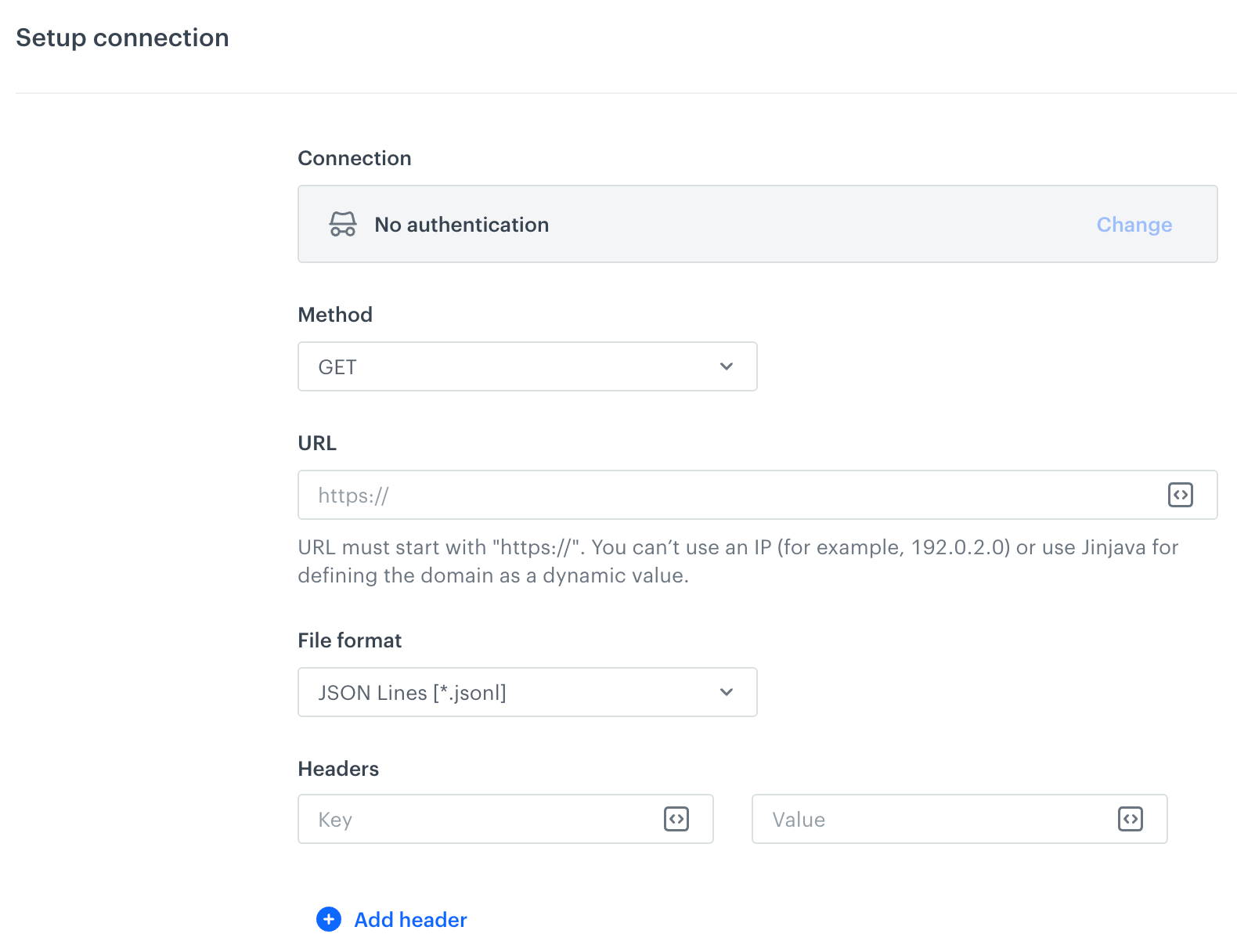
<figure><img src="/api/docs/image/54176ad07f146575310749eba44b7c2f42c1b327/docs/automation/_gfx/http-get-file-node.png" class="large" alt="A blank form for the HTTP Get File node"><figcaption>A blank form for the HTTPS Get File node</figcaption></figure>


<div class="admonition admonition-note"><div class="admonition-icon"><svg xmlns="http://www.w3.org/2000/svg" fill="none" viewBox="0 0 24 24" stroke="currentColor" stroke-width="2.5"><path stroke-linecap="round" stroke-linejoin="round" d="M13 16h-1v-4h-1m1-4h.01M21 12a9 9 0 11-18 0 9 9 0 0118 0z" /></svg></div><div class="admonition-body"><div class="admonition-content">

Fields marked with the <img src="/api/docs/image/54176ad07f146575310749eba44b7c2f42c1b327/icons/snippet-icon.png" alt="Snippet icon" class="icon" > icon accept [snippets](/docs/assets/snippets) or [inserts](/developers/inserts). But, you can’t use profile-related inserts.

</div></div></div>

    
1. From the **Method** dropdown list, select the method.  
2. In the **URL** field, enter the endpoint.  
3. From the **File format** dropdown list, select the format of the file:
    - **XML Feed**
    - **JSON**
    - **JSON Lines**
    - **CSV** - Provide the details on how to format the imported file:  
    1. From the **Delimiter** dropdown, select the character that marks the end of a column.
    2. From the **Quotation mark** dropdown list, select the characters that contain the text or data type.
    3. From the **Escape character** dropdown lists, select the character changes the default interpretation of a character or a string followed by the character.

4. In the **Headers** fields, define request headers required by the HTTP API.
5. Confirm the settings by clicking **Apply**.


## Examples of use
---
 
In this example, you can launch a workflow which retrieves a Synerise [catalog](/docs/assets/catalogs) by means of HTTPS protocol and send it further to a SFTP server. If needed, the workflow can perform a transformation of data retrieved from the catalog in order to meet data structure requirements in the SFTP server.  


<div class="admonition admonition-important"><div class="admonition-icon"><svg xmlns="http://www.w3.org/2000/svg" fill="none" viewBox="0 0 24 24" stroke="currentColor" stroke-width="2.5"><path stroke-linecap="round" stroke-linejoin="round" d="M12 8v4m0 4h.01M21 12a9 9 0 11-18 0 9 9 0 0118 0z" /></svg></div><div class="admonition-body"><div class="admonition-content">

If you decide to use the [Data Transformation node](/docs/automation/operation/data-transformation-node) you must [build a data transformation workflow](/docs/automation/data-transformation-and-imports/creating-data-transformation).

</div></div></div>


<figure><img src="/api/docs/image/54176ad07f146575310749eba44b7c2f42c1b327/docs/automation/_gfx/http-get-file-example-of-use.png" class="full" alt="Final workflow configuration"><figcaption>Final workflow configuration</figcaption></figure>

1. Add the **Scheduled Run** node.  
2. In the configuration of the node, set it to **immediately**.  
3. Add the **Get File** node by clicking **THEN > HTTPS**.  
4. In the configuration of the node:
    1. Select the authentication method.  
        - If no connections are available or you want to create a new one, see Add connection.
        - If you selected an existing connection, proceed to defining the integration settings.
    2. Leave the method at default (**GET**).  
    3. In the URL, enter the address of the endpoint (you can get it [here](https://developers.synerise.com/AssetManagement/AssetManagement.html#operation/getItemsCSV)
    4. As a file format, from the dropdown list, select **CSV file**.  
    5. Verify the following fields: **Delimiter**, **Quotation mark**, **Escape character**, **Charset**, **Line ending**.
    6. Configure settings for the **Headers** section.  
    7. Confirm by clicking **Apply**.
3. Optionally, you can add the [Data Transformation node](/docs/automation/operation/data-transformation-node) to modify the data retrieved from the catalog to comply with the data structure standards in your SFTP.  
4. Add the **Send File** node by clicking **THEN > SFTP**.  
5. In the configuration of the node:  
    1. Select the authentication method.  
        - If no connections are available or you want to create a new one, see Add connection.
        - If you selected an existing connection, proceed to defining the integration settings.
    1. Enter the URL to the server.
    2. Enter the path to the directory.
    3. Enter the name of the file under which you want to send the data to the server.
    4. Select the format of the file.  
    6. Confirm by clicking **Apply**.
6. Add the **End** node.