

<div class="admonition admonition-warning"><div class="admonition-icon"><svg xmlns="http://www.w3.org/2000/svg" fill="none" viewBox="0 0 24 24" stroke="currentColor" stroke-width="2.5"><path stroke-linecap="round" stroke-linejoin="round" d="M12 9v2m0 4h.01m-6.938 4h13.856c1.54 0 2.502-1.667 1.732-2.5L13.732 4c-.77-.833-1.964-.833-2.732 0L4.082 16.5c-.77.833.192 2.5 1.732 2.5z" /></svg></div><div class="admonition-body"><div class="admonition-content">

Due to [retirement of Office 365 connectors within Microsoft Teams](https://devblogs.microsoft.com/microsoft365dev/retirement-of-office-365-connectors-within-microsoft-teams/), this node will be deprecated. From now on, you can make use of [Send channel message node](/docs/automation/integration/microsoft-teams/send-message-to-teams-channel-v2) which is built upon connector type recommended by Microsoft.
</div></div></div>


The **Send Channel Message** node allows you to create a business-oriented workflow for sending notifications to your team members in a Microsoft Teams channel. For example, you may send notifications immediately after a deviation occurs in your workspace.

## Prerequisites
---
Create [an incoming webhook in Microsoft Teams](https://docs.microsoft.com/en-us/microsoftteams/platform/webhooks-and-connectors/how-to/add-incoming-webhook) and [learn how to build it JSON request body](https://docs.microsoft.com/en-us/microsoftteams/platform/webhooks-and-connectors/how-to/connectors-using?tabs=cURL).

## Node configuration
---
1. Click the node.  
2. On the pop-up, click **Create connection**.  
3. In the **Incoming webhook URL** field, enter the webhook you created [earlier](#prerequisites).  
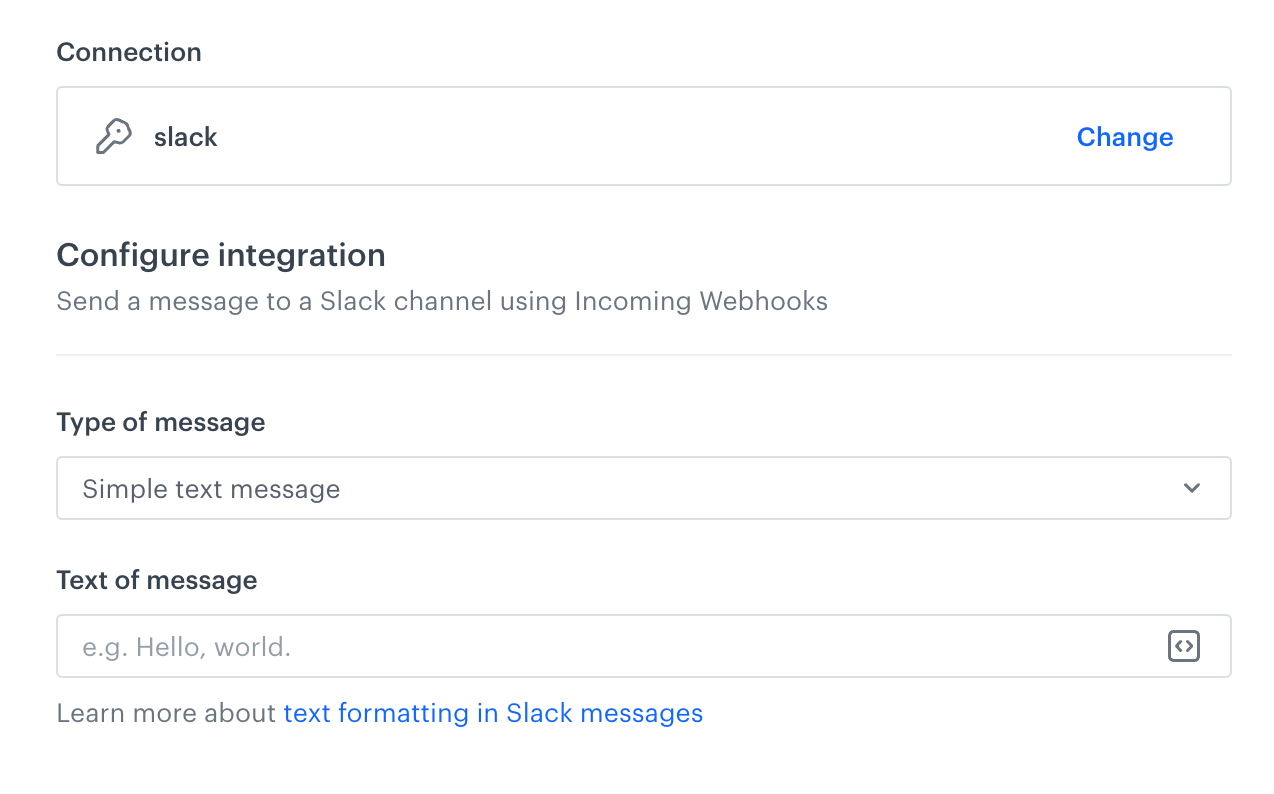
    **Result**: 
     <figure><img src="/api/docs/image/54176ad07f146575310749eba44b7c2f42c1b327/docs/automation/_gfx/slack-send-message-to-channel.png" class="medium" alt="A blank configuration form in Send message to channel node (Slack)"><figcaption>A blank configuration form in Send message to channel node (Slack)</figcaption></figure>
4. From the **Type of message** dropdown list, select the type of the message you want to create:  
    - **Simple message** - Choosing this option lets you write a plain text.
    - **Interactive message (JSON)** - Choosing this option lets you build messages with sections, buttons, links, simple surveys.
5. Follow the scenario according to the message type you selected:
    - If you selected the Simple message option:
        1. In the **Text of message** field, enter the text you want to include in the message.
    - If you selected the Interactive message (JSON) option:  
        1. In the **JSON body of message** field, enter the structure of the message as the JSON body.

6. Confirm by clicking **Apply**.

## Example of use
--- 
For example of use, refer to our [Send an alert to Microsoft Teams channel use case](/use-cases/teams-integration).