The **Create Directory** node allows you to send a request to your SFTP server to create a new folder. This node can be used in workflows that export data to Synerise, so the export can be preceded by defining a new folder in your resources.

## Node configuration
---  
### Set up a connection

In this part of the process, you must define how you will get access to your source. By selecting the authentication method and providing required information, you establish a connection.

1. Click the **Create Directory** node.  
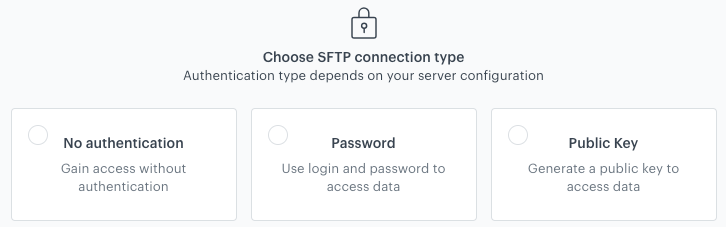
    <figure><img src="/api/docs/image/54176ad07f146575310749eba44b7c2f42c1b327/docs/automation/_gfx/sftp-connection-type.png" class="large" alt="Selecting the authentication method"><figcaption>Selecting the authentication method</figcaption></figure>
2. On the pop-up, select the authentication method:
- **No authentication** - No authentication is required.
- **Password** - Authentication is based on a log-in and a password to your resource.  

  <details class="accordion"><summary>Click here to see the instructions</summary><div class="accordion-content"><ol> <li>Click <strong>Select connection</strong>.</li> <li>If the connection you want to use is in the list, select it and proceed to <a href="#fill-out-the-configuration-form">Filling out the configuration form</a>.<ul> <li>If the connection list is empty or you don&#39;t see a connection you need to use:<ol> <li>At the bottom of the dropdown list, click <strong>Add connection</strong>. </li> <li>In the <strong>Connection name</strong> field, enter the name of your connection (it&#39;s visible only on the Select connection dropdown list).</li> <li>In the <strong>Login</strong> field, enter a log-in.</li> <li>In the <strong>Password</strong> field, enter the password.</li> <li>Click <strong>Save</strong>.<br> The connection you created can be used later in other nodes and workflows.</li> </ol> </li> </ul> </li> </ol></div></details>

- **Public key** - Authentication is based on a public SSH key which is issued for a selected integration. This option lets you generate a public key and download it. Then, you must add it to your server configuration. After you download the key, you must secure it, because you won’t be able to download it later for security reasons.

  <details class="accordion"><summary>Click here to see the instructions</summary><div class="accordion-content"><ol> <li>Click <strong>Select connection</strong>.</li> <li>If the connection you want to use is in the list, select it and proceed to <a href="#fill-out-the-configuration-form">Filling out the configuration form</a>.<ul> <li>If the connection list is empty or you don&#39;t see a connection you need to use:<ol> <li>At the bottom of the dropdown list, click <strong>Add connection</strong>. </li> <li>In the <strong>Connection name</strong> field, enter the name of your connection (it&#39;s visible only on the Select connection dropdown list).</li> <li>In the <strong>Login</strong> field, enter your login to your resource.</li> <li>In the <strong>Password</strong> field, enter your password to your resource.</li> <li>Click <strong>Generate key</strong>. Download it and secure it.</li> <li>Click <strong>Save</strong>.<br> The connection you created can be used later in other nodes and workflows.</li> </ol> </li> </ul> </li> </ol></div></details>
  

### Fill out the configuration form

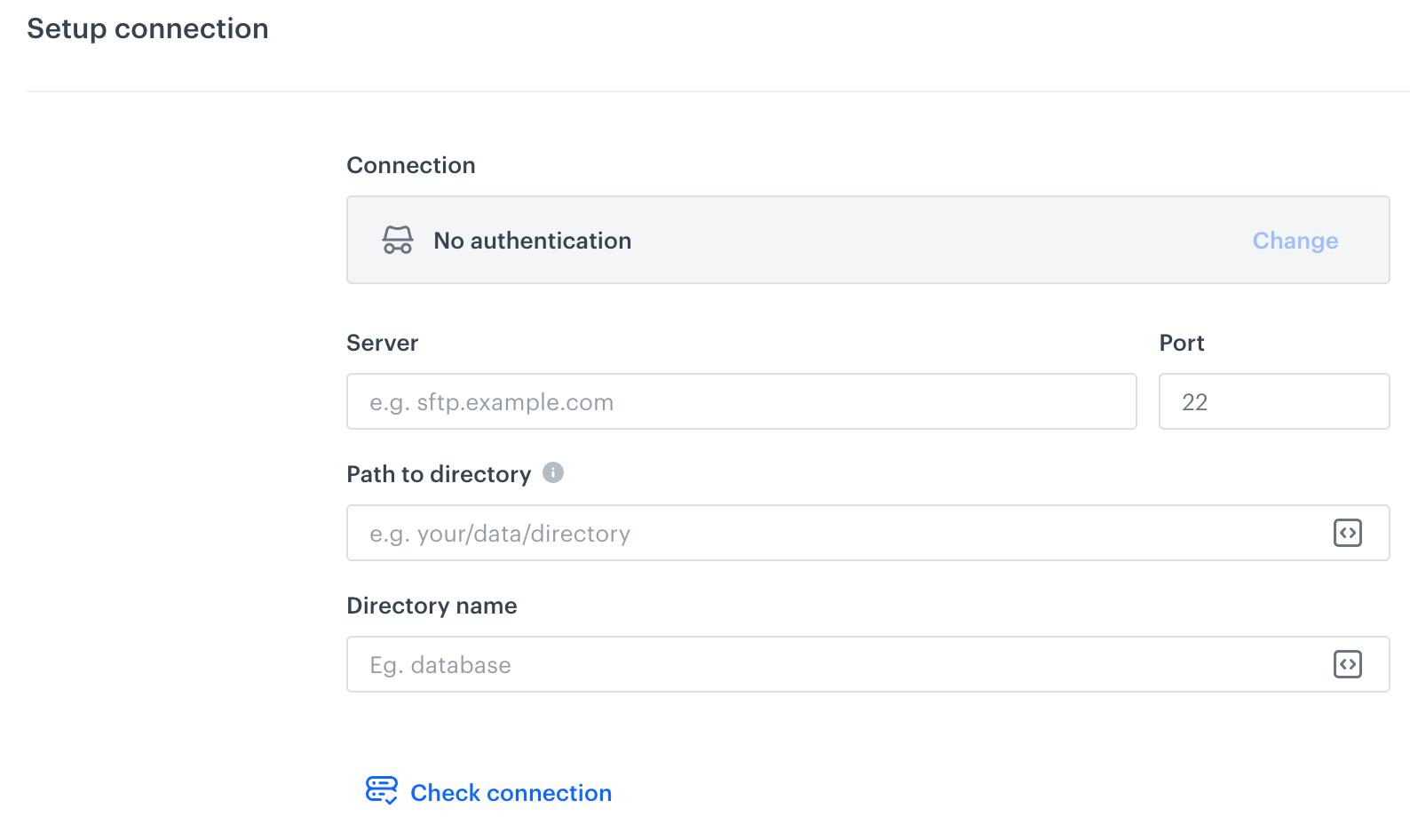
<figure><img src="/api/docs/image/54176ad07f146575310749eba44b7c2f42c1b327/docs/automation/_gfx/sftp-create-directory.png" class="large" alt="A blank form for the SFTP Create Directory node"><figcaption>A blank form for the Create Directory node</figcaption></figure>  


<div class="admonition admonition-note"><div class="admonition-icon"><svg xmlns="http://www.w3.org/2000/svg" fill="none" viewBox="0 0 24 24" stroke="currentColor" stroke-width="2.5"><path stroke-linecap="round" stroke-linejoin="round" d="M13 16h-1v-4h-1m1-4h.01M21 12a9 9 0 11-18 0 9 9 0 0118 0z" /></svg></div><div class="admonition-body"><div class="admonition-content">

Fields marked with the <img src="/api/docs/image/54176ad07f146575310749eba44b7c2f42c1b327/icons/snippet-icon.png" alt="Snippet icon" class="icon" > icon accept [snippets](/docs/assets/snippets) or [inserts](/developers/inserts). But, you can’t use profile-related inserts.

</div></div></div>


1. In the **Server** field, enter the URL of the server.  
2. In the **Port** field, set the port. The default value is the most commonly used SFTP port. 
3. In the **Path to directory** field, provide a path where your new directory will be created (for example: `/home/file-directory/`).
4. In the **Directory name** field, enter the name of the directory you want to create.  
    Don't use spaces and special characters.
6. Optionally, by clicking **Check connection**, you can verify if your connection you created in [Set up a connection procedure](#set-up-a-connection) is ready.
6. Confirm the settings by clicking **Apply**. 

## Example of use
---
You can use the **Create Directory** node in a workflow that exports customer data from a selected [segmentation](/docs/analytics/segmentations/creating-segmentations) to SFTP. The customer data will be extracted with the [Get Profiles](/docs/automation/actions/synerise-integrations/get-profiles) node. This workflow will be triggered only once and before it sends a file with extracted customer data, it will send a request to your SFTP to create a directory whose name will be a date of the export.  

1. Start the workflow with the **Scheduled Run** node. In the configuration of the node, set the **Run trigger** to **one time**. Select the **Immediately** tab.  
2. To retrieve customers' data for the workflow, as the next node, select **Synerise > Get Profiles**. In the configuration of the node: 
    1. Select a segmentation from which you want to extract customers' data. In this example, it's a segmentation of loyalty program prospects. 
    2. Select the customer attributes to be exported. In this example, the email address and email marketing agreement status.
3. The next step is creating a new directory in your SFTP. For this purpose, select **SFTP > Create Directory**. In the configuration of the node, in the **Directory name**, you can use the following Jinjava code to use a date of launching the node as the directory name.  
    
   <pre><code class="language-jinja">{{ timestamp|timestamp_to_time|datetimeformat('%d-%m-%Y', tz="UTC" ) }}</code></pre>

    The Jinjava code returns the date in the following format: `08-03-2023`.
4. The next step is sending the customer data retrieved from the **Get Profiles** node. For this purpose, select **SFTP >** [Send File](/docs/automation/integration/sftp-integrations/sftp-send-file). In the configuration of the node, fill out the configuration form.  
5. Add the **End** node.  
    **Result**:  
    <figure><img src="/api/docs/image/54176ad07f146575310749eba44b7c2f42c1b327/docs/automation/_gfx/create-directory-example.png" class="full" alt="The configuration of the workflow that creates a directory in SFTP"><figcaption>The configuration of the workflow that creates a directory in SFTP</figcaption></figure>