You can use the **Get File** node to transfer the files from your server to the workflow using SFTP protocol.
- Maximum file size: 5 GB (5 000 000 000 bytes).
## Node configuration
---
### Set up a connection
In this part of the process, you must define how you will get access to your source. By selecting the authentication method and providing required information, you establish a connection.
1. Click the **SFTP > Get File** node.
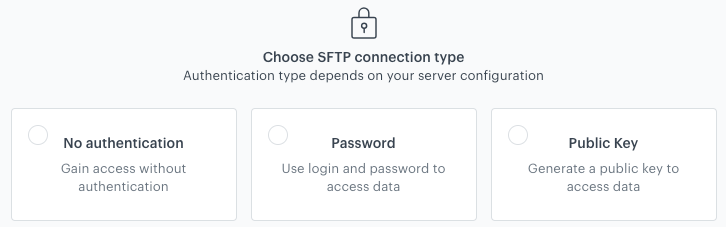
Selecting the authentication method
2. On the pop-up, select the authentication method:
- **No authentication** - No authentication is required.
- **Password** - Authentication is based on a log-in and a password to your resource.
Click here to see the instructions
If the connection list is empty or you don't see a connection you need to use:
At the bottom of the dropdown list, click Add connection.
In the Connection name field, enter the name of your connection (it's visible only on the Select connection dropdown list).
In the Login field, enter a log-in.
In the Password field, enter the password.
Click Save. The connection you created can be used later in other nodes and workflows.
- **Public key** - Authentication is based on a public SSH key which is issued for a selected integration. This option lets you generate a public key and download it. Then, you must add it to your server configuration. After you download the key, you must secure it, because you won’t be able to download it later for security reasons.
Click here to see the instructions
If the connection list is empty or you don't see a connection you need to use:
At the bottom of the dropdown list, click Add connection.
In the Connection name field, enter the name of your connection (it's visible only on the Select connection dropdown list).
In the Login field, enter your login to your resource.
In the Password field, enter your password to your resource.
Click Generate key. Download it and secure it.
Click Save. The connection you created can be used later in other nodes and workflows.
### Fill out the configuration form
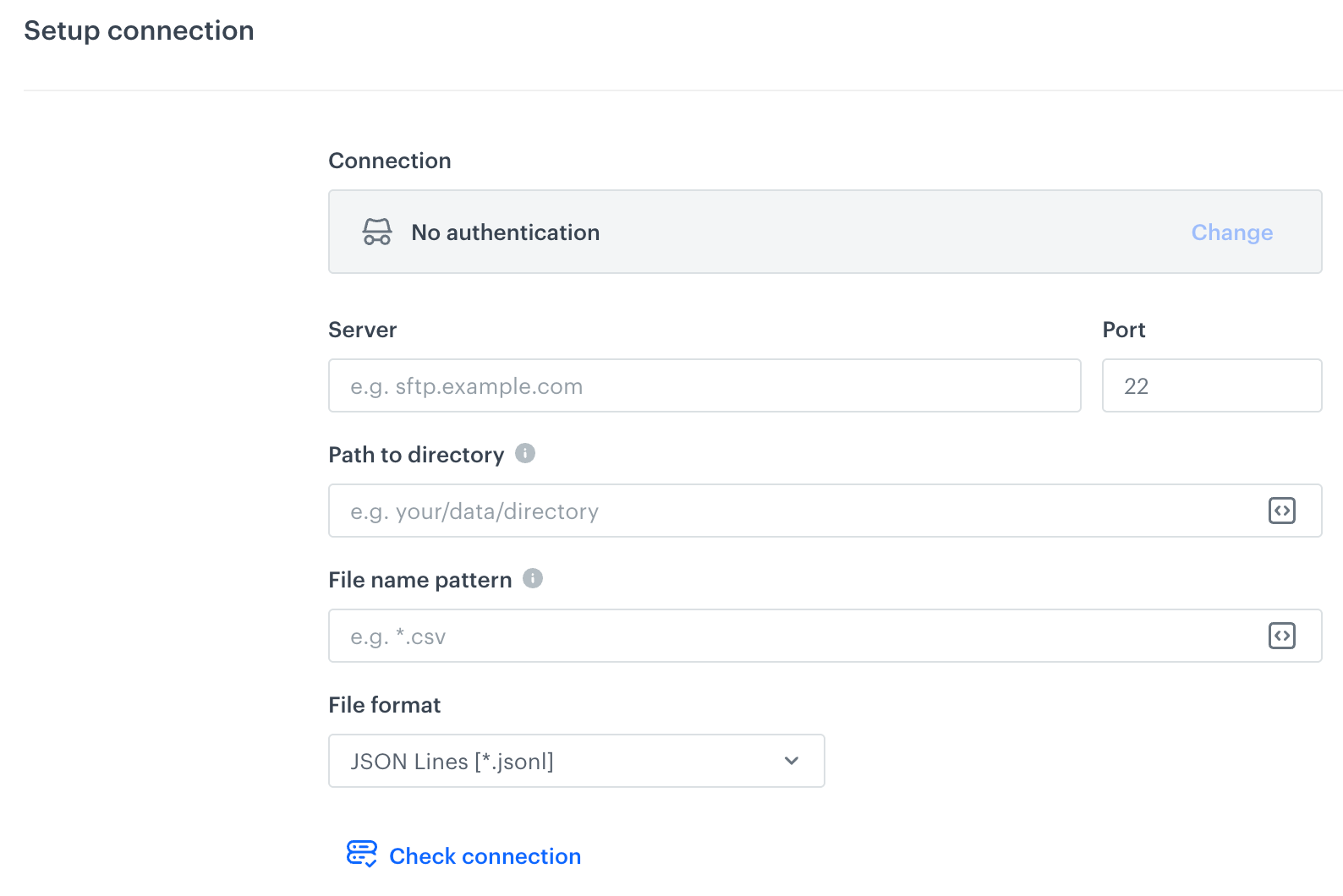
A blank form for the SFTP Get File node
Fields marked with the icon accept [snippets](/docs/assets/snippets) or [inserts](/developers/inserts). But, you can’t use profile-related inserts.
1. In the **Server** field, enter the URL of the server.
2. In the **Port** field, set the port. The default value is the most commonly used SFTP port.
3. If your data are stored in a directory, in the **Path to directory** provide a path to a directory (for example: `/home/file-directory/`).
4. In the **File name pattern**, type the full name of the file or a pattern. (for example, `synerise.csv`).
In the case of frequent imports, you can devise a name pattern which will make your work easier. Synerise supports glob patterns to specify sets of filenames with wildcard characters, for example `import*.csv`.
- To import all files from the directory that have a common word in the name, use the asterisk (for example, `synerise*.csv`). Then, all files with names that begin with `synerise` will be imported.
- To import several files that have a specific number of characters after the common part of the file name, use a question mark for each character (for example, `synerise???.csv`). This way you import all the files whose names consist of a specific number or additional characters after the common part of the file name (in this case, it’s `synerise`).
5. From the **File format** dropdown list, select the format of the file.
- **XML Feed**
- **JSON**
- **JSON Lines**
- **CSV** - Provide the details on how to format the imported file:
1. From the **Delimiter** dropdown, select the character that marks the end of a column.
2. From the **Quotation mark** dropdown list, select the characters that contain the text or data type.
3. From the **Escape character** dropdown lists, select the character changes the default interpretation of a character or a string followed by the character.
6. Optionally, by clicking **Check connection**, you can verify if your connection you created in [Set up a connection procedure](#set-up-a-connection) is ready.
7. Confirm by clicking **Apply**.
## Example of use
---
In this example, you can launch a workflow that once a day uploads customers data from the SFTP server. Further on, the data is imported to Synerise as profiles.
In this example, the [transformation of data](/docs/automation/data-transformation-and-imports/introduction) may be needed in order to comply with the structure of the data in the catalog.
Final workflow configuration
1. Add the **Scheduled Run** node.
2. In the configuration of the node:
1. Select the time zone consistent with the time zone selected for your workspace.
2. Leave the **Everyday** tab.
3. In the **Select time** field, choose the time when the workflow will be triggered.
4. Confirm by clicking **Apply**.
3. Click **SFTP > Get File**.
4. In the configuration of the node:
1. Select the authentication method:
- If no connections are available or you want to create a new one, see Add connection.
- If you selected an existing connection, proceed to defining the integration settings.
2. Enter the URL of the server.
3. Select the path to the directory.
4. Enter the name of the file you want to access (or file name pattern for larger amount of files to access).
5. Select the format of the file or files.
6. Confirm by clicking **Apply**.
5. If required, add the **Data Transformation** node. In the configuration of the node, select the data transformation template.
6. Add the **Import Profiles** node.
5. Add the **End** node.
 icon accept [snippets](/docs/assets/snippets) or [inserts](/developers/inserts). But, you can’t use profile-related inserts.
