You can use the **Send File** node to transfer the files to your server using SFTP protocol.
## Node configuration
---
### Set up a connection
In this part of the process, you must define how you will get access to your source. By selecting the authentication method and providing required information, you establish a connection.
1. Click **SFTP > Send File**.
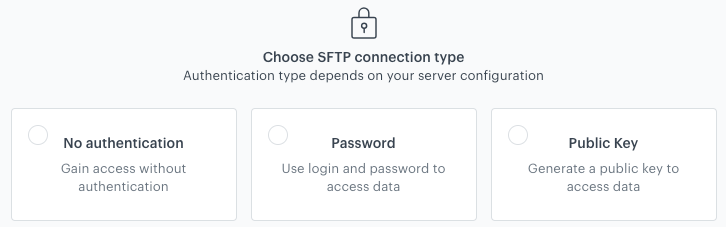
Selecting the authentication method
2. On the pop-up, select the authentication method:
- **No authentication** - No authentication is required.
- **Password** - Authentication is based on a log-in and a password to your resource.
Click here to see the instructions
If the connection list is empty or you don't see a connection you need to use:
At the bottom of the dropdown list, click Add connection.
In the Connection name field, enter the name of your connection (it's visible only on the Select connection dropdown list).
In the Login field, enter a log-in.
In the Password field, enter the password.
Click Save. The connection you created can be used later in other nodes and workflows.
- **Public key** - Authentication is based on a public SSH key which is issued for a selected integration. This option lets you generate a public key and download it. Then, you must add it to your server configuration. After you download the key, you must secure it, because you won’t be able to download it later for security reasons.
Click here to see the instructions
If the connection list is empty or you don't see a connection you need to use:
At the bottom of the dropdown list, click Add connection.
In the Connection name field, enter the name of your connection (it's visible only on the Select connection dropdown list).
In the Login field, enter your login to your resource.
In the Password field, enter your password to your resource.
Click Generate key. Download it and secure it.
Click Save. The connection you created can be used later in other nodes and workflows.
### Fill out the configuration form
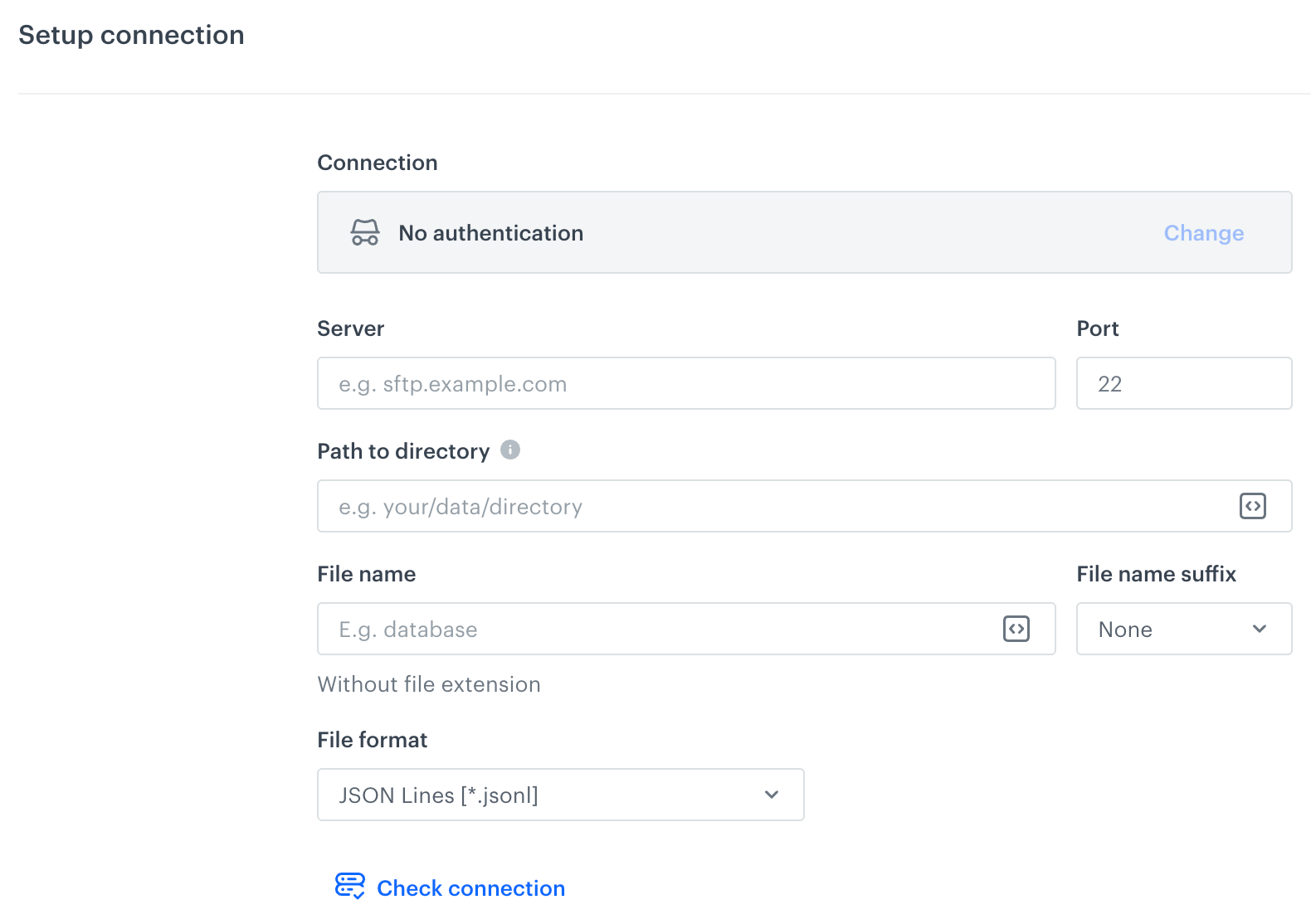
A blank form for the SFTP Send File node
Fields marked with the icon accept [snippets](/docs/assets/snippets) or [inserts](/developers/inserts). But, you can’t use profile-related inserts.
1. In the **Server** field, enter the URL of the server.
2. In the **Port** field, set the port. The default value is the most commonly used SFTP port.
3. If your data are stored in a directory, in the **Path to directory** provide a path to a directory (for example: `/home/file-directory/`).
4. In the **File name** field, enter the name of the file under which it will be passed to your SFTP server.
5. From the **File name suffix** dropdown list, you can select a date to be added to the file name.
5. From the **File format** dropdown list, select the format of the file:
- **JSON**
- **JSON Lines**
- **CSV** - Provide the details on how to format the file for sending:
1. From the **Delimiter** dropdown, select the character that marks the end of a column.
2. From the **Quotation mark** dropdown list, select the characters that contain the text or data type.
3. From the **Escape character** dropdown lists, select the character changes the default interpretation of a character or a string followed by the character.
2. From the **Line ending** dropdown list, select:
- **Line feed** - This option shifts the cursor to the next line vertically.
- **Carriage return and line feed** - This option points the cursor to the beginning of the line horizontally and shifts the cursor to the next line vertically.
3. Optionally, select the **Quoting style only if required** checkbox, to wrap the values with characters selected in the **Quotation mark** field when the delimiter occurs in the value. For example, for the following values:
- one
- two,three,four
The output with the enabled **Quoting style only if required** option will be as follows: `one,"two,three,four"`
6. Optionally, by clicking **Check connection**, you can verify if your connection you created in [Set up a connection procedure](#set-up-a-connection) is ready.
7. Confirm by clicking **Apply**.
## Examples of use
---
In this example, you can launch a workflow which retrieves a Synerise [catalog](/docs/assets/catalogs) by means of HTTPS protocol and send it further to a SFTP server. If needed, the workflow can perform a transformation of data retrieved from the catalog in order to meet data structure requirements in the SFTP server.
If you decide to use the [Data Transformation node](/docs/automation/operation/data-transformation-node) you must [build a data transformation workflow](/docs/automation/data-transformation-and-imports/creating-data-transformation).
Final workflow configuration
1. Add the **Scheduled Run** node.
2. In the configuration of the node, set it to **immediately**.
3. Add the **Get File** node by clicking **THEN > HTTPS**.
4. In the configuration of the node:
1. Select the authentication method.
- If no connections are available or you want to create a new one, see Add connection.
- If you selected an existing connection, proceed to defining the integration settings.
2. Leave the method at default (**GET**).
3. In the URL, enter the address of the endpoint (you can get it [here](https://developers.synerise.com/AssetManagement/AssetManagement.html#operation/getItemsCSV)
4. As a file format, from the dropdown list, select **CSV file**.
5. Verify the following fields: **Delimiter**, **Quotation mark**, **Escape character**, **Charset**, **Line ending**.
6. Configure settings for the **Headers** section.
7. Confirm by clicking **Apply**.
3. Optionally, you can add the [Data Transformation node](/docs/automation/operation/data-transformation-node) to modify the data retrieved from the catalog to comply with the data structure standards in your SFTP.
4. Add the **Send File** node by clicking **THEN > SFTP**.
5. In the configuration of the node:
1. Select the authentication method.
- If no connections are available or you want to create a new one, see Add connection.
- If you selected an existing connection, proceed to defining the integration settings.
1. Enter the URL to the server.
2. Enter the path to the directory.
3. Enter the name of the file under which you want to send the data to the server.
4. Select the format of the file.
6. Confirm by clicking **Apply**.
6. Add the **End** node.
 icon accept [snippets](/docs/assets/snippets) or [inserts](/developers/inserts). But, you can’t use profile-related inserts.
