TrustMate is a tool that enables building online brand image through management of reviews of your online shop or company. Use this integration to build workflows that will automatically pass information about purchased products. In return, TrustMate will give back the survey link which you can use in a seasonal communication to your customers.

This node is recommended when you want to generate invitation links for one or multiple products simultaneously. Additionally, the integration allows for flexible management of product parameters from transactions that are to be passed on for creating an invitation.  
If you want to generate invitation link for a single products, you can use ["Get Survey Link (Single Product)" node](/docs/automation/integration/trustmate/get-survey-link)

## Prerequisites
---
Contact TrustMate support in order to receive the API key required for authorization.

## Node configuration
---
1. Go to **Automation Hub > Workflows > New workflow**.  
2. Create a workflow by adding nodes and arranging them in an order that aligns with your business requirements and the intended logic.  
    
   <div class="admonition admonition-tip"><div class="admonition-icon"><svg xmlns="http://www.w3.org/2000/svg" fill="none" viewBox="0 0 24 24" stroke="currentColor" stroke-width="2.5"><path stroke-linecap="round" stroke-linejoin="round" d="M9.663 17h4.673M12 3v1m6.364 1.636l-.707.707M21 12h-1M4 12H3m3.343-5.657l-.707-.707m2.828 9.9a5 5 0 117.072 0l-.548.547A3.374 3.374 0 0014 18.469V19a2 2 0 11-4 0v-.531c0-.895-.356-1.754-.988-2.386l-.548-.547z" /></svg></div><div class="admonition-body"><div class="admonition-content">

   You can read more about the workflow basics in [Creating workflows](/docs/automation/creating-automation).

   </div></div></div>

3. As one of the nodes, select **Trustmate > Create Invitation**.  
2. To allow the data exchange, establish a connection between Synerise and TrustMate, click **Select connection**.  
3. From the dropdown list, select the connection.  
   - If no connections are available or you want to create a new one, see [Create a connection](#create-a-connection).
   - If you selected an existing connection, proceed to [defining the integration settings](#define-the-integration-settings).

### Create a connection
After you generate an Access Key in TrustMate, use it to establish a connection.

1. In the **Connection name** field, enter the name of the connection.  
    It's used to find the connection on the list.
2. In **Access Key**, enter access key for API requests.
3. Confirm by clicking **Create**.  
4. Then click **Next**.
    **Result**: You will be redirected to the form in which you will define the integration settings. The connection you created is available in <img src="/api/docs/image/54176ad07f146575310749eba44b7c2f42c1b327/icons/settings-icon.svg" alt="Settings icon" class="icon"> **Settings > Connections**.  

### Define the integration settings  

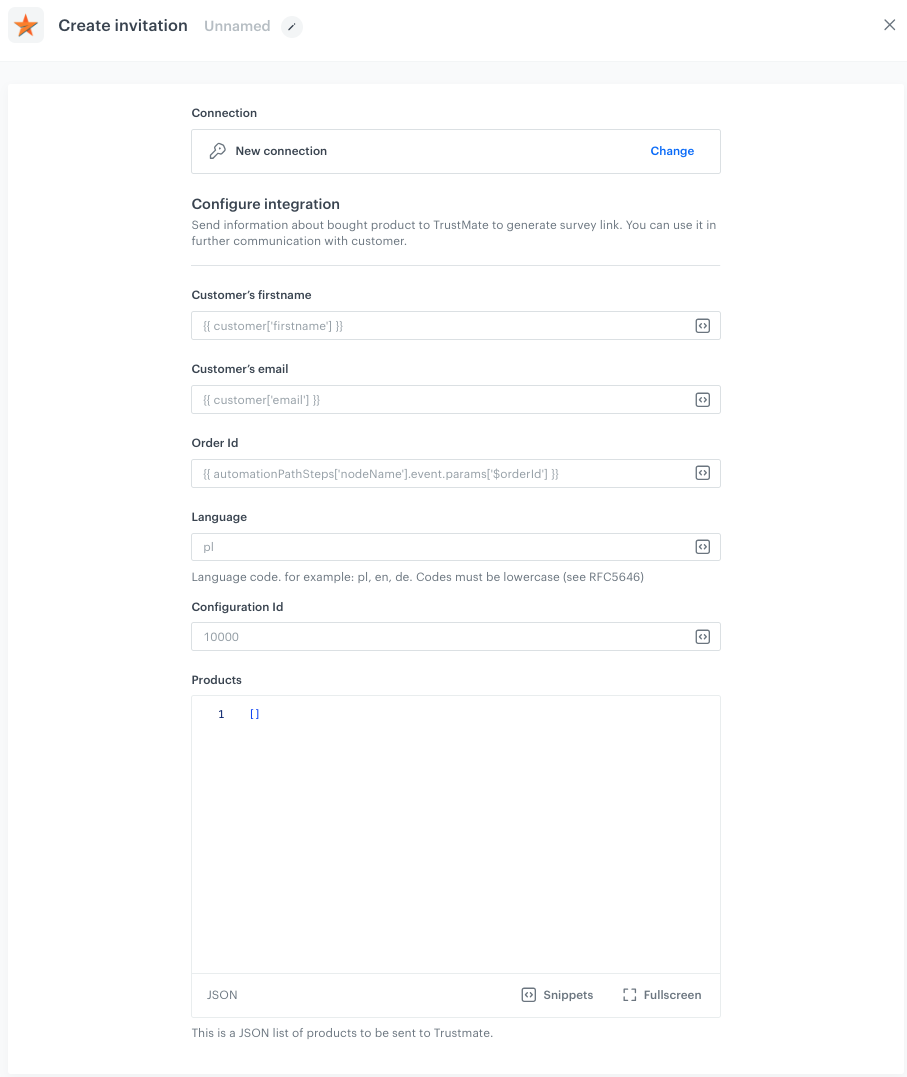
<figure><img src="/api/docs/image/54176ad07f146575310749eba44b7c2f42c1b327/docs/automation/_gfx/create-invitation.png" class="medium" alt="A blank configuration form in the Create Invitation node"><figcaption>A blank configuration form in the Create Invitation node</figcaption></figure>  


<div class="admonition admonition-note"><div class="admonition-icon"><svg xmlns="http://www.w3.org/2000/svg" fill="none" viewBox="0 0 24 24" stroke="currentColor" stroke-width="2.5"><path stroke-linecap="round" stroke-linejoin="round" d="M13 16h-1v-4h-1m1-4h.01M21 12a9 9 0 11-18 0 9 9 0 0118 0z" /></svg></div><div class="admonition-body"><div class="admonition-content">

Fields marked with the <img src="/api/docs/image/54176ad07f146575310749eba44b7c2f42c1b327/icons/snippet-icon.png" alt="Snippet icon" class="icon" > icon accept [snippets](/docs/assets/snippets) or [inserts](/developers/inserts). This integration allows usage of profile-related inserts.

</div></div></div>


1. In the **Customer’s firstname** field, enter the name of your customer. You can use the following insert to extract it from the customer's attribute: `{{ customer['firstname'] }}`.
2. In the **Customer’s email** field, enter the email of your customer. You can use the following insert to extract it from the customer's attribute: `{{ customer['email'] }}`. 
3. In the **Order Id** field, enter the order Id of the purchase that triggers the workflow. Use the following insert to extract it from the profile event trigger: `{{ event.params['$orderId'] }}`.
4. In the **Language** field, enter language code. for example: pl, en, de. Codes must be lowercase (see RFC5646).
5. Field **Configuration ID** can be used in some advanced use cases you may want to directly choose which invitation config should be used for given invitation. This field is optional.
6. In the **Products** field, you can provide one or more products from the transaction for which you want to create a product review invitation. The minimum required fields that must be provided are:
    - id (your product unique id)
    - name (required)
    - brand (not required, but recommended)

    Example with full product data for multiple products:
    
      <pre><code class="language-json">[
              {
                  "brand": "Amica",
                  "category": "AGD / Fridge",
                  "gtin": "0000000000000",
                  "group_id": "gid00001",
                  "sku": "UGG-BB-PUR-06",
                  "mpn": "TRUST12345MATE",
                  "image_url": "https://example.com/example.jpg",
                  "image_thumb_url": "https://example.com/example-mini.jpg",
                  "id": "id00000001",
                  "name": "Fridge Amica 00000001",
                  "product_url": "https://example.com/example.html",
                  "priority": 1
              },
              {
                  "brand": "Polar",
                  "category": "AGD / Fridge",
                  "gtin": "0000000000001;0000000000002",
                  "group_id": "gid00002",
                  "sku": "UGG-BB-FAX-55",
                  "mpn": "TRUST12346MATE",
                  "image_url": "https://example.com/example2.jpg",
                  "image_thumb_url": "https://example.com/example2-mini.jpg",
                  "id": "id00000002",
                  "name": "Fridge Polar 00000001",
                  "product_url": "https://example.com/frania.html",
                  "priority": 2
              }
          ]</code></pre>

6. Confirm by clicking **Apply**.  
    **Result**: When the Create Invitation node is executed, a [`trustmate.createInvitation` event](/docs/assets/events/event-reference/integration#trustmatecreateinvitation) is generated on the activity list of the profile who is the actor in the workflow.

### Test integration
---

You can run a test request. If the request body contains a dynamic reference to a profile attribute and/or an event data from preceding nodes, then you can define the context using [test profile data](/docs/settings/configuration/test-profiles). 


<div class="admonition admonition-note"><div class="admonition-icon"><svg xmlns="http://www.w3.org/2000/svg" fill="none" viewBox="0 0 24 24" stroke="currentColor" stroke-width="2.5"><path stroke-linecap="round" stroke-linejoin="round" d="M13 16h-1v-4h-1m1-4h.01M21 12a9 9 0 11-18 0 9 9 0 0118 0z" /></svg></div><div class="admonition-body"><div class="admonition-content">

Complete description of the feature is available in [Testing outgoing integrations](/docs/automation/test-requests-for-outgoing-integrations).

</div></div></div>


1. In the **Test integration** section, click **Send test request**.  
    **Result**: A test request builder opens. If:
    - a request body contains dynamic references, the request preview appears after you select the context of test profiles and events.
    - a request body contains static data, the preview of the body request appears immediately.
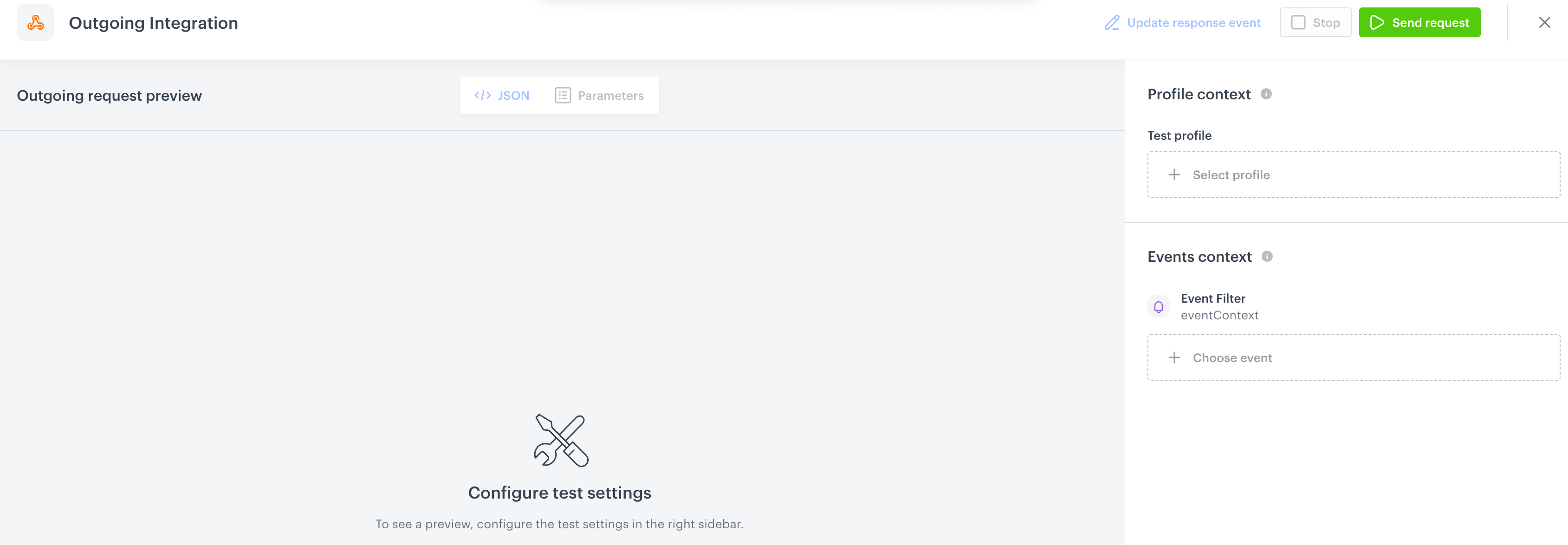
    <figure><img src="/api/docs/image/54176ad07f146575310749eba44b7c2f42c1b327/docs/automation/_gfx/test-request-builder-empty.png" class="large" alt="An empty test request builder"><figcaption>An empty test request builder</figcaption></figure>
2. If your request contains dynamic references (otherwise, the options aren't available):   
    - From the **Test profile** dropdown, select a test profile in the context of whom the test request will be performed.  
    - From the **Event context** dropdown list, you can select a particular occurrence of an event  whose values/information will be used for the test request.  
        1. Select a test profile.  
            **Result**: A history of test profile events appears.  
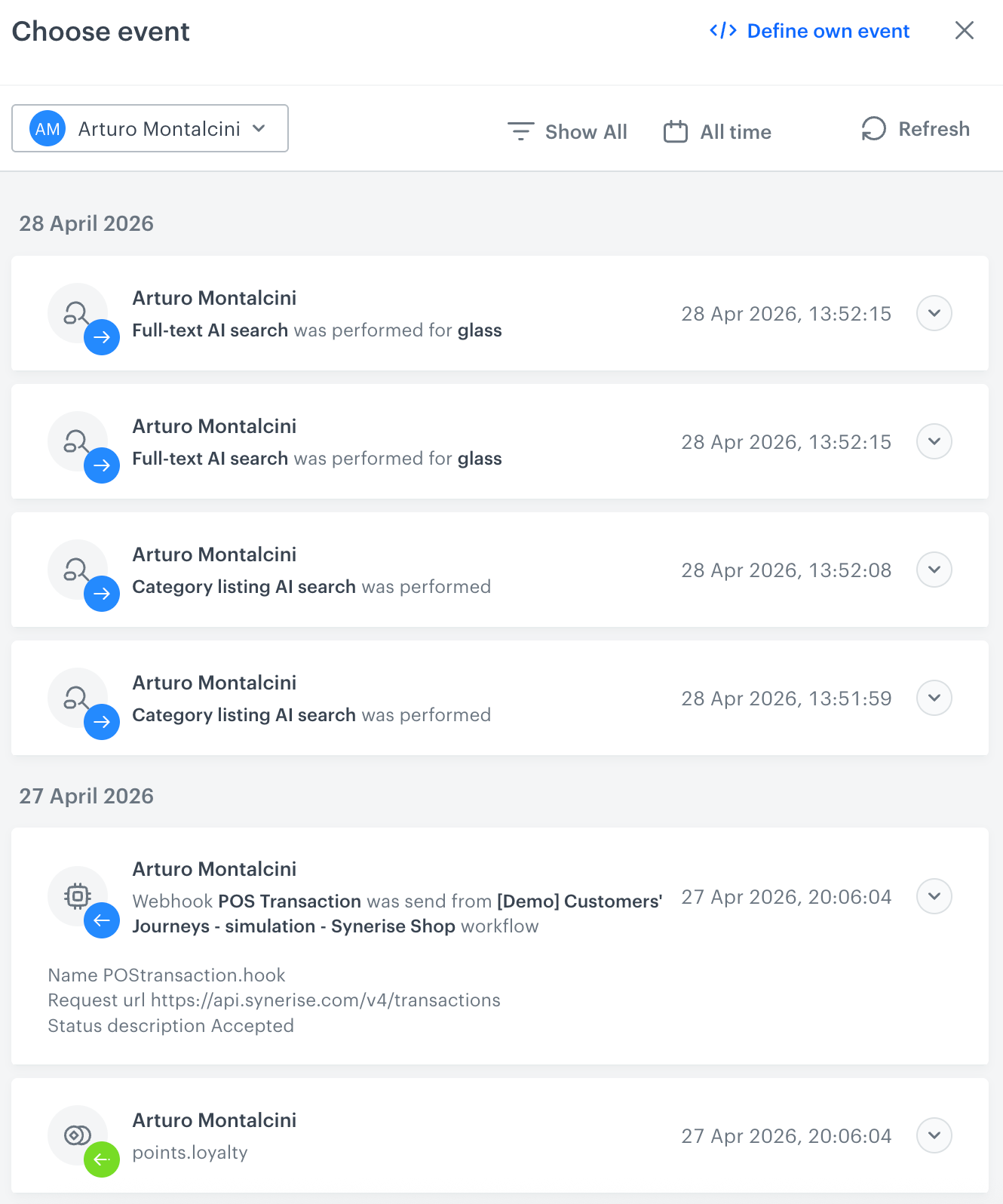
            <figure><img src="/api/docs/image/54176ad07f146575310749eba44b7c2f42c1b327/docs/automation/_gfx/event-stream-test-profile.png" class="large" alt="A stream of events of a test profile"><figcaption>A stream of events of a test profile</figcaption></figure> 
        2. From the list of events, select one whose data you want use as a context. If there is no event you can use, in the upper-right corner of the pop-up, click **Define own event** and provide the body of the event.
        3. Confirm by clicking **Apply**. 
3. Verify the request body. If there is something you want to change, come back to the node settings from previous steps.  
3. If the request body is ready to test, in the upper-right corner, click **Send request**.  
    **Result**: The response section appears and the **Update response event** button becomes active.  
4. Optionally, you can update response event with new parameters by clicking **Update response event** in the upper-right corner.

## Example of use
---
For an example of use, refer to our [use case](/use-cases/trustmate-integration).