A sequence is a named, reusable group of connected workflow nodes. Instead of rebuilding the same node patterns in every workflow, you can capture a pattern once, save it to the sequence library, and insert it into any workflow with a single action.

#### Sequence types

Sequences come in two types:

| Type | What is saved |
|------|--------------|
| **Structure** | Nodes and their links only. Configuration is not saved, so you fill in the settings each time the sequence is inserted. |
| **Configured** | Nodes, links, and all parameter values. The sequence is ready to use as-is after insertion. |


<div class="admonition admonition-important"><div class="admonition-icon"><svg xmlns="http://www.w3.org/2000/svg" fill="none" viewBox="0 0 24 24" stroke="currentColor" stroke-width="2.5"><path stroke-linecap="round" stroke-linejoin="round" d="M12 8v4m0 4h.01M21 12a9 9 0 11-18 0 9 9 0 0118 0z" /></svg></div><div class="admonition-body"><div class="admonition-content">

Sequences are unchangeable. Once saved, a sequence cannot be edited. To update a pattern, save a new sequence and remove or replace the old one in the workflows that use it. This protects existing workflows from unintended changes.

</div></div></div>


## Sequence library

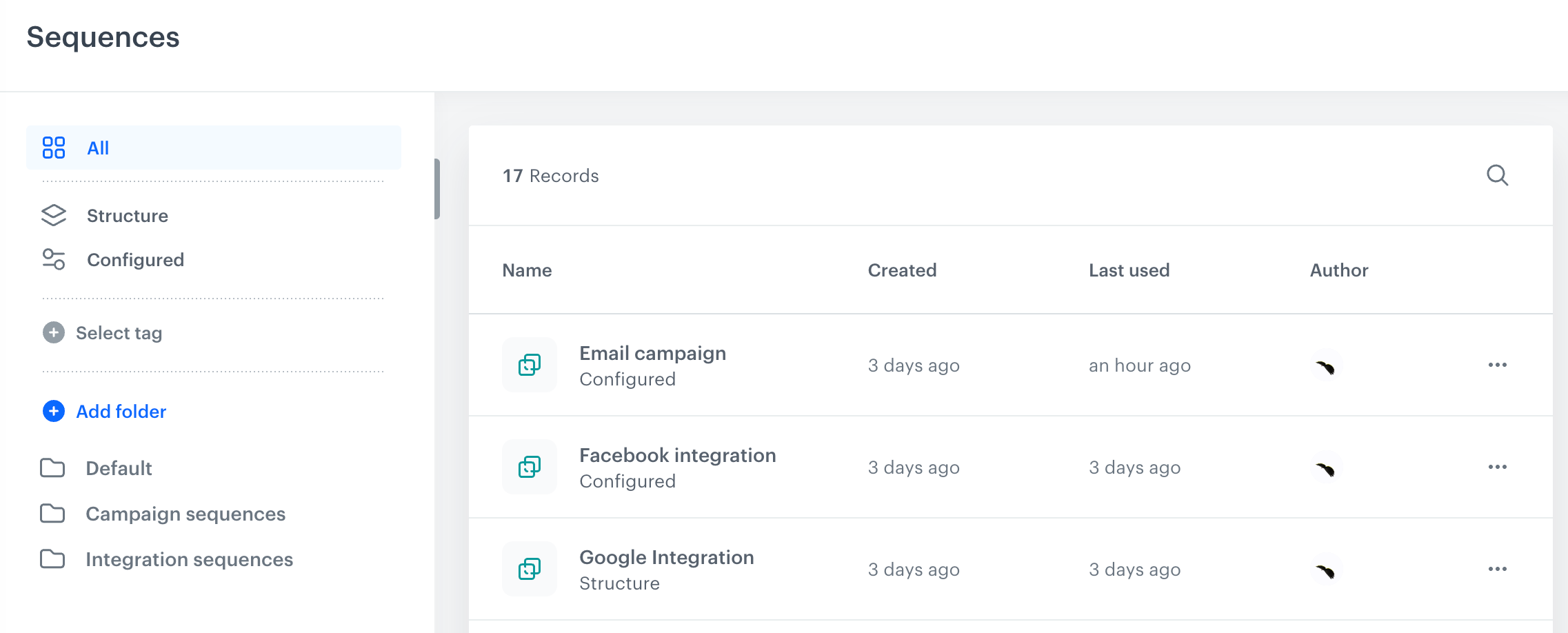
The sequence library is the central management view for all sequences in the workspace. To open it, go to <img src="/api/docs/image/4a38aecdb992fe7362cc76d7e785e42457efee87/icons/automation-hub-icon.svg" alt="Automation Hub icon" class="icon"> **Automation Hub > Sequences**.

<figure><img src="/api/docs/image/4a38aecdb992fe7362cc76d7e785e42457efee87/docs/automation/_gfx/sequences-library.png" class="large" alt="The Sequence Library showing a list of saved Sequences with their names, types, creation dates, and last used dates"><figcaption>The Sequence Library</figcaption></figure>

The library shows the following information for each sequence:

| Column | Description |
|--------|-------------|
| **Name** | The display name assigned when the sequence was saved. |
| **Type** | [Structure or Configured](#sequence-types). |
| **Created** | When the sequence was created. |
| **Last used** | When the sequence was last inserted into a workflow. |

### Organizing sequences into folders

You can create folders to group related sequences.

To add a folder:
1. In the left panel, click **Add folder**.
2. Enter the folder name and confirm.

To move a sequence to a folder, click <img src="/api/docs/image/4a38aecdb992fe7362cc76d7e785e42457efee87/icons/threedoticon.svg" alt="Three-dot icon" class="icon"> next to the sequence and select **Move to**.

### Filtering sequences

- Use the **All**, **Structure**, and **Configured** tabs in the left panel to filter by type.
- Use **Select tag** to filter by tag. Tags are shared with workflow tags, so any tag you create here also appears in workflows and vice versa.
- Use the search icon in the upper-right corner of the list to search by name.

## Saving a selection as a sequence
---

You can save any group of connected nodes from a workflow canvas as a sequence.

### Requirements

- The workflow must be saved at least as a draft before you can save a sequence from it.
- The selected nodes must form a single connected chain with no gaps.

### Procedure

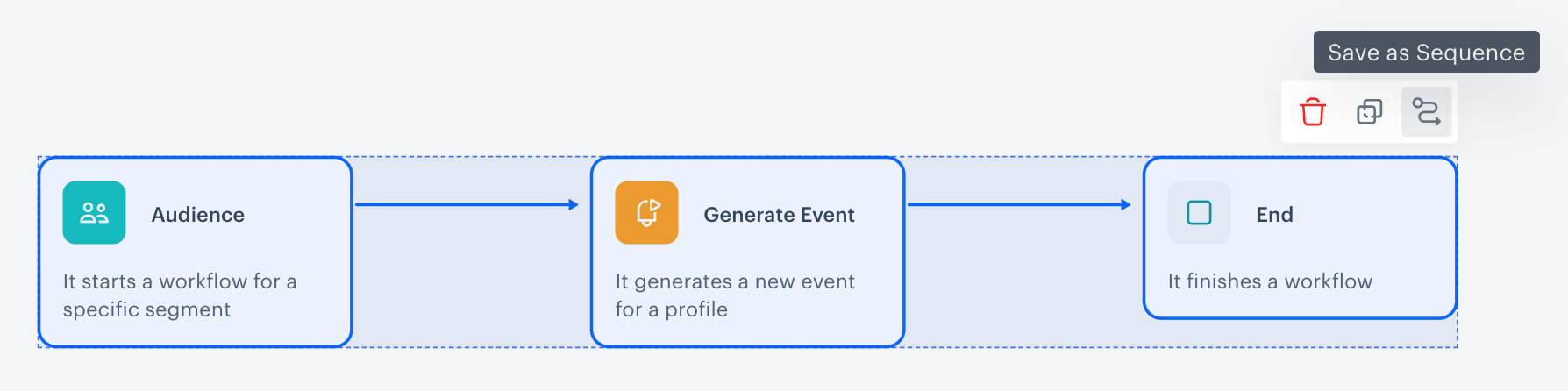
1. On the workflow canvas, select the nodes you want to save.
2. Hold **Shift** and click individual nodes, or drag a selection box around the desired area.
   <figure><img src="/api/docs/image/4a38aecdb992fe7362cc76d7e785e42457efee87/docs/automation/_gfx/sequences-select-nodes.png" class="large" alt="A selected group of nodes on the workflow canvas with the Save as Sequence button visible in the toolbar"><figcaption>Selected nodes with the Save as Sequence toolbar</figcaption></figure>

2. In the toolbar that appears above the selection, click the **Save as Sequence** icon.  
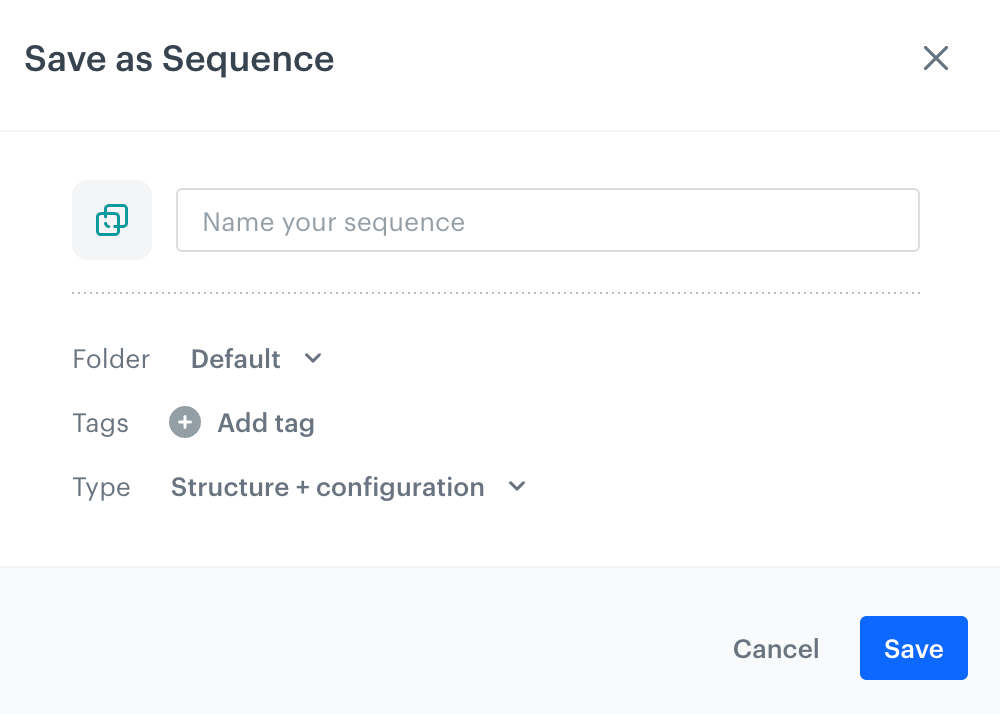
   **Result**: The **Save as Sequence** dialog opens.

   <figure><img src="/api/docs/image/4a38aecdb992fe7362cc76d7e785e42457efee87/docs/automation/_gfx/sequences-save-dialog.png" class="medium" alt="The Save as Sequence dialog with fields for name, folder, tags, and type"><figcaption>The Save as Sequence dialog</figcaption></figure>

3. In the **Name your sequence** field, enter a name for the sequence.

4. From the **Folder** dropdown, select the folder where the sequence will be saved.  
   If you want to create a new folder, click **Add folder** in the dropdown.

5. Optionally, add tags to help organize and find the sequence later.

6. From the **Type** dropdown, select the sequence type:
   - **Structure** - saves nodes and connections only, without configuration.
   - **Configured** - saves nodes, connections, and all configured parameter values.

7. Click **Save**.  
   **Result**: The Sequence is saved and appears in the Sequence Library.

## Inserting a sequence into a workflow
---

You can insert a sequence into a workflow in two ways: from the workflow canvas, or directly from the sequence library.

### From the workflow canvas

1. On the workflow canvas, click the **THEN** button on the node after which you want to insert the sequence.  
   **Result**: A node picker opens. **Sequences** appears at the top of the list.

   <figure><img src="/api/docs/image/4a38aecdb992fe7362cc76d7e785e42457efee87/docs/automation/_gfx/sequences-then-picker.png" class="medium" alt="The node picker with Sequences listed at the top, followed by Integrations"><figcaption>The node picker showing Sequences</figcaption></figure>

2. Click **Sequences**.  
   **Result**: The sequence library opens as a picker.

3. Find the sequence you want to insert and click it.  
   **Result**: The nodes from the sequence appear on the canvas.

4. If the sequence type is **Structure**, configure each node before saving or activating the workflow.

   If the sequence type is **Configured**, review the node settings and adjust any values specific to the current workflow.

### From the sequence library

1. Go to **Automation Hub > Sequences**.
2. Find the sequence you want to use.
3. Click <img src="/api/docs/image/4a38aecdb992fe7362cc76d7e785e42457efee87/icons/threedoticon.svg" alt="Three-dot icon" class="icon"> next to the sequence and select **Start with sequence**.  
   **Result**: A new workflow is created with the sequence nodes already placed on the canvas.

## Deleting a sequence
---


<div class="admonition admonition-warning"><div class="admonition-icon"><svg xmlns="http://www.w3.org/2000/svg" fill="none" viewBox="0 0 24 24" stroke="currentColor" stroke-width="2.5"><path stroke-linecap="round" stroke-linejoin="round" d="M12 9v2m0 4h.01m-6.938 4h13.856c1.54 0 2.502-1.667 1.732-2.5L13.732 4c-.77-.833-1.964-.833-2.732 0L4.082 16.5c-.77.833.192 2.5 1.732 2.5z" /></svg></div><div class="admonition-body"><div class="admonition-content">

Deleting a sequence does not affect workflows that have already used it - the nodes are already inserted to those canvases. However, the sequence will no longer be available to insert into new workflows.

</div></div></div>


To delete a sequence:

1. Go to **Automation Hub > Sequences**.
2. Find the sequence you want to delete.
3. Click <img src="/api/docs/image/4a38aecdb992fe7362cc76d7e785e42457efee87/icons/threedoticon.svg" alt="Three-dot icon" class="icon"> on the right side of the row.
4. Select **Delete** and confirm.
