This trigger starts the scenario immediately when Synerise receives information that a customer has performed a specific action, for example, submitted a form or reacted to a notification by opening it or clicking a link in it. Such actions are called events and they define customers' activities in the touchpoints integrated with Synerise.
## Requirements
----
- You must have customers in your database.
- You must implement a tracking code into your website.
## Node configuration
---
1. Click the pencil icon.
**Result**: A pop-up shows up.
2. Click **Choose event**.
**Result**: A dropdown list shows.
3. From the dropdown list, select the event which is to trigger the workflow.
The list only includes events whose definitions exist in **Data Modeling Hub > Events**.
The following events can't be used as triggers: `automation.clientStartPath`; `automation.clientEndPath`; `automation.clientPathStep`
4. Optionally, click the **+ where** button to select the event parameters. This lets you narrow down the event occurrence that triggers the workflow.
- Select the parameter.
- Define the operator.
- Enter the value of the parameter.
5. Confirm the settings by clicking the **Apply** button.
## Defining the date of event occurrence
---
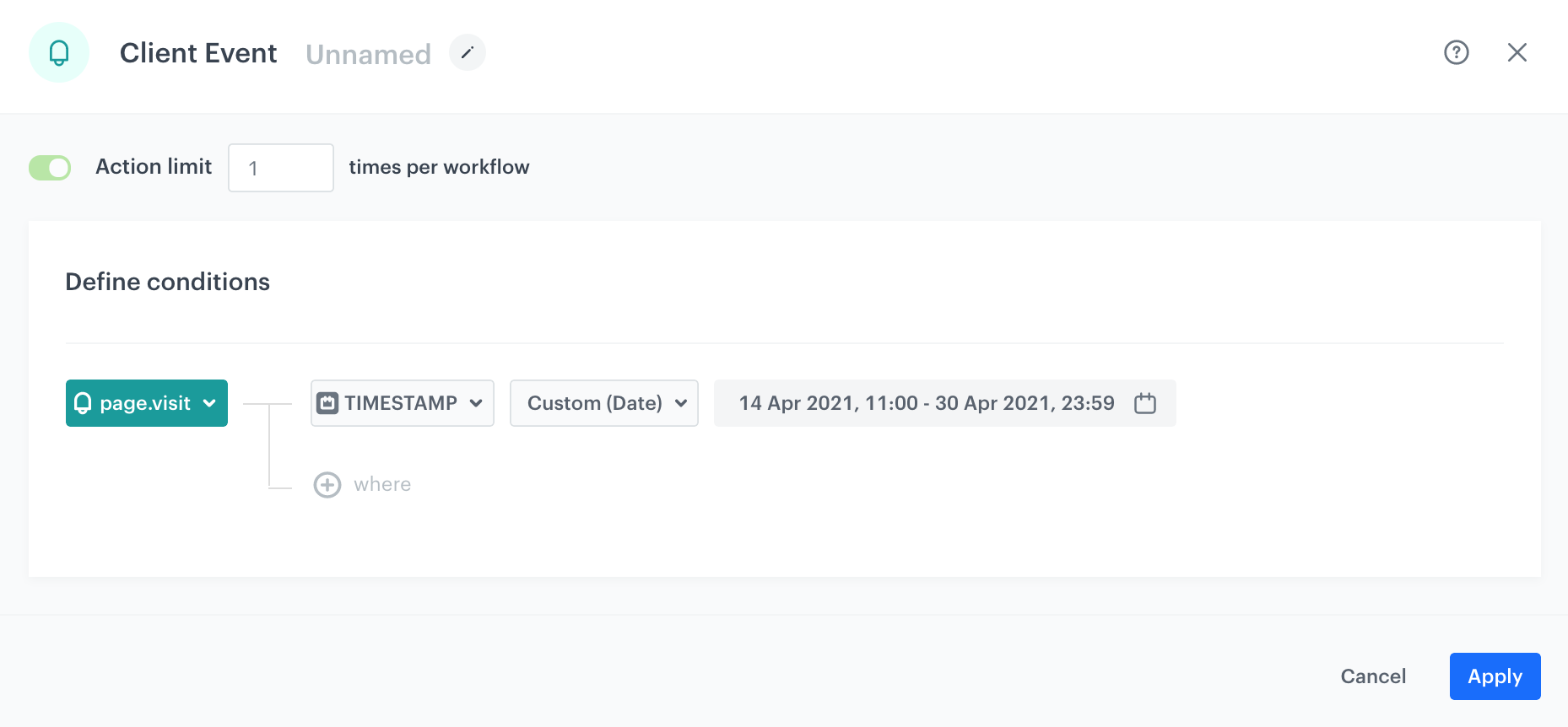
You can determine when exactly the customer activity launches the workflow. In the example on the screen, the workflow is triggered only when a user visits a website between 0:00 on the 14th of April to 23:59 on the 30th of April, 2021.
The workflow is triggered according to the time zone selected in the workspace.
Selected event occurrence date range
1. From the **Choose event** dropdown list, select the event.
2. Click **+ where** button.
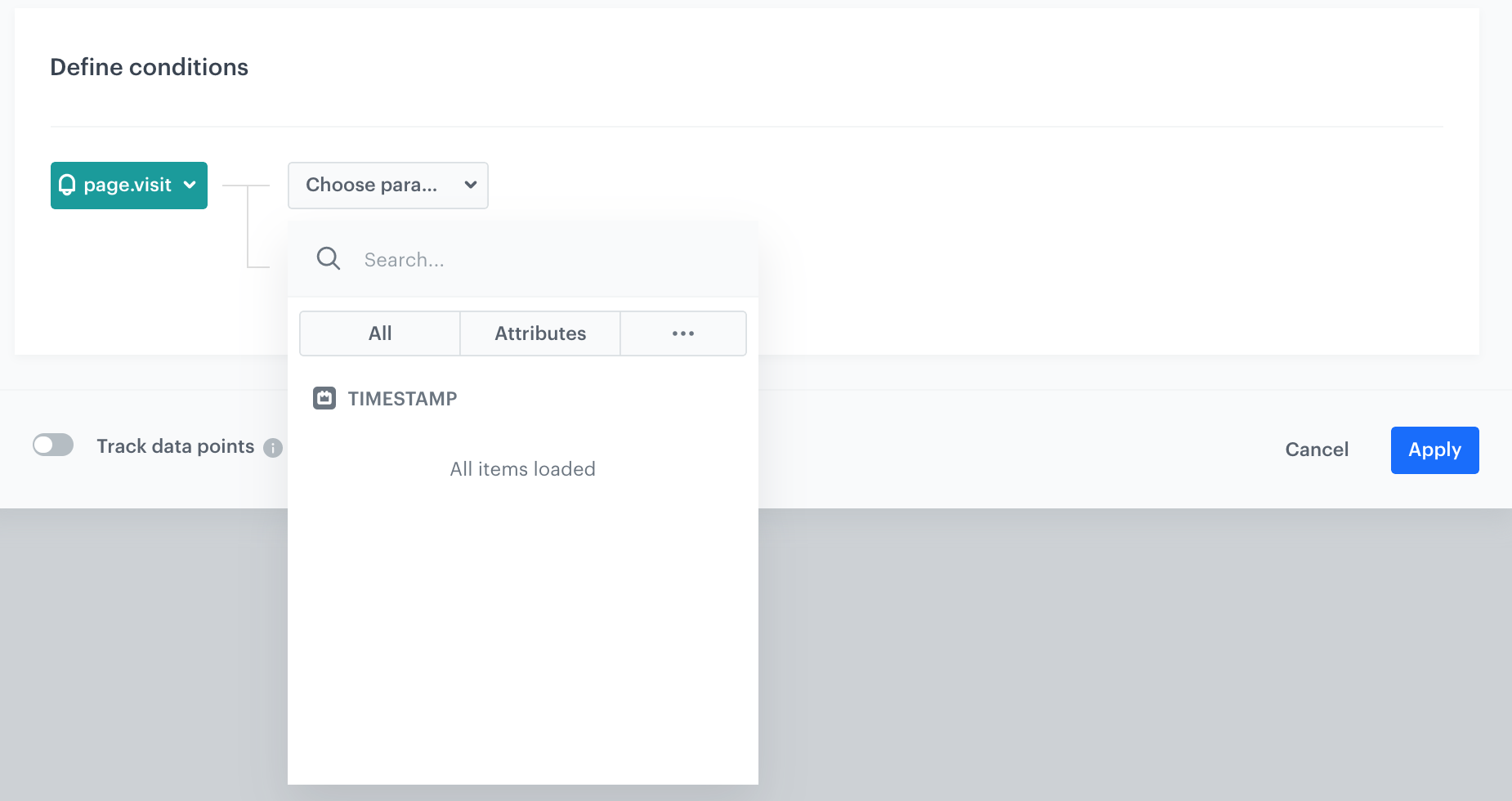
3. In the list of parameters, click the tab.
4. Select **Specials**.
5. Select **TIMESTAMP**.
Timestamp parameter
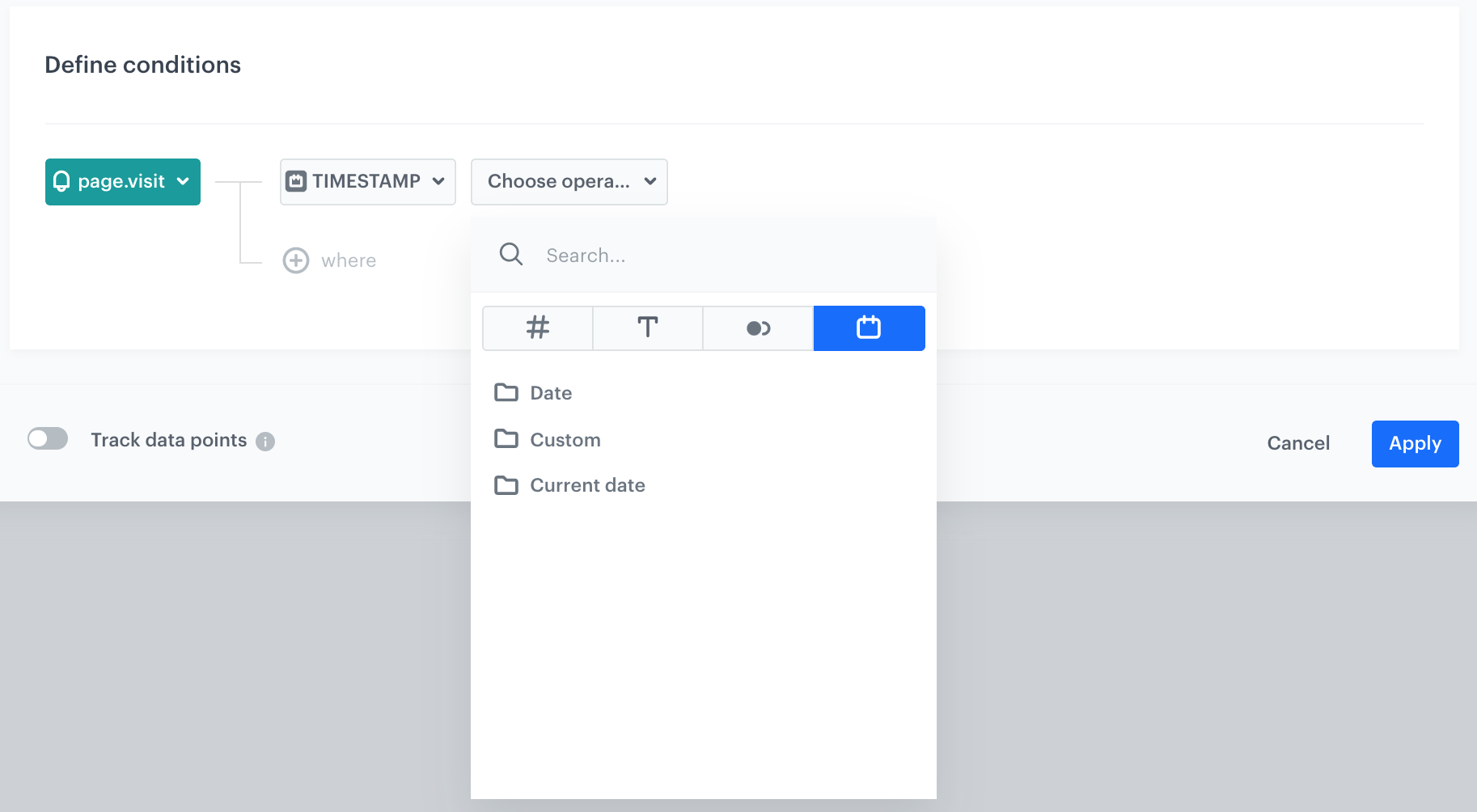
6. From the **Choose operator** list, select:
Timestamp parameter
- **Date** - if you want to select a start or end date
Click to see the explanation of operator options
More than - You choose dates after the selected date (including the selected date).
Less than - You choose dates before the selected date (including the selected date).
- **Custom** - apart from standard date ranges, you can use non-standard (dynamic) dates, for example, everyday from 8:00 to 14.00; Mondays and Thursdays between 15:00 and 17:00; the first and the fourteenth day of the month, and so on.
To use non-standard (dynamic) dates, click this option in the calendar.
The Enable date filter option
- **Current date** - if you want to include those event occurence that happen.
Click to see the explanation of operator options
Matches the current hour - matches only date that fits the current hour, day, month, and year (example: if current date is 2024-05-20 17:00:00, dates from 2024-05-20 17:00:00.000 to 2024-05-20 17:59:59.999 matches)
Matches current day - matches only date that fits the current day, month, and year (example: if current day is 2024-05-20, only 2024-05-20 matches)
Matches current month - matches any date that fits the current month in current year (example: if current month is May 2024, dates from 2024-05-01 to 2024-05-31 match)
Matches current year - matches any date that fits the current year (example: if current year is 2024, dates from 2024-01-01 to 2024-12-31 match)
## Example of use
---
Example of a workflow that uses the Profile Event trigger
The purpose of the workflow is to send an email with a purchase summary every time a customer buys a product.
1. Add the **Profile Event** trigger node. From the list of events, choose the event which signifies a purchase (`product.buy`).
2. Connect the trigger with the **Send email** action. In the settings of the node, select the appropriate template or create a new one.
3. Complete the process with the finishing node (**End**).
 tab.
4. Select **Specials**.
5. Select **TIMESTAMP**.
tab.
4. Select **Specials**.
5. Select **TIMESTAMP**.