You can create an event expression to enrich the parameters of this event and use it while creating different types of analyses (for example, metrics, segmentations, funnels, and so on) and also in the specific nodes in Automation Hub. This means that you can use the result of the event expression as a special parameter of that event.


<div class="admonition admonition-important"><div class="admonition-icon"><svg xmlns="http://www.w3.org/2000/svg" fill="none" viewBox="0 0 24 24" stroke="currentColor" stroke-width="2.5"><path stroke-linecap="round" stroke-linejoin="round" d="M12 8v4m0 4h.01M21 12a9 9 0 11-18 0 9 9 0 0118 0z" /></svg></div><div class="admonition-body"><div class="admonition-content">

Segmentation, expression, and aggregate definitions are cached for 20 minutes after a node with the analysis is activated in a journey.<br>
When another journey in the Automation Hub requests a result of the same analysis in that period, the cached definition is used to calculate the results. This means that if you edit a segmentation, aggregate, or expression used in a workflow, it takes 20 minutes for the new version to start being used in journeys.<br>
This includes definitions of segmentations, expressions, and aggregates nested in other analyses and used in Inserts.

</div></div></div>


<figure>
<img src="/api/docs/image/54176ad07f146575310749eba44b7c2f42c1b327/docs/automation/_gfx/audience-event-expression.png" alt="Selecting the group of customers in the Audience node" class="full">
<figcaption>Event expression for the product.buy event available in the Audience node </figcaption>
</figure>


<div class="admonition admonition-note"><div class="admonition-icon"><svg xmlns="http://www.w3.org/2000/svg" fill="none" viewBox="0 0 24 24" stroke="currentColor" stroke-width="2.5"><path stroke-linecap="round" stroke-linejoin="round" d="M13 16h-1v-4h-1m1-4h.01M21 12a9 9 0 11-18 0 9 9 0 0118 0z" /></svg></div><div class="admonition-body"><div class="admonition-content">

You can find more information about creating event expressions [here](/docs/analytics/expressions/creating-event-expression).

</div></div></div>


## Event expressions in nodes
---
You can use event expressions only in the following nodes:
- [Audience](/docs/automation/triggers/audience-node)
- [Profile Filter](/docs/automation/conditions/client-filter-node)

### Examples of use
---
You can use event expressions to build the filter conditions based on the values calculated on the fly. 
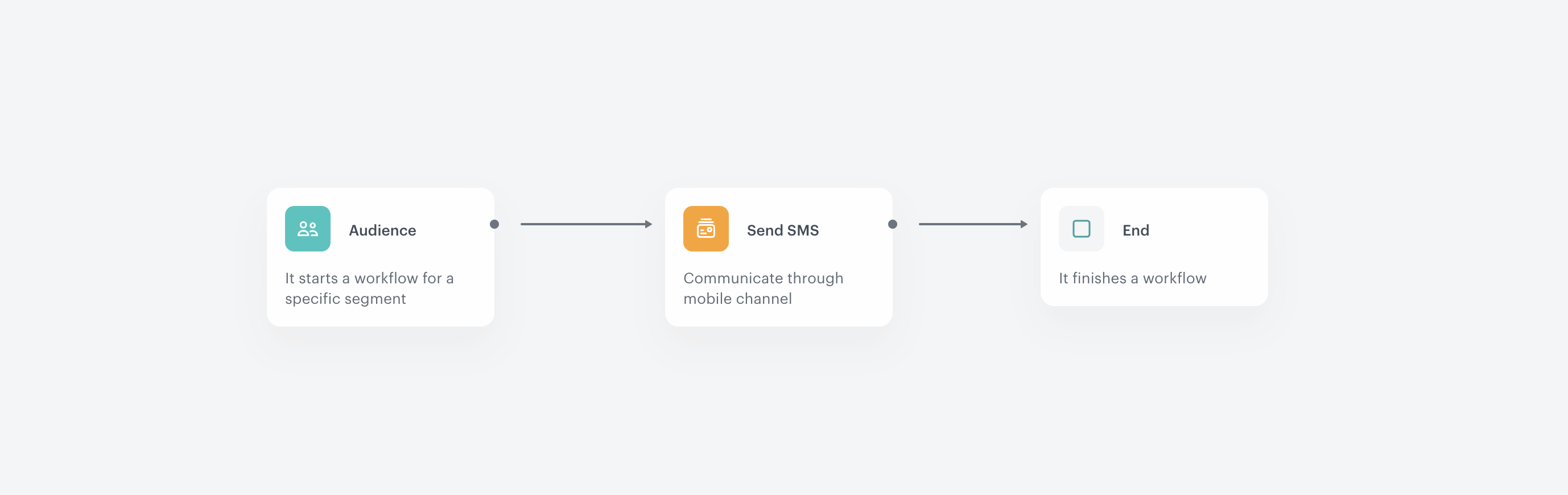
<figure>
<img src="/api/docs/image/54176ad07f146575310749eba44b7c2f42c1b327/docs/automation/_gfx/event-expression-example-workflow.png" alt="Selecting the group of customers in the Audience node" class="full">
<figcaption>Example workflow </figcaption>
</figure>


1. Create an expression based on the `product.buy` which multiplies the quantity by the volume of the item. This way, you can calculate the number of sold liters.
1. Go to Automation Hub, create a workflow that starts with the **Audience** node. 
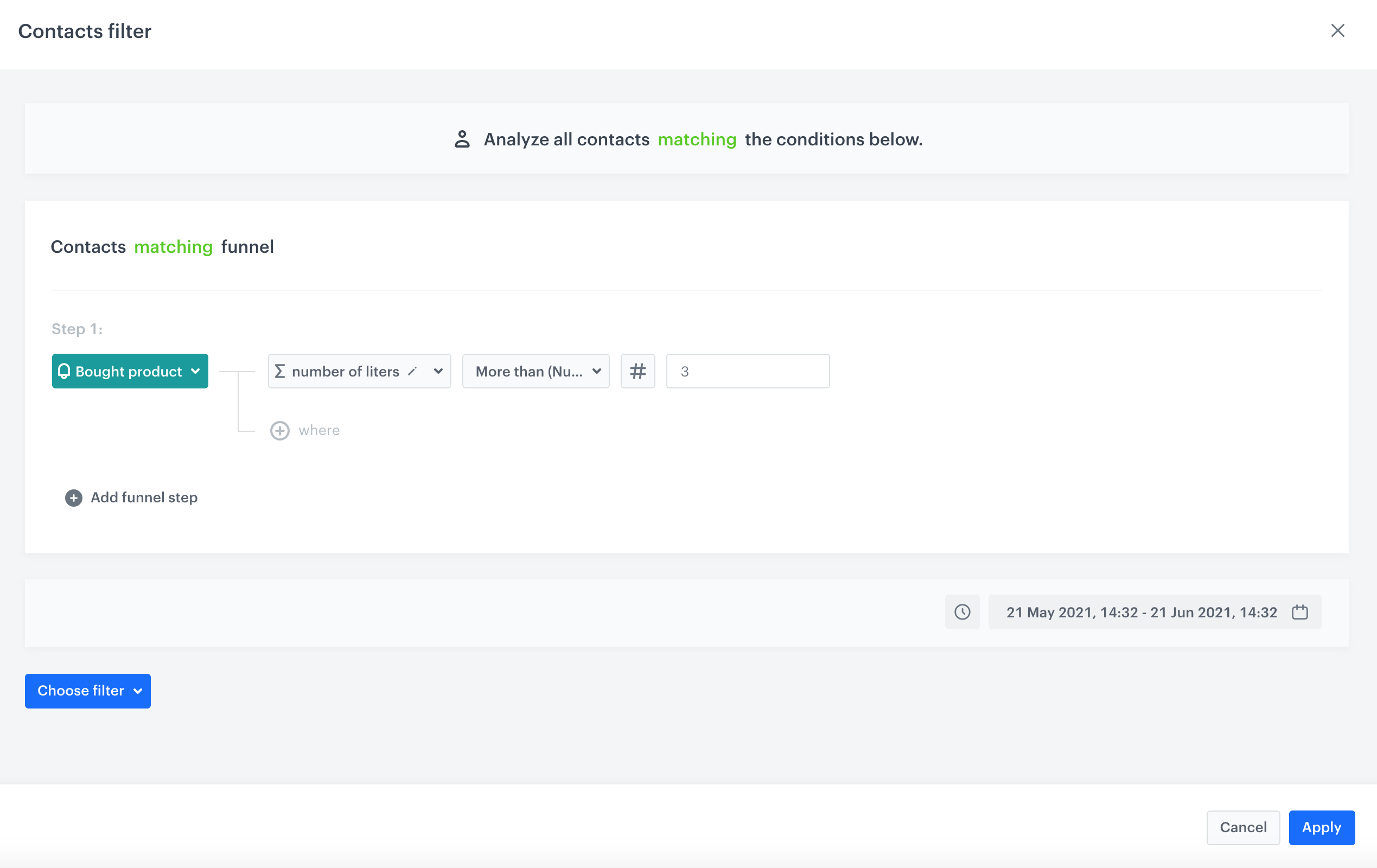
    1. In the segment, select customers who bought more than 3 liters of any item you sell.
    <figure>
    <img src="/api/docs/image/54176ad07f146575310749eba44b7c2f42c1b327/docs/automation/_gfx/example-event-expression-automation.png" alt="Selecting the group of customers in the Audience node" class="full">
    <figcaption>Configuration of the Audience node </figcaption>
    </figure>
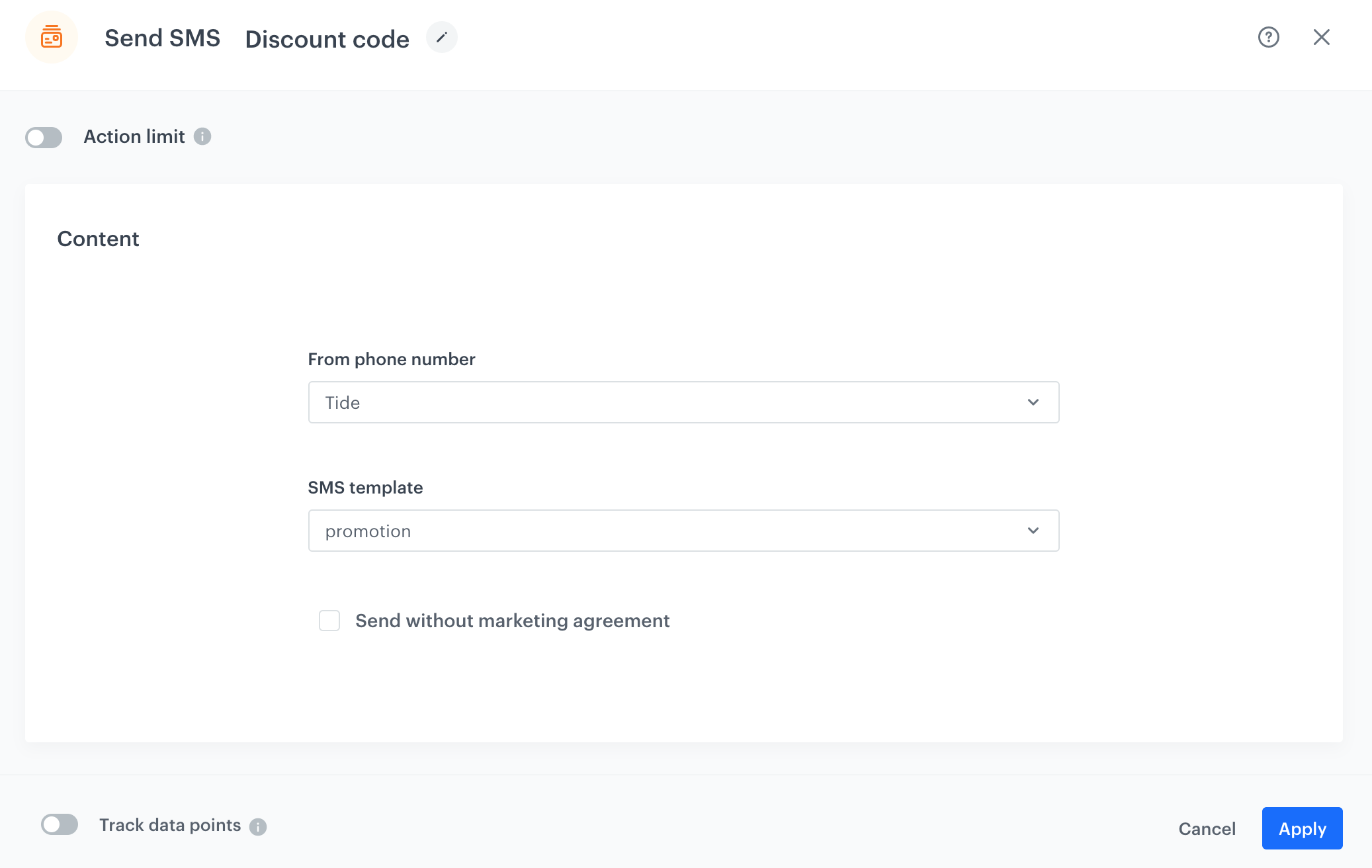
2. Add the **Send SMS** to the workflow and select a template that contains a discount code.  
    <figure>
    <img src="/api/docs/image/54176ad07f146575310749eba44b7c2f42c1b327/docs/automation/_gfx/sms-discount-event-expression.png" alt="Selecting the group of customers in the Audience node" class="full">
    <figcaption>Configuration of the Send SMS node </figcaption>
    </figure>
3. Complete the workflow with the **End** node.

## FAQ
---

You can find answers to the most frequently asked questions [here](/troubleshooting/faq/faq_automation). If you experience any issues while creating or sending emails, you can try to detect and remove the cause of the issues on your own by following the guides in our [troubleshooting](/troubleshooting/automation).