## Related terms

- workflow\-version
- workflow
- workflow\-status
- automation\-module

See the [glossary](/glossary.md) for definitions.

---

# Workflow versioning


Workflow versioning let you keep several configurations of a workflow and switch between them. Each workflow can have many versions, but only one of them is the **Public** version. The Public version is the one that runs.

With versions, you can:
- prepare changes in a new version without affecting the version that is currently running,
- describe the changes introduced in each version,
- switch the running workflow to a different version,
- roll back to a previous version when a change doesn't work as expected,
- check who changed a version and when, in the [audit log](/docs/settings/workspace/audit-log) of the workflow.

## Requirements

- Make sure you have [permissions to create and edit workflows](/docs/settings/identity-access-management/permissions/automation-permissions#create-and-edit-workflows).
- To set a version as Public in an active workflow, you need [permissions to save changes in an active workflow](/docs/settings/identity-access-management/permissions/automation-permissions#save-changes-in-an-active-workflow).
- The workflow must be saved at least once. A new workflow has no versions until you save it for the first time.
- To create versions, the workflow must have the **Draft**, **Active**, or **Paused** status.

## How versions work

### First version

- When you save a new workflow for the first time (by clicking **Save** or **Save & Run**), the system creates version **v1** and sets it as **Public**. From then on, the **Version** selector is available next to the **Save** button.
- Workflows created before versioning was introduced have one version, **v1**, set as **Public**.

### Saving changes

- Clicking **Save** overwrites the version you are viewing. To keep the current configuration and work on a copy, [create a new version](#creating-a-new-version).
- If you save changes in the Public version of an active workflow, the changes apply to the running workflow immediately. To prepare changes without affecting the running workflow, make them in a new version.
- You can add, remove, and reconnect nodes only in a workflow with the **Draft** status. In workflows with other statuses, you can only change the settings of nodes, in every version.
- When you run a workflow for the first time, all versions which aren't Public become read-only. You can preview and remove them, but you can't save changes in them (including schedule rules), change their details, set them as Public, or copy them. Before you run a workflow for the first time, make sure that the version you want to run is Public.

### Public version

- Only one version of a workflow can be Public at a time.
- When you run the workflow, the system runs the Public version. The **Run workflow?** pop-up shows the version that will run. If you click **Save & Run** while viewing a version which isn't Public, a warning appears that the Public version will run instead. To save the version you are viewing and run the Public version, click **Continue**.
- [Schedule rules](/docs/automation/workflow-scheduler) are part of a version. Only the schedule rules of the Public version apply. In a version which isn't Public, you can edit schedule rules, but you can't turn them on.
- You can't remove the Public version.

### Changing the Public version

When you set another version as Public:
- the previous Public version stays in the version history. You can set it as Public again at any time.
- the schedule rules of the previous Public version stop working, and the schedule rules of the new Public version apply.
- node statistics continue from their previous values. Statistics aren't split by version.
- in an active workflow, new paths start according to the new Public version. Profiles which are already in the workflow continue according to the previous Public version until they reach a node that selects a path (for example, [ABX Split](/docs/automation/conditions/abx-split-node)). From that node, they continue according to the new Public version.

### Version limit

A workflow can have up to 50 versions. When you reach the limit, you can't create new versions or copies. To create more versions, [remove](#managing-versions) the ones you no longer need.

### Cloning and duplicating workflows

- When you [clone a workflow to another workspace](/docs/settings/workspace/cloning-objects/cloning-workflows), only the Public version is cloned. The version history isn't cloned. In the target workspace, the cloned workflow has one version, **v1**, set as **Public**.
- When you duplicate a workflow from the list of workflows, the duplicate is created from the Public version.
- The version history isn't duplicated. The duplicate is a draft with one version, **v1**, set as **Public**.

To duplicate a workflow from a version which isn't Public:
1. Open the workflow.
2. In the upper-right corner, click **Version**.
3. On the list, click the version you want to duplicate.
4. In the upper-right corner, click <img src="/api/docs/image/9ea2b8ace4b359530c48ecc9b925bb49331d951b/icons/threedoticon.svg" alt="Three-dot icon" class="icon"> **> Duplicate**.  
    **Result**: A new workflow is created from the selected version.

## Version list

To open the list of versions:
1. Go to <img src="/api/docs/image/9ea2b8ace4b359530c48ecc9b925bb49331d951b/icons/automation-hub-icon.svg" alt="Automation Hub icon" class="icon" > **Automation Hub > Workflows**.
2. Open a workflow.
3. In the upper-right corner, click **Version**.  
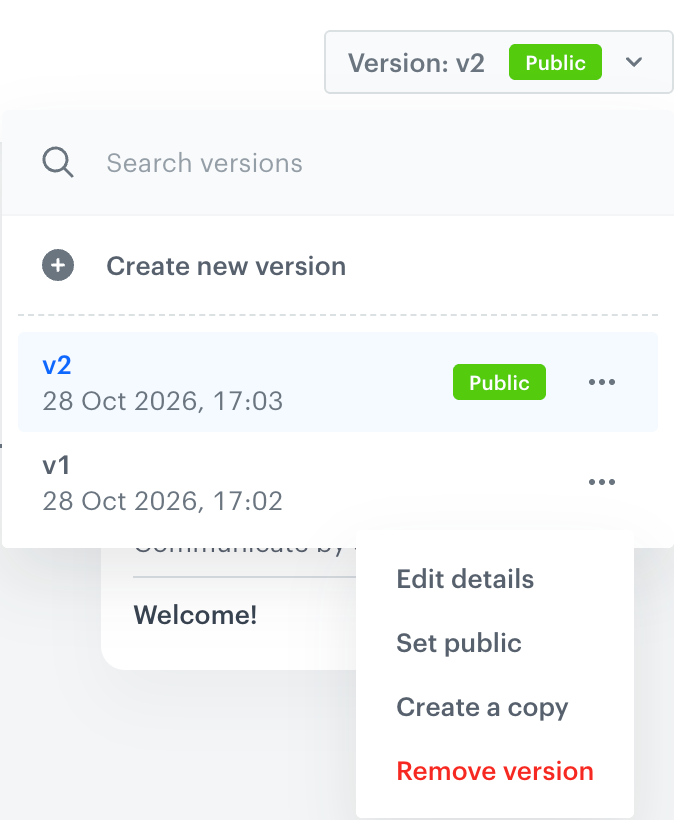
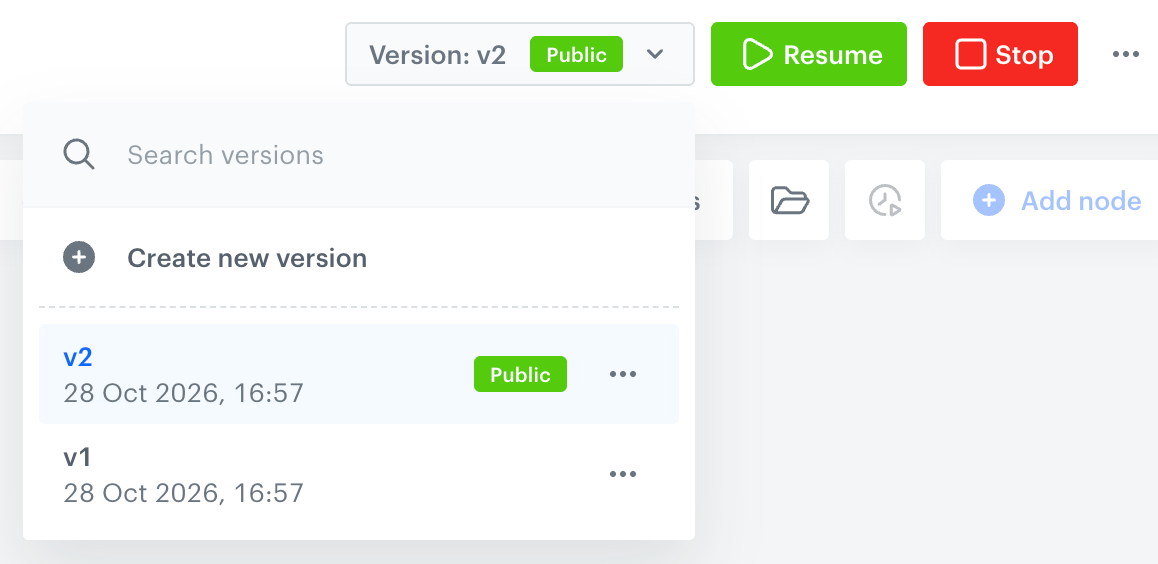
    **Result**: A list of versions appears. The version you are viewing is highlighted, the Public version is marked with the **Public** label, and versions which can't be edited are marked with the **Read-only** label.
    <figure><img src="/api/docs/image/9ea2b8ace4b359530c48ecc9b925bb49331d951b/docs/automation/_gfx/workflow-versions-list.png" class="medium" alt="Workflow version list with the search field, the Create new version option, and two versions, v2 and v1, where v2 is marked as Public"><figcaption>The list of workflow versions</figcaption></figure>

To find a version, in the **Search versions** field, enter the name of the version.

To preview a version, click it on the list.  
**Result**: The canvas shows the diagram of the selected version.

## Creating a new version

A new version is a copy of the version you are viewing. For example, if you open **v1** and create a new version, the new version contains the diagram of **v1**, even if **v2** is the latest version.

1. In the upper-right corner of the workflow, click **Version**.
2. On the list, click the version you want to base the new version on.  
    **Result**: The canvas shows the diagram of the selected version.
3. Click **Version** again.
4. Click **Create new version**.  
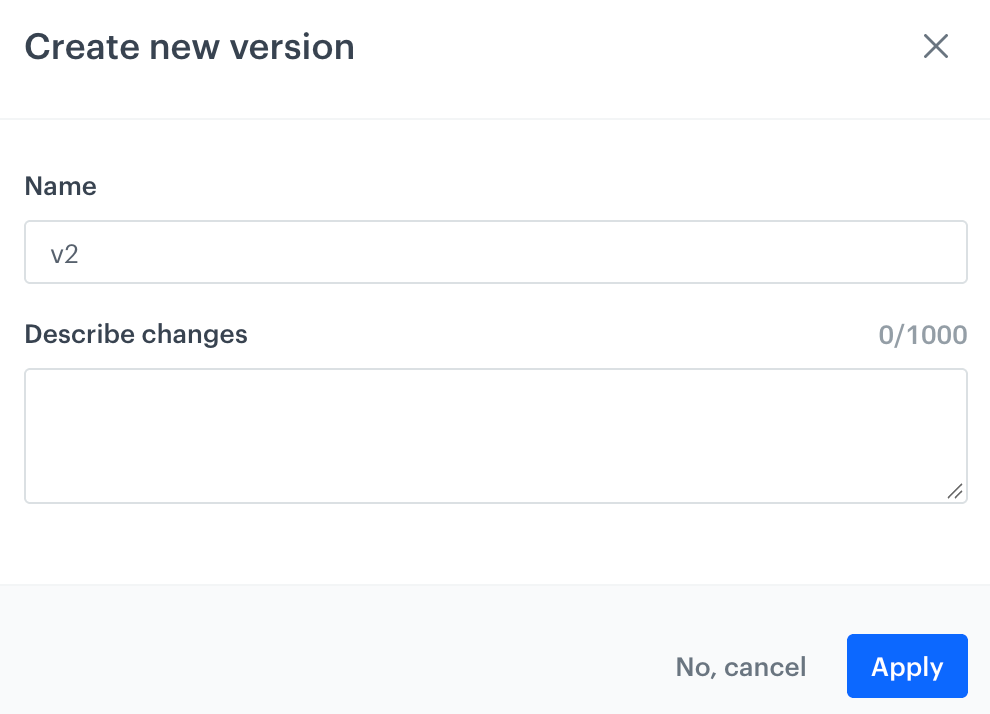
    **Result**: A pop-up appears.
    <figure><img src="/api/docs/image/9ea2b8ace4b359530c48ecc9b925bb49331d951b/docs/automation/_gfx/workflow-version-create.png" class="medium" alt="The Create new version pop-up with the Name field set to v2 and an empty Describe changes field"><figcaption>The Create new version pop-up</figcaption></figure>
5. In the **Name** field, you can change the default name of the version.  
    You can't change the name after the version is created.
6. Optionally, in the **Describe changes** field, enter a description of the changes (up to 1000 characters).
7. Confirm by clicking **Apply**.  
    **Result**: The new version is created and opened on the canvas.
8. Edit the diagram.  
    If the workflow isn't a draft, you can only change the settings of nodes.
9. In the upper-right corner, click **Save**.  
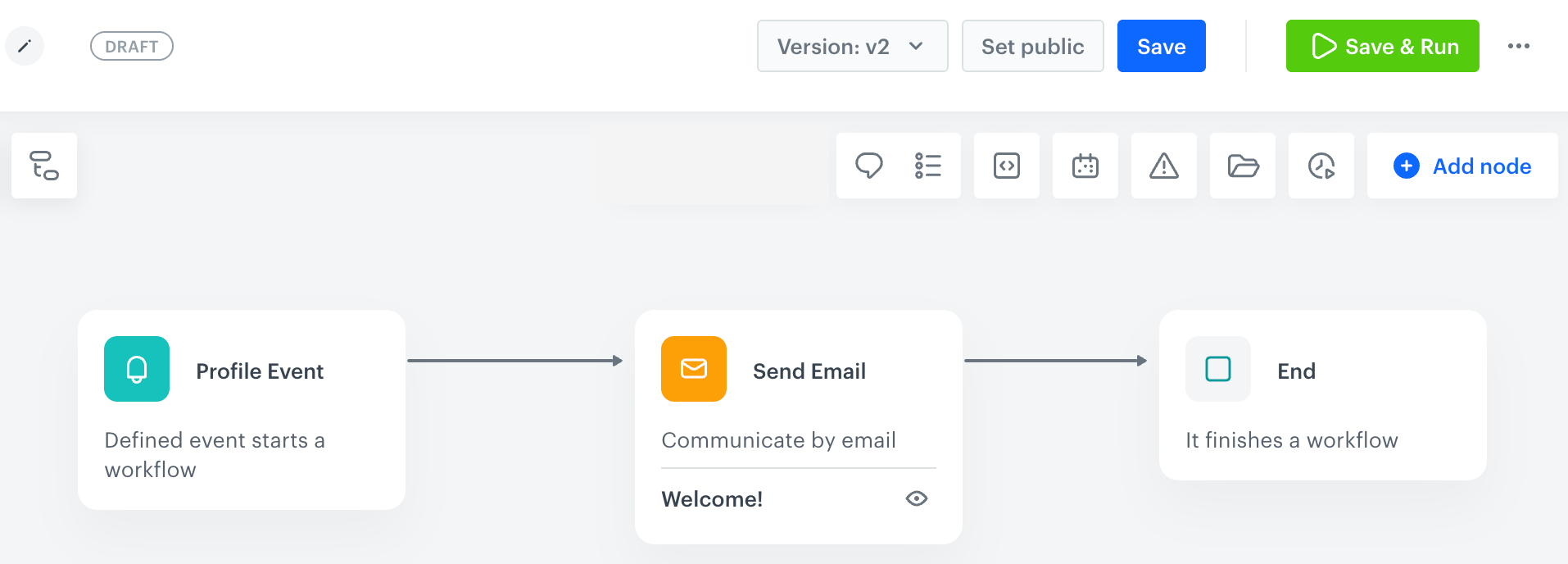
    **Result**: The changes are saved in the new version. The new version doesn't run until you [set it as Public](#setting-a-version-as-public).

<figure><img src="/api/docs/image/9ea2b8ace4b359530c48ecc9b925bb49331d951b/docs/automation/_gfx/workflow-version-edit.png" class="large" alt="A draft workflow with version v2 open on the canvas. The header shows the Version v2 selector without the Public label, and the Set public, Save, and Save and Run buttons"><figcaption>Editing a version which is not Public</figcaption></figure>


<div class="admonition admonition-tip"><div class="admonition-icon"><svg xmlns="http://www.w3.org/2000/svg" fill="none" viewBox="0 0 24 24" stroke="currentColor" stroke-width="2.5"><path stroke-linecap="round" stroke-linejoin="round" d="M9.663 17h4.673M12 3v1m6.364 1.636l-.707.707M21 12h-1M4 12H3m3.343-5.657l-.707-.707m2.828 9.9a5 5 0 117.072 0l-.548.547A3.374 3.374 0 0014 18.469V19a2 2 0 11-4 0v-.531c0-.895-.356-1.754-.988-2.386l-.548-.547z" /></svg></div><div class="admonition-body"><div class="admonition-content">

To create a new version based on any version without opening it, use the [**Create a copy** option](#managing-versions).

</div></div></div>


## Setting a version as Public

Setting a version as Public replaces the version that runs. Use this option to publish new changes or to roll back to a previous version.

1. In the upper-right corner of the workflow, click **Version**.
2. Next to the version you want to publish, click <img src="/api/docs/image/9ea2b8ace4b359530c48ecc9b925bb49331d951b/icons/threedoticon.svg" alt="Three-dot icon" class="icon">.
3. Select **Set public**.  
    **Result**: A pop-up appears. It shows the current Public version and the version that will replace it.
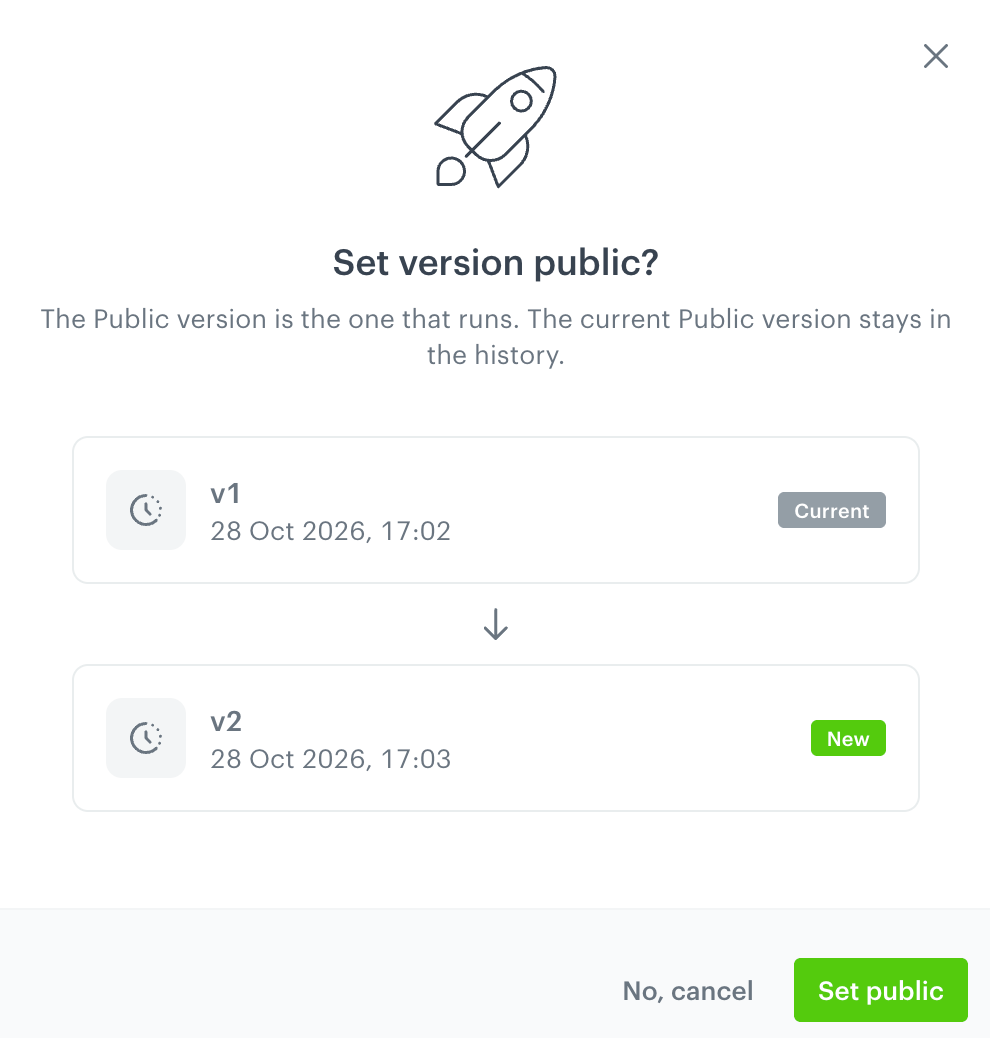
    <figure><img src="/api/docs/image/9ea2b8ace4b359530c48ecc9b925bb49331d951b/docs/automation/_gfx/workflow-version-set-public.png" class="medium" alt="The Set version public pop-up showing version v1 labeled Current and version v2 labeled New"><figcaption>Confirmation pop-up</figcaption></figure>
4. Confirm by clicking **Set public**.

When you are viewing a version which isn't Public, you can also click **Set public** in the upper-right corner of the workflow.

## Managing versions

To manage a version, in the version list, click <img src="/api/docs/image/9ea2b8ace4b359530c48ecc9b925bb49331d951b/icons/threedoticon.svg" alt="Three-dot icon" class="icon"> next to the version.

<figure><img src="/api/docs/image/9ea2b8ace4b359530c48ecc9b925bb49331d951b/docs/automation/_gfx/workflow-version-options.png" class="medium" alt="The context menu of a workflow version with the options Edit details, Set public, Create a copy, and Remove version"><figcaption>Options of a version</figcaption></figure>

| Option | Description | Available for the Public version | Available for read-only versions |
|---|---|:---:|:---:|
| **Edit details** | Change the description of the changes in the version. You can't change the name of the version. | + | - |
| **Set public** | Make the version the one that runs. See [Setting a version as Public](#setting-a-version-as-public). | - | - |
| **Create a copy** | Create a new version based on the selected version. | + | - |
| **Remove version** | Remove the version from the history. This operation can't be undone. | - | + |