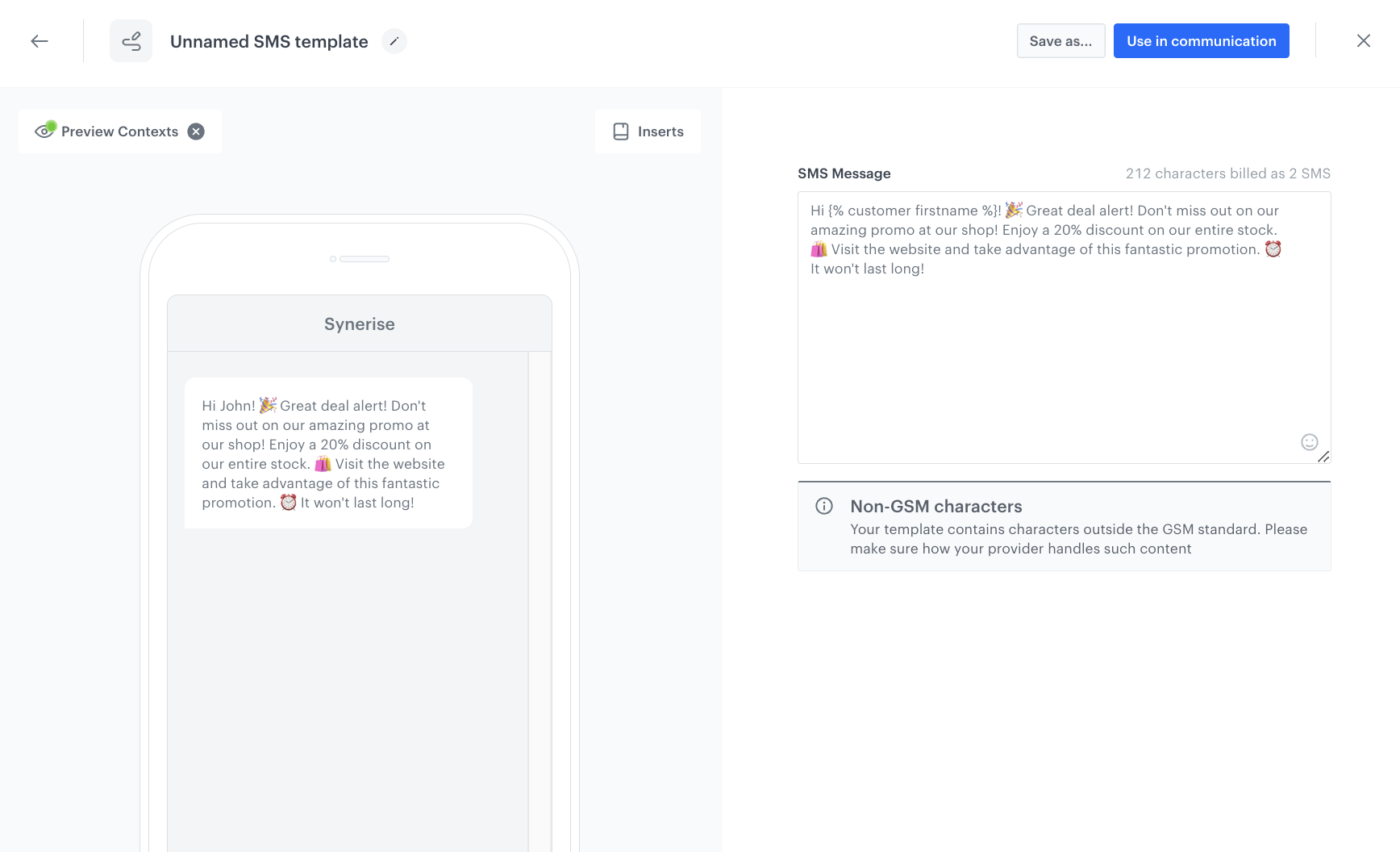
In the Synerise template builder, you can create your SMS. The editor includes real-time SMS validation that detects character encoding (GSM-7 or UCS-2), calculates the estimated number of SMS messages sent per recipient, and highlights problematic characters in the preview. If the message contains invisible or non-GSM-7 characters, you can use the **Clean SMS** tool to fix them before saving. After you create the template, you can proceed to [sending the text message](/docs/campaign/SMS/sending-sms).

Alternatively, you can create a template on the go while [creating the SMS communication](/docs/campaign/SMS/sending-sms).

## Create a template
---

1. Go to **Experience Hub > SMS**.
2. In the menu on the left, click **Templates**.
3. Click **Create new**.
    The text editor and SMS preview open.
5. In the text box on the right, enter the contents of your message. You can:  
    - use emoji,
    - [shorten the links](#short-links),
    - [use inserts to personalize content](/developers/inserts/sms#common-tags-used-in-text-messages) and [add tracking of UTM parameters and click events for redirect URLs](/developers/inserts/sms#adding-utm-and-tracking-parameters-to-link),
    - [remove invisible and non-GSM-7 characters using Clean SMS](#clean-sms).

    <figure><img src="/api/docs/image/8aa18695b9ddf90415ab9b9c2fdf6e90734cca60/docs/campaign/_gfx/sms-changelog.png" class="large" alt="SMS template example"><figcaption>Example of an SMS template</figcaption></figure>


### Tracking parameters in links

To include [tracking parameters](/developers/web/user-identification#recognizing-customers-from-link-parameters) and [UTM and link parameters](/docs/campaign/SMS/sending-sms#define-utm-and-url-parameters) in the links in a template, always wrap the link with the [{% preparelink %}{% endpreparelink %} insert](/developers/inserts/email#adding-utm-and-tracking-parameters-to-links). 

### Short links

If you send links in text messages, you can use a Jinjava code to shorten the URL addresses to make the text message look professional and the link more reliable. 

- The default domain of the shortened links is `snrs.it`. If you want to use your own domain, see [Custom subdomain for shortened links](/docs/campaign/SMS/custom-shortener-domain).
- The shortened links don't require HTTPS. If you include a link with `http://` in the message, it will be redirected to HTTPS when opened.
- You can combine short link insert with [prepare link](/developers/inserts/sms#adding-utm-and-tracking-parameters-to-link) to track URL's parameters (such as UTM) and click events from a message.


<div class="admonition admonition-warning"><div class="admonition-icon"><svg xmlns="http://www.w3.org/2000/svg" fill="none" viewBox="0 0 24 24" stroke="currentColor" stroke-width="2.5"><path stroke-linecap="round" stroke-linejoin="round" d="M12 9v2m0 4h.01m-6.938 4h13.856c1.54 0 2.502-1.667 1.732-2.5L13.732 4c-.77-.833-1.964-.833-2.732 0L4.082 16.5c-.77.833.192 2.5 1.732 2.5z" /></svg></div><div class="admonition-body"><div class="admonition-content">

The shortened link is valid for 14 days from the date the message is sent.

</div></div></div>


| Jinjava code                                                                                                            | Description                                                                                           |
|-------------------------------------------------------------------------------------------------------------------------|-------------------------------------------------------------------------------------------------------|
|  <pre><code class="language-jinjava">{% shorturl %}YOUR_URL{% endshorturl %}</code></pre> | The URL is shortened, however, the clicks aren't collected.                                           |
|  <pre><code class="language-jinjava">{% shorturl %}{% preparelink %}YOUR_URL{% endpreparelink %}{% endshorturl %}</code></pre> | The URL is shortened and the clicks in the link are collected, so this event can be used in analyses. |


#### Example


<pre><code class="language-plaintext">{% shorturl %}{% preparelink %}https://example.com/season-discounts/?utm_source=examplecom&amp;utm_medium=slider&amp;utm_content=examplecom&amp;utm_term=discount-amazon-perf-2_W3&amp;utm_campaign=Campaign-OnGoing{% endpreparelink %}{% endshorturl %}</code></pre>
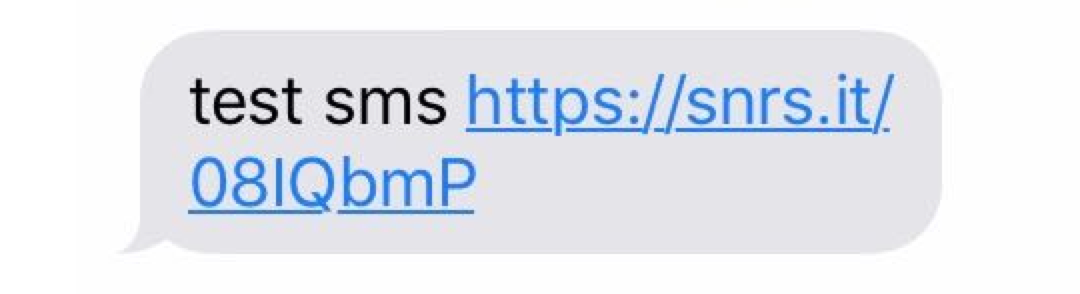


#### Result

<figure><img src="/api/docs/image/8aa18695b9ddf90415ab9b9c2fdf6e90734cca60/docs/campaign/_gfx/shorturlexample3.png" class="medium" alt="Shortened URL in a text message"><figcaption>Shortened URL in a text message</figcaption></figure>


### Personalization

You can also personalize the message by inserting dynamic elements, for example:
- an attribute such as the name or any other piece of information you collected about a profile (city, age, and so on),
- the number of collected loyalty points,
- a discount coupon.  

In [Insert usage](/developers/inserts/insert-usage), you can find a list of inserts and examples of their usage.

### SMS validation

The editor includes a real-time SMS validation panel below the message field. The panel shows three values:  

<figure><img src="/api/docs/image/8aa18695b9ddf90415ab9b9c2fdf6e90734cca60/docs/campaign/_gfx/sms-editor.png" class="medium" alt="SMS editor validation panel showing Characters count, Encoding type (GSM-7 or UCS-2), and SMS count fields, with a Clean SMS button and a color-coded message preview"><figcaption>SMS validation panel in the template editor</figcaption></figure>

- **Characters** - the number of characters in the current message.
- **Encoding** - the encoding the message will use: **GSM-7** or **UCS-2**.
- **SMS count** - the estimated number of SMS messages sent per recipient. Use this to anticipate the cost of your campaign before sending.

The segment limits depend on encoding:
- **GSM-7** - 160 characters per segment.
- **UCS-2** - 70 characters per segment.

Copying text from Word or Google Docs can introduce invisible Unicode characters — for example, zero-width spaces (ZWSP), non-breaking spaces, or smart quotes. These characters silently switch encoding from GSM-7 to UCS-2, which cuts the per-segment limit from 160 to 70 characters and can more than double the number of SMS segments sent, increasing cost without a visible change to the message text.

#### Preview color coding

The **Preview** section below the validation panel highlights problematic characters using color:

- **Red** - look-alike or invisible characters (for example, ZWSP).
- **Yellow** - non-GSM-7 characters.
- **Cyan** - Jinjava tags (excluded from the character count).

#### Personalization and character count

Jinjava personalization tags (for example, `{{customer.firstname}}`) are excluded from the character count because their rendered length varies per recipient. When your message contains personalization, the **Characters** and **SMS count** fields show a minimum estimate (for example, `>=100` and `>=1`). To check the character count for a specific recipient, click **Preview contexts** in the upper left corner and select a user profile.

#### Clean SMS

If the message contains hidden or non-GSM-7 characters, the **Clean SMS** button becomes active. Click it to open the **Clean SMS** modal, which shows a before-and-after comparison:  

<figure><img src="/api/docs/image/8aa18695b9ddf90415ab9b9c2fdf6e90734cca60/docs/campaign/_gfx/clean-sms.png" class="medium" alt="Clean SMS modal showing a Before Clean preview with UCS-2 encoding and 2 SMS segments, and an After Clean preview with GSM-7 encoding and 1 SMS segment after replacing non-GSM-7 characters"><figcaption>Clean SMS modal: before and after comparison of encoding and segment count</figcaption></figure>

- **Before Clean** - the current message with character count, encoding, and SMS count.
- **After Clean** - a preview of the cleaned message with updated stats.

1. To replace non-GSM-7 characters, hidden characters, and accented letters with their ASCII equivalents, select **Clean all UCS-2 characters**. This can reduce the SMS count, but it also removes non-English characters that are intentional.
2. To replace the message content with the cleaned version, click **Apply**.  
    When the message contains no problematic characters, the panel displays: *Content is clean — fits in GSM-7, no hidden characters.*


### Preview the template
---

1. To check the preview of the template for a particular customer, click the **Preview context** button on the upper left side. 
2. Enter the ID of a customer. 
4. Click **Apply**.  
    **Result**: You see the preview of the template for the particular customer. If you use a [custom domain for short links](/docs/campaign/SMS/custom-shortener-domain), the preview shows the default domain, but the custom domain will be used in the actual campaign.


### Save the template
---
- If [Service approval](/docs/settings/configuration/service-approval) is not configured:
    - To go directly to launching an SMS campaign, click **Use in communication** and follow the instructions [here](/docs/campaign/SMS/sending-sms).
    - To save the template:
        1. Enter the name of the template.
        2. Select the folder where the template will be saved.
        3. Click **Save this template**.  
        **Result**: A dropdown appears.
        4. Click **Save as**.  
        **Result**: The template is saved in the selected folder. 

- If [Service approval](/docs/settings/configuration/service-approval) is enabled for **Experience Hub**, to complete the work over the template:
    - If you are a regular user, to send the template to reviewers and a final approver, click **Send to approval**. 
    - If you are a reviewer, to approve a template, click **Approve**.  
    **Result**: If the template is approved, it will either be automatically sent to the final approver or await approval from another reviewer. If the template is disapproved, it will be marked as Rejected and the review process will start over.
    - If you are a final approver, to let yourself approve the template, click **Approve**.  
    **Result**: The template can be used in an SMS campaign.
