<div class="admonition admonition-warning"><div class="admonition-icon"><svg xmlns="http://www.w3.org/2000/svg" fill="none" viewBox="0 0 24 24" stroke="currentColor" stroke-width="2.5"><path stroke-linecap="round" stroke-linejoin="round" d="M12 9v2m0 4h.01m-6.938 4h13.856c1.54 0 2.502-1.667 1.732-2.5L13.732 4c-.77-.833-1.964-.833-2.732 0L4.082 16.5c-.77.833.192 2.5 1.732 2.5z" /></svg></div><div class="admonition-body"><div class="admonition-content">

This testing method is dedicated for advanced users.

</div></div></div>


When you create dynamic content, you may want to check if it renders correctly on your website, especially if it contains Jinjava or JavaScript. For this purpose, you can use [life preview](/docs/campaign/dynamiccontent/testing-dynamic-content/previewing-dynamic-content#the-live-preview-option), however, it lets you preview this campaign in isolation, without checking its impact on other dynamic campaigns.

This article contains instructions on how to test a dynamic content campaign along with other active dynamic campaigns on the website.


<div class="admonition admonition-important"><div class="admonition-icon"><svg xmlns="http://www.w3.org/2000/svg" fill="none" viewBox="0 0 24 24" stroke="currentColor" stroke-width="2.5"><path stroke-linecap="round" stroke-linejoin="round" d="M12 8v4m0 4h.01M21 12a9 9 0 11-18 0 9 9 0 0118 0z" /></svg></div><div class="admonition-body"><div class="admonition-content">

If you test dynamic content that contains references to a profile's data/attributes, make sure that the profile used for the test contains these attributes.

</div></div></div>


## Activate dynamic content for one user

This option is best if you want to see how the dynamic content campaign renders on the website only for a particular user. You can do so by indicating a particular email address (only for a recognized user) or UUID as the audience of the dynamic content.


<div class="admonition admonition-important"><div class="admonition-icon"><svg xmlns="http://www.w3.org/2000/svg" fill="none" viewBox="0 0 24 24" stroke="currentColor" stroke-width="2.5"><path stroke-linecap="round" stroke-linejoin="round" d="M12 8v4m0 4h.01M21 12a9 9 0 11-18 0 9 9 0 0118 0z" /></svg></div><div class="admonition-body"><div class="admonition-content">

Removing cookies or changing the browser's mode to incognito resets UUID.

</div></div></div>


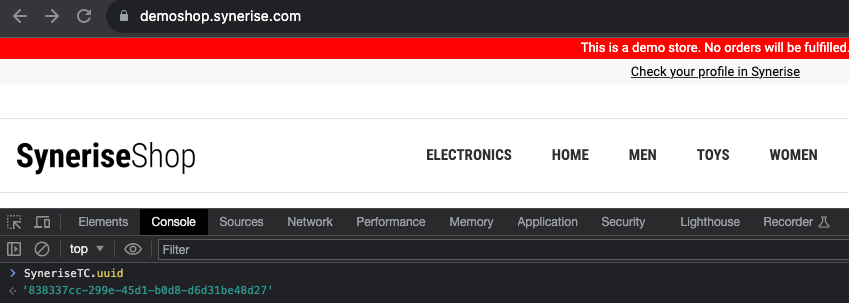
<details class="accordion"><summary>Click here to expand the instruction on getting your UUID</summary><div class="accordion-content"><ol> <li>Go to your website.</li> <li>Open a browser console.</li> <li>Execute the following command: <code>SyneriseTC.uuid</code><br> <strong>Result</strong>: Your UUID is returned. <figure><img src="/api/docs/image/54176ad07f146575310749eba44b7c2f42c1b327/docs/campaign/_gfx/get-uuid.png" class="full" alt="The image presents browser console with the Get UUID function executed"><figcaption>The image presents browser console with the Get UUID script executed</figcaption></figure></li> <li>Copy the UUID and save it in the notepad.</li> </ol></div></details>


1. In the settings of the dynamic content, in the **Audience** section, click **Define**.
2. Select the **New audience** tab.
3. Click **Choose filter**.
4. On the dropdown list, in the search box, enter `Email address` or `UUID`.  
    
   <div class="content-tabs" data-tab-group="tabgrp-1301">
   <div class="tab-buttons"><button class="tab-button" data-tab-id="tabgrp-1301-0" data-tab-group="tabgrp-1301" data-tab-active="true">UUID</button><button class="tab-button" data-tab-id="tabgrp-1301-1" data-tab-group="tabgrp-1301">Email address</button></div>

   <div class="tab-panel" data-tab-id="tabgrp-1301-0" data-tab-group="tabgrp-1301" data-tab-active="true">

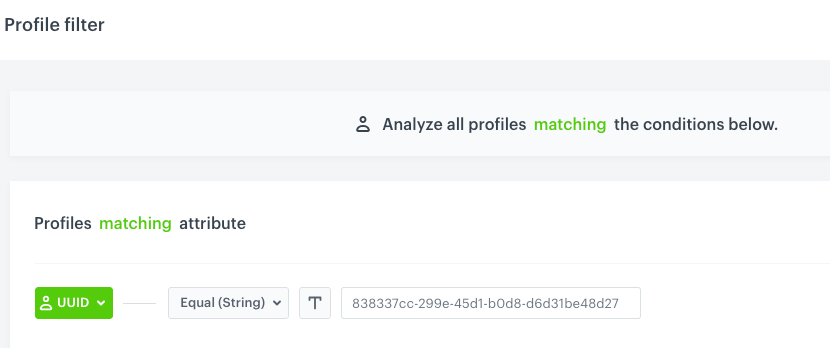
   <figure><img src="/api/docs/image/54176ad07f146575310749eba44b7c2f42c1b327/docs/campaign/_gfx/uuid-filter.png" class="large" alt="A user with the specific UUID is selected"><figcaption>A user with the specific UUID is selected</figcaption></figure>

   </div>

   <div class="tab-panel" data-tab-id="tabgrp-1301-1" data-tab-group="tabgrp-1301">

   <figure><img src="/api/docs/image/54176ad07f146575310749eba44b7c2f42c1b327/docs/campaign/_gfx/email-address-filter.png" class="large" alt="A user with the specific email address is selected"><figcaption>A user with the specific email address is selected</figcaption></figure>

   </div>
   </div>

5. Select the searched attribute.
6. From the **Choose operator** dropdown list, select **Equal**.
7. In the text field, enter the email address or UUID you saved in the notepad.  
        **Result**:  
    <figure><img src="/api/docs/image/54176ad07f146575310749eba44b7c2f42c1b327/docs/campaign/_gfx/audience-one-user.png" class="large" alt="One user selected as audience of dynamic content"><figcaption>One user selected as the audience of the dynamic content</figcaption></figure>
8. Confirm by clicking **Apply**.  
9. Confirm the settings in the **Audience** section by clicking **Apply**.
10. In the **Schedule** section, click **Define**.
11. Select the **Display immediately** option.
12. Confirm the settings in the **Schedule** section by clicking **Apply**.
13. In the upper right corner, click **Activate**.  
    **Result**: Dynamic content runs on the website (if this is the Insert object type, it appears in the specific area on the website indicated in the **Content** section) and is visible only to the user with specific email address/UUID.

## Activate dynamic content for a user group

This option is best if you want to let multiple people test the dynamic content. This involves assigning a tag to their profiles and setting the DC's audience to the profiles with this tag.

You can assign a tag in the following ways:
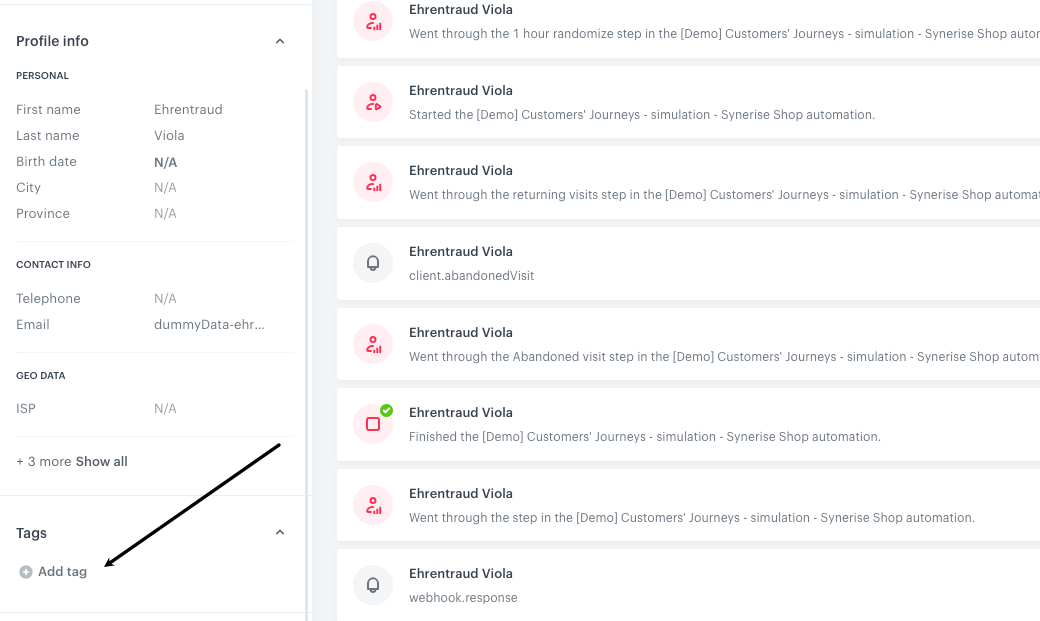
- Add a tag manually on the profile card of the testing users.  
    <figure><img src="/api/docs/image/54176ad07f146575310749eba44b7c2f42c1b327/docs/campaign/_gfx/assign-a-tag-profile-card.png" class="large" alt="The Tags section on a profile card"><figcaption>The Tags section on a profile card</figcaption></figure>
- Each tester executes a command in the browser's console (as described in ["Assign a tag to testing users"](#assign-a-tag-to-testing-users)).  
    This method is recommended for the testers who are unrecognized users on the website. The advantage of this method is that the access to the Synerise platform is unnecessary.
- Assign a tag to testing users through API using one of the following methods: 
    - [Update a profile (identify by ID)](https://developers.synerise.com/ProfileManagement/ProfileManagement.html#operation/UpdateAClient
)
    - [Assign tag to profile](https://developers.synerise.com/ProfileManagement/ProfileManagement.html#operation/assignTagPOST)

Alternatively, you can perform the instructions in ["Activate dynamic content for one user"](#activate-dynamic-content-for-one-user) and include more users by indicating their UUIDs/email addresses by adding one condition with a specific identifier per tester.

### Assign a tag to testing users

1. Decide on the name of the tag, for example `campaigns-testing-snrs`
2. Each tester must perform the instructions below:
    1. Go to your website.
    2. Open the browser console.
    3. Paste the following code to the console and execute it:  
        
       <pre><code class="language-javascript">SR.event.sendFormData('campaigns-testing-snrs',{})</code></pre>

        Replace `campaigns-testing-snrs` with your own tag.    
    **Result**: A tag is assigned to users.
    <figure><img src="/api/docs/image/54176ad07f146575310749eba44b7c2f42c1b327/docs/campaign/_gfx/assign-tag-browser-console.png" class="full" alt="The image presents browser console with the Tag assign script executed"><figcaption>The image presents the browser console with the 'Assign tag' function executed</figcaption></figure>  

### Define the users with a tag as campaign audience

1. In the settings of the dynamic content, in the **Audience** section, click **Define**.
2. Select the **New audience** tab.
3. Click **Choose filter**.
4. On the dropdown list, in the search box, enter the name of the tag.
5. Select the tag.
6. From the **Choose operator** dropdown list, select **Is true**.  
    **Result**: 
    <figure><img src="/api/docs/image/54176ad07f146575310749eba44b7c2f42c1b327/docs/campaign/_gfx/tag-filter.png" class="large" alt="A user with the specific tag is selected"><figcaption>A user with the specific tag is selected</figcaption></figure>
8. Confirm by clicking **Apply**.  
9. Confirm the settings in the **Audience** section by clicking **Apply**.
10. In the **Schedule** section, click **Define**.
11. Select the **Display immediately** option.
12. Confirm the settings in the **Schedule** section by clicking **Apply**.
13. In the upper right corner, click **Activate**.  
    **Result**: Dynamic content runs on the website (if this is the Insert object type, it appears in the specific area on the website indicated in the **Content** section) and is visible only to the users with the selected tag.


## Activate dynamic content with a query parameter

This option is best if you want to see how dynamic content campaign renders on the testing page within the monitored domain. 

1. In the settings of the dynamic content, in the **Display settings** section, click **Define**.  
2. Expand the Advanced options.
3. In the **Page targeting** section, select **Others**.
4. From the dropdown list, select **Page URL containing**.
5. In the text field, enter the URL of the subpage within your monitored domain.  
    **Result**:
    <figure><img src="/api/docs/image/54176ad07f146575310749eba44b7c2f42c1b327/docs/campaign/_gfx/page-targeting-config.png" class="large" alt="Selecting the URL where the dynamic content will be displayed"><figcaption>Selecting the URL where the dynamic content will be displayed</figcaption></figure>
6. Confirm the settings by clicking **Apply**.  
7. Make sure the dynamic content is set to display immediately. 
8. In the upper right corner, click **Activate**.  
    **Result**: Dynamic content appears under the specified URL (if this is the Insert object type, it appears in the specific area on the website indicated in the **Content** section).
    <figure><img src="/api/docs/image/54176ad07f146575310749eba44b7c2f42c1b327/docs/campaign/_gfx/target-url-dc.png" class="large" alt="URL where dynamic content is displayed"><figcaption>URL where dynamic content is displayed</figcaption></figure>
## Combining test methods

You can combine the methods; for example by creating a group of test users and displaying different versions of the dynamic content depending on the query parameter they enter.