In order to send emails from Synerise, you must create a sender account.
The process requires the following actions:
1. Outside Synerise:
1. [Create an email account within a domain](/docs/campaign/e-mail/configuring-email-account#setting-up-and-email-account).
2. [Add DNS entries](/docs/campaign/e-mail/configuring-email-account#add-dns-to-your-domain).
3. If you don't have your own SMTP, decide which one to choose.
Simple Mail Transfer Protocol (SMTP) is responsible for moving your emails on and across IP networks that are typically only used for sending messages to a mail server for relaying. It's an internet standard for email transmission and it works closely with Mail Transfer Agent to send your emails to the right email inboxes.
2. Inside Synerise application:
1. [Select SMTP provider](/docs/campaign/e-mail/configuring-email-account#select-smtp-providers-in-synerise).
2. [Enable integration with an email provider in Synerise](#enable-integration-with-email-provider-in-synerise).
3. [Create a sender account](/docs/campaign/e-mail/configuring-email-account#configure-a-sender-account).
## Setting up and email account
---
Create an inbox within any domain.
## Add DNS to your domain
---
It is your responsibility to make sure the domain you use is safe and protected by adding the DNS entries which ensure satisfying email deliverability.
**WHY?** These entries allow mail clients to verify that you are the real sender of the message. Messages with those headers may be blocked or treated as spam. This is a widely accepted standard.
Before moving on to the further parts of the article, get to know the terms *header from* and *envelope from*. Header from (1) is an email address from which an email is sent, whereas envelope from (2) indicates a domain from which the email is sent (it can be a domain of a bulk mailing vendor or third party affiliates).
Examples of header from and envelope from in a Gmail inbox
There are three types of entries which must be added in the given order:
### SPF
Sender Policy Framework (SPF) must be added regardless of using a shared or your own SMTP. It is considered to be the standard of authorization. The recipient's mail server checks whether the sender's IP is authorized to send emails with a domain in `envelope from`. The list of the allowed IP addresses is included in the domain's DNS record.
For users of EmailLabs (sub-account of Synerise's main account)
If you are not sure about the region your EmailLabs sub-account belongs to, contact the Synerise support. Then, follow the procedure with regard to SPF configuration at the links below:
### DKIM
Domain Keys Identified Mail (DKIM) is:
- recommended when you use your own SMTP
- required if you want to comply with the [Gmail and Yahoo! authentication requirements (as of February, 2024)](#compliance-with-gmail-and-yahoo-authorization-restrictions)
An element of the email is encrypted with a private key. The other key, which is public, is contained within the domain an email is sent from. The recipient's mail server matches the public key with the private one. If the keys match, the email is verified as genuine.
For users of EmailLabs (sub-account of Synerise's main account)
The links below redirect to the instructions on adding the standard DKIM keys. If you want to comply with Gmail and Yahoo! authorization restrictions, add the standard keys and generate custom DKIM for your domain.
If you are not sure about the region your EmailLabs sub-account belongs to, contact the Synerise support. Then, follow the procedure with regard to DKIM configuration at the links below:
#### Compliance with Gmail and Yahoo! authorization restrictions
From February 2024, Gmail and Yahoo will implement new authentication requirements that enforce usage of:
- standard DKIM keys
- custom DKIM for your domain
- reinforced [DMARC](#dmarc).
#### How to generate custom DKIM for your domain?
- You can generate it on your provider's account.
- If you use EmailLabs as an SMTP provider which isn't a sub-account of Synerise's main account, you can generate keys in **Admin > Sender Authorization**
- If you have a sub-account of Synerise's main account in EmailLabs, to generate the keys, contact Synerise support.
#### I only have standard DKIM keys but I want to comply with Yahoo! and Gmail restrictions
- If you use a provider other than EmailLabs: Consult the documentation of your SMTP provider to check how to generate custom DKIM for your domain.
- If you use EmailLabs: generate custom DKIM keys in **Admin > Sender Authorization**, add the key and the standard keys to your DNS.
- If you use EmailLabs (a sub-account of Synerise's main account), contact Synerise support.
### DMARC
Domain-based Message Authentication (DMARC) is recommended when you use your own SMTP. Based on the two previous entries (at least one of them must exist), it verifies the domain. To be compliant with Gmail and Yahoo! authorization standards as of February, 2024, it is necessary to implement DMARC.
For users of EmailLabs (sub-account of Synerise's main account)
If you are not sure about the region your EmailLabs sub-account belongs to, contact the Synerise support. Then, follow the procedure with regard to DMARC configuration at the links below:
After adding DNS entries, you must wait at least 24 hours before sending emails because the processing of these entries takes time. Depending on your provider, this may take up to 72 hours.
## Select SMTP providers in Synerise
---
The full list of emails providers in Synerise is available at [Integrating email providers](/docs/settings/tool/integrating-email-providers).
## Enable integration with email provider in Synerise
---
You can find instructions how to enable integration with a provider in Synerise in the "Enabling integration" section of each article available in [Integrating email providers](/docs/settings/tool/integrating-email-providers).
After enabling the integration, proceed to step 1 in the [Configure a sender account](#configure-a-sender-account) section.
## Configure a sender account
---
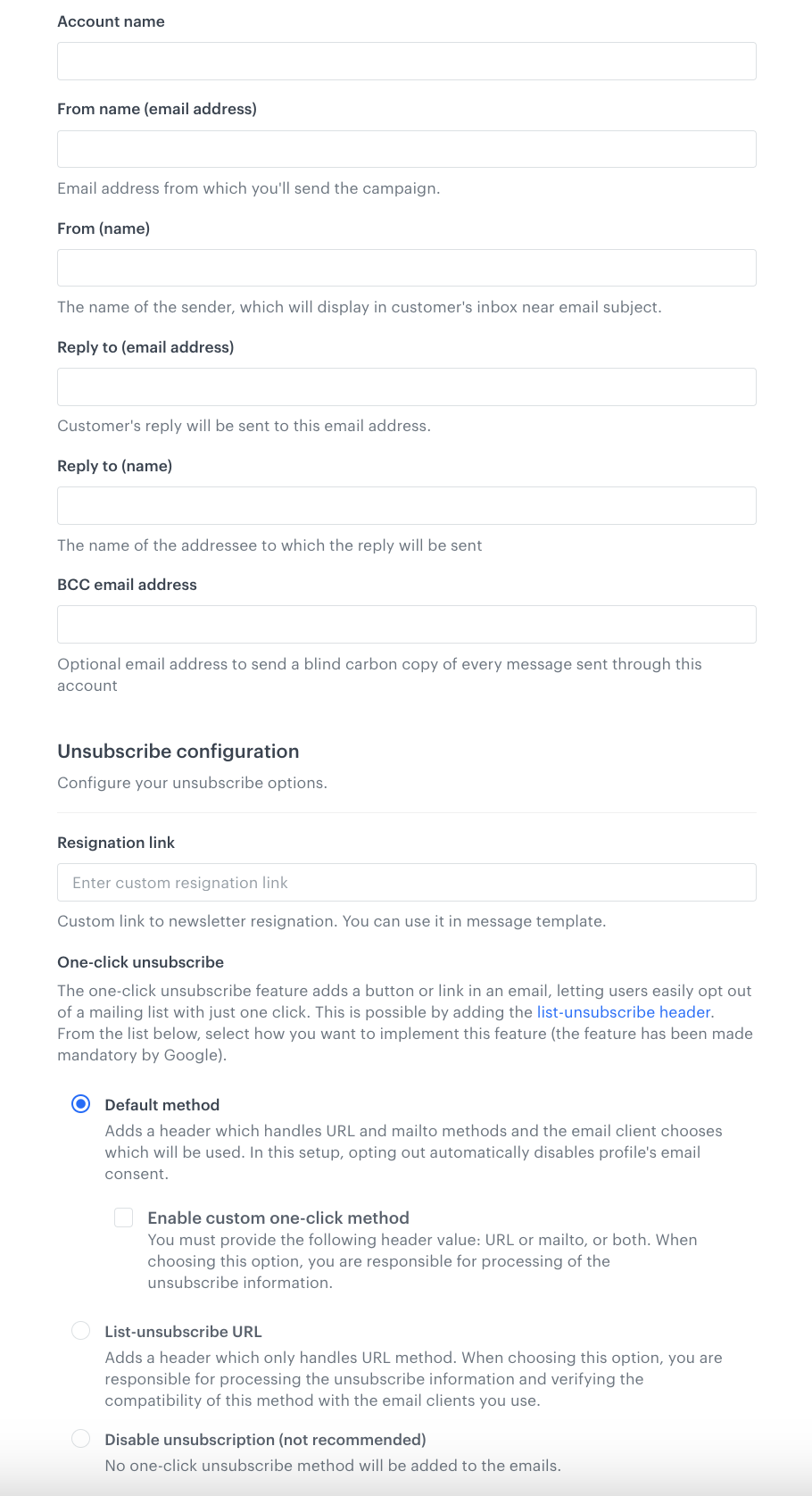
A blank sender account form
#### Main account info
1. Go to **Settings > Email Accounts**.
2. Click **Add account**.
3. In the **Account name** field, enter the name of the account (it will be visible only on the list of sending accounts).
4. In the **From (email)** field, enter the email address from which emails are sent.
5. In the **From (name)** field, enter the name of the sender that is displayed in the recipient's inbox.
6. In the **Reply to (email)** field, enter the email address to which responses to newsletters will be delivered. [Dynamic values](/developers/inserts) are allowed in this field.
7. In the **Reply to (display name)** field, enter the name of the sender of email address to which responses are delivered. [Dynamic values](/developers/inserts) are allowed in this field.
8. In the **BCC email address** field, optionally enter the email address to send a blind carbon copy of every message sent through this account. [Dynamic values](/developers/inserts) are allowed in this field.
#### Unsubscribe configuration
1. In the **Unsubscribe configuration** section, you have the option to specify a custom resignation link in the **Resignation link** field. If a URL is provided, any customer visiting this link will have their email marketing agreement status automatically updated to opt-out. Resignation link must be embedded within the email message template using [predefined insert](/developers/inserts/email#adding-a-resignation-link).
This field is optional. If no resignation link provided, you can still embed an insert with the resignation link in your template. In such case, clicking the link will redirect customer to the default resignation page provided by Synerise.
2. In the **One-click unsubscribe** section, select the method of one-click unsubscription.
The one-click unsubscribe feature adds a button in an email, letting users easily opt out of a mailing list. The button may appear in the email or not, depending on the algorythms of email client. The button works because of adding the [list-unsubscribe header](/docs/campaign/e-mail/unsubscribe-link).
1. **Default method**: This option adds a header which handles URL and mailto methods and the email client chooses which will be used. Opting out is possible with just one click. You may optionally check the **Enable custom one-click method** box.
- When the box is unchecked, opting out automatically disables profile's email consent and generates a `newsletter.unsubscribe` event.
- When the box is checked, you are responsible for managing the delivery process of the unsubscribe information. The information about unsubscription isn't sent to Synerise automatically. To configure this option, enter both or one of the following fields:
- In the **List-Unsubscribe URL** field, enter the link that will be used to unsubscribe the customer when they click the button. You can use Jinjava in this field.
- In the **List-Unsubscribe mailto** field, enter the email address that will be used to send information about the unsubscription when the customer clicks the button. You can use Jinjava in this field.
2. **List-unsubscribe URL**: This option adds a header which only handles URL method. The customer is redirected to URL you provide for the confirmation after clicking the button. When choosing this option, you are responsible for managing the delivery process of the unsubscribe information. The information about unsubscription isn't sent to Synerise automatically. Verify both compatibility of this method with the providers you use and make sure which email clients support it.
Since this method is not supported by all email clients, choosing it may signifficatly lower your email delivery rate.
3. **Disable unsubscription (not recommended)**: This option disables one-click unsubscription in the email.
Choosing this method will significantly lower your email delivery rate. Verify the compatibility of this method with the providers you use (make sure if your provider doesn't add any one-click unsubscribe header on their side). Learn more about the sender requirements in the [Google documentation](https://support.google.com/a/answer/81126?hl=en#requirements-5k&zippy=%2Crequirements-for-sending-or-more-messages-per-day).
#### Mail provider
9. In the **Mail provider** section, select one of the options.
10. From the dropdown list, select an integration to use with this sender.
10. Confirm the settings by clicking **Save**.
**Result**: A confirmation email is sent to the email address in the **From(email)** field.
## Confirm the sender account
---
Go to your inbox and click the link in the confirmation email.
**Result**: The account is confirmed and can send messages. On the list of accounts, its status changes from **Awaiting confirmation** to **Confirmed**.
## Track hardbounces and softbounces
---
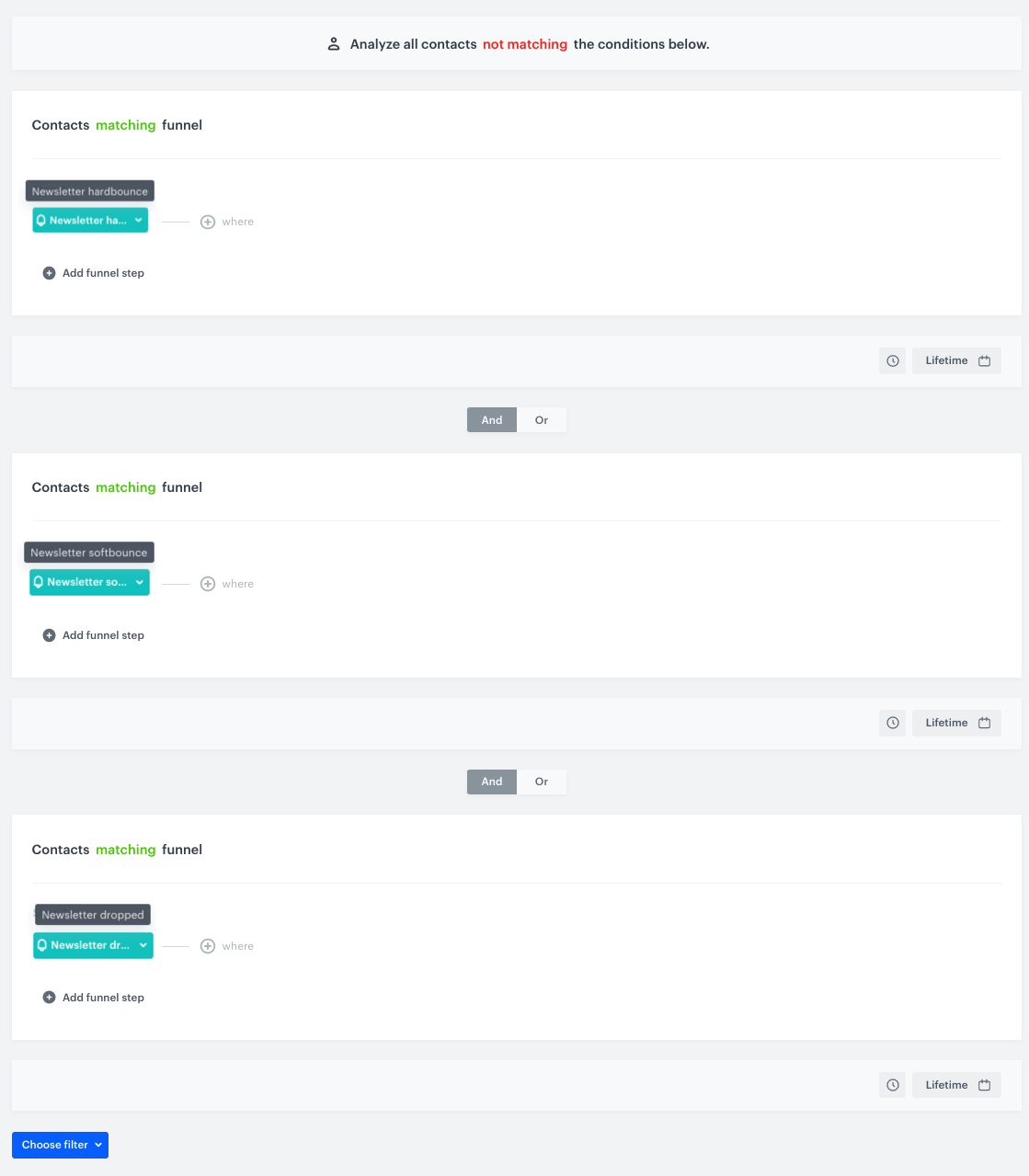
You can receive information about the bounces in the form of events. Based on these events, you can prepare statistics or exclude the email addresses from which you received a bounce message by defining conditions in a segmentation.
Example segmentation that excludes email addresses with all kind of bounces
The list of events:
| Event name | Description |
|-----------------------|-----------------------------------------------------------------------------------------------------------------------------------------|
| [newsletter.hardbounce](/docs/assets/events/event-reference/email#newsletterhardbounce) | The event is generated when the email is not delivered because an email address is invalid or the recipient blocked receiving emails. |
| [newsletter.softbounce](/docs/assets/events/event-reference/email#newslettersoftbounce) | The event is generated when the email is not delivered due to an overloaded inbox, server error, or email size. |
| [newsletter.spambounce](/docs/assets/events/event-reference/email#newsletterspambounce) | The event is generated when the recipient's email server recognized the message as potential spam. The email is rejected and **not saved**, even in the spam folder. |
| [newsletter.dropped](/docs/assets/events/event-reference/email#newsletterdropped) | The event is generated when the email is not delivered due to putting the email address from which the email is sent on the black list. |
To receive these events, refer to the "Tracking bounce events" section in each article in [Integrating email providers](/docs/settings/tool/integrating-email-providers).

 **Settings > Email Accounts**.
2. Click **Add account**.
3. In the **Account name** field, enter the name of the account (it will be visible only on the list of sending accounts).
4. In the **From (email)** field, enter the email address from which emails are sent.
5. In the **From (name)** field, enter the name of the sender that is displayed in the recipient's inbox.
6. In the **Reply to (email)** field, enter the email address to which responses to newsletters will be delivered. [Dynamic values](/developers/inserts) are allowed in this field.
7. In the **Reply to (display name)** field, enter the name of the sender of email address to which responses are delivered. [Dynamic values](/developers/inserts) are allowed in this field.
8. In the **BCC email address** field, optionally enter the email address to send a blind carbon copy of every message sent through this account. [Dynamic values](/developers/inserts) are allowed in this field.
#### Unsubscribe configuration
1. In the **Unsubscribe configuration** section, you have the option to specify a custom resignation link in the **Resignation link** field. If a URL is provided, any customer visiting this link will have their email marketing agreement status automatically updated to opt-out. Resignation link must be embedded within the email message template using [predefined insert](/developers/inserts/email#adding-a-resignation-link).
**Settings > Email Accounts**.
2. Click **Add account**.
3. In the **Account name** field, enter the name of the account (it will be visible only on the list of sending accounts).
4. In the **From (email)** field, enter the email address from which emails are sent.
5. In the **From (name)** field, enter the name of the sender that is displayed in the recipient's inbox.
6. In the **Reply to (email)** field, enter the email address to which responses to newsletters will be delivered. [Dynamic values](/developers/inserts) are allowed in this field.
7. In the **Reply to (display name)** field, enter the name of the sender of email address to which responses are delivered. [Dynamic values](/developers/inserts) are allowed in this field.
8. In the **BCC email address** field, optionally enter the email address to send a blind carbon copy of every message sent through this account. [Dynamic values](/developers/inserts) are allowed in this field.
#### Unsubscribe configuration
1. In the **Unsubscribe configuration** section, you have the option to specify a custom resignation link in the **Resignation link** field. If a URL is provided, any customer visiting this link will have their email marketing agreement status automatically updated to opt-out. Resignation link must be embedded within the email message template using [predefined insert](/developers/inserts/email#adding-a-resignation-link).