<div class="youtube-embed youtube-facade not-prose" data-youtube-id="SzYxKeSLwew" role="button" tabindex="0" aria-label="Play YouTube video"><img src="https://img.youtube.com/vi/SzYxKeSLwew/hq720.jpg" alt="YouTube video" class="youtube-facade-thumb" loading="lazy" /><span class="youtube-facade-play" aria-hidden="true"><svg viewBox="0 0 68 48" width="68" height="48"><path d="M66.52 7.74c-.78-2.93-2.49-5.41-5.42-6.19C55.79.13 34 0 34 0S12.21.13 6.9 1.55c-2.93.78-4.64 3.26-5.42 6.19C.06 13.05 0 24 0 24s.06 10.95 1.48 16.26c.78 2.93 2.49 5.41 5.42 6.19C12.21 47.87 34 48 34 48s21.79-.13 27.1-1.55c2.93-.78 4.64-3.26 5.42-6.19C67.94 34.95 68 24 68 24s-.06-10.95-1.48-16.26z" fill="red"/><path d="M45 24 27 14v20" fill="white"/></svg></span></div>


The Basic drag & drop builder is an external solution provided by BeeFree implemented in Synerise that lets you create an email template by dragging and dropping elements.

It is a great choice for creating email templates because it's user-friendly and efficient, provides visual control, offers customization options, supports collaboration, simplifies updates, and makes campaign management accessible to non-technical users.

You can personalize the content of the message by using [inserts](/docs/campaign/e-mail/creating-email-templates/email-code-editor#adding-a-snippet-to-the-template-code). Inserts let you refer to customer attributes (such as name, city, size), product recommendations (for example, last seen items or added to a cart), and the results of aggregates, expressions, and metrics.

### Tips before you start
---

- You can create an email template directly while sending an email. However, because of the approval procedure, it is more convenient to create a template and have it approved before defining the settings while sending an email as it speeds up the process of creating the email.
- While creating the template, save your template once in a while because there is no auto-save option.
- To include [tracking parameters](/developers/web/user-identification#recognizing-customers-from-link-parameters) and [UTM and link parameters](/docs/campaign/e-mail/creating-email-campaigns#define-utm-and-url-parameters) in the links in a template:  
    - **Template contains only static links**   
    No action required. The tracking parameters will be added automatically.  
    - **Template contains links generated using Jinjava**  
    Wrap the link with the [{% preparelink %}{% endpreparelink %} insert](/developers/inserts/email#adding-utm-and-tracking-parameters-to-links)
    
- Although Synerise automatically adds [the unsubscribe header](/docs/campaign/e-mail/unsubscribe-link), always add the resignation link to the template - without it, the emails may reach the spam folder.
- You can use [email inserts](/developers/inserts/email) to not only personalize the contents of the message but also to add such features as tracking click events and UTM parameters to redirecting URLs, or opening a message in the browser
- The **View in browser** link doesn't work in the preview. You must send a test email to test such links.
    
  <div class="admonition admonition-important"><div class="admonition-icon"><svg xmlns="http://www.w3.org/2000/svg" fill="none" viewBox="0 0 24 24" stroke="currentColor" stroke-width="2.5"><path stroke-linecap="round" stroke-linejoin="round" d="M12 8v4m0 4h.01M21 12a9 9 0 11-18 0 9 9 0 0118 0z" /></svg></div><div class="admonition-body"><div class="admonition-content">

  We do not recommend adding a **View in browser** link to templates that contain a reference to Automation event context (`event.params.{paramName}`) because previewing such messages is not supported.

  </div></div></div>

- For better template organization, you can create template folders:  
    1. Go to <img src="/api/docs/image/54176ad07f146575310749eba44b7c2f42c1b327/icons/experience-hub-icon.svg" alt="Experience Hub icon" class="icon" > **Experience Hub > Email**.
    2. On the left side, click **Templates**.
    3. Select **From template** tab.
    4. Scroll down to the bottom of the page.
    5. Click <img src="/api/docs/image/54176ad07f146575310749eba44b7c2f42c1b327/icons/plus-icon-expressions.png" alt="Plus icon" class="icon" >
        **Result**: A pop-up appears.
    3. On the pop-up, in the **Folder name**, enter the name of the folder.
    4. Confirm by clicking **Apply**.

## Building templates
---
1. Go to **Experience Hub > Email**.
2. On the left pane, click **Templates > New template**.  
3. On the pop-up, select **Drag & drop builder**.
4. Proceed according to the instructions on building templates is available at the [BeeFree help center](https://support.beefree.io/hc/en-us/articles/360015405120-Building-Content-in-Beefree).


### Creating HTML blocks
---
Apart from the standard building elements such as Title, Paragraph, List, Image, Button, Divider, Social, HTML, Icons, and Menu, the basic builder includes the custom, Synerise-native **HTML blocks** element. The configuration of this element takes place in the [Synerise-native code editor](/docs/campaign/e-mail/creating-email-templates/email-code-editor), that lets you derive the benefits provided by the code creator such as:
- using a predefined set of HTML blocks:
    - [Context recommendations](/use-cases/predefined-html)
    - [Products with recent interactions](/use-cases/last-seen-html)
    - Recommended products
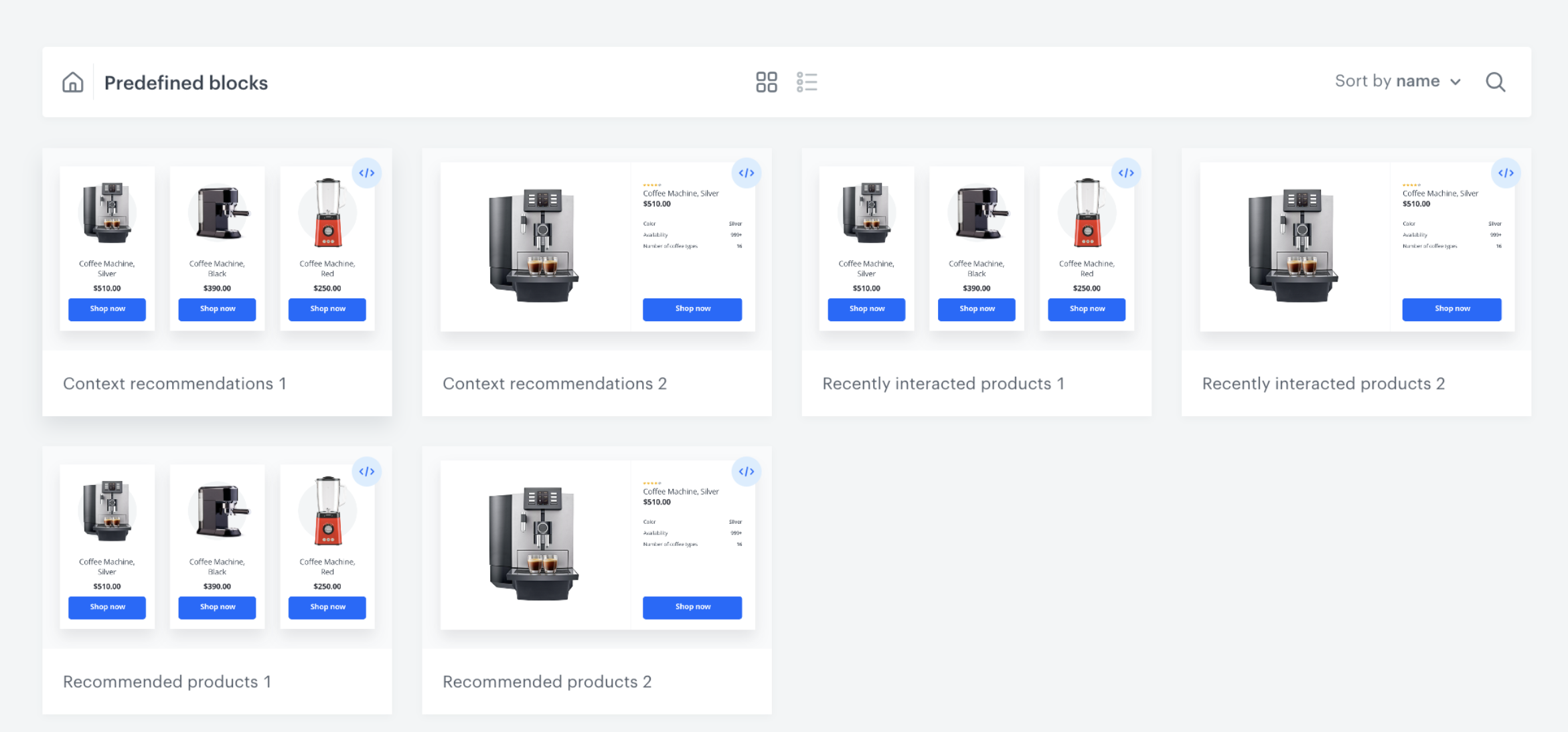
    <figure><img src="/api/docs/image/54176ad07f146575310749eba44b7c2f42c1b327/docs/campaign/_gfx/predefined-blocks.png" class="large" alt="Library of predefined blocks"><figcaption>Library of predefined blocks</figcaption></figure>
- creating re-usable HTML block templates,
- creating a block to be edited in an easy-to-use configuration form that doesn’t require programming skills
- previewing the block in the context of a specific customer in isolation from the email template  
     
  <div class="admonition admonition-note"><div class="admonition-icon"><svg xmlns="http://www.w3.org/2000/svg" fill="none" viewBox="0 0 24 24" stroke="currentColor" stroke-width="2.5"><path stroke-linecap="round" stroke-linejoin="round" d="M13 16h-1v-4h-1m1-4h.01M21 12a9 9 0 11-18 0 9 9 0 0118 0z" /></svg></div><div class="admonition-body"><div class="admonition-content">

  You can also preview the whole email template in the context of a specific customer.

  </div></div></div>


1. Go to **Experience Hub > Email**.
2. On the left pane, click **Templates > New template**.  
3. On the pop-up, select **Drag & drop**.  
4. Select **Basic builder**.
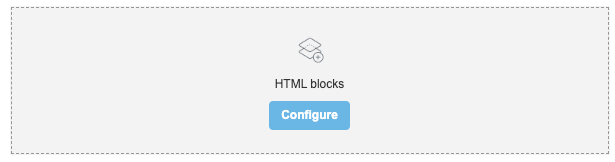
5. On the right side of the screen, select and drag the **HTML blocks** element to the template.  
    **Result**:  
    <figure><img src="/api/docs/image/54176ad07f146575310749eba44b7c2f42c1b327/docs/campaign/_gfx/html-block.png" class="full" alt="The HTML block added to the template"><figcaption>The HTML block added to the template</figcaption></figure>
6. On the **HTML blocks** you added to the template, click **Configure**.  
    **Result**: A pop-up appears.
7. On the upper right side, click **New block**.  
8. Create the structure of an HTML block by following the instructions in the ["Creating template"](/docs/campaign/e-mail/creating-email-templates/email-code-editor#creating-a-template) section.
    - You can build a simple HTML structure in the **HTML** section.
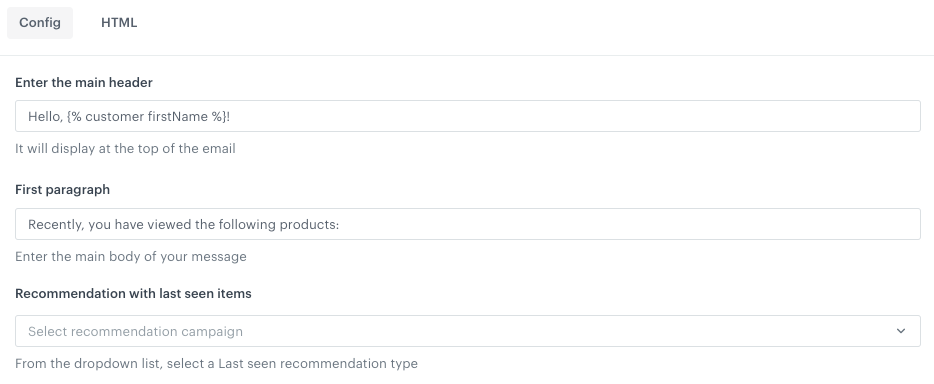
    - On the **HTML** tab, you [can build an easy-to-use configuration form](/docs/campaign/e-mail/creating-email-templates/email-code-editor#template-editing-simplification) which can be filled out by users with no programming skills. To do so, [add variables](/docs/campaign/e-mail/creating-email-templates/email-code-editor#adding-a-variable) to the block template such as color pickers, dropdown lists (with aggregates, expressions, metrics, voucher pools, and recommendations created in Synerise), and fields, so the users who will use this template in an email builder will need only to fill out the fields in this form. For example:  
        <figure><img src="/api/docs/image/54176ad07f146575310749eba44b7c2f42c1b327/docs/campaign/_gfx/variable-after-email.png" class="full" alt="Example block configuration form"><figcaption>Example block configuration form</figcaption></figure>
9. To save this block as a template, click an arrow on the left to the **Next** button, and select **Save as**. On the pop-up, enter the name of the template and select the folder in which the template will be saved.
10. To use this block in an email template, click **Next**.  


   <div class="admonition admonition-important"><div class="admonition-icon"><svg xmlns="http://www.w3.org/2000/svg" fill="none" viewBox="0 0 24 24" stroke="currentColor" stroke-width="2.5"><path stroke-linecap="round" stroke-linejoin="round" d="M12 8v4m0 4h.01M21 12a9 9 0 11-18 0 9 9 0 0118 0z" /></svg></div><div class="admonition-body"><div class="admonition-content">

   We recommend placing the HTML block as the sole element in the row. Additionally, ensure that the styling of the block is compatible with the styling of the template.

   </div></div></div>