<div class="admonition admonition-warning"><div class="admonition-icon"><svg xmlns="http://www.w3.org/2000/svg" fill="none" viewBox="0 0 24 24" stroke="currentColor" stroke-width="2.5"><path stroke-linecap="round" stroke-linejoin="round" d="M12 9v2m0 4h.01m-6.938 4h13.856c1.54 0 2.502-1.667 1.732-2.5L13.732 4c-.77-.833-1.964-.833-2.732 0L4.082 16.5c-.77.833.192 2.5 1.732 2.5z" /></svg></div><div class="admonition-body"><div class="admonition-content">

Dynamic email sender is not available in the Automation Hub.

</div></div></div>


The dynamic email sender feature lets you send one campaign from different email accounts, depending on who the recipient is. Instead of using one sender for everyone, the system checks a specific attribute assigned to each recipient and automatically chooses the right sender account based on that. The selection is based on a [Brickworks](/docs/assets/brickworks) schema, where the mapping between attribute values and sender accounts is defined.

This is designed for multibrand or multilingual operations where each market or brand requires a dedicated sender account. For example, a company that operates in multiple regions can ensure that recipients in each region receive the email from the correct regional sender account, with the appropriate IP pool and sender identity.


<div class="admonition admonition-note"><div class="admonition-icon"><svg xmlns="http://www.w3.org/2000/svg" fill="none" viewBox="0 0 24 24" stroke="currentColor" stroke-width="2.5"><path stroke-linecap="round" stroke-linejoin="round" d="M13 16h-1v-4h-1m1-4h.01M21 12a9 9 0 11-18 0 9 9 0 0118 0z" /></svg></div><div class="admonition-body"><div class="admonition-content">

If a recipient's profile attribute value does not match any record in the schema, or if the schema has been deleted, the campaign is not sent to that recipient. A `message.notSent` event is generated instead.

</div></div></div>


## Requirements
---
- At least two [email sender accounts](/docs/campaign/e-mail/configuring-email-account) must be configured in the workspace.
- You must have the following user permissions:
    - [create and edit schemas](/docs/settings/identity-access-management/permissions/data-management-permissions#create-and-edit-schemas)
    - [create and edit records](/docs/settings/identity-access-management/permissions/data-management-permissions#create-and-edit-records)
    - if you plan to create versioned schemas, then you need permissions to [publish records](/docs/settings/identity-access-management/permissions/data-management-permissions#publish-records).
- The recipients of the email must have a profile attribute whose values correspond to the mappings defined in the Brickworks schema. You choose which attribute to use - any profile attribute can serve as the basis for sender account assignment.

## Creating a Brickworks schema with mapping
---

Before you can use the dynamic sender in a campaign, you must create a Brickworks schema that maps profile attribute values to sender accounts.


### Getting the sender account ID

In further steps, you will need the IDs of the sender accounts. To find the ID of a sender account:
1. Go to <img src="/api/docs/image/54176ad07f146575310749eba44b7c2f42c1b327/icons/settings-icon.svg" alt="Settings icon" class="icon"> **Settings > Email accounts**.
2. Click the sender account you want to use.
3. Copy the ID from the URL of the page.  
    <figure><img src="/api/docs/image/54176ad07f146575310749eba44b7c2f42c1b327/docs/campaign/_gfx/email-account-id.png" class="small" alt="The URL of the page with the highlighted ID of the email sender account"><figcaption>The URL of the page with the highlighted ID of the email sender account</figcaption></figure>


### Creating the schema

In this part of the process, you will create a schema with the following fields:

| Field | Type | Constraints | Description |
|---|---|---|---|
| `profile_attribute_name` | String | Required, Constant | The name of the profile attribute used for matching. The value must be identical across all records in the schema. |
| `attribute_value` | String | Required, Unique | The value of the profile attribute that corresponds to this sender account mapping, for example, a region code such as `PL` or `EN`. |
| `sending_account` | Number (Integer) | Required | The ID of the email sender account to use for recipients whose attribute matches the `attribute_value`. |

1. Go to <img src="/api/docs/image/54176ad07f146575310749eba44b7c2f42c1b327/icons/data-modeling-hub-icon.svg" alt="Data Modeling Hub icon" class="icon"> **Data Modeling Hub > Brickworks**.
2. Create a new schema. For more information on creating schemas, see:  
    - [Creating a schema](/docs/assets/brickworks/quick-start/creating-a-schema)
    - [Field types](/docs/assets/brickworks/schema-field-types)
3. In the **Fields** tab, add the following fields:
    1. Add a **String** field:
        - In **API name**, enter `profile_attribute_name`
        - Select the following options for this field: 
            - **Required field**
            - **Block record-level overwriting** - This setting requires you to provide a default value for this field in each record — enter the name of the profile attribute used for matching.
    2. Add a **String** field:
    - In **API name**, enter `attribute_value`
    - Select the following options for this field: **Required field** and **Unique values only**.
    3. Add a **Number** field:
    - Set the type to **Integer**.
    - In **API name**, enter `sending_account`
    - Select the **Required field** checkbox.
4. Save the schema.  
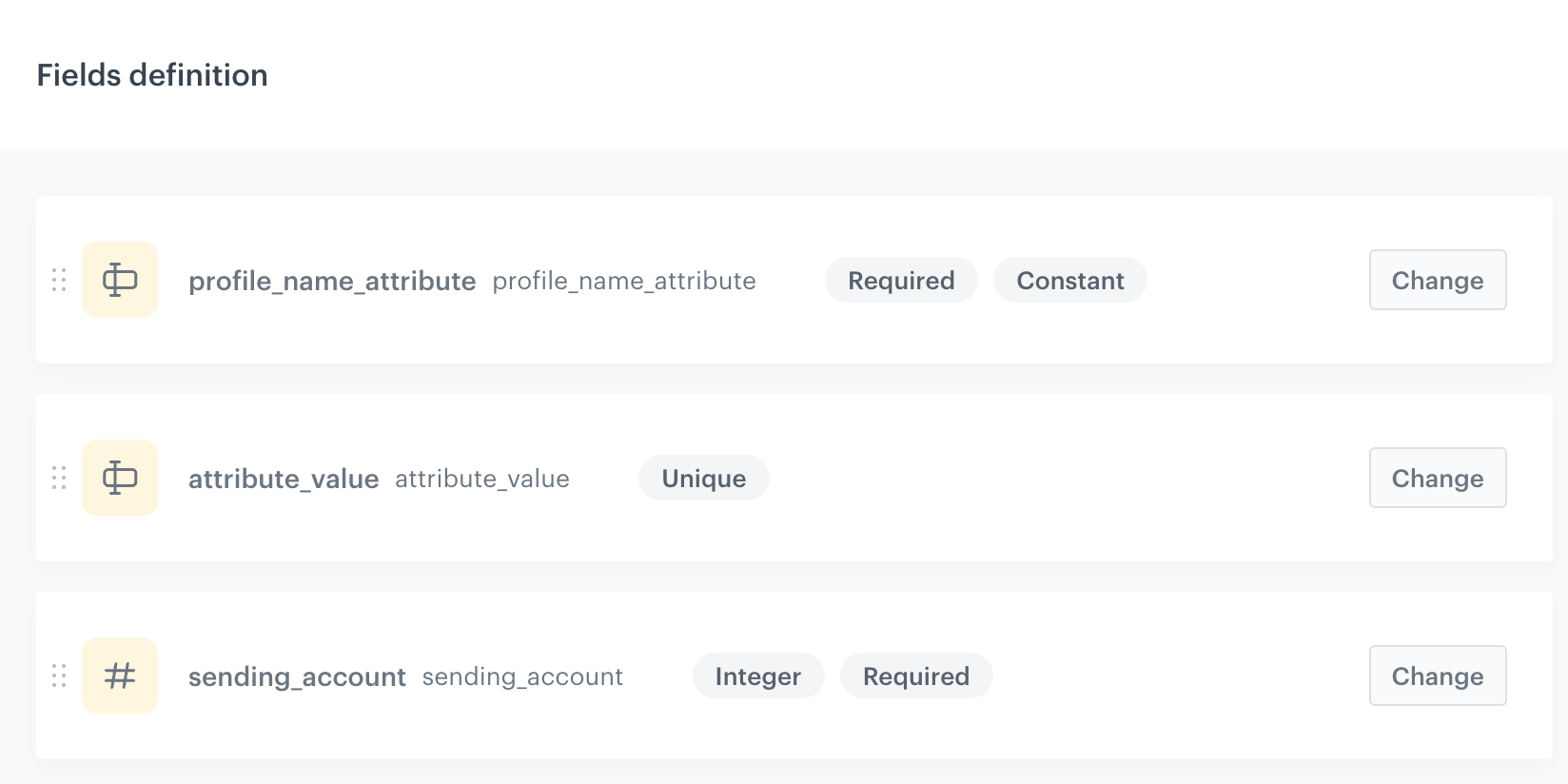
<figure><img src="/api/docs/image/54176ad07f146575310749eba44b7c2f42c1b327/docs/campaign/_gfx/schema-dynamic-sender.png" class="medium" alt="Preview of a schema for dynamic sender allocation"><figcaption>Preview of a schema for dynamic sender allocation</figcaption></figure>

### Adding records

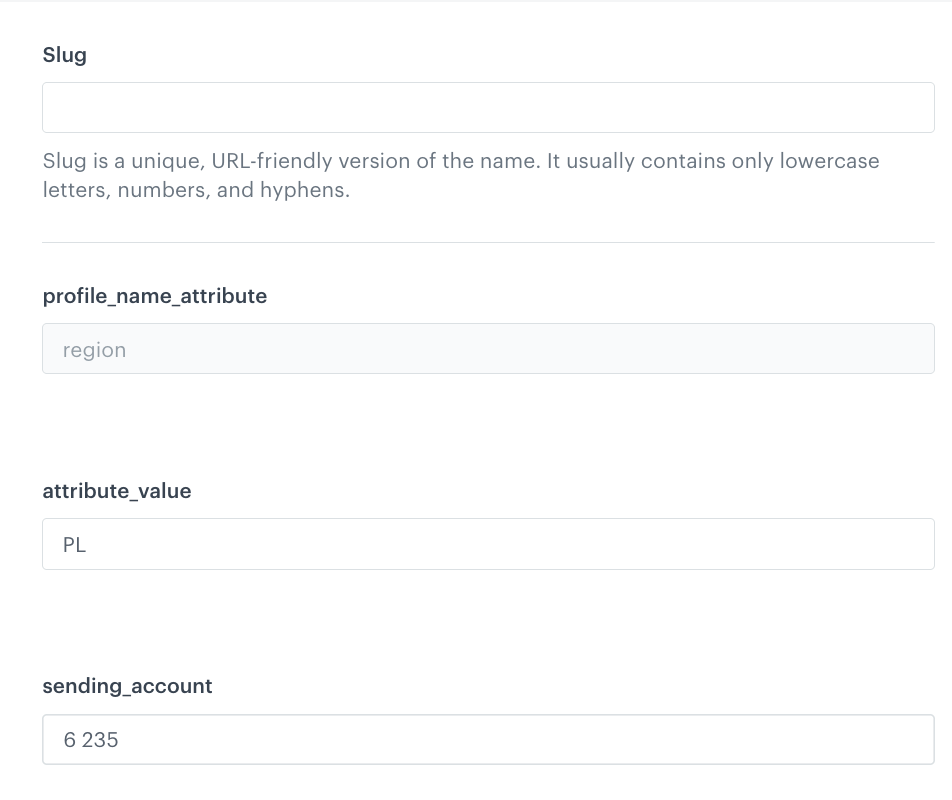
After creating the schema, add a record for each sender account you want to map:

1. Open the schema and go to the **Records** tab.
2. For each mapping, add a record with the following values:
    - In `profile_attribute_name`, the value is already provided due to the **Block record-level overwriting** option in the field setting.  
    - In `attribute_value`, enter the attribute value that identifies this group of recipients (for example, `PL`).
    - In `sending_account`, enter the ID of the sender account assigned to this group.  
    <figure><img src="/api/docs/image/54176ad07f146575310749eba44b7c2f42c1b327/docs/campaign/_gfx/dynamic-sender-record.png" class="medium" alt="An example record"><figcaption>An example record</figcaption></figure>
3. Repeat for each sender account you want to map.

To learn about limits on schemas and records, see [Limits and constraints](/docs/assets/brickworks/limits).

#### Example  

In this example, three records are added to the schema:

| Records | `profile_attribute_name` | `attribute_value` | `sending_account` |
|---|---|---|---|
| record1 | `region` | `PL` | `6235` |
| record 2 | `region` | `DE` | `6236` |
| record 3 | `region` | `EN` | `6237` |

In this example, recipients with `region = PL` will receive the email from account `6235`, recipients with `region = DE` from account `6236`, and so on.

### Selecting the schema in a campaign

Once the schema is ready, select it when creating an email campaign:

1. In the **Content** section of the campaign, select **Dynamic sender**.
2. In the **Email account allocation schema** field, select the schema you created.

For the full email setup, see [Creating emails](/docs/campaign/e-mail/creating-email-campaigns).