
There are several ways to measure the effectiveness of your emails. You can start from predefined statistics within Experience Hub and end up with the detailed results of your email available on a customizable dashboard.

- [General dashboard](/docs/campaign/e-mail/email-campaign-statistics#general-dashboard) - in this place you can preview statistics on sent and scheduled mailings.
- [List of emails](/docs/campaign/e-mail/email-campaign-statistics#list-of-emails) - it contains information about the number of messages sent in last 24 hours and their basic statistics such as clicks, opened emails, OR and CTR (all of them are calculated on the basis of generated events).
- [Details of a sent email](/docs/campaign/e-mail/email-campaign-statistics#email-details) - when you go to the details of the email you already sent, you can check the detailed statistics about this email.
- [Workflow details](/docs/campaign/e-mail/email-campaign-statistics#workflow-details) - when you sent emails through Automation Hub, check the statistics of the email in the details of the workflow.

## General dashboard
---

To access the dashboard, go to **Experience Hub > Dashboard**.

<figure>
<img src="/api/docs/image/54176ad07f146575310749eba44b7c2f42c1b327/docs/campaign/_gfx/email-general-dashboard.png" alt="General dashboard in Experience Hub" class="full">
<figcaption> General dashboard in Experience Hub </figcaption>
</figure>

The dashboard shows:

- information about the number of mailings sent in the last 30 days (counted from the current day)
    
  <div class="admonition admonition-note"><div class="admonition-icon"><svg xmlns="http://www.w3.org/2000/svg" fill="none" viewBox="0 0 24 24" stroke="currentColor" stroke-width="2.5"><path stroke-linecap="round" stroke-linejoin="round" d="M13 16h-1v-4h-1m1-4h.01M21 12a9 9 0 11-18 0 9 9 0 0118 0z" /></svg></div><div class="admonition-body"><div class="admonition-content">

  This number doesn't reflect the number of messages sent within one mailing.

  </div></div></div>

- information about the number of mailings sent recently
- information about the number of mailings to be sent in the future
- information about the number of mailings sent in the last 7 days (counting from the current day)

## List of emails
---

To access the list of emails, go to **Experience Hub > Email**.

<figure>
<img src="/api/docs/image/54176ad07f146575310749eba44b7c2f42c1b327/docs/campaign/_gfx/email-list-stats.png" alt="Statistics on the email list" class="full">
<figcaption> Statistics on the email list </figcaption>
</figure>


<div class="admonition admonition-important"><div class="admonition-icon"><svg xmlns="http://www.w3.org/2000/svg" fill="none" viewBox="0 0 24 24" stroke="currentColor" stroke-width="2.5"><path stroke-linecap="round" stroke-linejoin="round" d="M12 8v4m0 4h.01M21 12a9 9 0 11-18 0 9 9 0 0118 0z" /></svg></div><div class="admonition-body"><div class="admonition-content">

The list contains emails sent through Automation Hub.

</div></div></div>


- Above the list, you can find the statistics of mailings from the last 24 hours:  
    
  <div class="admonition admonition-note"><div class="admonition-icon"><svg xmlns="http://www.w3.org/2000/svg" fill="none" viewBox="0 0 24 24" stroke="currentColor" stroke-width="2.5"><path stroke-linecap="round" stroke-linejoin="round" d="M13 16h-1v-4h-1m1-4h.01M21 12a9 9 0 11-18 0 9 9 0 0118 0z" /></svg></div><div class="admonition-body"><div class="admonition-content">

  These numbers don't reflect the number of messages sent within one mailing.

  </div></div></div>

    - **Active** - the number of emails which are being sent
    - **Scheduled** - the number of emails which are planned to be sent in the next 24 hours
    - **Sent** - the number of sent email creations
    - **Opens** - the number of opened emails (based on the `newsletter.open` event)
    - **Clicks** - the number of clicks in the email links in the last 24 hours (based on the `newsletter.click` event)
- The list header contains the following email parameters:
    - **Sent** - the number of messages sent within an email creation
    
      <div class="admonition admonition-tip"><div class="admonition-icon"><svg xmlns="http://www.w3.org/2000/svg" fill="none" viewBox="0 0 24 24" stroke="currentColor" stroke-width="2.5"><path stroke-linecap="round" stroke-linejoin="round" d="M9.663 17h4.673M12 3v1m6.364 1.636l-.707.707M21 12h-1M4 12H3m3.343-5.657l-.707-.707m2.828 9.9a5 5 0 117.072 0l-.548.547A3.374 3.374 0 0014 18.469V19a2 2 0 11-4 0v-.531c0-.895-.356-1.754-.988-2.386l-.548-.547z" /></svg></div><div class="admonition-body"><div class="admonition-content">

      Hover the mouse cursor over the number to see the number of messages blocked by [capping](/docs/settings/configuration/campaign-limits).

      </div></div></div>

    - **CTR/Clicks** - the ratio of the clicked links in the message to the number of  sent messages (based on the `newsletter.click` and `message.send` events).
    - **OR/Opened** - the ratio of the opened messages to the number of sent messages (based on the `newsletter.open` and `message.send` events).


## Email details
---

You can preview the results of the sent email. 

1. Go to <img src="/api/docs/image/54176ad07f146575310749eba44b7c2f42c1b327/icons/experience-hub-icon.svg" alt="Experience Hub icon" class="icon" > **Experience Hub > Email**.
2. On the list of emails, you can find emails which were sent manually and through automation. 
3. Click the name of the sent email.  
**Result**: You are directed to the overview of the email.
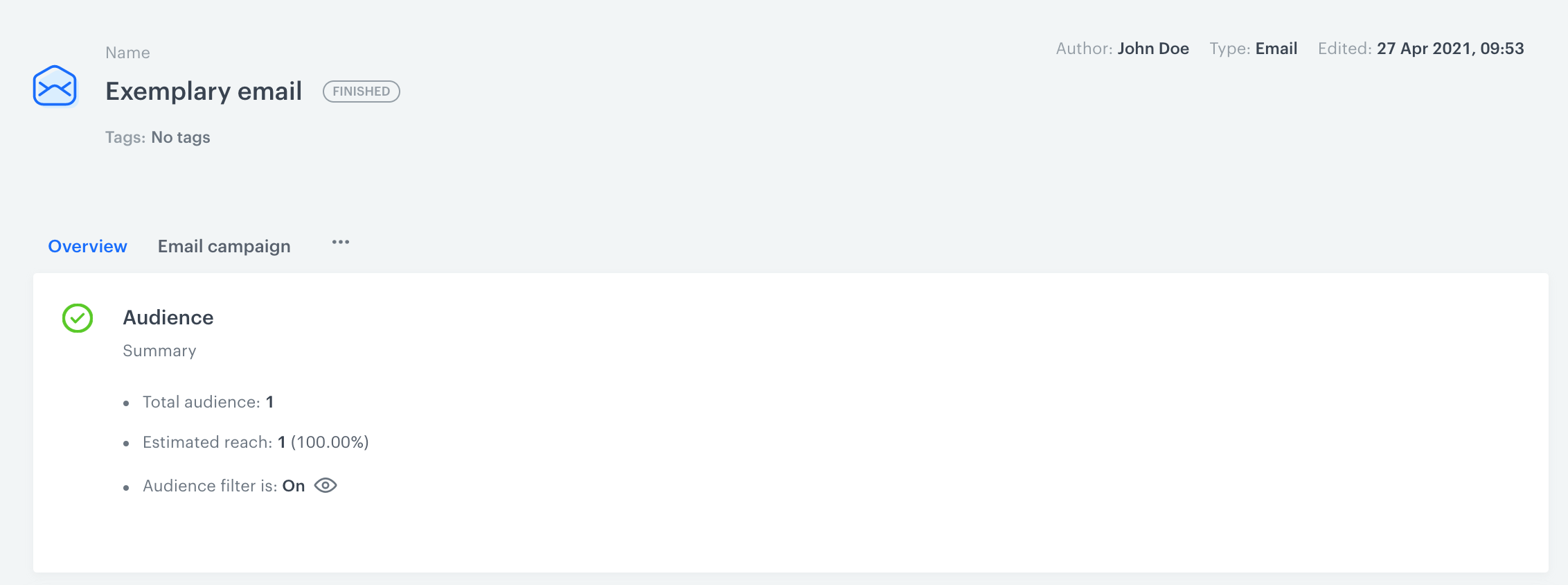
    <figure>
    <img src="/api/docs/image/54176ad07f146575310749eba44b7c2f42c1b327/docs/campaign/_gfx/how-to-get-email-details.png" alt="How to get to email details" class="full">
    <figcaption> The details of the sent mailing </figcaption>
    </figure>

4. Click the **Email campaign** tab.    
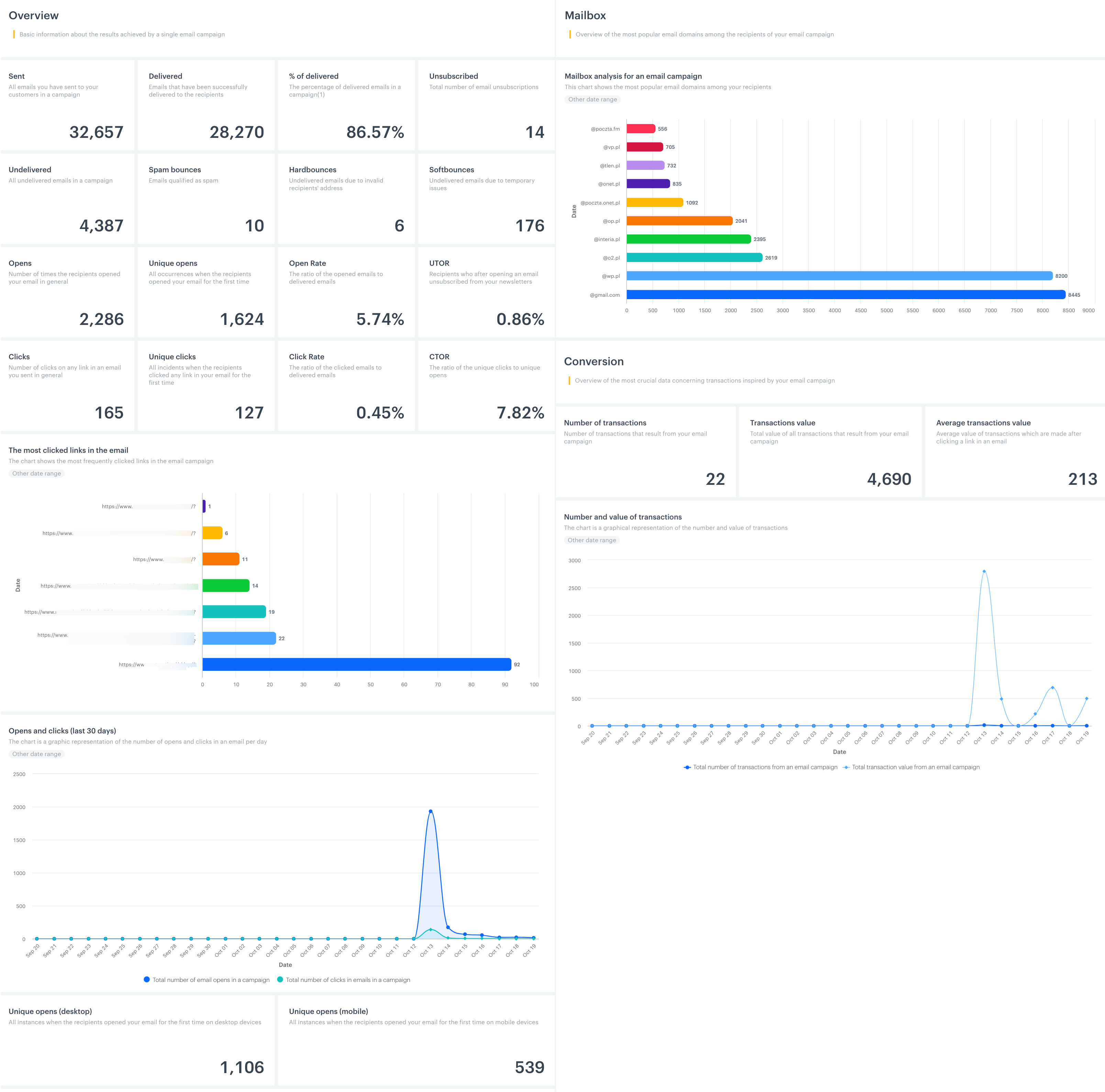
**Result**: The preview of the detailed statistics is displayed.


<div class="admonition admonition-tip"><div class="admonition-icon"><svg xmlns="http://www.w3.org/2000/svg" fill="none" viewBox="0 0 24 24" stroke="currentColor" stroke-width="2.5"><path stroke-linecap="round" stroke-linejoin="round" d="M9.663 17h4.673M12 3v1m6.364 1.636l-.707.707M21 12h-1M4 12H3m3.343-5.657l-.707-.707m2.828 9.9a5 5 0 117.072 0l-.548.547A3.374 3.374 0 0014 18.469V19a2 2 0 11-4 0v-.531c0-.895-.356-1.754-.988-2.386l-.548-.547z" /></svg></div><div class="admonition-body"><div class="admonition-content">

You can create analytical dashboards of emails and add them to the default email statistics by clicking <img src="/api/docs/image/54176ad07f146575310749eba44b7c2f42c1b327/icons/threedoticon.png" alt="Three dot icon" class="icon" >. More info [here](/docs/analytics/analytics-dashboard/creating-dashboards#adding-dashboards-to-campaign-statistics).
</div></div></div>


The scope of default statistics of email is wide. It's divided into three sections: overview, mailbox statistics and conversion:

<figure>
<img src="/api/docs/image/54176ad07f146575310749eba44b7c2f42c1b327/docs/campaign/_gfx/email-campaign-statistics.png" alt="Email statistics" class="full">
<figcaption> Statistics of an email </figcaption>
</figure>

## Workflow details
---
Full statistics of the email sent through **Automation Hub** are available on the list of emails, but if you want to check the statistics on the Send Email node, follow the instruction below: 

1. Go to <img src="/api/docs/image/54176ad07f146575310749eba44b7c2f42c1b327/icons/automation-hub-icon.svg" alt="Automation Hub icon" class="icon" > **Automation Hub > Workflows**.
2. On the list of emails, click the name of the active or stopped workflow that contains the Send Email node.  
**Result**: You are directed to the overview of the workflow.
4. Hover a mouse cursor over the Send Email node.

## Events generated by email communication

See [Email event reference](/docs/assets/events/event-reference/email).

