Synerise users can create email templates on their own and import it to Synerise. They can import templates either in the form of `.zip` files or URL.
While importing templates from `.zip` files and URLs, the system automatically uploads images from files to **Data Modeling Hub > Files** and replaces image references in the template with URLs to the images uploaded to Synerise, as shown in the **After import** tab in the example below.
For example:
<!DOCTYPE html>
<html>
<body>

<h1>My First Heading</h1>
<p>My first paragraph.</p>
<img src="cat.png" alt="cat" width="104" height="142">


</body>
</html>
## Requirements
---
- A `.zip` file must contain `.html` file, images, `.css` file(s), which cannot be nested in catalogs.
- The size of the `.zip` file cannot exceed 10MB.
To make sure that your `.zip` has flat structure, select a HTML file and images, and create a `.zip` from them, not from the catalog with those files.
## Importing an email template
---
Available options for email templates
1. Go to **Experience Hub > Email**.
2. On the left pane, click **Templates**.
3. In the upper right corner, click **New template**.
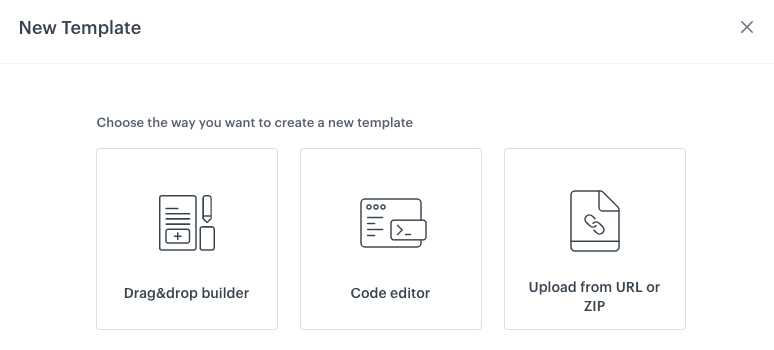
**Result**: A pop-up appears.
4. To import a template from ZIP or a URL, select **Upload from URL or ZIP**.
5. To import a template:
- from ZIP:
1. Select the **ZIP** tab.
2. Upload a `.zip` file.
3. Click **Apply**.
- from URL:
1. Select the **URL** tab.
2. Enter a URL address.
3. Click **Apply**.
6. If needed, make necessary modifications.
Learn how to use the [email code editor](/docs/campaign/e-mail/creating-email-templates/email-code-editor).
7. If you implemented the [Service approval](/docs/settings/configuration/service-approval) feature, a template will require an approval. For the instructions what to do next in such case, read the [Service approval documentation][/docs/settings/configuration/service-approval/]. If in your workspace Service approval is not implemented, in the upper right corner, click **Use in communication**.
 **Experience Hub > Email**.
2. On the left pane, click **Templates**.
3. In the upper right corner, click **New template**.
**Result**: A pop-up appears.
4. To import a template from ZIP or a URL, select **Upload from URL or ZIP**.
5. To import a template:
- from ZIP:
1. Select the **ZIP** tab.
2. Upload a `.zip` file.
3. Click **Apply**.
- from URL:
1. Select the **URL** tab.
2. Enter a URL address.
3. Click **Apply**.
6. If needed, make necessary modifications.
**Experience Hub > Email**.
2. On the left pane, click **Templates**.
3. In the upper right corner, click **New template**.
**Result**: A pop-up appears.
4. To import a template from ZIP or a URL, select **Upload from URL or ZIP**.
5. To import a template:
- from ZIP:
1. Select the **ZIP** tab.
2. Upload a `.zip` file.
3. Click **Apply**.
- from URL:
1. Select the **URL** tab.
2. Enter a URL address.
3. Click **Apply**.
6. If needed, make necessary modifications.