The in-app template builder allows you to:
- create in-app message templates from scratch and edit them by using HTML, CSS, and JavaScript
The `SRInApp.close()` method must be included in every in-app message.
- use the ready-made templates from the **Predefined templates** folder.
The **Predefined templates** folder provides you with templates for the most common campaign scenarios such as sending an abandoned cart, displaying a carousel with item recommendations, and displaying a simple banner with a button.
Modification of the ready-made templates doesn't require applying changes to the template code. The template builder contains a user-friendly configuration form that brings editing down to filling out fields that define the properties of the template. This makes editing templates possible by any user regardless of the programming skills. You can [simplify the editing of your own templates as well](#template-editing-simplification) by creating custom configuration form adjusted to your needs. Thanks to this you can edit your template or create its variations dedicated for different scenarios.
You can personalize the content of the message by [using snippets](#adding-a-snippet-to-the-template-code) and [Jinjava inserts](/developers/inserts) to inject data such as profile attributes (for example, name), recommendations, analysis results.
[Snippets](#adding-a-snippet-to-the-template-code) also let you re-use the same content in multiple templates, or create a reference to a fragment that you only need to update in one place to see the change in all templates where it's used.
## Character limits
The template to be used in an in-app message campaign cannot exceed 60,000 characters.
## Good practices
### Campaign planning recommendations
Using a large number of in-app messages in your application can impact rendering time, message delivery, and battery usage.
To maintain optimal application performance when using in-app campaigns:
- Avoid assigning more than 10 in-app messages to the same trigger event.
- Avoid having more than 20 in-app messages active at the same time in your application.
- Review and archive in-app campaigns that you no longer need.
### Template construction
When creating or editing in-app message content:
- Place the the `SRInApp.close()` (or `SRInApp.hide()`) method at the beginning of the JS script.
- Use try/catch to handle possible fatal errors in the JS script.
- Handle situations where Jinjava inserts return empty data.
- When adding external links to your message:
- Only link to sites you trust.
- Don't link to large images that may negatively affect performance.
- Don't link to resources whose CSS/HTML may be blocked. If you have resources loaded from your own URLs, set `Synerise.settings.inAppMessaging.contentBaseUrl` and use relative paths in HTML/CSS.
## Editing a ready-made template
---
1. Go to **Experience Hub > In-app messages**.
2. On the left pane, select **Templates**.
3. From the list of template folders, select **Predefined templates**.
4. Select one of the templates to edit.
- [Abandoned cart](/use-cases/abandoned-basket-inapp)
- Bottom bar
- [Carousel with context recommendations](/use-cases/in-app-cross-sell)
- [Carousel with recommendation campaign](/use-cases/in-app-recommendations)
- [Fullscreen](/use-cases/inapp-mandatory-upgrade)
- Modal
- [Price alert](/use-cases/in-app-price-drop-last-seen-products)
- [Swiping mechanism with recommendation campaign](/use-cases/in-app-swiping-mechanism)
- Top bar
- [Walkthrough](/use-cases/inapp-walkthrough)
**Result**: You are redirected to the code editor.
4. You can edit the template in two ways:
- Edit the code of the template ([add inserts](#adding-a-snippet-to-the-template-code), [add variables](#adding-a-variable)).
The code of the template is embedded in `` or `` elements.
- Go to the **Config** tab and fill out the form.
5. After you make changes to the template, you can check the [preview](#previewing-templates).
6. If the template is ready, in the upper right corner click **Save this template > Save as**.
7. On the pop-up:
1. In the **Template name** field, enter the name of the template.
2. From the **Template folder** dropdown list, select the folder where the template will be saved.
3. Confirm by clicking **Apply**.
## Creating a template
---
1. Go to **Experience Hub > In-app messages**.
2. On the left pane, select **Templates**.
3. In the upper right corner, click **New Template**.
4. Use the **HTML**, **CSS**, and **JavaScript** tabs to define the properties of the template.
The code of the template is embedded in `` or `` elements.
6. If the template is ready, in the upper right corner click **Save this template > Save as**.
7. On the pop-up:
1. In the **Template name** field, enter the name of the template.
2. From the **Template folder** dropdown list, select the folder where the template will be saved.
3. Confirm by clicking **Apply**.
### Selecting in-app message type
To select the way of displaying your in-app message within a mobile application:
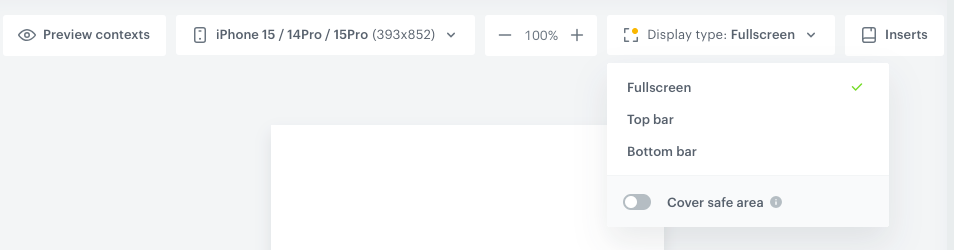
1. On the part of the screen with an in-app message preview, click **Display type**.
2. From the dropdown list, select one of the following options:
- **Fullscreen** - In-app messages are displayed in the center of the mobile application, with no clickable elements within the application.
- **Top bar** - In-app messages are shown at the top bar of the application, and user interaction is limited to the area below the message.
- **Bottom bar** - In-app messages appear at the bottom bar of the application, with user interaction restricted to the area above the message.
3. If you want to manage the display of in-app messages over safe area in your mobile application, use the **Cover safe area** option.
A safe area is the portion of a view that is not covered by elements such as a navigation bar, tab bar, or toolbar. Safe areas are important for ensuring visibility and access to a device's interactive features.
Available from the following application versions:
- iOS: `5.1.0` and higher
- Android: `6.1.0` and higher
- By enabling this option, the in-app message will extend into bars, notches and other UI elements.
- By disabling this option, the in-app message won't cover system UI elements such as top bars, notches, and so on. This is the default setting.
View of the Display type option in the template builder
### Adding a snippet to the template code
[Snippets](/docs/assets/snippets) let you:
- insert data such as profile attribute, recommendations, or analysis results into the communication.
- create re-usable pieces of static content, so you don't need to manually copy and paste between templates.
- create dynamic pieces of content that are updated in all templates when you update the snippet definition.
1. Click **Snippets**.
**Result**: The snippet widget opens.
2. Add a snippet as described in [Snippets](/docs/assets/snippets).
## JavaScript methods in in-app messages
JavaScript methods can be used to let the SDK Listeners and Delegates [handle actions from in-app messaging campaigns](/developers/mobile-sdk/campaigns/action-handling#handling-actions-from-campaigns). The methods only work when the Listeners/Delegates are implemented and running.
Every message must include a method to close or hide the message.
### Use a Mobile SDK method
You can use the `SRInApp.internalMethod` method to call Synerise Mobile SDK methods from the JS code in an in-app. This simplifies using those methods, without creating JS code to authorize and make API requests.
**Syntax**:
```
SRInApp.internalMethod(String methodName, String arguments, onSuccess(String response), onError(Any error))
```
where:
- `methodName` is the mobile SDK method. See table below for available methods.
- `arguments` is a stringified JSON object with the method arguments, described in the method reference for each mobile SDK method. Some methods don't require any arguments.
- `onSuccess` is the function to call when the method succeeds.
In its arguments, `response` is a stringified response from the mobile SDK method. The structure depends on the mobile SDK method.
- `onError` is the function to call when the method fails.
| `methodName` | Corresponding SDK method |
| -------------------------------------- | -------------------------------------------------------------------------------------------------------------------------------------------------------------------------------------------------------------------------------------------------------------------- |
| `Promotions/getPromotionsWithApiQuery` |
| **Example**: This is how you can activate a promotion when a button is clicked:
function internalMethodOnSuccess () { console.log("ACTIVATED"); }; function internalMethodOnError () { console.log("FAILED TO ACTIVATE"); }; (function () { const params = { uuid: '7cdc22d5-cf8c-4102-a853-a9f00d0256b0' }; var button = document.querySelector(".in-app-button"); button.addEventListener("click", function () { SRInApp.internalMethod("Promotions/activatePromotionByUuid", JSON.stringify(params), internalMethodOnSuccess, internalMethodOnError) }); })();
### Close a message This method sends an [inApp.discard](/docs/assets/events/event-reference/inapp#inappdiscard) event when closing the in-app. ``` SRInApp.close() ``` The method has no parameters.
The mobile SDK allows closing in-app messages from outside the message. See [Mobile SDK documentation](/developers/mobile-sdk/campaigns/in-app-message#closing-a-message).
### Close message and send an event This method sends an additional event ([inApp.discard](/docs/assets/events/event-reference/inapp#inappdiscard) is sent automatically) when closing the in-app. ``` SRInApp.closeAndTrigger(action,params,label) ``` - `action` is the event's action name (string) in the `context.action` format, for example `page.visit`. The maximum length is 32 characters. - `params` is an object with free-form JSON parameters to send with the event. - `label` is a string with a human-readable summary of the event. It is obligatory, but not saved in persistent storage and can't be used in Decision or Automation Hubs and is not displayed in **Behavioral Data Hub > Profiles**. ### Hide a message This method sends an [inApp.hide](/docs/assets/events/event-reference/inapp#inapphide) event when hiding the in-app. ``` SRInApp.hide() ``` The method has no parameters. ### Open URL This method sends an [inApp.click](/docs/assets/events/event-reference/inapp#inappclick) event when a customer opens an URL by clicking a link in the message. ``` SRInApp.openUrl(url) ``` `url` is the address to open (string). ### Open deeplink This method sends an [inApp.click](/docs/assets/events/event-reference/inapp#inappclick) event when a customer clicks a link (deeplink). ``` SRInApp.openDeeplink(deeplink) ``` `deeplink` is the deeplink to open (string). ### Resize a message This method resizes the message. ``` SRInApp.resize(resizeTarget, function) ``` where: - `resizeTarget` informs the mobile SDK about the resize type: - `FULLSCREEN` - `TOP_BAR` - `BOTTOM_BAR` - `function` is the name of the JS function that performs the resize on the device. When the method is triggered: 1. The `resizeTarget` is sent to the mobile SDK. 2. The mobile SDK returns information about the width and height of the device's screen. 3. The `function` is triggered with parameters received from the mobile SDK and the message size changes. **Example**:
function resizeCallbackFull (width, height) { const container = document.getElementById('webview-simulation'); container.classList.remove('bottom-bar'); container.classList.remove('top-bar'); container.classList.add('full-screen'); container.style.height = height + 'px'; console.log("Changed to fullscreen"); }; function resizeCallbackTop (width, height) { const container = document.getElementById('webview-simulation'); container.classList.remove('full-screen'); container.classList.remove('bottom-bar'); container.classList.add('top-bar'); container.style.height = '250px'; console.log("Changed to top bar"); }; function resizeCallbackBottom (width, height) { const container = document.getElementById('webview-simulation'); container.classList.remove('full-screen'); container.classList.remove('top-bar'); container.classList.add('bottom-bar'); container.style.height = '250px'; console.log("Changed to bottom bar"); };
### Send a custom event This method sends a custom event. ``` SRInApp.trackCustomEvent(action, params, label) ``` - `action` is the event's action name (string) in the `context.action` format, for example `page.visit`. The maximum length is 32 characters. - `params` is an object with free-form JSON parameters to send with the event. - `label` is a string with a human-readable summary of the event. It is obligatory, but not saved in persistent storage and can't be used in Decision Hub and is not displayed in Behavioral Data Hub. ### In-app storage You can store and retrieve JSON data (a key/value pair) on the device. The data is assigned to a profile and can only be accessed by that profile, so you can keep separate data sets between users of the same device. Thanks to this storage, you can enrich your in-app scenarios, for example: - If the user has already seen a story, hide it or display an alternative layout or version. - Resume the story from the exact point where the user previously stopped watching. - Show different content on the first view versus subsequent views (e.g. intro vs. summary). - Track completed vs. partially viewed stories and adjust messaging accordingly. - Personalize call-to-action buttons based on prior interactions (e.g. “Continue” vs. “Watch again”). You can use these methods: - [Save and get data](#save-and-get-data) - [Delete data](#delete-data-one-value) - [Delete all data](#delete-all-data) #### Save and get data You can save primitive data types and complex types, such as objects. Each key/value pair is saved separately and expires after 90 days. You can reset the expiration counter by resending the same key. - The `saveData` method is asynchronous and may include a callback. - The `getData` method is synchronous. If the requested value doesn't exist, it returns `undefined`
#### Delete all data You can wipe all data from the storage assigned to the current profile, with an optional callback.
// Simple delete all data of current user SRInApp.storage.deleteAllData(); // Delete all storage for current user, with callback SRInApp.storage.deleteAllData( function() { console.log('All data cleared!'); }, function(error) { console.log('Clear failed:', error); } );
### Trigger a custom action This method allows you to pass data to a custom action. You must create logic in your mobile application to perform the action, which is triggered when a Listener/Callback processes the JS method and returns the name and parameters of the custom action. The method generates an [inApp.customHook](/docs/assets/events/event-reference/inapp#inappcustomhook) event. ``` SRInApp.handleCustomAction(name, params) ``` - `name` is used as the identifier that triggers a logic associated with it. - `params` is an object with free-form JSON parameters to pass to the logic. ### Get device information You can retrieve some details of the device as a JSON object. ``` SRInApp.getDeviceData() ``` This returns the following object:
You can use data from this object in your JavaScript. ## Template editing simplification To make your template more accessible to users without programming skills, you can add a configuration form with variables dedicated for the template, so the user can make adjustments to the template. The effect of template editing simplification is that you can edit templates by filling out a user-friendly configuration form (available in the **Config** tab) whose fields define the value for each property of the template. The process of template simplification involves replacing values with variables in the HTML, CSS, and JavaScript code elements, such as alignment, font, color in CSS, or HTML tags as title, description or buttons. You can also add a variable in the place of Jinjava elements, such as a recommendation campaign ID, voucher pool ID, or catalog name. Variables inserted in the code appear in a form the **Config** tab when editing the template. #### List of variables | Variable name | Description | Example output |
|------------------------|------------------------------------------------------------------------------------------------------------------------------------------|----------------|
| **Synerise insert select** | Allows you to add a dropdown list with aggregates, expressions, metrics, voucher pools, recommendations, files, catalogs, or attributes. | Example: selecting a Synerise object from the list |
| **String** | Allows you to add a field that requires a string value. | Example: Filling out a field |
| **Select** | Allows you to add a dropdown list with configurable values. | Example: selecting an option from a dropdown list |
| **Switch** | Allows you to add a field which is enabled/disabled by a toggle. | Example: enabling an option |
| **Color** | Allows you to add a color selector. You can either select a color or enter its code manually. | Example: selecting a color |
| **Number** | Allows you to add a field that requires a number. You can either select a number from a dropdown or enter it manually. | Example: defining a number |
#### Results of simplifying template editing
Instead of modifying the design of the template directly in the code, a user can go to the **Config** tab and define the properties of the template by filling out configuration form.
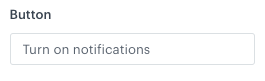
The image below presents the easy-to-edit form that lets users without coding expertise change the variable values:
Defining the settings of a string variable
### Adding a variable
1. Select one of the code editor tabs.
The tabs may be **JSON**, **HTML**, **CSS**, and **JavaScript**, depending on the communication type.
2. Position the cursor in the place where you want to add the variable.
3. On the right side, click **+ Variable**.
**Result**: A sidebar appears.
4. In the **Identifier** field, enter the ID of the variable.
This will be the title of the field unless you define the **Label** field.
The first character of the ID can't be a number.
5. From the **Type** dropdown list, select the type of variable.
Allows you to add a field that requires a string value.
1. In the **Label (Optional)** field, enter the name of the field.
If this field is empty, the name of the field will be taken from the **Identifier** field.
2. In the **Description (Optional)** field, enter a short explanation of the field's purpose.
3. In the **Default Value** field, enter the default value.
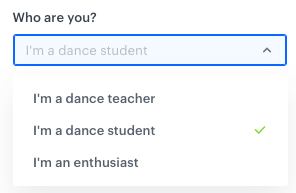
Allows you to add a dropdown list with configurable values.
1. In the **Label (Optional)** field, enter the name of the field. If this field is empty, the name of the field will be taken from the **Identifier** field.
2. In the **Description (Optional)** field, enter a short explanation what this field is for.
3. In the **Display Name** field, enter the name that will be visible in a dropdown.
4. In the **Value** field, enter a value.
5. In the **Default Value** field, enter the default value.
A select variable during configuration
Allows you to add a dropdown list with aggregates, expressions, metrics, voucher pools, recommendations, files, catalogs, and attributes.
1. In the **Label (Optional)** field, enter the name of the field. If this field is empty, the name of the field will be taken from the **Identifier** field.
2. In the **Description (Optional)** field, enter a short explanation what this field is for.
3. From the **Insert Type** dropdown list, select the type of resource:
- **Aggregates, AI recommendations, Expressions, Metrics, Voucher pools**: creates a dropdown list of available resources of the selected type. When the user selects a resource in the form, its ID is inserted into the code of the template. This ID can be used in [Jinjava](/developers/inserts/insert-usage) to display the value of the selected resource.
- **Catalogs**: creates a dropdown list of catalogs. When the user selects a catalog in the form, its name is inserted into the code of the template. This name can be used in [Jinjava](/developers/inserts/insert-usage#catalogs) to retrieve a value from the catalog.
- **Files**: creates a dropdown list of [files](/docs/assets/files-explorer). When user selects a file, its URL is inserted into the code.
- **Profile attributes**: creates a dropdown list of profile attributes. When a user selects an attribute, its name is inserted into the code of the template. This name can be used in [Jinjava](/developers/inserts/insert-usage#customer-attributes) to retrieve the attribute value.
3. In the **Default Value (Optional)** field, enter the default value.
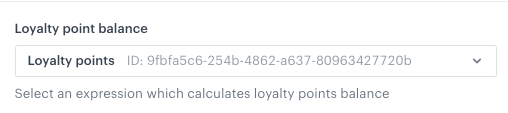
**Result**: A dropdown with the insert is added to the form in the **Config** tab. From the dropdown list, you can select an item of the chosen type (for example, aggregates). As a result, the value of variable will be ID of the selected item.
Synerise insert select in the configuration form
Allows you to add a field which is enabled/disabled by a toggle.
1. In the **Label (Optional)** field, enter the name of the field. If this field is empty, the name of the field will be taken from the **Identifier** field.
2. In the **Description (Optional)** field, enter a short explanation what this field is for.
3. In the **Default Value** field, select the default value (true/false).
Allows you to add a color selector. You can either select a color or enter its code manually.
1. In the **Label (Optional)** field, enter the name of the field. If this field is empty, the name of the field will be taken from the **Identifier** field.
2. In the **Description (Optional)** field, enter a short explanation what this field is for.
3. In the **Default Value** field, enter the default value.
Allows you to add a field that requires a number. You can either select a number from a dropdown or enter it manually.
1. In the **Label (Optional)** field, enter the name of the field. If this field is empty, the name of the field will be taken from the **Identifier** field.
2. In the **Description (Optional)** field, enter a short explanation what this field is for.
3. In the **Default Value** field, enter the default value.
6. If you want to add the variable to a group that can be more easily displayed together in the form:
1. Click **Variable Group**.
2. Select or create a group:
- To select a group, click its name.
- To create a group:
1. Click **Add new group**.
2. Enter a group name.
3. Enter a group ID.
4. Click **Apply**.
**Result**: On the **Config** tab, the groups can be collapsed and expanded.
5. In the upper right corner, click **Add**.
**Result**: In the template code, a variable appears (it starts with `####`). It also becomes available on the **Config** tab.
6. Optionally, to modify the order of variables appearing in the configuration form, add the `order` parameter to the variable formula (for example, `#### type: "string", id: "string", label: "Text", order: 1 !####`).
## Previewing templates
5. To check the preview of the template for a particular customer or a product, click the **Preview** button on the upper left side.
1. Enter the ID of a customer or a product.
2. Click **Apply**.
 **Experience Hub > In-app messages**.
2. On the left pane, select **Templates**.
3. In the upper right corner, click **New Template**.
4. Use the **HTML**, **CSS**, and **JavaScript** tabs to define the properties of the template.
The code of the template is embedded in `
**Experience Hub > In-app messages**.
2. On the left pane, select **Templates**.
3. In the upper right corner, click **New Template**.
4. Use the **HTML**, **CSS**, and **JavaScript** tabs to define the properties of the template.
The code of the template is embedded in `