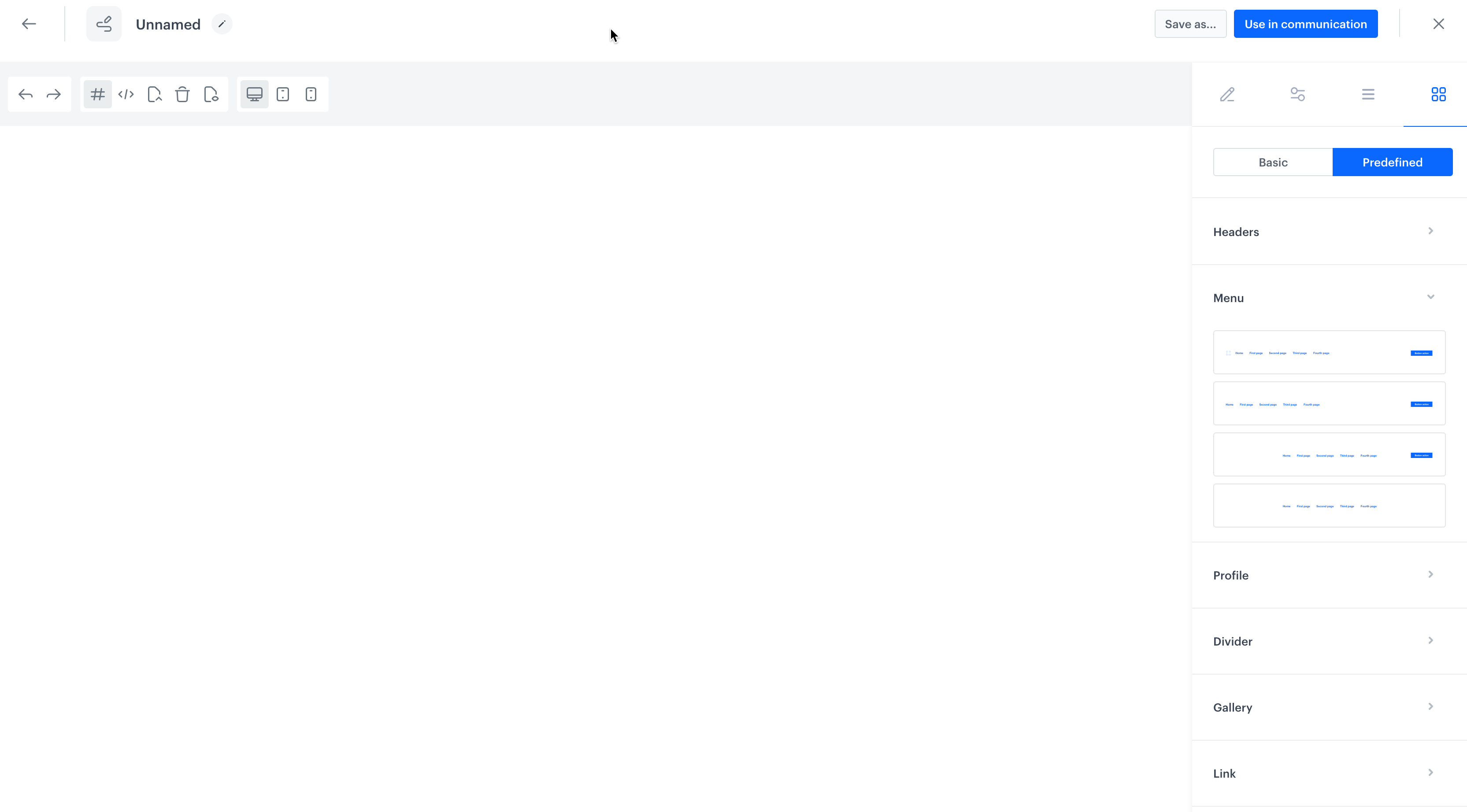
 - You can make use of the folders in the widget library:
- **Basic** - This library offers a collection of basic widgets that provide a starting point for your designs.
| Basic | Description |
|-------------|---------------------------------------------------------------------|
| 1 section | Inserts one box |
| 1/2 section | Inserts one box divided into two smaller spaces |
| 1/3 section | Inserts one box divided into three smaller spaces |
| 3/7 section | Inserts one box divided into two spaces - one smaller, one bigger |
| Button | Inserts a button |
| Divider | Inserts a line that can be used to divide content inside a template |
| Text | Inserts a text box |
| Image | Inserts a box dedicated for image upload to the template |
| Image link | Inserts a container for the link to the image |
| Quote | Inserts a text box with a default setting of italic font |
| Link | Inserts a link |
- **Predefined** - This library offers a collection of pre-designed widgets. Each widget comes with a variety of design options, allowing you to select the most suitable design that aligns with your specific requirements and customize it to match your needs.
| Predefined | Description |
|------------|-------------------------------------|
| Headers | Inserts a header of a landing page |
| Menu | Inserts a top menu of landing page for easy navigation between different content sections |
| Profile | Inserts a box which you can dedicate to introducing people|
| Divider | Inserts a line which lets you separate content sections in a template |
| Gallery | Inserts a section with the boxes in which you can add images |
| Link | Inserts a section dedicated to links, it contains spaces into which you can incorporate short description, icons, and images |
| Module | Inserts a box with a large image, description, and action link |
| Product | Inserts a section dedicated to products, it contains dedicated space for images, product descriptions, and links |
| Footer | Inserts a bottom section of the page that typically appears across all pages of a website. It contains a variety of information such as contact details, links to important pages, social media icons, copyright notices, and legal disclaimers. |
- To add a widget to the canvas, drag it from the library and drop it to the canvas
- You can customize the design of the widget ([widget personalizing options](#widget-personalizing-options)) and define functional options in the Components section available on the right pane by clicking
- You can make use of the folders in the widget library:
- **Basic** - This library offers a collection of basic widgets that provide a starting point for your designs.
| Basic | Description |
|-------------|---------------------------------------------------------------------|
| 1 section | Inserts one box |
| 1/2 section | Inserts one box divided into two smaller spaces |
| 1/3 section | Inserts one box divided into three smaller spaces |
| 3/7 section | Inserts one box divided into two spaces - one smaller, one bigger |
| Button | Inserts a button |
| Divider | Inserts a line that can be used to divide content inside a template |
| Text | Inserts a text box |
| Image | Inserts a box dedicated for image upload to the template |
| Image link | Inserts a container for the link to the image |
| Quote | Inserts a text box with a default setting of italic font |
| Link | Inserts a link |
- **Predefined** - This library offers a collection of pre-designed widgets. Each widget comes with a variety of design options, allowing you to select the most suitable design that aligns with your specific requirements and customize it to match your needs.
| Predefined | Description |
|------------|-------------------------------------|
| Headers | Inserts a header of a landing page |
| Menu | Inserts a top menu of landing page for easy navigation between different content sections |
| Profile | Inserts a box which you can dedicate to introducing people|
| Divider | Inserts a line which lets you separate content sections in a template |
| Gallery | Inserts a section with the boxes in which you can add images |
| Link | Inserts a section dedicated to links, it contains spaces into which you can incorporate short description, icons, and images |
| Module | Inserts a box with a large image, description, and action link |
| Product | Inserts a section dedicated to products, it contains dedicated space for images, product descriptions, and links |
| Footer | Inserts a bottom section of the page that typically appears across all pages of a website. It contains a variety of information such as contact details, links to important pages, social media icons, copyright notices, and legal disclaimers. |
- To add a widget to the canvas, drag it from the library and drop it to the canvas
- You can customize the design of the widget ([widget personalizing options](#widget-personalizing-options)) and define functional options in the Components section available on the right pane by clicking  ### Widget personalizing options
---
To customize the widget design, click the widget on the canvas. On the right pane, the following options will be available:
- **Classes** - This section lets you define a class of the widget you are editing.
- **General** - This section lets you adjust the position of the widget, define the size of the space between the widget and the top, bottom, left and right edges.
- **Dimension** - This section lets you change the size of the widget, its width and height, space between the widgets and padding.
- **Typography** - This section lets you adjust the font-related settings, you can change font type and size, its weight and letter spacing. Such options as text alignment, text shadow and text decoration will help you make the content on the landing page look more attractive.
- **Decorations** - This section lets you change opacity, background color, the rounding corner, the width and border style.
- **Extra** - This section lets you change the dimension of the widgets, by making them look tilted or turned upside down.
- **Flex** - This section lets you create a container of elastic blocks and manipulate those blocks in regard of their parent and children elements.
Additionally, in the components settings tab (), you can add additional parameters of the widget you are editing. For example, for an image it will be an alternative description that will appear instead of an image if it cannot be correctly displayed in the browser. For a button it will be a link to a website and settings whether a website will open in a new window.
### Template body preview
---
You can check the structure of the landing page and change the position of widgets used in the landing page. The template body preview is available on the right pane by clicking
### Widget personalizing options
---
To customize the widget design, click the widget on the canvas. On the right pane, the following options will be available:
- **Classes** - This section lets you define a class of the widget you are editing.
- **General** - This section lets you adjust the position of the widget, define the size of the space between the widget and the top, bottom, left and right edges.
- **Dimension** - This section lets you change the size of the widget, its width and height, space between the widgets and padding.
- **Typography** - This section lets you adjust the font-related settings, you can change font type and size, its weight and letter spacing. Such options as text alignment, text shadow and text decoration will help you make the content on the landing page look more attractive.
- **Decorations** - This section lets you change opacity, background color, the rounding corner, the width and border style.
- **Extra** - This section lets you change the dimension of the widgets, by making them look tilted or turned upside down.
- **Flex** - This section lets you create a container of elastic blocks and manipulate those blocks in regard of their parent and children elements.
Additionally, in the components settings tab (), you can add additional parameters of the widget you are editing. For example, for an image it will be an alternative description that will appear instead of an image if it cannot be correctly displayed in the browser. For a button it will be a link to a website and settings whether a website will open in a new window.
### Template body preview
---
You can check the structure of the landing page and change the position of widgets used in the landing page. The template body preview is available on the right pane by clicking 
