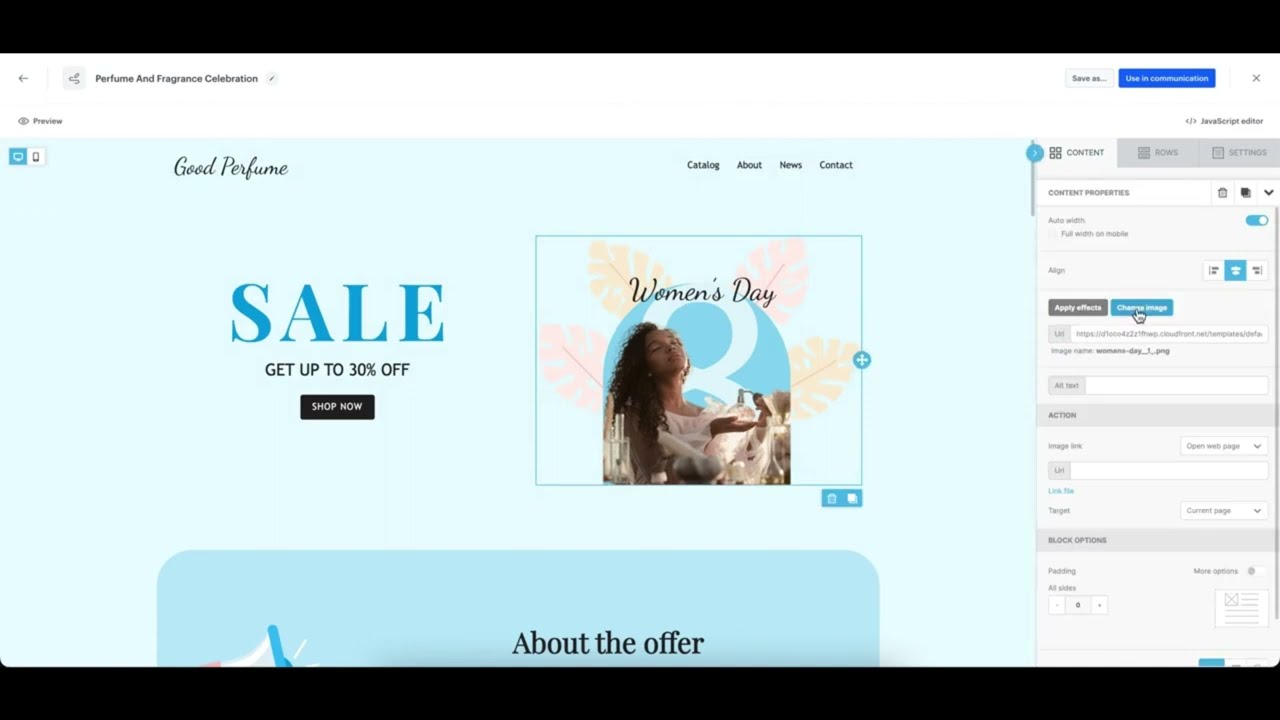
The basic drag & drop builder is an external solution provided by BeeFree implemented in Synerise that lets you create a landing page template by dragging and dropping elements.
It is a great choice for creating templates because it's user-friendly and efficient, provides visual control, offers customization options, supports collaboration, simplifies updates, and makes campaign management accessible to non-technical users.
You can personalize the content of the message by using [inserts](/docs/campaign/landing-page/creating-landing-page-templates/landing-page-template-builder#adding-a-snippet-to-the-template-code). Inserts let you refer to customer attributes (such as name, city, size), product recommendations (for example, last seen items or added to a cart), and the results of aggregates, expressions, and metrics.
You may build and preview templates directly in the platform during creation.
## Building templates
---
1. Go to **Experience Hub > Landing Page > Add landing page**.
2. In the **Content** section, click **Define**.
3. Click **Create message > New template**.
3. On the pop-up, select **Drag & drop builder > Basic builder**.
4. Proceed according to the instructions on building templates is available at the [BeeFree help center](https://support.beefree.io/hc/en-us/articles/360015405120-Building-Content-in-Beefree).
### Creating HTML blocks
---
Apart from the standard building elements such as Title, Paragraph, List, Image, Button, Divider, Social, HTML, Icons, and Menu, the basic builder includes the custom, Synerise-native **HTML blocks** element. The configuration of this element takes place in the [Synerise-native code editor](/docs/campaign/landing-page/creating-landing-page-templates/landing-page-template-builder), that lets you derive the benefits provided by the code creator such as:
- creating re-usable template elements (blocks),
- creating a block to be edited in an easy-to-use configuration form that doesn’t require programming skills
5. On the right side of the screen, select and drag the **HTML blocks** element to the template.
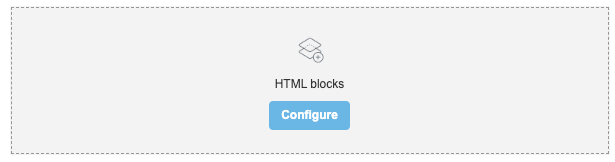
**Result**:
The HTML block added to the template
6. On the **HTML blocks** you added to the template, click **Configure**.
**Result**: A pop-up appears.
7. On the upper right side, click **New block**.
8. Create the structure of an HTML block by following the instructions in the ["Creating template"](/docs/campaign/landing-page/creating-landing-page-templates/landing-page-template-builder#creating-a-template) section.
- You can build a simple HTML structure in the **HTML** section.
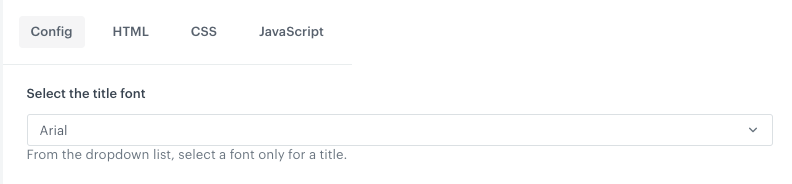
- On the **HTML** tab, you [can build an easy-to-use configuration form](/docs/campaign/landing-page/creating-landing-page-templates/landing-page-template-builder#template-editing-simplification) which can be filled out by users with no programming skills. To do so, [add variables](/docs/campaign/landing-page/creating-landing-page-templates/landing-page-template-builder#adding-a-variable) to the block template such as color pickers and fields, so the users who will use this template in a builder will need only to fill out the fields in this form. For example:
Example field in a configuration form
9. To save this block as a template, click an arrow on the left to the **Next** button, and select **Save as**. On the pop-up, enter the name of the template and select the folder in which the template will be saved.
10. To use this block in a landing page template, click **Next**.
We recommend placing the HTML block as the sole element in the row. Additionally, ensure that the styling of the block is compatible with the styling of the template.