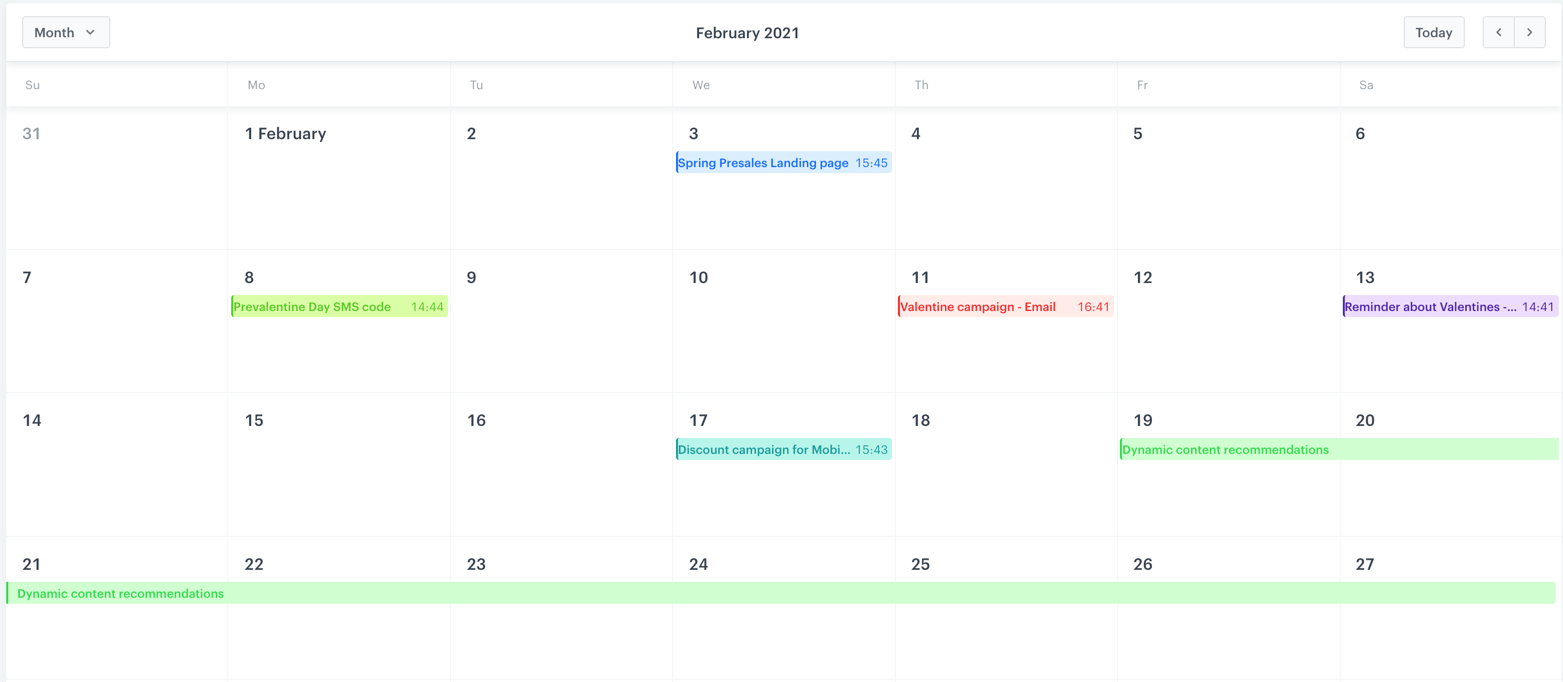
The calendar is an overview of all planned and draft messages. This organization tool lets you manage messages and schedule them at the best time possible for your customers.

## Benefits
---
- You can create any type of message directly from the calendar view.
- You can view all scheduled messages in daily, weekly, monthly, or yearly view.
- You can import external calendars to Synerise's Calendar (only the `ics` format is accepted).
    
  <div class="admonition admonition-tip"><div class="admonition-icon"><svg xmlns="http://www.w3.org/2000/svg" fill="none" viewBox="0 0 24 24" stroke="currentColor" stroke-width="2.5"><path stroke-linecap="round" stroke-linejoin="round" d="M9.663 17h4.673M12 3v1m6.364 1.636l-.707.707M21 12h-1M4 12H3m3.343-5.657l-.707-.707m2.828 9.9a5 5 0 117.072 0l-.548.547A3.374 3.374 0 0014 18.469V19a2 2 0 11-4 0v-.531c0-.895-.356-1.754-.988-2.386l-.548-.547z" /></svg></div><div class="admonition-body"><div class="admonition-content">

  This is useful for importing bank and marketing holidays to the calendar.

  </div></div></div>

- You can export your calendar from Synerise.


  <div class="admonition admonition-important"><div class="admonition-icon"><svg xmlns="http://www.w3.org/2000/svg" fill="none" viewBox="0 0 24 24" stroke="currentColor" stroke-width="2.5"><path stroke-linecap="round" stroke-linejoin="round" d="M12 8v4m0 4h.01M21 12a9 9 0 11-18 0 9 9 0 0118 0z" /></svg></div><div class="admonition-body"><div class="admonition-content">

  The calendar doesn't show the messages sent through the automated scenarios (Automation Hub).

  </div></div></div>


### Preview

<figure>
<img src="/api/docs/image/54176ad07f146575310749eba44b7c2f42c1b327/docs/campaign/_gfx/marketing-calendar.png" alt="Marketing calendar" class="full">
<figcaption> Marketing calendar </figcaption>
</figure>

## Adding a campaign to the calendar
---

1. Go to **Experience Hub > Calendar**.
2. Double-click the date slot you want to plan a message to send.  
    **Result**: A pop-up appears.
3. Optional: On the pop-up, fill in the **name**, **date** and **description**.
4. From the **Type** dropdown list, select the campaign type.
5. Click the **Creator** button.  
    **Result**: You are redirected to the message creation mode.
6. Follow the procedure of creating messages:
    - [Email](/docs/campaign/e-mail/creating-email-campaigns)
    - [Web push](/docs/campaign/Webpush)
    - [Mobile](/docs/campaign/Mobile)
    - [SMS](/docs/campaign/SMS)
    - [Dynamic content](/docs/campaign/dynamiccontent/creating-dynamic-content)
7. After launching the message to be sent, it's visible in the calendar.  
    
   <div class="admonition admonition-note"><div class="admonition-icon"><svg xmlns="http://www.w3.org/2000/svg" fill="none" viewBox="0 0 24 24" stroke="currentColor" stroke-width="2.5"><path stroke-linecap="round" stroke-linejoin="round" d="M13 16h-1v-4h-1m1-4h.01M21 12a9 9 0 11-18 0 9 9 0 0118 0z" /></svg></div><div class="admonition-body"><div class="admonition-content">

   The calendar shows draft messages as well.

   </div></div></div>


## Importing calendars to Synerise
---
You can use the import option to upload a calendar of the bank holidays, marketing holidays, or external campaigns which cannot be managed in Synerise. 


<div class="admonition admonition-important"><div class="admonition-icon"><svg xmlns="http://www.w3.org/2000/svg" fill="none" viewBox="0 0 24 24" stroke="currentColor" stroke-width="2.5"><path stroke-linecap="round" stroke-linejoin="round" d="M12 8v4m0 4h.01M21 12a9 9 0 11-18 0 9 9 0 0118 0z" /></svg></div><div class="admonition-body"><div class="admonition-content">

The events that appear as a result of the import are not editable.

</div></div></div>


1. Go to <img src="/api/docs/image/54176ad07f146575310749eba44b7c2f42c1b327/icons/settings-icon.svg" alt="Settings icon" class="icon" > **Settings > Calendar**.
2. On the right side, click **Import**.  
    **Result**: A pop-up appears.
3. On the pop-up, enter the name of the imported calendar (the name will be visible only on the list of special calendars).
4. Enter the description of the calendar (the description will be visible only on the list of special calendars). 
5. Upload a calendar in the `ics` format.  
    **Result**: A calendar appears on the list. By default, it is set to be visible on the marketing calendar.
6. To modify the visibility of the calendar on the marketing calendar, switch the **Visibility** toggle on or off. 

## Exporting marketing calendars
---
You can export the events from the calendar from a selected time range and import it to your calendar (option available only for calendars that accept the `ics` format).  

1. Go to **Experience Hub > Calendar**.
2. On the right side of the screen, click **Export**.  
    **Result**: A pop-up appears.
3. Click the calendar and select the time range from which you want to export data.
4. Click **Apply**.  
    **Result**: The pop-up closes. 
5. Click **Apply**.  
    **Result**: A file is downloaded to your device.

