The code editor allows you to:
- use JSON to create and update templates of simple and silent push notifications.
- [create templates to be edited in an easy-to-use configuration form that doesn't require programming skills](#template-editing-simplification).
You can personalize the content of the message by [using snippets](#adding-a-snippet-to-the-template-code) and [Jinjava inserts](/developers/inserts) to inject data such as profile attributes (for example, name), recommendations, analysis results.
[Snippets](#adding-a-snippet-to-the-template-code) also let you re-use the same content in multiple templates, or create a reference to a fragment that you only need to update in one place to see the change in all templates where it's used.
You should become familiar with the [prerequisites](/docs/campaign/Mobile/mobile_campaign#requirements) before creating a push notification template.
## Adding tracking parameters to links
---
To include [tracking parameters](/developers/web/user-identification#recognizing-customers-from-link-parameters) and [UTM and link parameters](/docs/campaign/Mobile/creating-mobile-push#define-utm-and-url-parameters) in the links in a template, always wrap the link with the [{% preparelink %}{% endpreparelink %} insert](/developers/inserts/email#adding-utm-and-tracking-parameters-to-links). You can only add tracking parameters to the links to external websites.
## Opening the code editor
---
1. Go to **Experience Hub > Mobile**.
2. On the left pane, select **Templates**.
3. In the upper right corner, click **New Template**.
4. Select the push notification type:
- **Simple Push** - a notification that is displayed in the main screen of a mobile device. Simple push messages appear in the notification center on mobile devices when the screen is locked or they are visible in the top bar when the screen is unlocked.
- **Silent push** - a hidden notification that is delivered to the app on a user's device. Unlike a typical push, it does not cause any interaction with the user. Silent notifications quietly deliver a certain set of data to the app. This is a great solution for letting apps know about changes in content.
5. On the pop-up, select **Code editor**.
## Creating a template
---
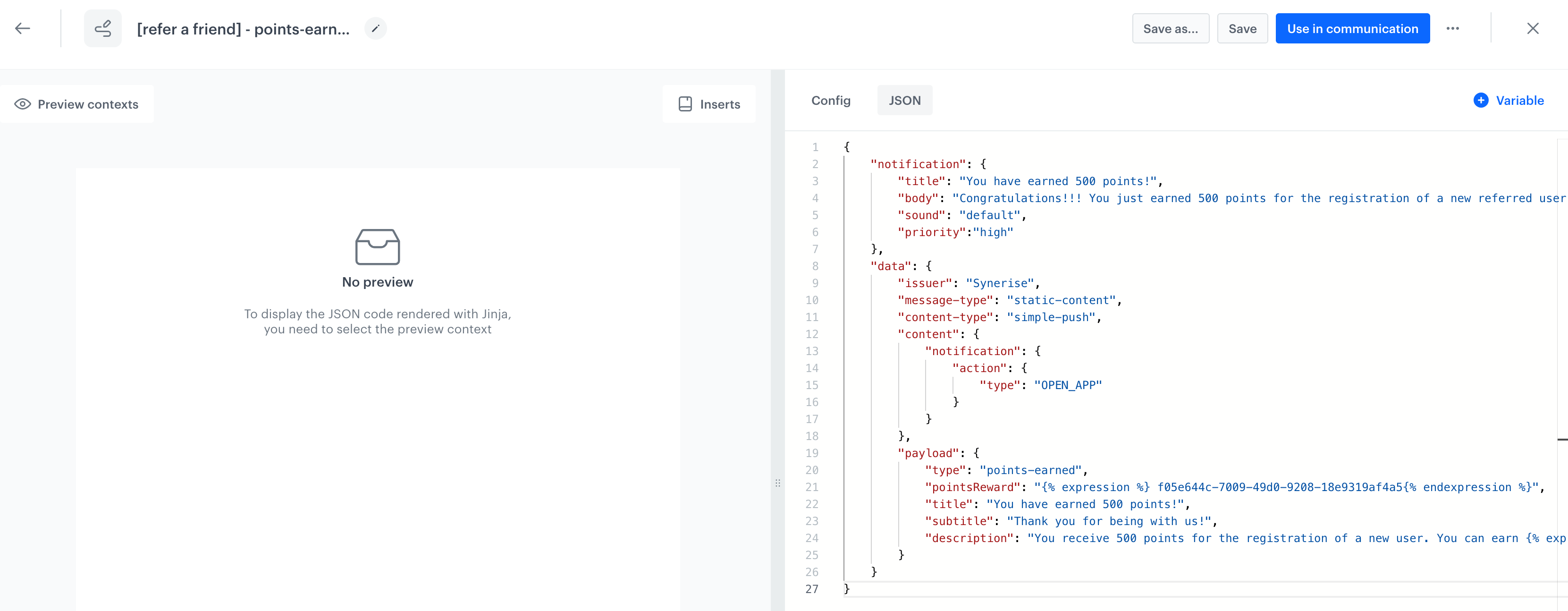
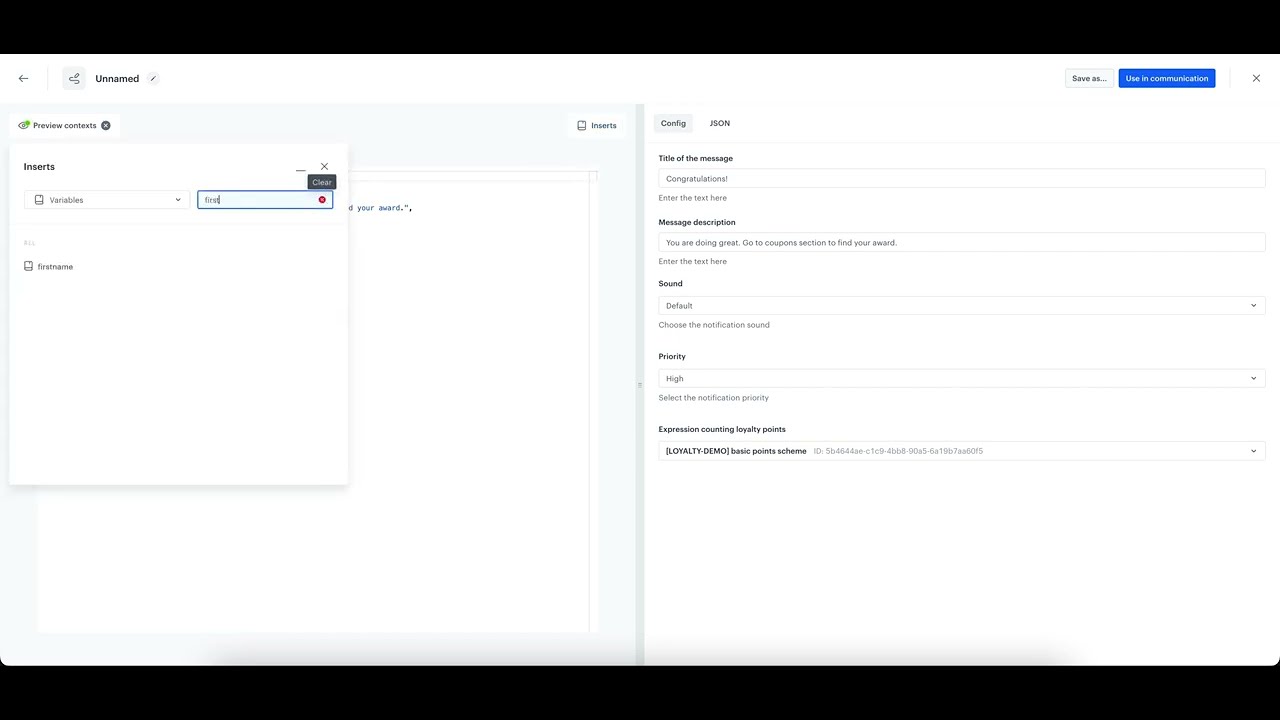
A mobile push code editor
4. Use the **JSON** tab to define the properties of the template.
6. When the template is ready, in the upper right corner click **Save this template > Save as**.
7. On the pop-up:
1. In the **Template name** field, enter the name of the template.
2. From the **Template folder** dropdown list, select the folder where the template will be saved.
3. Confirm by clicking **Apply**.
### Adding a snippet to the template code
[Snippets](/docs/assets/snippets) let you:
- insert data such as profile attribute, recommendations, or analysis results into the communication.
- create re-usable pieces of static content, so you don't need to manually copy and paste between templates.
- create dynamic pieces of content that are updated in all templates when you update the snippet definition.
1. Click **Snippets**.
**Result**: The snippet widget opens.
2. Add a snippet as described in [Snippets](/docs/assets/snippets).
## Template editing simplification
To make your template more accessible to users without programming skills, you can add a configuration form with variables dedicated for the template, so the user can make adjustments to the template.
The effect of template editing simplification is that you can edit templates by filling out a user-friendly configuration form (available in the **Config** tab) whose fields define the value for each property of the template.
The process of template simplification involves replacing values with variables in the JSON elements, such as title, description or priority. You can also add a variable in the place of Jinjava elements, such as a recommendation campaign ID or voucher pool ID. Variables inserted in the code appear in a form the **Config** tab when editing the template.
#### List of variables
| Variable name | Description | Example output |
|------------------------|------------------------------------------------------------------------------------------------------------------------------------------|----------------|
| **Synerise insert select** | Allows you to add a dropdown list with aggregates, expressions, metrics, voucher pools, recommendations, files, catalogs, or attributes. | Example: selecting a Synerise object from the list |
| **String** | Allows you to add a field that requires a string value. | Example: Filling out a field |
| **Select** | Allows you to add a dropdown list with configurable values. | Example: selecting an option from a dropdown list |
| **Switch** | Allows you to add a field which is enabled/disabled by a toggle. | Example: enabling an option |
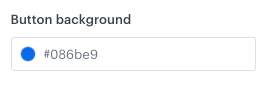
| **Color** | Allows you to add a color selector. You can either select a color or enter its code manually. | Example: selecting a color |
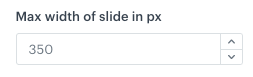
| **Number** | Allows you to add a field that requires a number. You can either select a number from a dropdown or enter it manually. | Example: defining a number |
#### Results of simplifying template editing
Instead of modifying the design of the template directly in the code, a user can go to the **Config** tab and define the properties of the template by filling out configuration form.
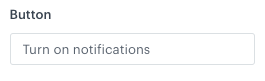
The image below presents the easy-to-edit form that lets users without coding expertise change the variable values:
Defining the settings of a string variable
### Adding a variable
1. Select one of the code editor tabs.
The tabs may be **JSON**, **HTML**, **CSS**, and **JavaScript**, depending on the communication type.
2. Position the cursor in the place where you want to add the variable.
3. On the right side, click **+ Variable**.
**Result**: A sidebar appears.
4. In the **Identifier** field, enter the ID of the variable.
This will be the title of the field unless you define the **Label** field.
The first character of the ID can't be a number.
5. From the **Type** dropdown list, select the type of variable.
Allows you to add a field that requires a string value.
1. In the **Label (Optional)** field, enter the name of the field.
If this field is empty, the name of the field will be taken from the **Identifier** field.
2. In the **Description (Optional)** field, enter a short explanation of the field's purpose.
3. In the **Default Value** field, enter the default value.
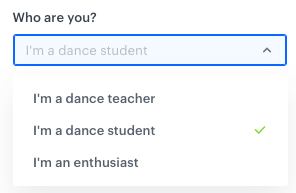
Allows you to add a dropdown list with configurable values.
1. In the **Label (Optional)** field, enter the name of the field. If this field is empty, the name of the field will be taken from the **Identifier** field.
2. In the **Description (Optional)** field, enter a short explanation what this field is for.
3. In the **Display Name** field, enter the name that will be visible in a dropdown.
4. In the **Value** field, enter a value.
5. In the **Default Value** field, enter the default value.
A select variable during configuration
Allows you to add a dropdown list with aggregates, expressions, metrics, voucher pools, recommendations, files, catalogs, and attributes.
1. In the **Label (Optional)** field, enter the name of the field. If this field is empty, the name of the field will be taken from the **Identifier** field.
2. In the **Description (Optional)** field, enter a short explanation what this field is for.
3. From the **Insert Type** dropdown list, select the type of resource:
- **Aggregates, AI recommendations, Expressions, Metrics, Voucher pools**: creates a dropdown list of available resources of the selected type. When the user selects a resource in the form, its ID is inserted into the code of the template. This ID can be used in [Jinjava](/developers/inserts/insert-usage) to display the value of the selected resource.
- **Catalogs**: creates a dropdown list of catalogs. When the user selects a catalog in the form, its name is inserted into the code of the template. This name can be used in [Jinjava](/developers/inserts/insert-usage#catalogs) to retrieve a value from the catalog.
- **Files**: creates a dropdown list of [files](/docs/assets/files-explorer). When user selects a file, its URL is inserted into the code.
- **Profile attributes**: creates a dropdown list of profile attributes. When a user selects an attribute, its name is inserted into the code of the template. This name can be used in [Jinjava](/developers/inserts/insert-usage#customer-attributes) to retrieve the attribute value.
3. In the **Default Value (Optional)** field, enter the default value.
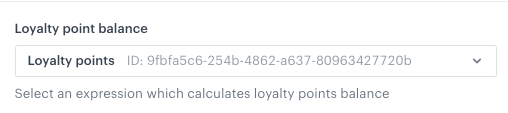
**Result**: A dropdown with the insert is added to the form in the **Config** tab. From the dropdown list, you can select an item of the chosen type (for example, aggregates). As a result, the value of variable will be ID of the selected item.
Synerise insert select in the configuration form
Allows you to add a field which is enabled/disabled by a toggle.
1. In the **Label (Optional)** field, enter the name of the field. If this field is empty, the name of the field will be taken from the **Identifier** field.
2. In the **Description (Optional)** field, enter a short explanation what this field is for.
3. In the **Default Value** field, select the default value (true/false).
Allows you to add a color selector. You can either select a color or enter its code manually.
1. In the **Label (Optional)** field, enter the name of the field. If this field is empty, the name of the field will be taken from the **Identifier** field.
2. In the **Description (Optional)** field, enter a short explanation what this field is for.
3. In the **Default Value** field, enter the default value.
Allows you to add a field that requires a number. You can either select a number from a dropdown or enter it manually.
1. In the **Label (Optional)** field, enter the name of the field. If this field is empty, the name of the field will be taken from the **Identifier** field.
2. In the **Description (Optional)** field, enter a short explanation what this field is for.
3. In the **Default Value** field, enter the default value.
6. If you want to add the variable to a group that can be more easily displayed together in the form:
1. Click **Variable Group**.
2. Select or create a group:
- To select a group, click its name.
- To create a group:
1. Click **Add new group**.
2. Enter a group name.
3. Enter a group ID.
4. Click **Apply**.
**Result**: On the **Config** tab, the groups can be collapsed and expanded.
5. In the upper right corner, click **Add**.
**Result**: In the template code, a variable appears (it starts with `####`). It also becomes available on the **Config** tab.
6. Optionally, to modify the order of variables appearing in the configuration form, add the `order` parameter to the variable formula (for example, `#### type: "string", id: "string", label: "Text", order: 1 !####`).
## Previewing templates
If your template contains dynamic elements (Jinjava), their result will be different for every user. The preview in the builder lets you define the user identifier and the Jinjava tags/inserts will be rendered specifically for that user.
1. To check the preview of the template for a particular profile, click the **Preview contexts** button on the upper left side.
2. Enter the ID of a profile.
3. Click **Apply**.
 **Experience Hub > Mobile**.
2. On the left pane, select **Templates**.
3. In the upper right corner, click **New Template**.
4. Select the push notification type:
- **Simple Push** - a notification that is displayed in the main screen of a mobile device. Simple push messages appear in the notification center on mobile devices when the screen is locked or they are visible in the top bar when the screen is unlocked.
- **Silent push** - a hidden notification that is delivered to the app on a user's device. Unlike a typical push, it does not cause any interaction with the user. Silent notifications quietly deliver a certain set of data to the app. This is a great solution for letting apps know about changes in content.
5. On the pop-up, select **Code editor**.
## Creating a template
---
**Experience Hub > Mobile**.
2. On the left pane, select **Templates**.
3. In the upper right corner, click **New Template**.
4. Select the push notification type:
- **Simple Push** - a notification that is displayed in the main screen of a mobile device. Simple push messages appear in the notification center on mobile devices when the screen is locked or they are visible in the top bar when the screen is unlocked.
- **Silent push** - a hidden notification that is delivered to the app on a user's device. Unlike a typical push, it does not cause any interaction with the user. Silent notifications quietly deliver a certain set of data to the app. This is a great solution for letting apps know about changes in content.
5. On the pop-up, select **Code editor**.
## Creating a template
---