Sending mobile push notifications offers plenty of benefits beyond merely delivering promotional content. These notifications serve as a powerful tool for providing users with valuable information, timely updates, helpful reminders, and captivating content, thus enhancing their overall app experience. By leveraging mobile push notifications, businesses can engage and connect with their users in a more personalized and impactful manner, increasing user engagement, retention, and satisfaction. Whether it's sharing important news, delivering personalized recommendations, or offering exclusive rewards, the versatility of mobile push notifications unlocks a wealth of opportunities to optimize the user experience and drive meaningful interactions.

In Synerise, you can use the following types of mobile push notifications:
- **Simple push** - a notification that is displayed in the notification center on mobile devices.
- **Silent push** - a hidden notification that is delivered to the app on a user's device. Unlike a typical push, it does not cause any interaction with the user. Silent notifications quietly deliver a certain set of data to the app. This is a great solution for letting  apps know about changes in content.


  <div class="admonition admonition-important"><div class="admonition-icon"><svg xmlns="http://www.w3.org/2000/svg" fill="none" viewBox="0 0 24 24" stroke="currentColor" stroke-width="2.5"><path stroke-linecap="round" stroke-linejoin="round" d="M12 8v4m0 4h.01M21 12a9 9 0 11-18 0 9 9 0 0118 0z" /></svg></div><div class="admonition-body"><div class="admonition-content">

  The banner, first run message, mandatory upgrade, and walkthrough types of mobile push are deprecated. These types of messages can be sent using the [In-app messages](/docs/campaign/in-app-messages/introduction-to-inapp-messages) feature. You can use the ready-made templates which are available in the **Predefined templates** folder in **Experience Hub > In-app messages > Templates**.
  </div></div></div>


## Anatomy of mobile push notification
---
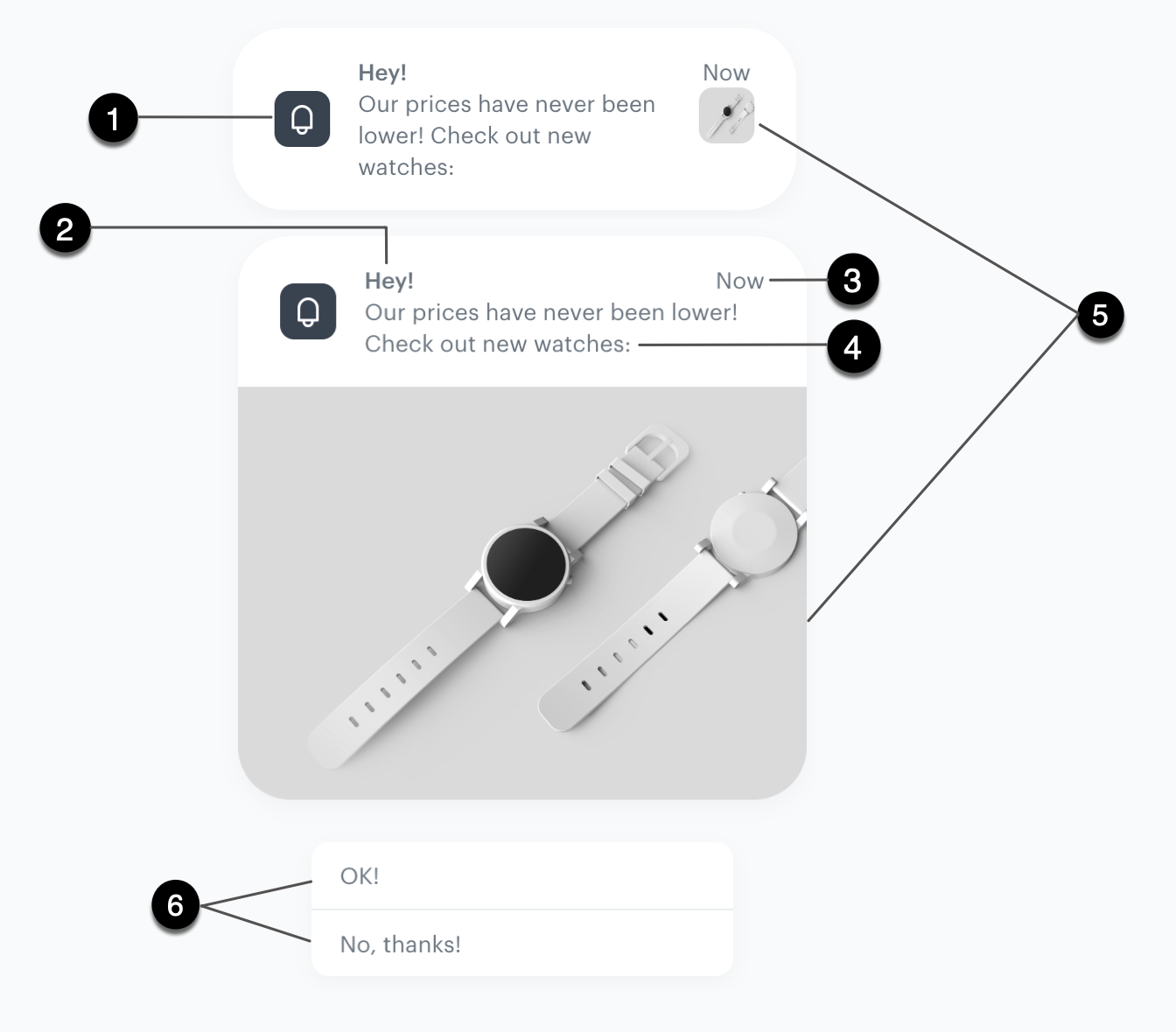
A mobile push notification consists of the following elements:

<figure><img src="/api/docs/image/54176ad07f146575310749eba44b7c2f42c1b327/docs/campaign/Mobile/_gfx/anatomy-of-mobile-push.png" class="large" alt="Anatomy of iOS mobile push notification"><figcaption>Anatomy of iOS mobile push notification</figcaption></figure>

| No. | Mobile push element  | Function | Recommendations & possibilities           |
|-----|----------------------|----------|-------------------------------------------|
| 1.  | Mobile app icon         |   The icon of a mobile application        |  n/a                                         |
| 2.  | Title                | This is the top text of your notification         |- We suggest a 50-character limit to avoid being shortened, but the length depends on the OS <br> - You can personalize the title using [inserts](/developers/inserts/webpush) and emojis  |
| 3.  | Time of notification | Displays how old the notification is.         |  n/a                                         |
| 4.  | Message              | This is the main content of your notification         | - We suggest a 100-character limit to avoid being shortened, but the length of the text vary across different OS <br> - You can personalize the message using [inserts](/developers/inserts/webpush) and emojis                                          |
| 5.  | Image                | On macOS, it serves as an expanded icon, while on Android, it acts as a custom image         |  - To use a large image in the notification, upload the image first in **Synerise > Data Modeling Hub > File**  <br> - You can personalize links to images by using Jinjava, this way an image will be different for every user, for example, you can display an image with recently seen product                                       |
| 6.  | Action buttons       | They redirect users to a URL you indicate or to a view in a mobile application   | - You can add up to 4 action buttons <br> - You can personalize the text on the button by using [inserts](/developers/inserts/webpush) and emojis <br> - You can add [inserts](/developers/inserts/webpush) to the URL and deep links  |

## Examples of use
---
You can browse the collection of [mobile push notification use cases](/use-cases/?ordering=DESC&sortBy=publishDate&filters=channel%3D%3D%22mobile+push%22ORchannel%3D%3D%22mobile+application%22ANDtags%3D%3D%22mobile%22ORtags%3D%3D%22mobile+push%22).

## Requirements
---
- Enable the [Firebase integration](/docs/settings/tool/firebase).
- Configure mobile push notifications:  
  - [Android](/developers/mobile-sdk/configuring-push-notifications/android)
  - [iOS](/developers/mobile-sdk/configuring-push-notifications/ios)
  - [React Native](/developers/mobile-sdk/configuring-push-notifications/react-native)
  - [Flutter](/developers/mobile-sdk/configuring-push-notifications/flutter)
- If you are going to attach images to your push notifications:
    - Prepare images; you can use external links or [upload your images](/docs/assets/files-explorer#adding-new-files) in the Data Modeling Hub.
    - **Android**: Follow the instructions [under this link](https://firebase.google.com/docs/cloud-messaging/android/send-image).
    - **iOS**: Configure and implement [Notification Service Extension](/developers/mobile-sdk/configuring-push-notifications/ios#synerise-notification-service-extension) and [Notification Content Extension](/developers/mobile-sdk/configuring-push-notifications/ios#rich-media-in-push-notifications). According to your business needs, implement [Single media](/developers/mobile-sdk/configuring-push-notifications/ios#rich-media-in-push-notifications-single-media-implementation) and/or [Carousel](/developers/mobile-sdk/configuring-push-notifications/ios#rich-media-in-push-notifications-carousel-implementation).
- Implement URLs and deep links: 
    - [Android](/developers/mobile-sdk/campaigns/action-handling#handling-actions-from-campaigns-in-android)
    - [iOS](/developers/mobile-sdk/campaigns/action-handling#handling-actions-from-campaigns-in-android)
    - [React Native](/developers/mobile-sdk/campaigns/action-handling#handling-actions-from-campaigns-in-react-native)
    - [Flutter](/developers/mobile-sdk/campaigns/action-handling#handling-actions-from-campaigns-in-flutter)


## Events related to mobile push notifications
---

Sending mobile push notifications to customers generates various types of events. These events can be triggered by both the customer's actions (such as clicking on the notification) and by the infrastructure (such as failed notification delivery). By analyzing these events, you can measure the effectiveness of your messages and their deliverability. Become familiar with:
- [default events associated with mobile push notifications](/docs/assets/events/event-reference/mobile-push)
- [default events associated with mobile push campaigns](/docs/assets/events/event-reference/mobile-communication)

## Mobile notification delivery flow
---

1. When a user opens the mobile application, a token is requested from Firebase Cloud Messaging (FCM). That token is passed on to Synerise to allow Synerise to authorize sending mobile push notifications to the user's device.  
2. The push is sent to the last device where the user opened the app and has:
  1. an active Firebase token
  2. push notifications allowed in the device settings
3. After the push is delivered and displayed, or if the delivery fails, information about that is saved as an event. See [Mobile push events](/docs/assets/events/event-reference/mobile-push).

<figure><img src="/api/docs/image/54176ad07f146575310749eba44b7c2f42c1b327/docs/campaign/Mobile/_gfx/mobile-push-flow.svg" class="full" alt="Overview of the process of sending a mobile push"><figcaption>Overview of the process of sending a mobile push</figcaption></figure>

### Conditions for sending and displaying mobile notifications

In order for mobile notifications to work, the following requirements must be met:
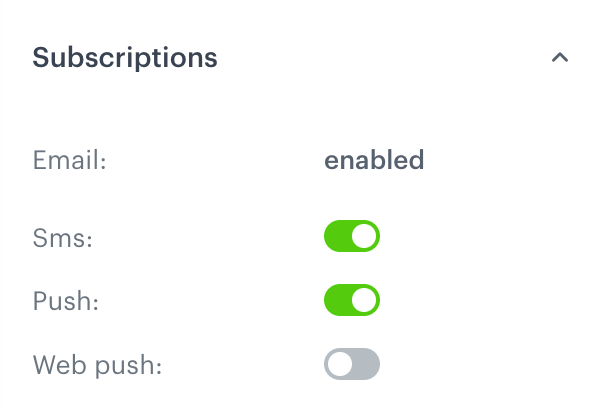
- The target profile must have an active marketing agreement for mobile push notifications.  
    You can check this agreement in the lower-left corner of the profile card, under **Push**.  
      <figure><img src="/api/docs/image/54176ad07f146575310749eba44b7c2f42c1b327/docs/campaign/_gfx/profile-subscriptions.png" class="medium" alt="The Subscriptions section on a profile card"><figcaption>The Subscriptions section on a profile card</figcaption></figure>
- The target profile must have the `snrs_has_mobile_push_devices` attribute set to `true`; the attribute sets to `true` when both of the following conditions are met:
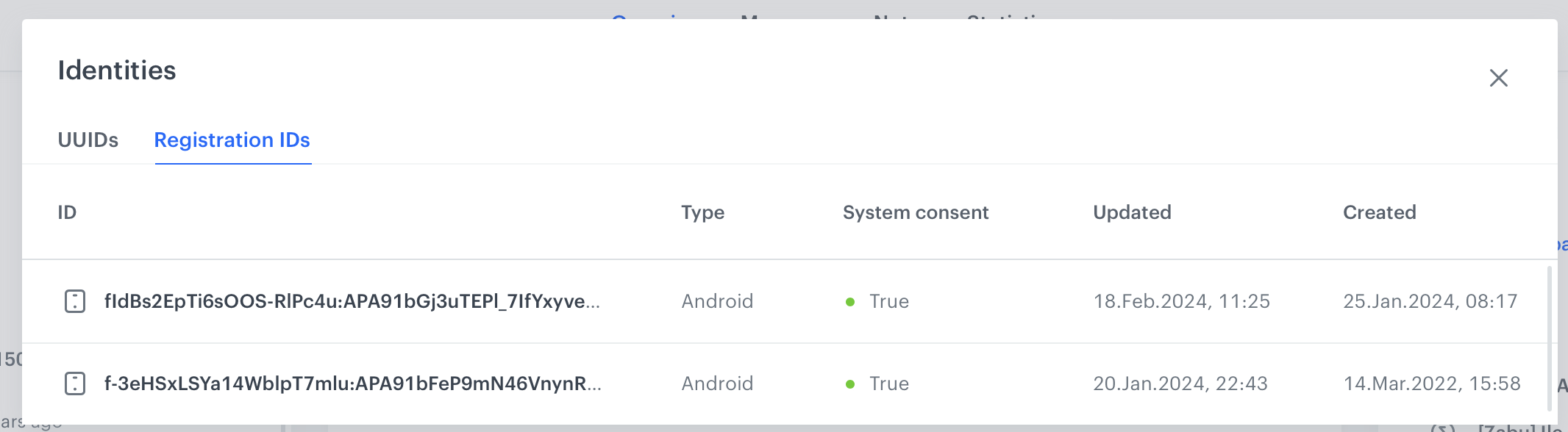
    1. The device allows push notifications (in the system settings).  
      Information about this is included in the [client.applicationStarted](/docs/assets/events/event-reference/web-and-app#clientapplicationstarted) event, under the `systemPushConsent` parameter. You can also find it on the profile card, in the **Identities** section:  
      <figure><img src="/api/docs/image/54176ad07f146575310749eba44b7c2f42c1b327/docs/campaign/_gfx/push-system-agreement.png" class="large" alt="The Identity section on a profile card"><figcaption>The Identity section on a profile card</figcaption></figure>   

        **Android 7.0 and above**: When the device doesn't allow push notifications, a [push.notView](/docs/assets/events/event-reference/mobile-push#pushnotview) event is generated after the push is sent. 

    2. The profile has an active Firebase Cloud Messaging (FCM) token.  
    A token is requested from FCM every time the mobile application is started.  
        
   <div class="admonition admonition-important"><div class="admonition-icon"><svg xmlns="http://www.w3.org/2000/svg" fill="none" viewBox="0 0 24 24" stroke="currentColor" stroke-width="2.5"><path stroke-linecap="round" stroke-linejoin="round" d="M12 8v4m0 4h.01M21 12a9 9 0 11-18 0 9 9 0 0118 0z" /></svg></div><div class="admonition-body"><div class="admonition-content">

   The Audience filter for the push notification should check if the `snrs_has_mobile_push_devices` attribute in the profile is set to `true`. Without this filter, the audience size in the campaign's statistics is larger than the real number of profiles to whom the push is sent.

   </div></div></div>
  
        Synerise stores the last known FCM token. The notifications are only sent to the last device where the user opened the app.  
        **The token becomes invalid when**:
        - The user opens the app on another device.  
        The new device receives a valid token and can receive push notifications.
        - The user uninstalls/reinstalls the app. Synerise doesn't receive information about this.  
        To receive a new token, the user must open the app.
        - The user clears the app data. Synerise doesn't receive information about this.  
        To receive a new token, the user must open the app.
        - The token is inactive for 270 days.  
        From May 15, 2024 invalid tokens become expired. More information is available in [Google Firebase documentation](https://firebase.google.com/docs/cloud-messaging/manage-tokens#stale-and-expired-tokens).


        **If the token in Synerise is invalid**:  
          1. A mobile push is sent, but can't be delivered to the device.
          2. A [push.notRegistered](/docs/assets/events/event-reference/mobile-push#pushnotregistered) or [push.invalidRegistrationId](/docs/assets/events/event-reference/mobile-push#pushinvalidregistrationid) event is generated.
          3. A token is removed from the [Identities table](/docs/crm/crm-profile#identities-and-identifiers). 
          3. If there are no more active tokens, the `snrs_has_mobile_push_devices` attribute in the profile is set to `false`.

For more information on FCM and tokens, see [Google documentation](https://firebase.google.com/docs/cloud-messaging).

### Common reasons for failed delivery

<div class="admonition admonition-tip"><div class="admonition-icon"><svg xmlns="http://www.w3.org/2000/svg" fill="none" viewBox="0 0 24 24" stroke="currentColor" stroke-width="2.5"><path stroke-linecap="round" stroke-linejoin="round" d="M9.663 17h4.673M12 3v1m6.364 1.636l-.707.707M21 12h-1M4 12H3m3.343-5.657l-.707-.707m2.828 9.9a5 5 0 117.072 0l-.548.547A3.374 3.374 0 0014 18.469V19a2 2 0 11-4 0v-.531c0-.895-.356-1.754-.988-2.386l-.548-.547z" /></svg></div><div class="admonition-body"><div class="admonition-content">

Using a large database of real profiles, we calculated that on average it takes 40 days for:
  - the token to become invalid for any reason.
  - the notification permissions for an app to be disabled on the device for any reason.

This is a rough estimate that may differ depending on the behavior of your mobile app users.

</div></div></div>


The following are the most common reasons for not delivering a push message:
- The profile doesn't meet the [conditions described above](#conditions-for-sending-and-displaying-mobile-notifications).
- The profile belongs to the control group.  
    In that case, a [push.controlGroup](/docs/assets/events/event-reference/mobile-push#pushcontrolgroup) is generated.
- Do Not Disturb mode on the device.
- Power saving settings on the device.
- The device stops your mobile application from running in the background.
- The mobile application was uninstalled.
- Other reasons; check the profile's activity history for the following events:
  - [push.notSent](/docs/assets/events/event-reference/mobile-push#pushnotsent)
  - [push.mismatchSenderId](/docs/assets/events/event-reference/mobile-push#pushmismatchsenderid)
  - [push.invalidRegistrationId](/docs/assets/events/event-reference/mobile-push#pushinvalidregistrationid)


## Sending push notifications
---

There are two ways of sending mobile notifications in Synerise:

- Manually - If you want to send a one-off notification campaign to a predefined group of customers or an entire customer base, go to **Experience Hub > Mobile > Create new**. After filling out the campaign form, you can send it out to your customers.
- Using Automation Hub - If you want to send a one-off push notification campaign or automate sending push notifications (for example, in response to a customer behavior), go to **Automation Hub**. [Create a workflow](/docs/automation/creating-automation) and use the [Send Mobile Push node](/docs/automation/actions/send-mobile-push) in it.

## Notification status
---
The status of mobile push communication is available on the list of mobile push notifications. In the [Communication statuses](/docs/campaign/statuses) article, you can check the statuses which can be assigned to mobile push communication.

## Analyzing notification performance
---
You can analyze performance of your push notifications by creating analyses in the **Decision Hub** on the basis of [mobile push events](/docs/assets/events/event-reference/mobile-push).