Select [documents](/docs/assets/documents/introduction-to-documents) to be displayed in the mobile application for the defined audience.


<div class="admonition admonition-note"><div class="admonition-icon"><svg xmlns="http://www.w3.org/2000/svg" fill="none" viewBox="0 0 24 24" stroke="currentColor" stroke-width="2.5"><path stroke-linecap="round" stroke-linejoin="round" d="M13 16h-1v-4h-1m1-4h.01M21 12a9 9 0 11-18 0 9 9 0 0118 0z" /></svg></div><div class="admonition-body"><div class="admonition-content">

If you are a regular user of the screen view feature, you may want to see a comparison of the new and previous version of the feature to understand what has changed with regard to your existing screen view campaigns. Read the summary of the changes [here](/docs/campaign/screen-views/whats-new).

</div></div></div>


## Requirements
---
A complete list of requirements is available in [this article](/docs/campaign/screen-views/introduction-to-screen-views#requirements).

## Creating a screen view
---
1. Go to <img src="/api/docs/image/54176ad07f146575310749eba44b7c2f42c1b327/icons/experience-hub-icon.svg" alt="Image presents the Experience Hub icon" class="icon"> **Experience Hub > Screen views > Create screen view**. 
2. Enter the name of the screen view.  

### Selecting recipients
---

4. To define the recipients of your screen view, in the **Audience** section, click the **Define** button. You can choose the audience in the following ways:
    - You can select all mobile application users to be the audience of your screen view by clicking the **Everyone** option.
    - You can choose segmentations of your customers by clicking the **Segment** button.
    - You can choose the recipients of your screen view from scratch by clicking the **New audience** option.
5. Confirm your choice by clicking the **Apply** button.
  
   <div class="admonition admonition-important"><div class="admonition-icon"><svg xmlns="http://www.w3.org/2000/svg" fill="none" viewBox="0 0 24 24" stroke="currentColor" stroke-width="2.5"><path stroke-linecap="round" stroke-linejoin="round" d="M12 8v4m0 4h.01M21 12a9 9 0 11-18 0 9 9 0 0118 0z" /></svg></div><div class="admonition-body"><div class="admonition-content">

   If the audience of the screen view is more than one segmentation and one of the segmentation returns `0` results, then the whole audience is `0`. In such circumstances, such a screen view will not be visible when active.

   </div></div></div>
  

### Creating content  
---

6. To create the content of your screen view, in the **Content** section click the **Define** button.
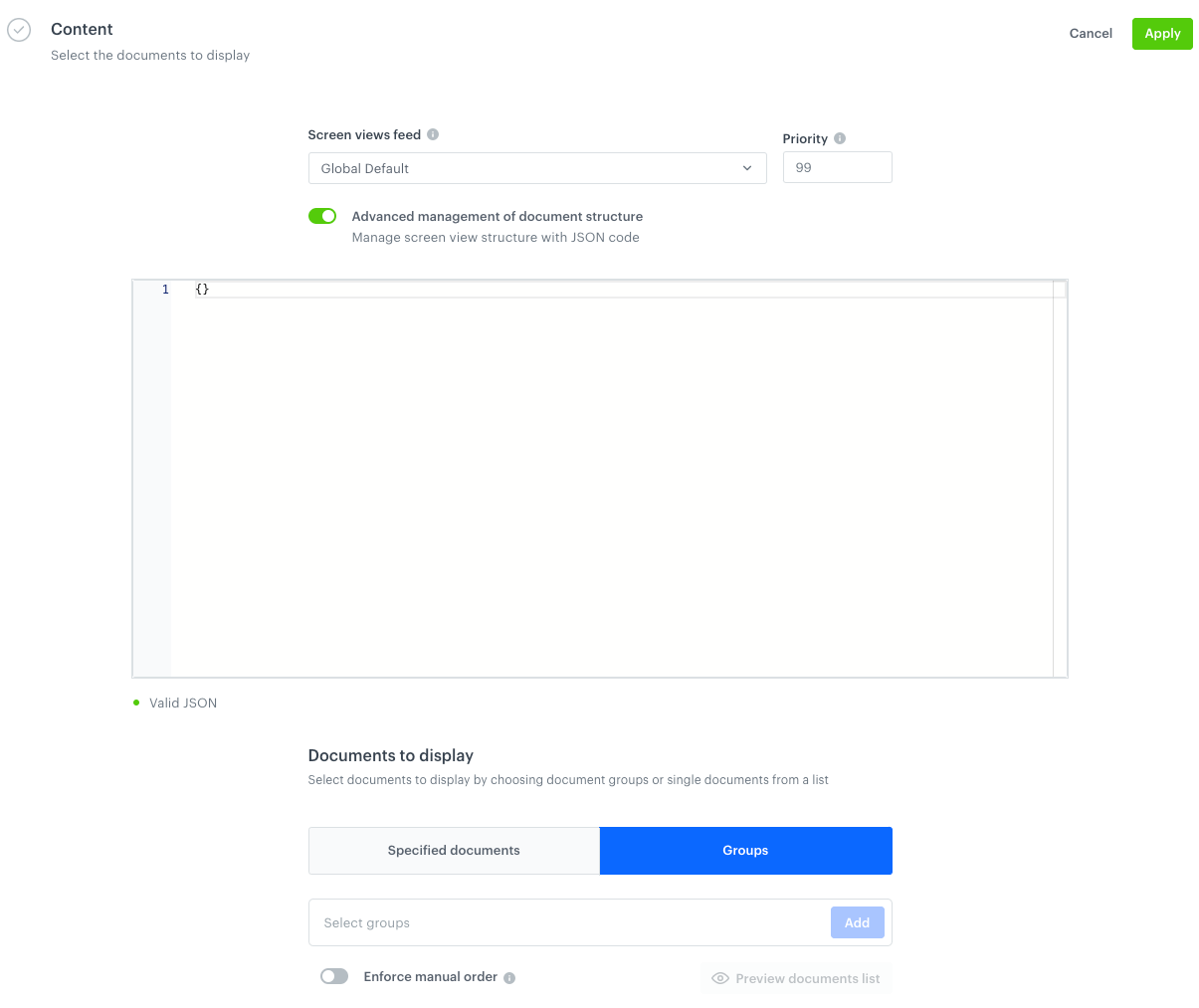
        <figure>
        <img src="/api/docs/image/54176ad07f146575310749eba44b7c2f42c1b327/docs/campaign/_gfx/content-screen-view.png" alt="A blank Content section in the Screen view form" class="full">
        <figcaption> A blank Content section in the Screen view form </figcaption>
        </figure>
    1. From the **Screen views feed** dropdown feed, select [a feed](/docs/campaign/screen-views/whats-new#terminology) to which a screen view will be assigned. If needed, you can create a new screen view feed:  
        1. Click **Add screen views feed**.
        2. On the pop-up, in the **Feed name** field, enter the name of the feed. It will be only visible in the Screen views feed dropdown.
        3. In the **Slug** field, enter a unique identifier of this screen views feed. While retrieving screen views to a dedicated space in your mobile application, you will use this slug to display all screen views assigned to a particular feed.
            
           <div class="admonition admonition-note"><div class="admonition-icon"><svg xmlns="http://www.w3.org/2000/svg" fill="none" viewBox="0 0 24 24" stroke="currentColor" stroke-width="2.5"><path stroke-linecap="round" stroke-linejoin="round" d="M13 16h-1v-4h-1m1-4h.01M21 12a9 9 0 11-18 0 9 9 0 0118 0z" /></svg></div><div class="admonition-body"><div class="admonition-content">

           We recommend following this slug name convention: `your-slug-name`. Special characters and white spaces are unsupported.

           </div></div></div>

        4. Confirm by clicking **Apply**.
    2. In the **Priority** field, define the order in which a screen view will be displayed. Use numbers from 1 to 99, where 1 is the highest.
    3. If you want to extend the structure of a screen view campaign besides including the documents you select, enable the **Advanced management of document structure** option.  
        1. In the text editor, enter the structure of documents you want to include.  
            It must contain the `{% screenviewcollection %}` tag which inserts all documents you select in the **Documents to display** section. This tag is included by default, but you can move it when changing the JSON structure.  
            You can also use the `{% document <slug> %}` tag to refer to a single document.  
            Other [inserts](/developers/inserts) can be used too.
        Example structure of the screen view:
        
           <pre><code class="language-json">{
             "content": {
               "collection": "{% screenviewcollection %}",
               "document": "{% document currentpromotions %}",
               "yourCustomParameter": "string"
             }
           }</code></pre>

1. If you want to add add documents to your screen view campaign, add them in one of the following ways:  
    - By picking individual documents in the **Specified documents** tab.
        1. Click the field.
        2. From the dropdown list, select one or more documents.
        3. Confirm your choice by clicking **Add**.  
        The order of documents is defined by the order defined on the interface. More details is available in the [Order of displaying documents in a screen view](#order-of-displaying-documents-in-a-screen-view) section.
    - By picking all documents assigned to a specific group in the **Groups** tab.
        1. Click the **Group** tab.
        2. Click the field.
        3. From the dropdown list, select one or more groups.
        4. Confirm your choice by clicking **Add**.
        5. To define the order of documents:
        - By default the order of documents in a screen view is defined be the priority settings of each documents, regardless of the group they belong to. 
        - To enable enforcing manual ordering of the documents, enable the **Enforce manual order** option. You can define the order of document groups, however, the order of documents within the groups are still defined by documents priority.  
            More details is available in the [Order of displaying documents in a screen view](#order-of-displaying-documents-in-a-screen-view) section.

2. Confirm by clicking **Apply**.  

### Scheduling screen view campaign
---

3. In the **Schedule** section, click **Define**.  
    1. To display the screen view immediately after the activation, click the **Run immediately** section.
    2. To schedule the display of the screen view at a future date, click **Scheduled**.  
    3. For both options, you can set time windows (the **Set time windows** option) during which the content of the screen view will be visible in the mobile application.
4. Confirm the settings in the **Schedule** section.
5.  To publish the screen view, in the upper right corner, click **Activate**. 

## You may want to know
---

### Order of displaying documents in a screen view

While creating screen views, you can define the order of displaying documents:
- For the documents selected single-handedly (the **Specified documents** tab):  
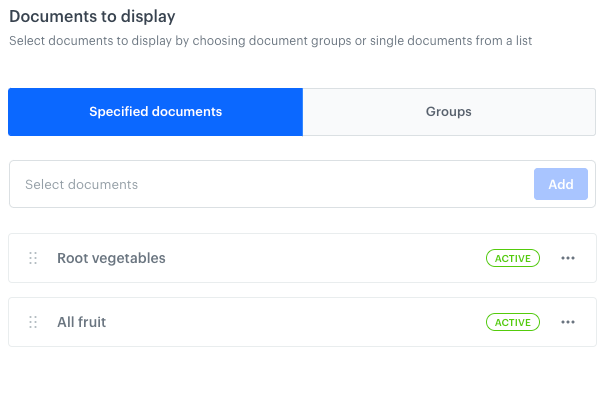
  The order of displaying documents is defined only manually - drag and drop documents in the preferred order. The priority settings of each document is overridden.
  
  <details class="accordion"><summary>Click here to see example</summary><div class="accordion-content"><figure><img src="/api/docs/image/54176ad07f146575310749eba44b7c2f42c1b327/docs/campaign/_gfx/priority-specified-documents.png" class="full" alt="Hand-picked documents for a screen view campaign"><figcaption>Single documents selected for a screen view campaign</figcaption></figure> <p>In the example on the screen above, the order of displaying documents will be as presented on the UI, which means the <code>Root vegetables</code> document will be presented first. </p></div></details>

- For the groups of documents (the **Groups** tab):  
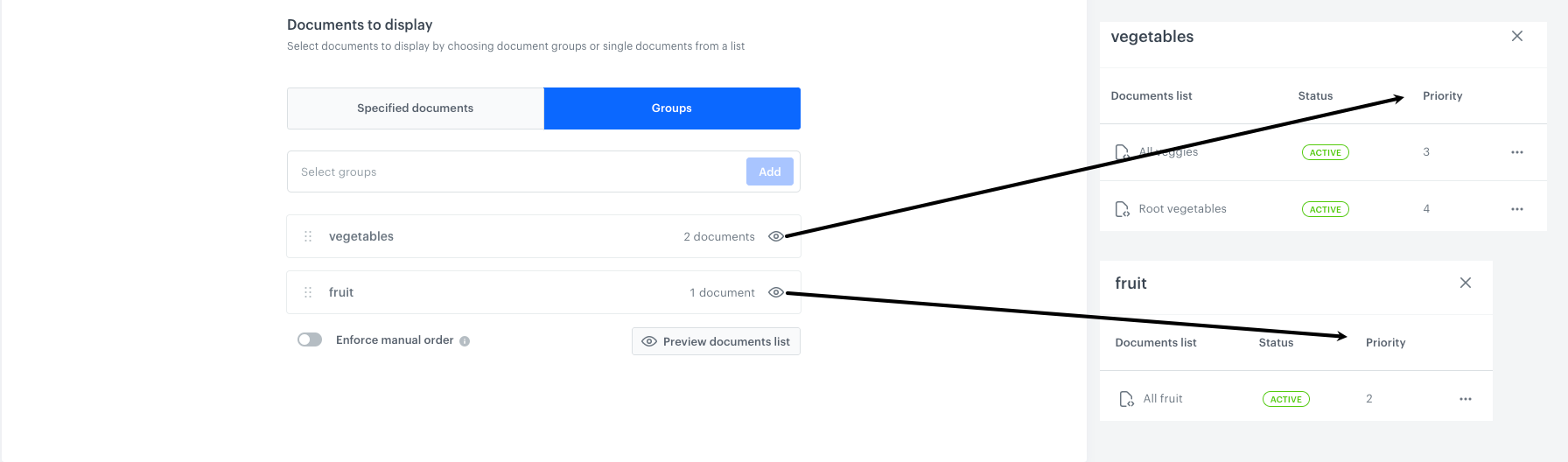
  - By default, the order of the documents selected this way is defined on the basis of priority of documents. This means that division into groups is overridden and the documents are displayed according to their priority settings.
  
    <details class="accordion"><summary>Click here to see example</summary><div class="accordion-content"><figure><img src="/api/docs/image/54176ad07f146575310749eba44b7c2f42c1b327/docs/campaign/_gfx/priority-default-group.png" class="full" alt="Group of documents selected"><figcaption>Two groups of documents selected for a screen view campaign with display according to priority </figcaption></figure> <p>In the example on the screen above, the order of displaying documents will be as follows:</p> <ol> <li><code>All fruit</code> document (priority 2)</li> <li><code>All veggies</code> document (priority 3)</li> <li><code>Root vegetables</code> document (priority 4)</li> </ol></div></details>

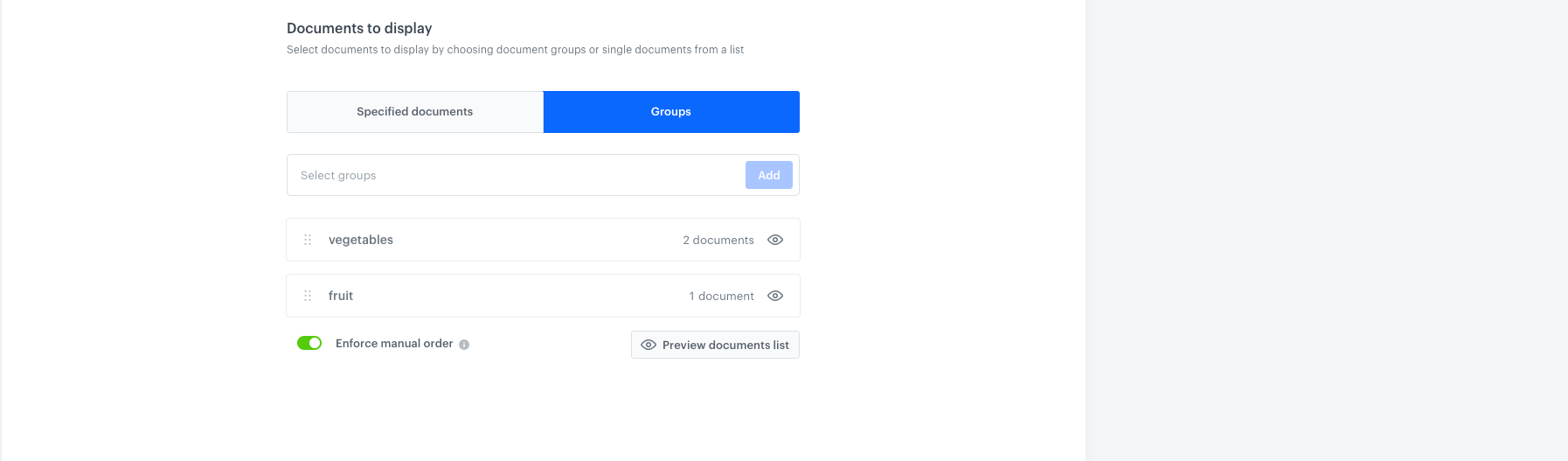
  - By enabling the **Enforce manual order** option, you define the order of document groups, however, the documents within the groups will be shown according to document priority.
  
    <details class="accordion"><summary>Click here to see example</summary><div class="accordion-content"><figure><img src="/api/docs/image/54176ad07f146575310749eba44b7c2f42c1b327/docs/campaign/_gfx/priority-manual-order-group.png" class="full" alt="Group of documents selected"><figcaption>Two groups of documents selected for a screen view campaign and enforcing manual order option is enabled </figcaption></figure> <p>In the example on the screen above, the order of displaying documents will be as follows:</p> <ol> <li><code>All veggies</code> document (priority 3)</li> <li><code>Root vegetables</code> document (priority 4)</li> <li><code>All fruit</code> document (priority 2)</li> </ol></div></details>


### Conflicts

#### Screen views with the same priority

| Audience conditions | Outcome                                                                                                                                                                                                                                                                                                                            |
|---------------------|------------------------------------------------------------------------------------------------------------------------------------------------------------------------------------------------------------------------------------------------------------------------------------------------------------------------------------|
| The same            | In such case, if a profile meets the conditions of the screen views, the screen view with the latest creation date will be displayed.                                                           |
| Various             | - If a profile meets the conditions of one screen view, this screen view will be displayed <br> - If a profile meets the conditions of both screen views, the screen view with the latest creation date will be displayed |


<details class="accordion"><summary>Expand for detailed logic</summary><div class="accordion-content"><figure><img src="/api/docs/image/54176ad07f146575310749eba44b7c2f42c1b327/docs/campaign/_gfx/svlogic.svg" class="full" alt="Logic of selecting a screen view to display during conflicts"><figcaption>Logic of selecting a screen view to display during conflicts</figcaption></figure></div></details>


#### Documents with the same priority

| Audience conditions | Outcome                                                                                                                                                                                                                                                                                                        |
|---------------------|----------------------------------------------------------------------------------------------------------------------------------------------------------------------------------------------------------------------------------------------------------------------------------------------------------------|
| The same            | In such case, if a profile meets the audience conditions of documents, the document with the latest creation date will be displayed.                                                                                                                                                                            |
| Various             | In such case, the choice of the document to be displayed for each profile will be different: <br> - If a profile meets the conditions of at least one document, this document will be displayed <br> - If a profile meets the conditions of both documents, the document with the latest creation date will be displayed |


<details class="accordion"><summary>Expand for detailed logic</summary><div class="accordion-content"><figure><img src="/api/docs/image/54176ad07f146575310749eba44b7c2f42c1b327/docs/campaign/_gfx/doclogic.svg" class="full" alt="Logic of selecting a document to display during conflicts"><figcaption>Logic of selecting a document to display during conflicts</figcaption></figure></div></details>


#### A document in a screen view whose audience conditions are mutually exclusive with screen view audience
The document will not be displayed in a screen view.

#### Finished, paused or draft document in an active screen view
The document will not be displayed in a screen view.


### Screen view audience vs document audience
For screen view campaigns:
- you can select up to 20 documents whose audience is one segmentation or more.
- you can't select a document which contains documents whose audience is other than **Everyone**.
- if the screen view audience and the audience of documents selected in the screen view is mutually exclusive, then the document won't be displayed in a screen view

### Screen view schedule vs document schedule

The screen view campaign displays only active documents.
- When a screen view contains the documents which are no longer active or are scheduled at the future date, they won't be displayed in a screen view.
- When a screen view expires and the documents in this screen view are still active, you can still fetch those documents directly from the database by using the API.

### How does deleting documents affect screen view campaigns?

When deleting a document, you will get a warning if it's used in a screen view campaign. If you delete such a document, it will no longer be displayed in the campaign.