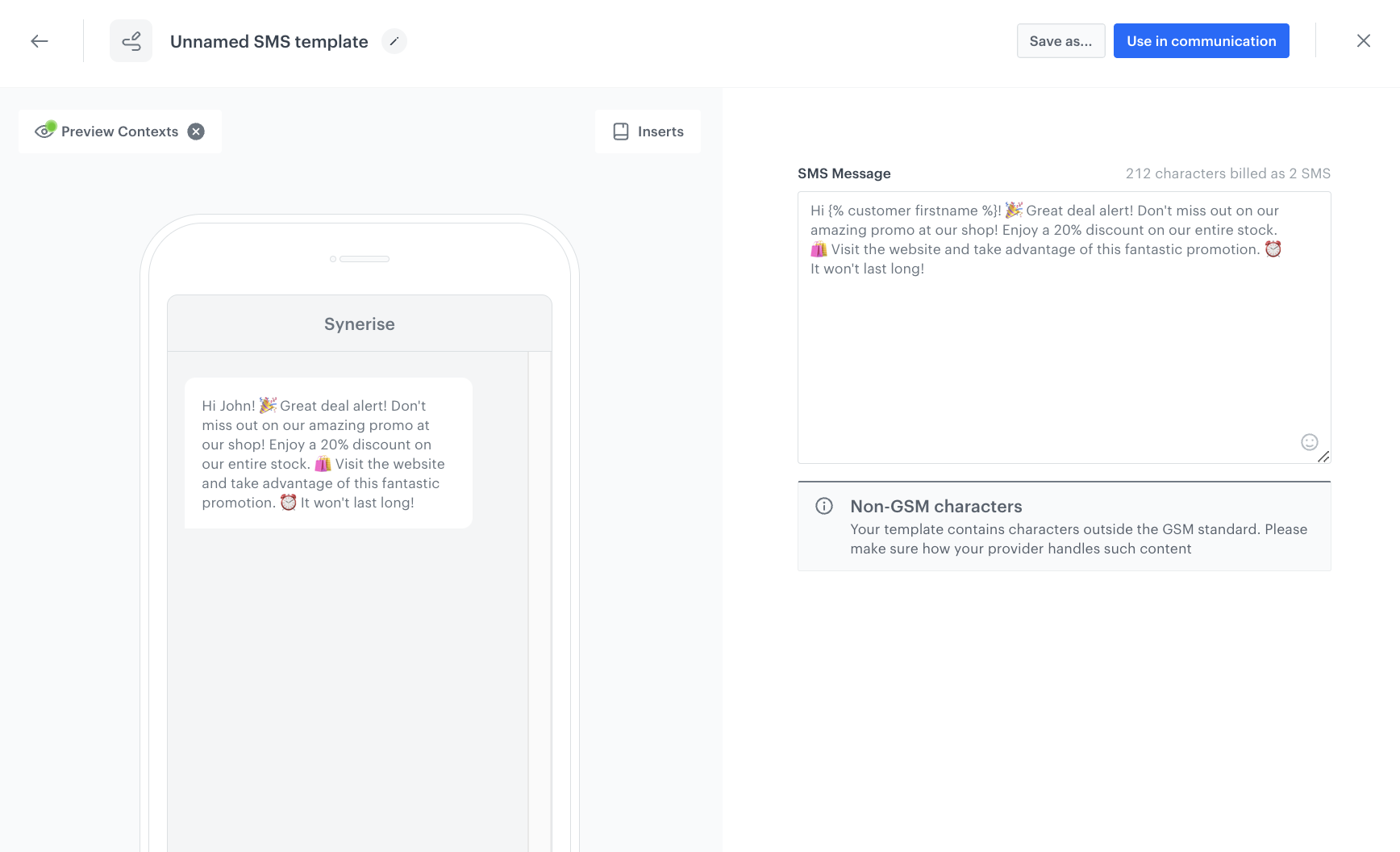
In the Synerise template builder, you can create your SMS. After you create it, you can proceed to [sending the text message](/docs/campaign/SMS/sending-sms).  

Alternatively, you can create a template on the go while [creating the SMS communication](/docs/campaign/SMS/sending-sms).

## Create a template
---

1. Go to **Experience Hub > SMS**.
2. In the menu on the left, click **Templates**.
3. Click **Create new**.
4. Click **Text editor**.
    The text editor and SMS preview open.
5. In the text box on the right, enter the contents of your message. You can:  
    - use emoji.
    - [shorten the links](#short-links).
    - [use inserts to personalize content](/developers/inserts/sms#common-tags-used-in-text-messages) and [add tracking of UTM parameters and click events for redirect URLs](/developers/inserts/sms#adding-utm-and-tracking-parameters-to-link).

    <figure><img src="/api/docs/image/54176ad07f146575310749eba44b7c2f42c1b327/docs/campaign/_gfx/sms-changelog.png" class="full" alt="SMS template example"><figcaption>Example of an SMS template</figcaption></figure>


### Tracking parameters in links

To include [tracking parameters](/developers/web/user-identification#recognizing-customers-from-link-parameters) and [UTM and link parameters](/docs/campaign/SMS/sending-sms#define-utm-and-url-parameters) in the links in a template, always wrap the link with the [{% preparelink %}{% endpreparelink %} insert](/developers/inserts/email#adding-utm-and-tracking-parameters-to-links). 

### Short links

If you send links in text messages, you can use a Jinjava code to shorten the URL addresses to make the text message look professional and the link more reliable. 

- The default domain of the shortened links is `snrs.it`. If you want to use your own domain, see [Custom subdomain for shortened links](/docs/campaign/SMS/custom-shortener-domain).
- The shortened links don't require HTTPS. If you include a link with `http://` in the message, it will be redirected to HTTPS when opened.
- You can combine short link insert with [prepare link](/developers/inserts/sms#adding-utm-and-tracking-parameters-to-link) to track URL's parameters (such as UTM) and click events from a message.


  <div class="admonition admonition-warning"><div class="admonition-icon"><svg xmlns="http://www.w3.org/2000/svg" fill="none" viewBox="0 0 24 24" stroke="currentColor" stroke-width="2.5"><path stroke-linecap="round" stroke-linejoin="round" d="M12 9v2m0 4h.01m-6.938 4h13.856c1.54 0 2.502-1.667 1.732-2.5L13.732 4c-.77-.833-1.964-.833-2.732 0L4.082 16.5c-.77.833.192 2.5 1.732 2.5z" /></svg></div><div class="admonition-body"><div class="admonition-content">

  The shortened link is valid for 14 days from the date the message is sent.

  </div></div></div>


| Jinjava code                                                                                                            | Description                                                                                           |
|-------------------------------------------------------------------------------------------------------------------------|-------------------------------------------------------------------------------------------------------|
|  <pre><code class="language-jinjava">{% shorturl %}YOUR_URL{% endshorturl %}</code></pre> | The URL is shortened, however, the clicks aren't collected.                                           |
|  <pre><code class="language-jinjava">{% shorturl %}{% preparelink %}YOUR_URL{% endpreparelink %}{% endshorturl %}</code></pre> | The URL is shortened and the clicks in the link are collected, so this event can be used in analyses. |


#### Example


<pre><code class="language-plaintext">{% shorturl %}{% preparelink %}https://example.com/season-discounts/?utm_source=examplecom&amp;utm_medium=slider&amp;utm_content=examplecom&amp;utm_term=discount-amazon-perf-2_W3&amp;utm_campaign=Campaign-OnGoing{% endpreparelink %}{% endshorturl %}</code></pre>
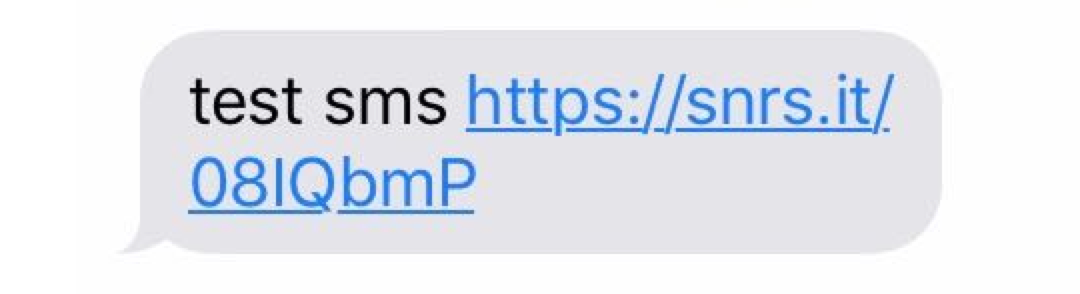


#### Result

<figure><img src="/api/docs/image/54176ad07f146575310749eba44b7c2f42c1b327/docs/campaign/_gfx/shorturlexample3.png" class="medium" alt="Shortened URL in a text message"><figcaption>Shortened URL in a text message</figcaption></figure>


### Personalization

You can also personalize the message by inserting dynamic elements, for example:
- an attribute such as the name or any other piece of information you collected about a profile (city, age, and so on),
- the number of collected loyalty points,
- a discount coupon.  

In [Insert usage](/developers/inserts/insert-usage), you can find a list of inserts and examples of their usage.

### Limits

There is no validation on the characters used in the text message because of the possibility of using the Jinjava tags which tend to be long. However, to give you a sense of how many parts your text is going to consist of, there is the **Parts** counter in the top right corner.

A text message consists of 160 characters. Special characters in Synerise template editor are counted as a single character, but your SMS provider may count them as two or more, which may result in dividing your message in several parts. To accurately predict the cost of your campaign, check your provider's documentation on special characters to determine how many parts your message will consist of.


### Preview the template
---

1. To check the preview of the template for a particular customer, click the **Preview context** button on the upper left side. 
2. Enter the ID of a customer. 
4. Click **Apply**.  
    **Result**: You see the preview of the template for the particular customer. If you use a [custom domain for short links](/docs/campaign/SMS/custom-shortener-domain), the preview shows the default domain, but the custom domain will be used in the actual campaign.


### Save the template
---
- If [Service approval](/docs/settings/configuration/service-approval) is not configured:
    - To go directly to launching an SMS campaign, click **Use in communication** and follow the instructions [here](/docs/campaign/SMS/sending-sms).
    - To save the template:
        1. Enter the name of the template.
        2. Select the folder where the template will be saved.
        3. Click **Save this template**.  
        **Result**: A dropdown appears.
        4. Click **Save as**.  
        **Result**: The template is saved in the selected folder. 

- If [Service approval](/docs/settings/configuration/service-approval) is enabled for **Experience Hub**, to complete the work over the template:
    - If you are a regular user, to send the template to reviewers and a final approver, click **Send to approval**. 
    - If you are a reviewer, to approve a template, click **Approve**.  
    **Result**: If the template is approved, it will either be automatically sent to the final approver or await approval from another reviewer. If the template is disapproved, it will be marked as Rejected and the review process will start over.
    - If you are a final approver, to let yourself approve the template, click **Approve**.  
    **Result**: The template can be used in an SMS campaign.
