After [integrating SMS gateway](/docs/campaign/SMS/configuring-sms-gateway), [creating SMS account](/docs/campaign/SMS/configuring-sms-gateway#create-sms-account) from which messages will be sent, and [preparing SMS template](/docs/campaign/SMS/creating-SMS-template), you can proceed to sending the text message.  

In Synerise, you can send a text message in two ways:
- You can [send it manually in the form of a one-off campaign](/docs/campaign/SMS/sending-sms#send-manually)
- You can [send it automatically by Automation Hub](/docs/campaign/SMS/sending-sms#send-automatically)


## Requirements
---
Meet all requirements listed in [Introduction to SMS](/docs/campaign/SMS/introduction-to-sms#requirements)

## Send manually
---
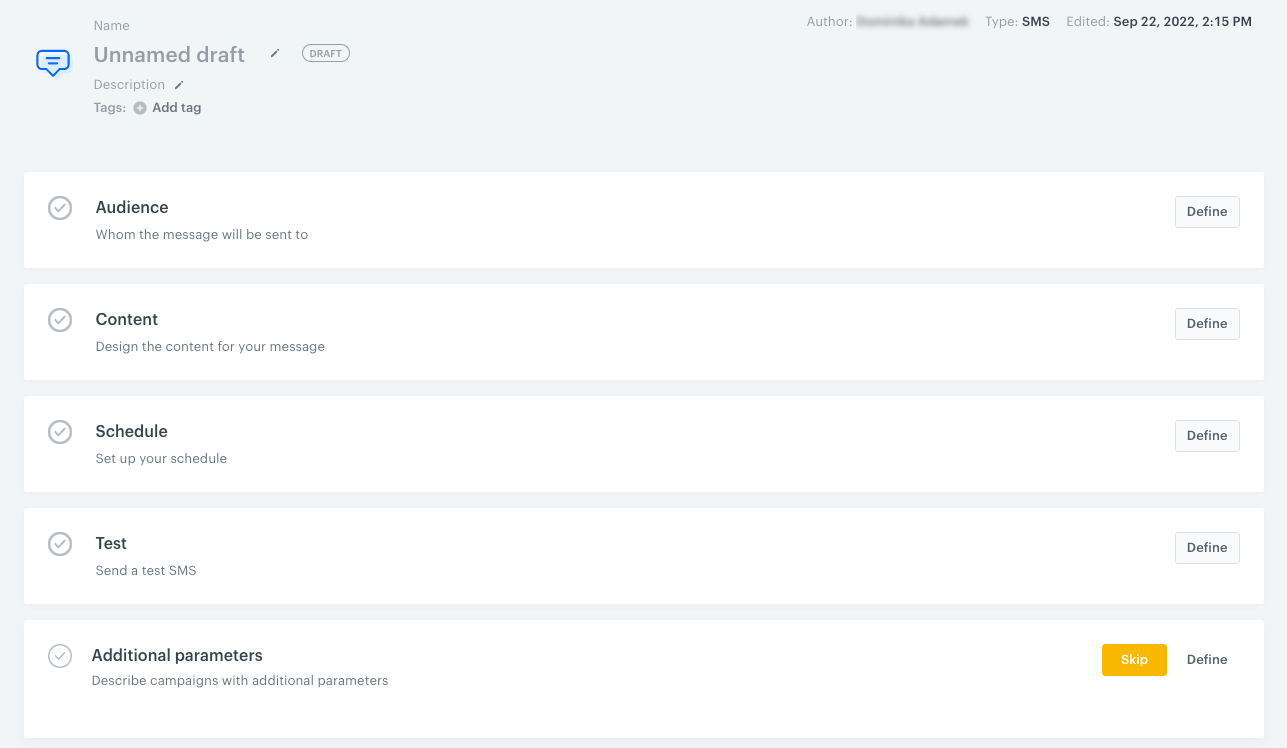
1. Go to **Experience Hub > SMS > Create new**. 
2. Type the name of the communication definition (it will only display on the list of definitions).  

<figure><img src="/api/docs/image/54176ad07f146575310749eba44b7c2f42c1b327/docs/campaign/_gfx/sms-campaign.png" class="full" alt="Blank SMS form"><figcaption>Blank SMS form</figcaption></figure>

### Select recipients
---
1. In the **Audience** section:  
    1. Choose the recipients:
        - **Everyone** - Everyone who gave marketing consent will receive your message. The estimated reach takes into account the number of customers who have given marketing consent to this type of communication (this means that in the case of communication such as mobile push, the estimated reach may be higher than the number of customers who have your mobile application).
        - **Segment** - You can send the message to one or more existing segments in the system.
        - **New Audience** - Create new segments and specify the conditions which the target must meet.
        
   <div class="admonition admonition-important"><div class="admonition-icon"><svg xmlns="http://www.w3.org/2000/svg" fill="none" viewBox="0 0 24 24" stroke="currentColor" stroke-width="2.5"><path stroke-linecap="round" stroke-linejoin="round" d="M12 8v4m0 4h.01M21 12a9 9 0 11-18 0 9 9 0 0118 0z" /></svg></div><div class="admonition-body"><div class="admonition-content">

   - Regardless of the way of selecting the audience, the system limits the audience to those who have the marketing agreement on, unless you override this behavior in the advanced options.
   - If the audience is larger than 500000 profiles, consider using **Batch delivery** in the advanced options to avoid timeouts.

   </div></div></div>

    1. **Optional**: Open **Advanced options** and configure additional settings.  
    
       <details class="accordion"><summary>Advanced options - explanation</summary><div class="accordion-content"><ul> <li><p><strong>Batch delivery</strong> - You can use this option to prevent sending the message to all recipients at once. <strong>When to use it?</strong> When the target audience is so large that the messaging provider might not be able to process all messages at once.</p> <div class="admonition admonition-important"><div class="admonition-icon"><svg xmlns="http://www.w3.org/2000/svg" fill="none" viewBox="0 0 24 24" stroke="currentColor" stroke-width="2.5"><path stroke-linecap="round" stroke-linejoin="round" d="M12 8v4m0 4h.01M21 12a9 9 0 11-18 0 9 9 0 0118 0z" /></svg></div><div class="admonition-body"><div class="admonition-content"> <p>If you plan to send messages to an audience larger than 15,000 profiles, we recommend this option.</p> </div></div></div> <p> For example, if the expected performance of your messaging provider is 1 million messages per hour and the expected audience is 5 million profiles, you can split the communication into 60 batches sent 5 minutes apart: every batch will include ~83000 profiles sending all messages will take 5 hours.<br> If a batch is too large (or the batch delivery option is not used), it may time out in your messaging provider&#39;s system and the messages may not be delivered. For details on provider performance, contact the provider.<br> If a batch takes more than 8 hours to complete for any reason, it is cancelled in Synerise. </p> </li> <li><p><strong>Send without marketing agreement check</strong> - To comply with GDPR resolutions, Synerise by default filters out the recipients with marketing agreement off. This option, however, allows to send a message to those whose marketing agreement is off (after ticking this option, the number in the estimated reach don&#39;t refresh). <strong>When to use it?</strong> While sending messages that don&#39;t contain marketing content, for example, information about delays in shipping.</p> </li> <li><p><strong>Enable control group</strong> - You can use this option to create a subgroup of the recipients who won&#39;t receive any communication variant. <strong>When to use it?</strong> When you send one or several variants of a communication (A/B/x testing). When a customer is assigned to a control group, the information is available in their Profiles card as an event.</p> </li> <li><p><strong>Include audience changes</strong> - You can use this option only for scheduled communication. It recalculates the number of recipients right before sending the communication. By default, the size of the customer segment chosen for the communication is the same as in the moment of sending, even if the number of customers in the chosen segment changed between scheduling the communication and sending it. <strong>When to use it?</strong> When the size of the segments of customers selected as the audience of the communication can change dynamically. </p> </li> <li><p><strong>Ignore limits</strong> - You can use this option to send this message to a customer, even if it exceeds the global limit of this type of messages for a single customer per day (more information is available <a href="/docs/settings/configuration/campaign-limits/">here</a>), enable the <strong>Ignore limits</strong> toggle. You may apply it to system messages such as a transaction confirmation, notifications about order delays, and so on.</p> </li> </ul></div></details>

    1. To save your changes, click the **Apply** button below.
    
   <div class="admonition admonition-warning"><div class="admonition-icon"><svg xmlns="http://www.w3.org/2000/svg" fill="none" viewBox="0 0 24 24" stroke="currentColor" stroke-width="2.5"><path stroke-linecap="round" stroke-linejoin="round" d="M12 9v2m0 4h.01m-6.938 4h13.856c1.54 0 2.502-1.667 1.732-2.5L13.732 4c-.77-.833-1.964-.833-2.732 0L4.082 16.5c-.77.833.192 2.5 1.732 2.5z" /></svg></div><div class="admonition-body"><div class="admonition-content">

   Remember that you can send SMS only to users who gave you their phone number and permission. This is the reason why estimated reach is lower than total audience.

   </div></div></div>
 

### Select or create a template
---
4. In the **Content** section, select or create a template of the SMS:  
    2. From the **Sender name** list, select the [SMS account](/docs/campaign/SMS/configuring-sms-gateway#create-sms-account) from which the message will be sent.  
    3. Click **Create message**.  
        - Create new - This option allows you to [create a text message template from scratch](/docs/campaign/SMS/creating-SMS-template)
        - From template - This option allows you to select a template you already created.
1. If you want to add more variants:
    1. Click the <img src="/api/docs/image/54176ad07f146575310749eba44b7c2f42c1b327/icons/add-variant-icon.png" alt="Add variant icon" class="icon" > icon.
    2. Repeat step 1.
    3. Allocate variants to profiles by using the slider.
4. Click **Next**.  

### Schedule the date of sending
---
5. In the **Schedule** section, define when your message is to be sent.  
    This section also allows you to enable silence hours - a time during the day when sending out messages is disabled. 
    1. You can choose between two options:

        - To send your message after clicking the **Send** button on the upper right corner, use the **Immediately** option.
        - To plan a message to be sent at a future date, use the **Scheduled** option. Set the start time and the time zone.  
          Synerise performs best with real-time data. This is why you can't schedule a message for more than 10 days in the future.  
          To select the best time of sending the message, take a look at the suggestion from the AI engine that calculates the best time (for all recipients). If time optimization is disabled, click [here](/docs/settings/configuration/time-optimizer) to learn more how to enable it and use it.
2. Select the **Silence Hours** setting:
    - **Without silence hours** - The communication can be processed and sent out to the recipients at any time during the day.
    - **Include silence hours** - With this option, you can set a time of day when the communication can't be sent:  
        1. In the **From** field, select when the silence hours start.
        2. In the **To** field, select when the silence hours end.  
            The period can't be longer than 12 hours.  
            When a message can't be sent due to silence hours, an `sms.skipped` event is generated.  

        
   <div class="admonition admonition-important"><div class="admonition-icon"><svg xmlns="http://www.w3.org/2000/svg" fill="none" viewBox="0 0 24 24" stroke="currentColor" stroke-width="2.5"><path stroke-linecap="round" stroke-linejoin="round" d="M12 8v4m0 4h.01M21 12a9 9 0 11-18 0 9 9 0 0118 0z" /></svg></div><div class="admonition-body"><div class="admonition-content">

   - When silence hours are enabled, the **Discard messages** option is always enabled. This means that messages blocked by silence hours are discarded entirely. **The discarded messages are not sent when silence hours end**.
   - If the **Start** time of the schedule is in the silence hours, you can't apply the settings.
   - If communication is scheduled for sending just before silence hours (for example, silence hours start at 22:00 and sending is scheduled at 21:59:59), the communication may be processed, sent, and logged in the events a short time after the silence hours start.

   </div></div></div>

3. To save the changes, click **Apply**. 

## Define UTM and URL parameters
---  
You can add UTM and URL parameters to the links provided in the message through the [preparelink insert](/developers/inserts/sms#adding-utm-and-tracking-parameters-to-link). If the links aren't provided in the preparelink insert, the parameters won't be added to the link in the message.

7. To define UTM parameters, in the **UTM & URL parameters** section, click **Define**.
    1. Fill in the following fields: **UTM campaign**, **UTM medium**, **UTM source**, and **UTM term**.  
    2. To add URL parameters, in the **URL parameters** section, click **Add parameter**.  
    3. Enter the parameter and value pair in the **Parameter** and **Value** fields, respectively.
    4. To save the configuration, click **Apply**

### Testing
---

In this part of the process, for testing purposes, you can send the message or one of its variants to the recipients you indicate in this section.  
- You can select profiles from the database (available in the **Behavioral Data Hub > Profiles**) or you can send the message to recipients who are not in the database.
- When you send the test message to the recipients who are not in the database, the customer Jinjava tags will not render if the message contains any. The only Jinjava tags that will be rendered are non-customer Jinjava tags (metrics and catalog references).  
- The **View in browser** option is unavailable in the test emails:
    - for the recipients who are not in the database
    - which are sent through **Automation Hub**

- Test messages are not counted towards capping limits.
- The system doesn't count clicks from test messages. If you click a link in the test message, an event will be not generated.

- If you want to send a test message to a profile from the database, it must have a phone number.

1. In the **Test** section, click **Define**.  
2. If your message has more than one variant, select the variant of the message which you would like to use for testing. If not, skip this step.
3. In the **Select the user you want to send the test message to** searchbox:  
    - To select an existing recipient list:
        1. In search results, select the **Saved lists** tab.
        2. Select the list or lists.
        3. Confirm by clicking **Add**.
    - To add recipients from the database to a new list:  
        1. Search the recipients by name, surname, email address, custom ID, or UUID.  
            **Result**: A dropdown list with search results appears.
        2. From the dropdown list, select the users whom you would like to include in your list of recipients.
        3. Confirm your choice by clicking **Add** in the searchbox.
    - To add recipients who are not in your database to a new list, add them one-by-one:   
        1. In the searchbox, enter the phone number.  
            **Result**: A dropdown list appears. 
        2. In the dropdown list, click **Add {the phone number you entered}**.
4. Optionally, if you create a new list of recipients, to save it for future use, click **Save list**.  
    This option lets you create two types of lists: with recipients from the database and with recipients who are not in your database. It's impossible to create a list that combines recipients from both categories.  
    **Result**: A pop-up appears.  
    1. In the **List name** field, enter the name of the list of recipients.
    2. If your list includes both types of recipients (those from the database and those who are not in the database), select one of the following options:  
        - **Save profile list** - to save a list with recipients from your database only.  
            **Result**: Recipients who are not in the database will be removed from the list after you save it.
        - **Save custom email list** - to save a list only with recipients who are not in your database.  
            **Result**: Recipients who are in the database will be removed from the list after you save it.
    3. Confirm by clicking **Apply**.  
        **Result**: The list is available in the **Saved lists** tab of the recipient search result list.
5. To send the message, click **Send test**.  
    **Result**: The message is sent immediately. 

### Adding custom parameters
---
You can add up to 10 custom parameters with constant values. They will be added to the [SMS events](/docs/assets/events/event-reference/sms). 

1. To define the custom event parameters, in the **Additional parameters** section, click **Define**.  
2. Click **Add parameter**.  
3. In the **Parameter** field, enter the name of the parameter.  
  The following parameters cannot be sent:
    - `modifiedBy`
    - `apiKey`
    - `eventUUID`
    - `ip`
    - `time`
    - `businessProfileId`
    - `correlationId`
    - `clientId`
    - `uuid`
    
4. In the **Value** field, enter the parameter value.  
    - The value is always sent as a string when the event's JSON payload is generated. The maximum length of the string is 230 characters.   
    - You can use Jinjava only in this field with the following restrictions:
      - it will be rendered in the `<messageType>.send`, `<messageType>.notSent`, `webpush.notRegistered`, and `push.notRegistered` events
      - the 230-character limit applies to the **Value** field both before and after Jinjava rendering; if the length exceeds this limit at any stage, the value will be truncated.
      - if a Jinjava does not render, a raw code will be visible in the parameter value.
5. If you want to add more parameters, click **Add parameter**, and repeat steps 3-4.  
   **Result**: the parameters will be added to all events listed above with the values you entered. This is an example event saved in the database. The custom parameter `season` is located in the `params` object: 

   <div class="highlight-code-block" data-hl-lines="6">
   <pre><code class="language-json">{
   "action": ...
   ...
   "params": {
    "clientId": 1111111111,
    "season": "autumn",
    "campaignName": "Back to school",
    "time": 1662392318050,
    "title": "Have you prepared for coming back to school?",
    "businessProfileId": "xxx"
   }
   }</code></pre>
   </div>
   
6. Confirm the settings by clicking **Apply**.


## Send automatically
---
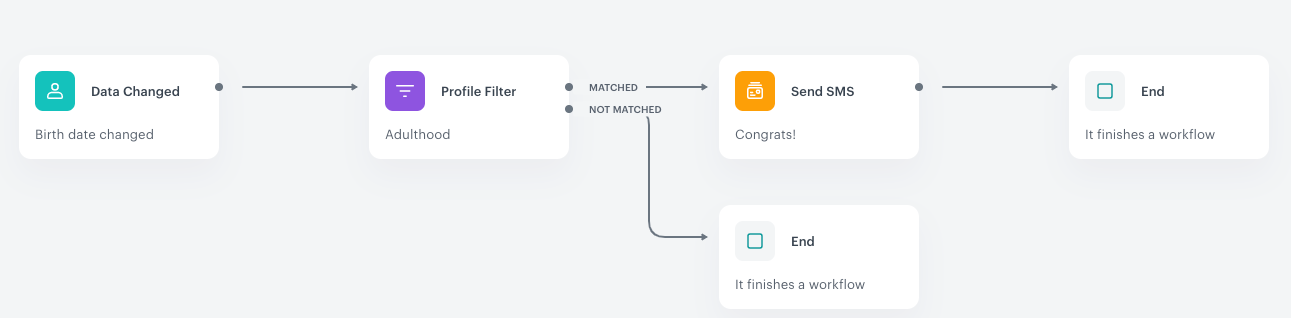
You can build a [workflow](/docs/automation/creating-automation) that sends out text messages to the recipients in response to their behavior or select an audience and build a dedicated workflow for them.  

To do so, use [Automation Hub](/docs/automation) and build the workflow by using the [Send SMS node](/docs/automation/actions/send-sms-node).  

<figure>
<img src="/api/docs/image/54176ad07f146575310749eba44b7c2f42c1b327/docs/automation/_gfx/send-sms-node-example.png" alt="Example of use" class="full">
<figcaption>Example of an automation process that uses the Send SMS  action</figcaption>
</figure>

The status of SMS communication is available on the list of SMS. In the [Communication statuses](/docs/campaign/statuses) article, you can check the statuses which can be assigned to SMS communication.

If you need an inspiration, you can check the [Personalized SMS with last visited most expensive product](/use-cases/dynamic-sms) use case that combines Automation Hub and the SMS channel.


<div class="admonition admonition-note"><div class="admonition-icon"><svg xmlns="http://www.w3.org/2000/svg" fill="none" viewBox="0 0 24 24" stroke="currentColor" stroke-width="2.5"><path stroke-linecap="round" stroke-linejoin="round" d="M13 16h-1v-4h-1m1-4h.01M21 12a9 9 0 11-18 0 9 9 0 0118 0z" /></svg></div><div class="admonition-body"><div class="admonition-content">

More use cases with the SMS channel are available [in the Use Case library](/use-cases/?ordering=DESC&sortBy=publishDate&filters=channel%3D%3D"sms+communication").

</div></div></div>

