
<div class="admonition admonition-important"><div class="admonition-icon"><svg xmlns="http://www.w3.org/2000/svg" fill="none" viewBox="0 0 24 24" stroke="currentColor" stroke-width="2.5"><path stroke-linecap="round" stroke-linejoin="round" d="M12 8v4m0 4h.01M21 12a9 9 0 11-18 0 9 9 0 0118 0z" /></svg></div><div class="admonition-body"><div class="admonition-content">

This feature is available in  private preview mode and accessible only on selected workspaces. To get access, contact your account manager or Synerise Support.

</div></div></div>


This article contains wallet pass Jinjava inserts which you can use in all message channels available in Synerise.  

### Generating a personalized link to Apple/Google Wallet

`walletPassId` is the ID of the wallet pass. To find it, open the wallet pass for editing—the ID appears in the URL.

Optionally, set an expiration for the generated link itself with `expirationTimeInDays` (a number of days from now, as in the basic example) or `expirationTime` (an absolute date and time as an ISO 8601 date-time string, as in the variable example). This doesn't affect the expiration of the pass—that's configured separately when [creating the wallet pass](/docs/campaign/wallet-passes/creating-wallet-passes#setting-expiration-and-status). If you don't set either parameter, the link doesn't expire.

You can also pass the following optional parameters:

- `eventParams` - a JSON object with additional parameters to attach to the events generated for this link, for example `eventParams={"campaign": "summer-sale"}`. Use it to track things like the source of the click on the link. These parameters are added to the [walletPass.issued](/docs/assets/events/event-reference/wallet-passes#walletpassissued),  [walletPass.installed](/docs/assets/events/event-reference/wallet-passes#walletpassinstalled), and [walletPass.installFailed](/docs/assets/events/event-reference/wallet-passes#walletpassinstallfailed) events. Values can be of any type.  
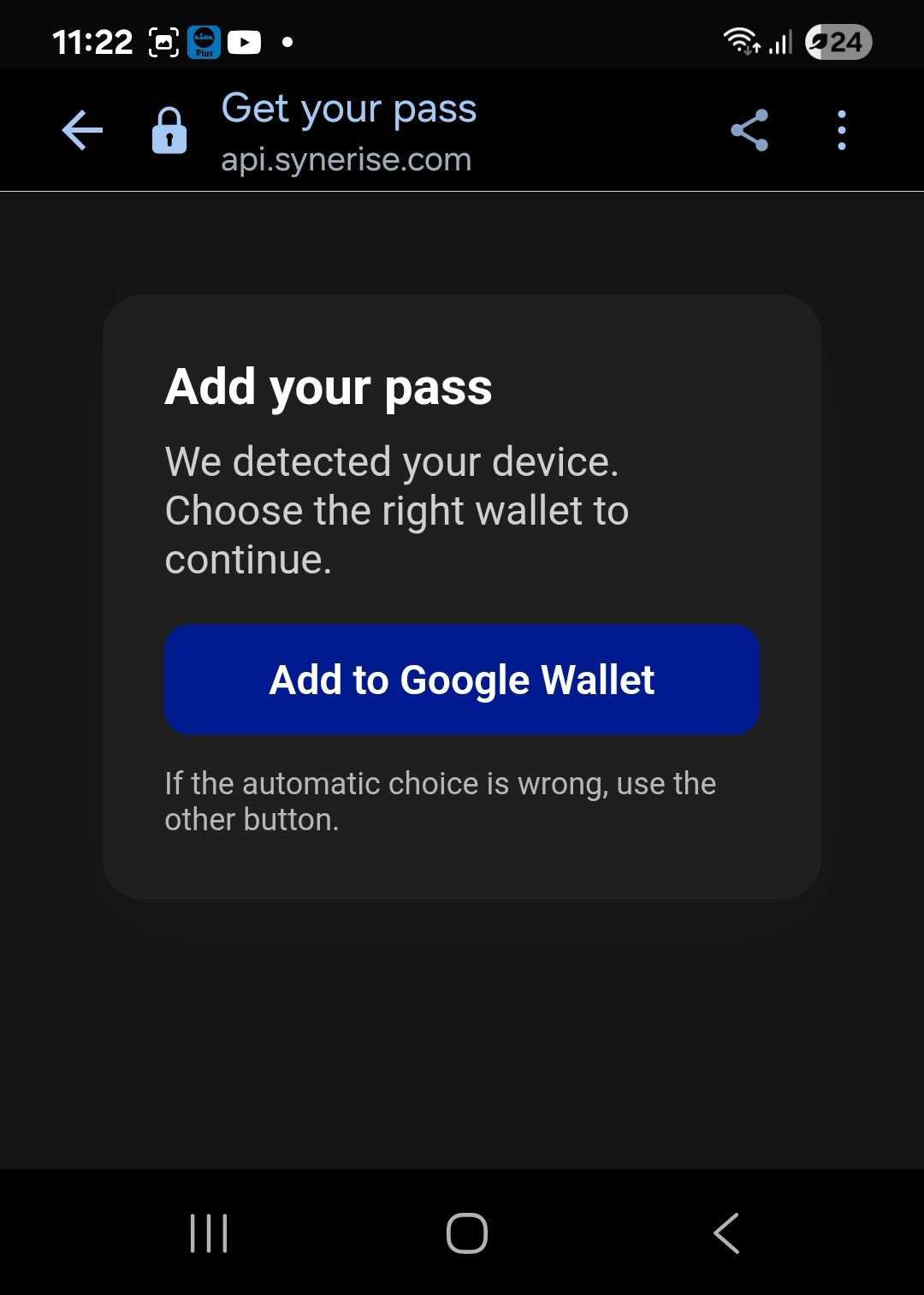
- `platform` - the platform to generate the link for: `IOS` or `ANDROID`, for example `platform=IOS` — if you don't set it, the visitor lands on a page that detects their device and shows a button to add the pass to their wallet, as shown below. If you set it, the visitor skips that landing page and goes straight to the native add-pass screen for the platform you specified.

### Basic

`{% walletpasslink walletPassId=983890bb-846a-448f-9fae-1a4c9e0d7997 expirationTimeInDays=7 %}`

### Variable


<pre><code class="language-jinjava">{% walletpasslinkvar walletPassId=983890bb-846a-448f-9fae-1a4c9e0d7997 expirationTime=2026-08-01T00:00:00+02:00 %}
    {{walletpasslink_result}}
 {% endwalletpasslinkvar%}</code></pre>


**Result**:  
`https://api.synerise.com/device-hub/wallets/issue?clientUuid=f6646ec5-34d4-4743-8c8f-3719443a8549&issueId=a2a77e3c-65bf-490d-8d97-39c3b4c3593c&hmac=DC2ZzhIzfvOI4SmWEMuAnIhax5t8KbdT4jXv2SYG3Xs`

The generated link always includes the recipient's `clientUuid`, since it's rendered for the specific customer receiving the message - see [Anonymous vs. identified links](/docs/campaign/wallet-passes/distributing-wallet-passes#anonymous-vs-identified-links). Any dynamic field driven by profile data resolves to that customer's actual values.

The link directs to the following view:
<figure><img src="/api/docs/image/ad5911f3e3e1b87d3cda4bbfa051e6606d9bbc87/docs/assets/_gfx/wallet-pass-detect-device.png" class="small" alt="Mobile browser page titled Get your pass, showing a message that the device was detected, with an Add to Google Wallet button and a note to use the other button if the automatic choice is wrong"><figcaption>The link automatically detects the visitor's device and offers the matching wallet button</figcaption></figure>

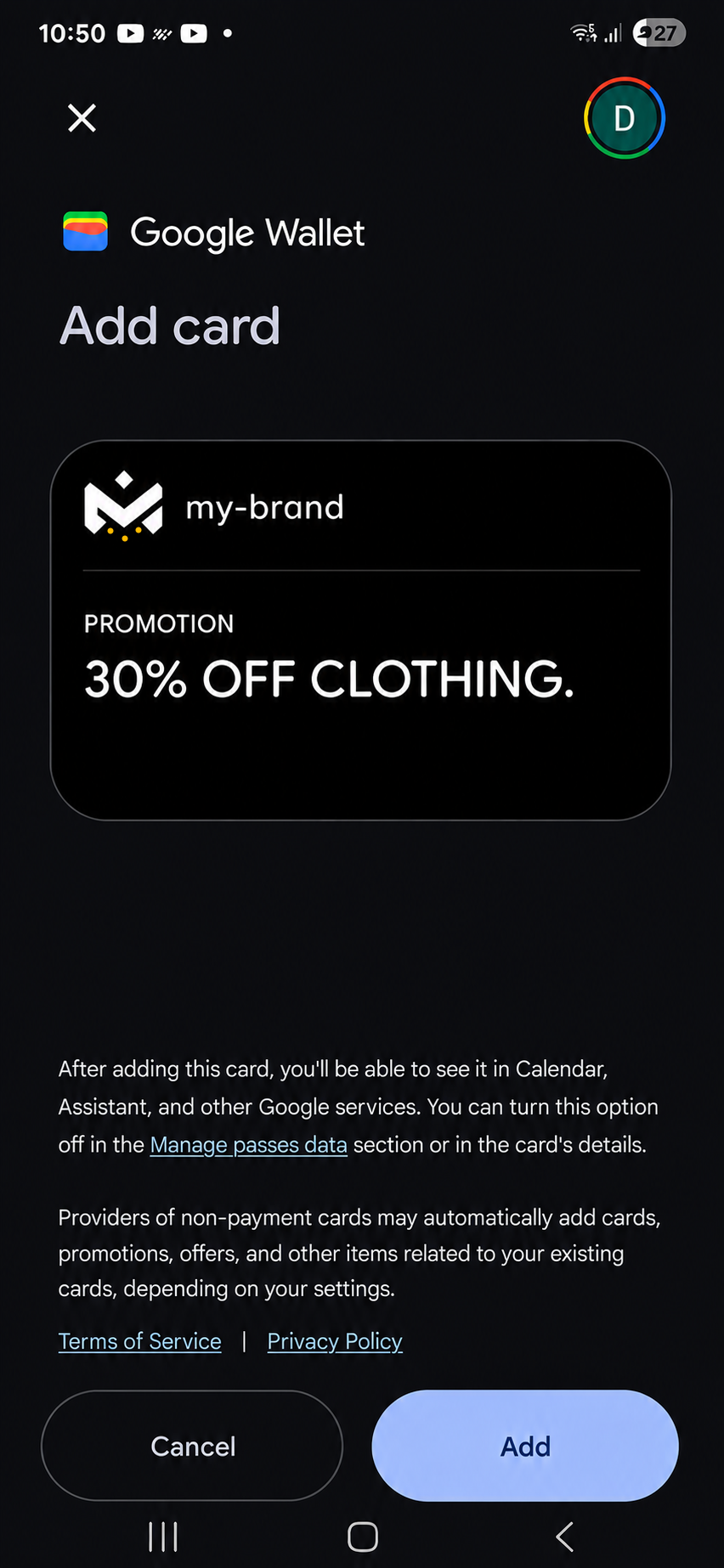
Then:
<figure><img src="/api/docs/image/ad5911f3e3e1b87d3cda4bbfa051e6606d9bbc87/docs/assets/_gfx/add-card-google-wallet.png" class="small" alt="Google Wallet Add card screen showing a promotional card from worldbox with the text 30% off clothing, and Cancel and Add buttons"><figcaption>The customer confirms adding the card on Google Wallet's native Add card screen</figcaption></figure>

### With optional parameters

You can combine `eventParams` and `platform` with either insert form, for example:

`{% walletpasslink walletPassId=983890bb-846a-448f-9fae-1a4c9e0d7997 platform=IOS eventParams={"campaign": "summer-sale"} %}`

When you set `platform`, the link skips the device-detection view shown above and directs the visitor straight to the native add-pass screen for the platform you specified.


