
After implementing a tracking code into your website, integrating Firebase with Synerise, installing service worker and preparing an agreement form, you can create web push templates which you will later use while creating web push notifications. 


## Image requirements
---

|            | Chrome on Android                                                                                                          | Chrome on Windows                                                                                                            |
|------------|----------------------------------------------------------------------------------------------------------------------------|------------------------------------------------------------------------------------------------------------------------------|
| Resolution | 2:1 aspect ratio , minimum: `512x256`, balanced:`1024x512`, maximum: `2048x1024`                                          | 2:1 aspect ratio,  recommended: `360x180`                                                                                    |
| File type   | `jpg`, `png`, `gif`, `webp`, `ico`, `cur`, `bmp`;  **not supported**: `svg` or animated gifs (will show the first gif frame only) | `jpg`, `png`, `gif`, `webp`, `ico`, `cur`, `bmp`; **not supported**: `svg` or animated gifs   (shows the first gif frame only) |


## Tracking parameters in links
---

No action required. [Tracking parameters](/developers/web/user-identification#recognizing-customers-from-link-parameters) are automatically added to the links (both for static links and those generated by means of Jinjava) whereas [UTM and link parameters](/docs/campaign/Webpush/creating-webpush-campaigns#define-utm-parameters) can be configured in the web push campaign.   

## Create a template
---
1. Go to <img src="/api/docs/image/54176ad07f146575310749eba44b7c2f42c1b327/icons/experience-hub-icon.svg" alt="Experience Hub icon" class="icon" > **Experience Hub > Web Push > Templates > New template**.
4. Enter the name of the web push template. 
6. In the **Title** field, enter the headline of the notification. It's recommended to not exceed 50 characters, however, the displayed number of characters depends on the browser. 
6. In the **Message** field, enter the main text of the notification.  
    **Recommended**: Up to 100 characters. If the message is too long, the rest of it is replaced with ellipsis (`...`).
    
   <details class="accordion"><summary>How to personalize title and content of the web push</summary><div class="accordion-content"><ol> <li>Click the <img src="/api/docs/image/54176ad07f146575310749eba44b7c2f42c1b327/icons/inserts-icon.png" alt="Insert icon" class="icon" > <strong>Inserts</strong> button. </li> <li>Select the insert type. </li> <li>Find an insert and click it to get the code.</li> <li>Copy the code.</li> <li>Paste it into the text field (<strong>Title</strong> or <strong>Message</strong>).</li> </ol> <p><strong>Examples</strong></p> <ol> <li>Use of customer&#39;s first name<br><strong>Requirements</strong>: You must have customer names filled in on their profiles in the database.<br><strong>Example</strong>: Hey <code>{% customer name %}</code>. How are you?<br><strong>Effect</strong>: A customer sees their name in the web push notification.</li> <li>Displaying the product added to the cart<br><strong>Requirements</strong>: You must prepare an aggregate that returns the last product added to the cart.<br><strong>Example</strong>: Do you want to finish the purchase of this item? <code>{% aggregate 43b9385d-1a70-3e8d-ae2c-27b1ae0083be %} {% endaggregate %}</code><br><strong>Effect</strong>: A customer sees in the notification an image of the product left in the cart. </li> <li>Displaying the number of loyalty points<br><strong>Requirements</strong>: You must create the expression that calculates <a href="/docs/analytics/expressions/loyalty-point-count/">the number of loyalty points</a>.<br><strong>Example</strong>: You have <code>{% expression %} 04d2eeb6-d677-4e3e-913c-3e3633adf906 {% endexpression %}</code> loyalty points! Thank you for being with us!<br><strong>Effect</strong>: A customer sees the number of loyalty point they gathered.</li> </ol></div></details>


7. In the **Destination URL** field, enter the address to which a customer is redirected after clicking the notification.
8. In the **Icon URL (optional)** field, enter the URL of the icon you uploaded previously to the **Files** section in **Data Modeling Hub**. The selected icon is shown on the right side of the notification.
    1. To get the URL of the icon, go to <img src="/api/docs/image/54176ad07f146575310749eba44b7c2f42c1b327/icons/data-modeling-hub-icon.svg" alt="Data Modeling Hub icon" class="icon"> **Data Modeling Hub > Files**.
    2. Find the icon on the list.
    3. Hover the mouse cursor over the icon on the list.
    4. Click **Copy URL**.
    5. Paste the URL in the **Icon** field.  
        Recommended size: 192x192
9. In the **Image URL** field, enter the URL of the image you uploaded previously to the **Files** section in **Data Modeling Hub**. The selected image is shown on the bottom of the notification. [Image requirements](/docs/campaign/Webpush/creating-webpush-templates#image-requirements) are listed at the top of the article.
    1. To get the URL of the image, go to <img src="/api/docs/image/54176ad07f146575310749eba44b7c2f42c1b327/icons/data-modeling-hub-icon.svg" alt="Data Modeling Hub icon" class="icon"> **Data Modeling Hub > Files**.
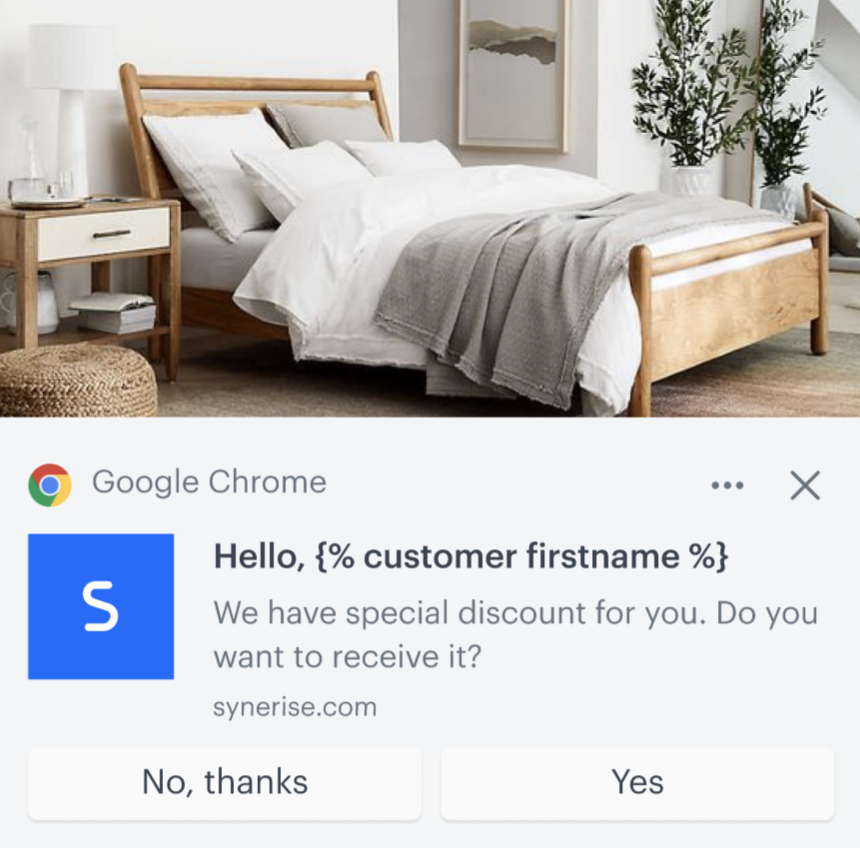
    2. Find the image on the list.
    3. Hover the mouse cursor over the image on the list.
    4. Click **Copy URL**.
    5. Paste the URL in the **Image** field.
10. If you want the web push to remain visible until the recipient clicks or closes it, switch the **Require an action** toggle on.  
    
    <div class="admonition admonition-important"><div class="admonition-icon"><svg xmlns="http://www.w3.org/2000/svg" fill="none" viewBox="0 0 24 24" stroke="currentColor" stroke-width="2.5"><path stroke-linecap="round" stroke-linejoin="round" d="M12 8v4m0 4h.01M21 12a9 9 0 11-18 0 9 9 0 0118 0z" /></svg></div><div class="admonition-body"><div class="admonition-content">

    The "requireInteraction" functionality used by this toggle is not supported by some browsers. For more details, go to [https://developer.mozilla.org/en-US/docs/Web/API/Notification/requireInteraction#browser_compatibility](https://developer.mozilla.org/en-US/docs/Web/API/Notification/requireInteraction#browser_compatibility).

    </div></div></div>

11. To configure action buttons for your template, switch the **Action Buttons** toggle on.  
    1. In the **Button text** field, enter the text that will appear on the button.
    2. In the **Button URL** field, enter the address to which a customer is redirected after clicking the button.
    3. To add second action button, click **Add button** and follow steps a-b.
    
   <div class="admonition admonition-important"><div class="admonition-icon"><svg xmlns="http://www.w3.org/2000/svg" fill="none" viewBox="0 0 24 24" stroke="currentColor" stroke-width="2.5"><path stroke-linecap="round" stroke-linejoin="round" d="M12 8v4m0 4h.01M21 12a9 9 0 11-18 0 9 9 0 0118 0z" /></svg></div><div class="admonition-body"><div class="admonition-content">

   Web push notifications support in browsers is provided by service worker - a file downloaded in browsers whenever the customer registers for web push notifications. **Action buttons are supported only in the version 3.0.0 (or higher) of service worker**. Only customers that have version 3.0.0 (or higher) of service worker stored in their browsers will receive notifications with action buttons, while all others will receive notifications without action buttons. The version of service worker that is stored in the browser of the particular customer is accessible in the [webpushToken.update](/docs/assets/events/event-reference/webpush#webpushtokenupdate) event, in `version` parameter. [Learn how to install service worker for your website](/docs/campaign/Webpush/configuring-web-push#install-service-worker).

   </div></div></div>

    
   <div class="admonition admonition-important"><div class="admonition-icon"><svg xmlns="http://www.w3.org/2000/svg" fill="none" viewBox="0 0 24 24" stroke="currentColor" stroke-width="2.5"><path stroke-linecap="round" stroke-linejoin="round" d="M12 8v4m0 4h.01M21 12a9 9 0 11-18 0 9 9 0 0118 0z" /></svg></div><div class="admonition-body"><div class="admonition-content">

   Action buttons are supported only by Google Chrome, Microsoft Edge and Opera.

   </div></div></div>

    
    <details class="accordion"><summary>How to handle the click events from action button</summary><div class="accordion-content"><p>The information about the customer clicking the button is stored in <a href="/docs/assets/events/event-reference/webpush/#webpushclick">webpush.click</a> event. This event contains an additional <code>actionButton</code> parameter with value <code>1</code> or <code>2</code>, depending which action button was clicked.</p></div></details>


## Preview the template
---

1. To check the preview of the template for a particular customer or a product, click the **Preview context** button on the upper left side. 
2. Enter the ID of a customer. 
4. Click **Apply**.  
    **Result**: You see the preview of the template for the particular customer.
4. To test the notification template in your browser, click **Show notification** on the upper right side.  
    **Result**: You get a browser request to receive notifications.
5. Agree to receive notifications.  
    **Result**: A web push notification is displayed.

<figure>
<img src="/api/docs/image/54176ad07f146575310749eba44b7c2f42c1b327/docs/campaign/_gfx/webpush-example.png" alt="Example web push notification preview for Chrome desktop" class="medium" >
<figcaption> Example web push notification preview for Chrome desktop </figcaption>
</figure>

## Save the template
---
- If [Service approval](/docs/settings/configuration/service-approval) is not configured:
    - To go directly to launching a web push notification, click **Use in communication** and follow the instructions [here](/docs/campaign/Webpush/creating-webpush-campaigns).
    - To save the template:
        1. Enter the name of the template.
        2. Select the folder where the template will be saved.
        3. Click **Save this template**.  
        **Result**: A dropdown appears.
        4. Click **Save as**.  
        **Result**: The template is saved in the selected folder. 

- If [Service approval](/docs/settings/configuration/service-approval) is enabled for **Experience Hub**, to complete the work over the template:
    - If you are a regular user, to send the template to reviewers and a final approver, click **Send to approval**. 
    - If you are a reviewer, to send the template to reviewers (including yourself), click **Send to approval**.  
    **Result**: **Approve** and **Unapprove** button appears.  
    - If you are a final approver, to let yourself approve the template, click **Send to approval**.  
    **Result**: **Approve** and **Unapprove** button appears.
    
   <div class="admonition admonition-important"><div class="admonition-icon"><svg xmlns="http://www.w3.org/2000/svg" fill="none" viewBox="0 0 24 24" stroke="currentColor" stroke-width="2.5"><path stroke-linecap="round" stroke-linejoin="round" d="M12 8v4m0 4h.01M21 12a9 9 0 11-18 0 9 9 0 0118 0z" /></svg></div><div class="admonition-body"><div class="admonition-content">

   If you make changes to the approved template and don't send it to get another approval, the web push notification will use the latest approved version.

   </div></div></div>
