While implementing web push notifications, it is crucial to facilitate a process that allows a visitor to your website to explicitly express their consent to receiving these notifications. For this reason, in addition to a browser form, we recommend creating an additional visual layer that requires interaction from the visitor because this ensures you that the visitor is aware of and accepts receiving these notifications.

This article describes how to create a two-step agreement in the form of a [dynamic content](/docs/campaign/dynamiccontent) that will be displayed on your website. The process of creating the form involves:
- using [ready-made web push agreement templates](/docs/campaign/dynamiccontent/dynamic-content-template-builder) that can be edited in the simplified configuration form. These templates already contain the scripts that invoke the dynamic content form and agreement form from the browser.
- the possibility to [preview the dynamic content on the target website](/docs/campaign/dynamiccontent/testing-dynamic-content/previewing-dynamic-content#the-live-preview-option).

### Benefits
---
- You will follow the browser policy.
- You will prevent being blocked by the anti-spam functions.
- You will improve user engagement and retention.
- You will be compliant with GDPR.

### Visitor perspective
---

When a visitor whose web push agreement is disabled enters a website, a dynamic content form appears. The visitor can give or decline a permission to receiving web push notifications. 

<details class="accordion"><summary>The visitor gives permission</summary><div class="accordion-content"><p>An agreement form from the browser appears.</p> <ul> <li>When a visitor declines or closes the browser form, then their web push agreement state doesn&#39;t change (<strong>disabled</strong>).</li> <li>When a visitor agrees, then their web push agreement state changes to <strong>enabled</strong>. The <code>profile.updated</code> event appears on the activity list of the visitor.</li> </ul></div></details>


<details class="accordion"><summary>The visitor declines permission</summary><div class="accordion-content"><p>A pop-up window is closed. The web push agreement attribute doesn&#39;t change (<strong>disabled</strong>).</p></div></details>


## Requirements
---
- Implement a [tracking code](/developers/web/installation-and-configuration) to your website.
- You must be granted user permissions that allow accessing **Experience Hub**, creating and executing actions. 

## Creating the agreement form
---
1. Go to <img src="/api/docs/image/54176ad07f146575310749eba44b7c2f42c1b327/icons/experience-hub-icon.svg" alt="Image presents the Experience Hub icon" class="icon"> **Experience Hub > Dynamic content > Create new**.
2. Select **Insert object**.

### Select the recipients
---

3. In the **Audience** section, click **Add info**.
    1. Select the **New audience** tab. 
    2. Click **Define conditions**.  
        **Result**: A pop-up appears.
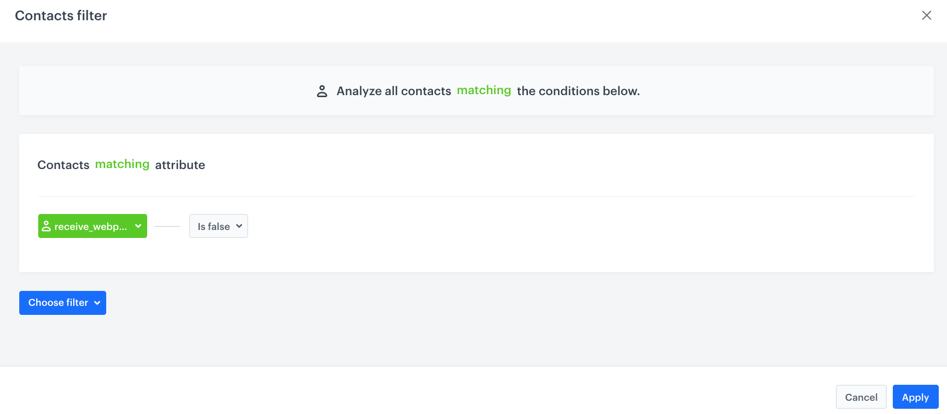
    3. Click **Choose filter**. 
    4. From the dropdown list, select **receive_webpush_messages**.
        
       <div class="admonition admonition-tip"><div class="admonition-icon"><svg xmlns="http://www.w3.org/2000/svg" fill="none" viewBox="0 0 24 24" stroke="currentColor" stroke-width="2.5"><path stroke-linecap="round" stroke-linejoin="round" d="M9.663 17h4.673M12 3v1m6.364 1.636l-.707.707M21 12h-1M4 12H3m3.343-5.657l-.707-.707m2.828 9.9a5 5 0 117.072 0l-.548.547A3.374 3.374 0 0014 18.469V19a2 2 0 11-4 0v-.531c0-.895-.356-1.754-.988-2.386l-.548-.547z" /></svg></div><div class="admonition-body"><div class="admonition-content">

       This attribute is available after completing [web push configuration](/docs/campaign/Webpush/configuring-web-push).

       </div></div></div>

    5. Click the **Choose operator**.
    4. Select the <img src="/api/docs/image/54176ad07f146575310749eba44b7c2f42c1b327/icons/boolean.png" alt="Boolean icon" class="icon"> tab.
    5. Select **Is false**.

        <figure>
        <img src="/api/docs/image/54176ad07f146575310749eba44b7c2f42c1b327/docs/campaign/_gfx/agreement-form-audience.png" alt="Recipients selected" class="full" >
        <figcaption> Selected group of recipients </figcaption>
        </figure>

    6. Confirm the settings on the pop-up by clicking **Apply**.
    
4. Confirm the settings in the **Audience** section by clicking **Apply**.

### Prepare the pop-up window
---

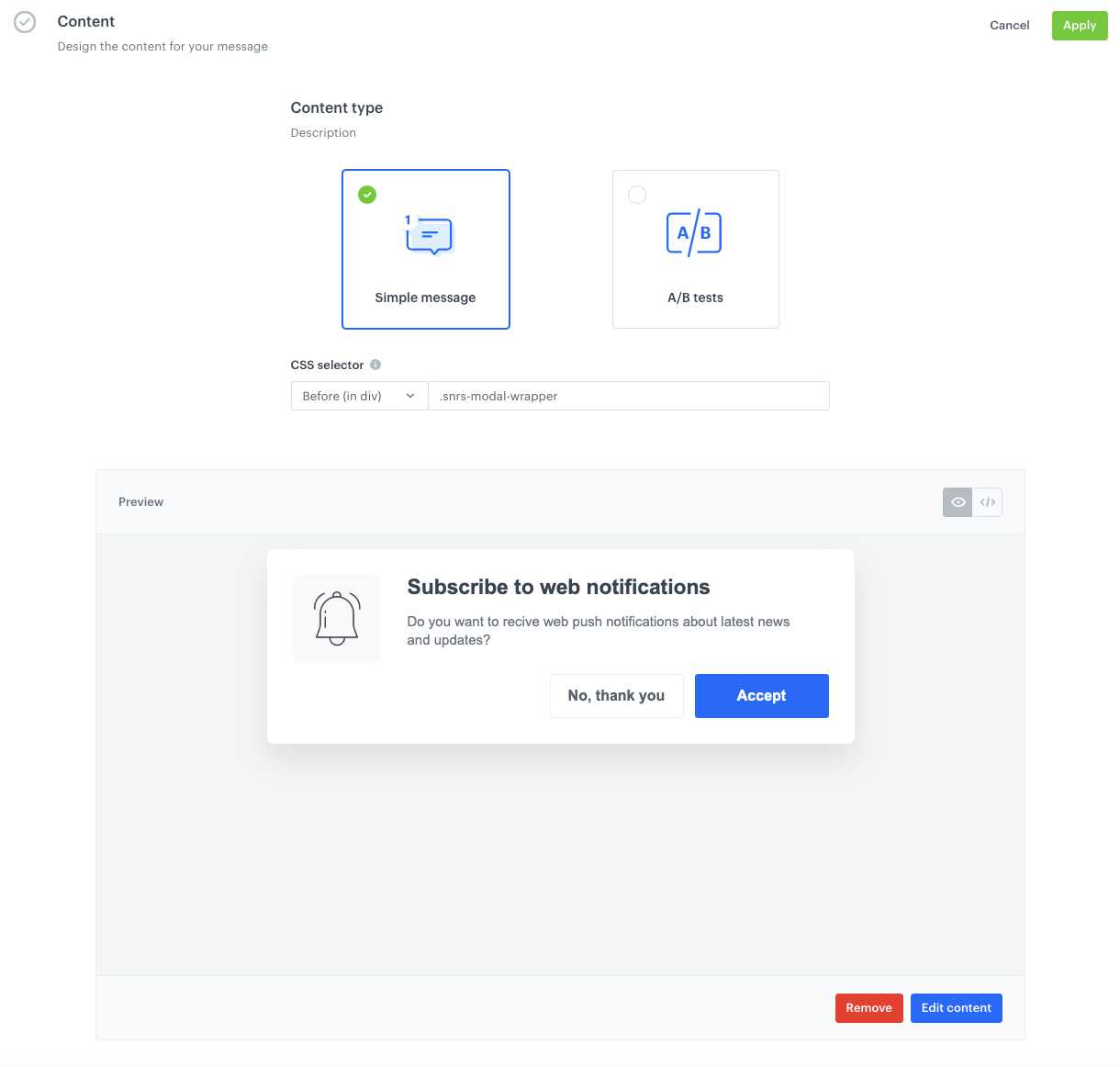
1. In the **Content** section, click **Add info**.
2. Leave **Simple message** at default.
3. In **CSS selector**:
    1. Select **After (in div)**
    2. In the field, enter `.snrs-modal-wrapper`
3. Click **Create message**.
4. Select the **Insert object templates**.
5. Select either `Gather web push agreement 1` or `Gather web push agreement 2`.  
    The difference between them is only visual and both can be edited in the simplified configuration form.  
    **Result**: A dynamic content template builder appears.
6. Configure the settings in the **Config** tab.
    
   <details class="accordion"><summary>Click to expand the form description of Gather web push agreement 1</summary><div class="accordion-content"><ol> <li><strong>Environment mode</strong> - This option lets you display the preview of the template in the wizard. From the dropdown list, select one of the following options:<ul> <li><strong>Development</strong> - This option is reserved only for template editing mode, its selection enables the preview of the template in the editor.</li> <li><strong>Production</strong> - This option must be selected when the template is finished and ready to be published. It&#39;s important to select this option before publishing, so the form will not display if the browser won&#39;t be able to process it.</li> </ul> </li> <li><strong>Is open?</strong> - In this field, you can define whether a pop-up opens automatically. If not, clicking an icon invokes the agreement form.</li> <li><strong>Alignment</strong> - In this field, define the alignment of the pop-up on the website.</li> <li><strong>Title</strong> - In this field, enter the title that displays in the header of the pop-up.</li> <li><strong>Image</strong> - In this field, you can enter the URL of the image that will be used in the pop-up.</li> <li><strong>Button</strong> - In this field, enter the text on the confirmation button.</li> <li><strong>Primary color</strong> - Use color picker to define the color of the confirmation button.</li> </ol></div></details>

    
   <details class="accordion"><summary>Click to expand the form description of Gather web push agreement 2</summary><div class="accordion-content"><ol> <li><strong>Environment mode</strong> - This option lets you display the preview of the template in the wizard. From the dropdown list, select one of the following options:<ul> <li><strong>Development</strong> - This option is reserved only for template editing mode, its selection enables the preview of the template in the editor.</li> <li><strong>Production</strong> - This option must be selected when the template is finished and ready to be published. It&#39;s important to select this option before publishing, so the form will not display if the browser won&#39;t be able to process it.</li> </ul> </li> <li><strong>Two steps window agreement everywhere</strong> - Enable this option to display two-step agreement form in every browser. If this option is disabled, browsers based on the Chromium engine will only display the native web push consent window.</li> <li><strong>Image</strong> - In this field, you can enter the URL of the image that will be used in the pop-up.</li> <li><strong>Title</strong> - In this field, enter the title that displays in the header of the pop-up.</li> <li><strong>Description</strong> - In this field, enter the main text that displays on the pop-up.</li> <li><strong>Plain button</strong> - In this field, enter the text on the decline button.</li> <li><strong>Accept button</strong> - In this field, enter the text on the confirmation button.</li> <li><strong>Prime color</strong> - Use color picker to define the color of the confirmation button.</li> </ol></div></details>

7. If you want to define or edit more parameters of the pop-up, you can do so in the **HTML**, **CSS**, and **JavaScript** tabs.
    
   <div class="admonition admonition-note"><div class="admonition-icon"><svg xmlns="http://www.w3.org/2000/svg" fill="none" viewBox="0 0 24 24" stroke="currentColor" stroke-width="2.5"><path stroke-linecap="round" stroke-linejoin="round" d="M13 16h-1v-4h-1m1-4h.01M21 12a9 9 0 11-18 0 9 9 0 0118 0z" /></svg></div><div class="admonition-body"><div class="admonition-content">

   Learn more about [editing a ready-made template](/docs/campaign/dynamiccontent/creating-dynamic-content-templates/dynamic-content-template-builder#editing-a-ready-made-template).

   </div></div></div>

10. You can use the [live preview](/docs/campaign/dynamiccontent/testing-dynamic-content/previewing-dynamic-content#the-live-preview-option) option to preview the dynamic content on the target website.  
    
    <div class="admonition admonition-important"><div class="admonition-icon"><svg xmlns="http://www.w3.org/2000/svg" fill="none" viewBox="0 0 24 24" stroke="currentColor" stroke-width="2.5"><path stroke-linecap="round" stroke-linejoin="round" d="M12 8v4m0 4h.01M21 12a9 9 0 11-18 0 9 9 0 0118 0z" /></svg></div><div class="admonition-body"><div class="admonition-content">

    Once template editing is finished, in the **Environment mode** field set the value to **Production**. This option prevents displaying the form when the browser cannot process it.

    </div></div></div>

6. Click **Next**. 
    <figure>
    <img src="/api/docs/image/54176ad07f146575310749eba44b7c2f42c1b327/docs/campaign/_gfx/content-section-form.png" alt="Content created" class="full" >
    <figcaption> Configured Content section </figcaption>
    </figure>
7. Confirm the settings in the section by clicking **Apply**. 

### Schedule the display
---
1. In the **Schedule** section, to define when you want to start displaying the agreement form, click **Add info**.
2. You can choose:
    - Immediate and continuous display by clicking **Display immediately**.
    
      <div class="admonition admonition-warning"><div class="admonition-icon"><svg xmlns="http://www.w3.org/2000/svg" fill="none" viewBox="0 0 24 24" stroke="currentColor" stroke-width="2.5"><path stroke-linecap="round" stroke-linejoin="round" d="M12 9v2m0 4h.01m-6.938 4h13.856c1.54 0 2.502-1.667 1.732-2.5L13.732 4c-.77-.833-1.964-.833-2.732 0L4.082 16.5c-.77.833.192 2.5 1.732 2.5z" /></svg></div><div class="admonition-body"><div class="admonition-content">

      At the end of the process you must activate the dynamic content anyway.

      </div></div></div>

    - Future date by clicking **Scheduled**.
        1. In the **Start** field, define the start date.
        2. In the **End** field, define the end date. 
        3. Select the time zone.
3. Confirm your choices by clicking **Apply**.  
    
   <div class="admonition admonition-important"><div class="admonition-icon"><svg xmlns="http://www.w3.org/2000/svg" fill="none" viewBox="0 0 24 24" stroke="currentColor" stroke-width="2.5"><path stroke-linecap="round" stroke-linejoin="round" d="M12 8v4m0 4h.01M21 12a9 9 0 11-18 0 9 9 0 0118 0z" /></svg></div><div class="admonition-body"><div class="admonition-content">

   After dynamic content is activated, wait several minutes for the content to be loaded.

   </div></div></div>


### Set delay time
---
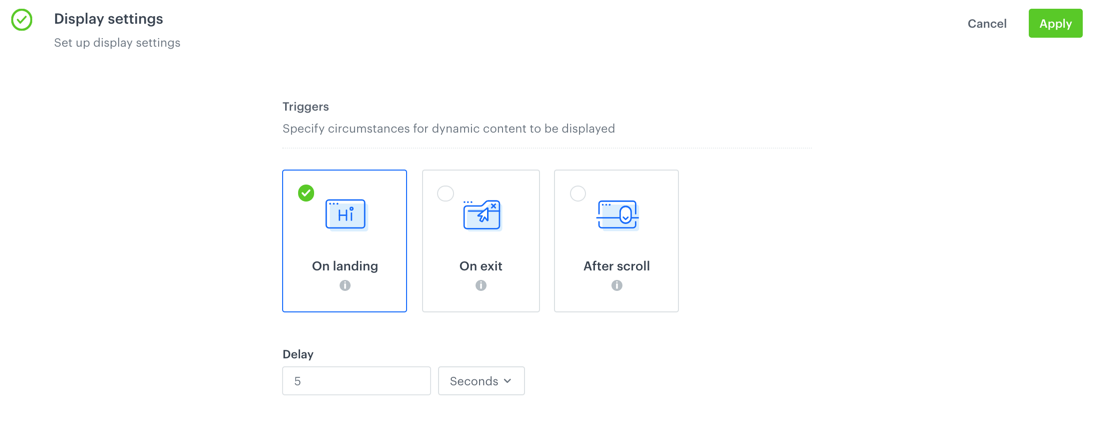
1. In the **Display settings** section, click **Define**. 
2. Leave the **Triggers** at default (**on landing**).
4. Optionally, you can adjust the **Advanced settings**.
    
   <div class="admonition admonition-tip"><div class="admonition-icon"><svg xmlns="http://www.w3.org/2000/svg" fill="none" viewBox="0 0 24 24" stroke="currentColor" stroke-width="2.5"><path stroke-linecap="round" stroke-linejoin="round" d="M9.663 17h4.673M12 3v1m6.364 1.636l-.707.707M21 12h-1M4 12H3m3.343-5.657l-.707-.707m2.828 9.9a5 5 0 117.072 0l-.548.547A3.374 3.374 0 0014 18.469V19a2 2 0 11-4 0v-.531c0-.895-.356-1.754-.988-2.386l-.548-.547z" /></svg></div><div class="admonition-body"><div class="admonition-content">

   You can find explanation of the options in **Advanced settings** [here](/docs/campaign/dynamiccontent/creating-dynamic-content/creating-dynamic-content).

   </div></div></div>

    <figure>
    <img src="/api/docs/image/54176ad07f146575310749eba44b7c2f42c1b327/docs/campaign/_gfx/display-settings-form.png" alt="Display settings defined" class="full" >
    <figcaption> Configured Display settings section </figcaption>
    </figure>
5. Confirm by clicking **Apply**.

### Activate the form
---

In the right upper corner, click **Activate**. The form will appear on the website according to the settings defined. You can proceed to [creating a web push notification](/docs/campaign/Webpush/creating-webpush-campaigns).