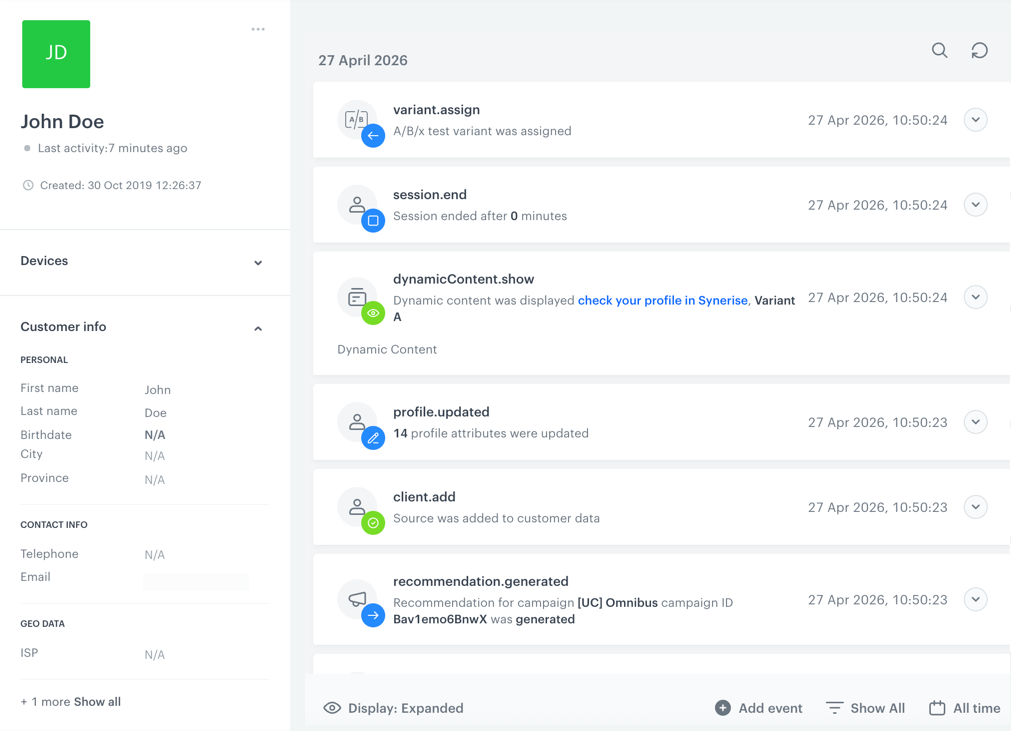
You can generate events manually directly in a profile. It's useful in situations when you want to change event parameters, but cannot do it in an automated way.

An example of use is correcting the loyalty points when a customer submits a complaint, products are returned, and there is a need to return to the amount of points before the purchase. 

## Prerequisites
---
A tracking code implemented into the website.


<figure>
<img src="/api/docs/image/54176ad07f146575310749eba44b7c2f42c1b327/docs/crm/_gfx/add-event-procedure.png" alt="Image presents a section of a card of an exemplary customer" class="full">
<figcaption>A section of a profile</figcaption>
</figure>

1. Go to <img src="/api/docs/image/54176ad07f146575310749eba44b7c2f42c1b327/icons/behavioral-data-hub-icon.svg" alt="Behavioral Data Hub icon" class="icon"> **Behavioral Data Hub > Profiles**.
2. Find a target profile. To make it faster, you can use the search box.  
3. Go to the profile by clicking its name. 
4. At the bottom of the activity list, click the <img src="/api/docs/image/54176ad07f146575310749eba44b7c2f42c1b327/docs/crm/_gfx/add-event-button.png" alt="Add event button" class="icon"> button.
5. From the dropdown list, select an event to add to the profile by ticking the checkbox next to the name of the event. The list contains all tracked events. 

    
   <div class="admonition admonition-tip"><div class="admonition-icon"><svg xmlns="http://www.w3.org/2000/svg" fill="none" viewBox="0 0 24 24" stroke="currentColor" stroke-width="2.5"><path stroke-linecap="round" stroke-linejoin="round" d="M9.663 17h4.673M12 3v1m6.364 1.636l-.707.707M21 12h-1M4 12H3m3.343-5.657l-.707-.707m2.828 9.9a5 5 0 117.072 0l-.548.547A3.374 3.374 0 0014 18.469V19a2 2 0 11-4 0v-.531c0-.895-.356-1.754-.988-2.386l-.548-.547z" /></svg></div><div class="admonition-body"><div class="admonition-content">

   You can find the whole list of the events and their parameters in <img src="/api/docs/image/54176ad07f146575310749eba44b7c2f42c1b327/docs/assets/_gfx/assets-icon.png" alt="Data Modeling Hub icon" class="icon"> **Data Modeling Hub > Event List**.

   </div></div></div>


6. Confirm your choice by clicking the **Save** button. <br> **Result:** A pop-up opens. The basic parameters of the event are added automatically.
7. You can add other event parameters as well by clicking the **+ Add field**.
8. Enter the name and value for the added parameter. If you add a parameter that does not exist in the system, it is added to the event's configuration system-wide.
9. To complete the process, click the **OK** button. <br> **Result:** An event appears on the activity list. 

