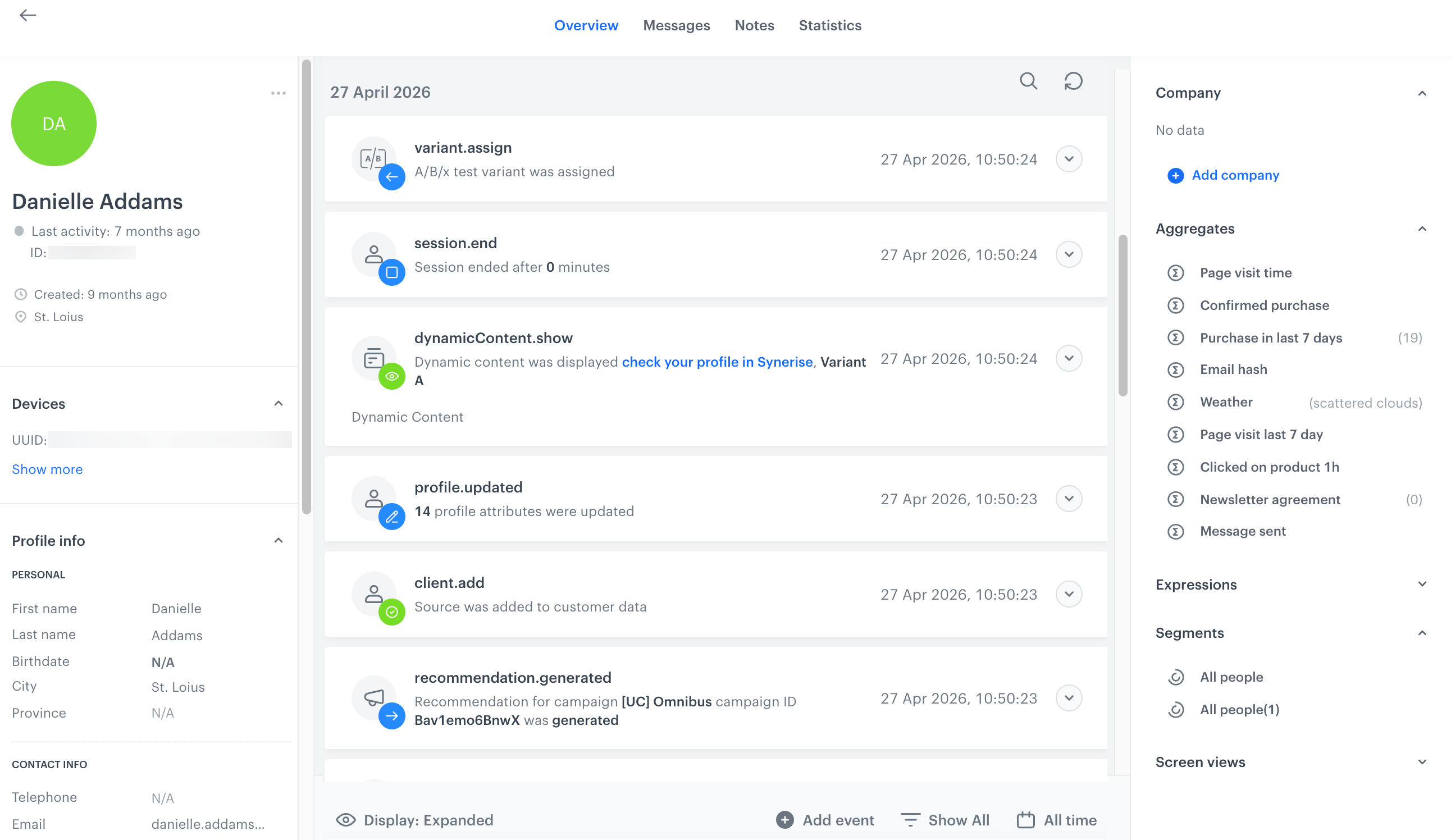
A profile is a comprehensive collection of all information about an entity, like a customer, that is gathered by the application. This includes personal details as well as a complete record of activity within the application and website, such as page visits or adding items to a shopping cart. The profile also includes information about the [segmentations](/docs/analytics/segmentations/introduction-to-segmentations) to which the profile belongs, [screen view campaigns](/docs/campaign/screen-views/introduction-to-screen-views) they are the audience of as well as results of the [expressions](/docs/analytics/expressions/introduction-to-expressions) and [aggregates](/docs/analytics/aggregates/introduction-to-aggregates).

In addition, you can customize the profile view by adding a custom dashboard which can provide you with overview of purchases, page visits, distribution of purchased item categories, to name a few, for the individual profile.

Furthermore, the profile serves as a hub for various actions to be taken, such as sending a message, [manually generating an event for a profile](/docs/crm/adding-events-in-customer-cards), adding tags, and more.


<figure>
<img src="/api/docs/image/54176ad07f146575310749eba44b7c2f42c1b327/docs/crm/_gfx/customer-profile.png" alt="A profile of a customer" class="full" >
<figcaption> An example profile </figcaption>
</figure>

## Personal information
---
<figure>
<img src="/api/docs/image/54176ad07f146575310749eba44b7c2f42c1b327/docs/crm/_gfx/basic-profile-info.png" alt="A profile of a customer" class="medium" >
<figcaption> An example profile </figcaption>
</figure>

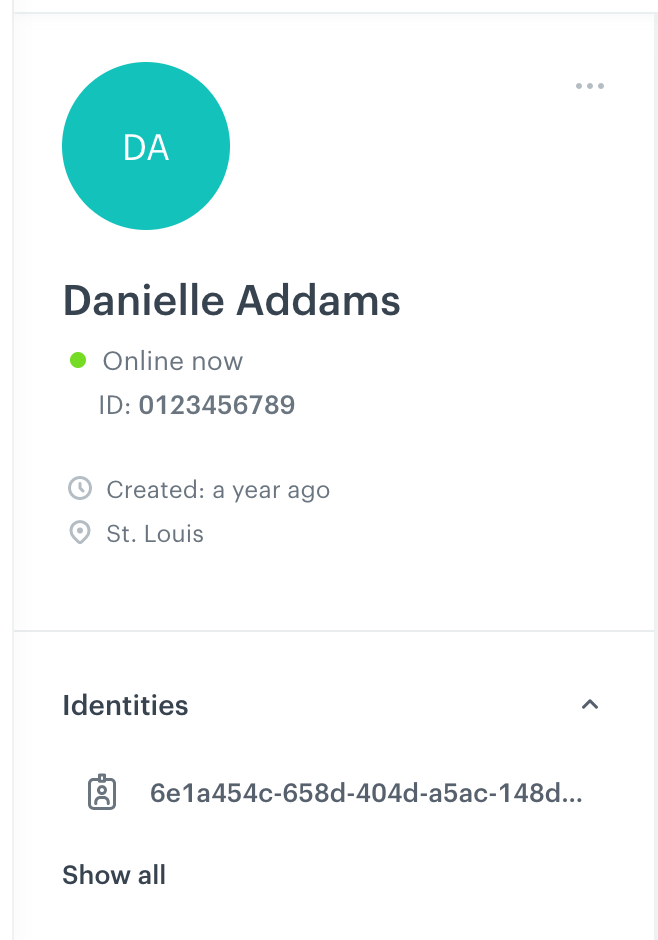
All basic information, such as the name of the profile and its ID, can be found on the upper left side.

Personal information includes the birthday, location of the user, the phone number, the email address, and more. The scope of information depends on you and the way you collect data about the visitors to your website.

### Identities and identifiers

#### UUIDs and Firebase registration IDs

In the **Identities** section, you can click **Show all** to view all the UUIDs and Firebase registration IDs (if applicable) of the profile.


<div class="admonition admonition-note"><div class="admonition-icon"><svg xmlns="http://www.w3.org/2000/svg" fill="none" viewBox="0 0 24 24" stroke="currentColor" stroke-width="2.5"><path stroke-linecap="round" stroke-linejoin="round" d="M13 16h-1v-4h-1m1-4h.01M21 12a9 9 0 11-18 0 9 9 0 0118 0z" /></svg></div><div class="admonition-body"><div class="admonition-content">

Mobile push messages are delivered to the device with the most recent Firebase registration ID. For more details, see ["Mobile notification delivery flow"](/docs/campaign/Mobile/mobile_campaign#mobile-notification-delivery-flow).

</div></div></div>


#### Other identifiers

You can edit the following identifiers in this section:
- email (in **CONTACT INFO**)
- phone number (in **CONTACT INFO**)
- `custom_identify` (in **OTHER**)  
    In the `/v4` API, this parameter is called `customId`

The values of the identifiers can't contain the following special characters:
* Characters from outside the Basic Multilingual Plane (BMP) set
* Carriage Return (CR)
* Line Feed (LF)
* \u2028: Line Separator
* \u2029: Paragraph Separator
* \u00AD: Soft Hyphen

### Attributes

In the **Profile info** section, you can find various data of the profile, such as the birth date and contact info.  

Under **OTHER**, you can check and edit more parameters, including the custom ones added by integrations. 

You can add more attributes with APIs, SDKs, Imports, and Automations. Regardless of the method, the attribute names can't contain the following special characters:
- Carriage Return (CR)
- Line Feed (LF)
- \u2028: Line Separator
- \u2029: Paragraph Separator


## Tags
---

<figure>
<img src="/api/docs/image/54176ad07f146575310749eba44b7c2f42c1b327/docs/crm/_gfx/tags-profile.png" alt="Tags assigned to a profile" class="medium" >
<figcaption> Tags assigned to a profile </figcaption>
</figure>

Below the personal information, you can find tags assigned to a profile. You can add them manually on the profile or you can add them while importing the profiles to the Synerise portal.  

Tags allow you to mark profiles and you can filter them. The consistent usage of tags will let you keep order in profiles and segment the database. You can find the list of all tags assigned to customers in **Assets > Customer Tags**. 

## Subscriptions

In the **Subscriptions** section, you can check and modify the marketing agreements of the profile:  

- [Email](/docs/campaign/e-mail) agreement may have the following statuses:
  - disabled
  - enabled
  - confirmation: this means that the customer must click the confirmation link to enable the agreement.
- [SMS](/docs/campaign/SMS) agreement can be enabled/disabled with the toggle.
- [Web push](/docs/campaign/Webpush), the agreement and the `snrs_has_web_push_devices` attribute must be `true` to send messages.  
  This attribute is automatically set to `true` when the profile registers for notifications and receives a Firebase token.
- [Push](/docs/campaign/Mobile), the agreement and the `snrs_has_mobile_push_devices` attribute must be `true` to send messages.  
  This attribute is automatically set to `true` when the profile registers for notifications and receives a Firebase token.
- the `receive_whatsapp_messages` attribute must be set to `true` to send messages by means of [WhatsApp partner integration](/docs/automation/integration/whatsapp-partner-integration/send-template-message), unless you enable **Send without customer consent** in the [node settings](/docs/automation/integration/whatsapp-partner-integration/send-template-message#define-the-integration-settings). 

## Membership attributes
---

Membership attributes are created when the segmentation sharing process is initiated. The segmentation results are saved as membership attributes and are synchronized.

These attributes have a boolean value (true or false) indicating whether a profile belongs to a segmentation from the current workspace or other workspaces (if you use [Co-Brand Decisioning Layer](/docs/settings/workspace/multibrand-workspaces)).  

The membership attributes will have predefined names, format:  
- display name: `<workspace name>: mbr <segmentation name>`, however, you can change its [display name](/docs/crm/customer-properties#changing-display-name-and-description)
- source name: `<workspace name>:_mbr_<segmentation_id>`

Where:
- `<workspace name>` is the name of your workspace
- `<segmentation name>` is the name of the segmentation
- `<segmentation_id>` is the ID of the segmentation

When sharing segmentation results:
- within a single workspace, you can [track how profiles join or leave segmentations, helping you analyze the impact of your activities on profiles](/docs/analytics/segmentations/share-segmentation-results#i-want-to-analyze-how-profiles-joined-and-left-segmentations).
- across a [workspace group](/docs/settings/workspace/multibrand-workspaces/create-workspace-group), you can identify profiles that exist in your other workspaces and build audiences combining those profiles. This lets you optimize costs by avoiding sending duplicate campaigns.

#### Restrictions

- The value of membership attributes cannot be changed manually; it is updated only through synchronization (launched on the user's interface only).
- The attribute source name cannot be changed.
- Membership attributes are not included when importing profiles.

You can find the list of all membership attributes in a workspace in:
- **Behavioral Data Hub > Profile Attributes > Membership Attributes**  

You can overview synchronization process status of membership attributes in:
- **Behavioral Data Hub > Membership Attributes Sync**  

You can overview the workspace group in the **Organization** panel.  


## Activity
---
Under the name of the profile, you can check the last activity.
- If the profile is active now, the status is **Online now**.
- If the profile isn't active, time since the last activity is shown.  
  You can hover over the time to see the exact date.
<figure><img src="/api/docs/image/54176ad07f146575310749eba44b7c2f42c1b327/docs/crm/_gfx/last-activity.png" class="medium" alt="Checking the last activity date"><figcaption>Checking the last activity date</figcaption></figure>

The last activity date is the most recent event of any of these types:
- [client.applicationStarted](/docs/assets/events/event-reference/web-and-app#clientapplicationstarted)
- [screen.view](/docs/assets/events/event-reference/web-and-app#screenview)
- [screen.click](/docs/assets/events/event-reference/web-and-app#screenclick)
- [dynamicContent.show](/docs/assets/events/event-reference/dynamic-content#dynamiccontentshow)
- [page.visit](/docs/assets/events/event-reference/web-and-app#pagevisit)
- [form.submit](/docs/assets/events/event-reference/web-and-app#formsubmit)
- button.click (custom event)
- event log (legacy event)
- slider.change (legacy event)
- switch.change (legacy event)


### Activity list
---
<figure>
<img src="/api/docs/image/54176ad07f146575310749eba44b7c2f42c1b327/docs/crm/_gfx/activity-list.png" alt="The activity list in the profile" class="full" >
<figcaption> The activity list in the profile </figcaption>
</figure>

The activity list contains the history of [events](/docs/assets/events) which occurred in the context of a profile. By clicking a single event, you can view its details.

An event describes either an activity performed by an individual (for example, visit to a website, submitting a form, adding an item to the cart, starting the workflow, and so on) or an activity performed for the individual (for example, sending an email/SMS/mobile push/web push, displaying dynamic content, and so on). 


<div class="admonition admonition-note"><div class="admonition-icon"><svg xmlns="http://www.w3.org/2000/svg" fill="none" viewBox="0 0 24 24" stroke="currentColor" stroke-width="2.5"><path stroke-linecap="round" stroke-linejoin="round" d="M13 16h-1v-4h-1m1-4h.01M21 12a9 9 0 11-18 0 9 9 0 0118 0z" /></svg></div><div class="admonition-body"><div class="admonition-content">

When the the **Display** selector is set to **Expanded**, the events only become expanded if they have **Details** configured on the **Display** tab of their definitions. To learn more about adding the details, see ["Adding event definitions > In the Web application" in "Event definitions"](/docs/assets/events/event-definitions#in-the-web-application).
</div></div></div>


In this section of the profile, you can generate an event for an individual manually. You can find the instruction [here](/docs/crm/adding-events-in-customer-cards).


## Messages
---
<figure>
<img src="/api/docs/image/54176ad07f146575310749eba44b7c2f42c1b327/docs/crm/_gfx/profile-messages.png" alt="The Messages tab on the profile" class="full" >
<figcaption> The Messages tab on the profile </figcaption>
</figure>

You can send any type of message to a person directly from a profile.

To send:
- an email, you must [configure a sending account](/docs/campaign/e-mail/configuring-email-account)
- a SMS, you must [configure sending account](/docs/campaign/SMS/configuring-sms-gateway)
- a web push notification, you must [integrate with Firebase and enable web push notifications in Synerise](/docs/settings/tool/firebase)

After sending any type of message, an event is generated on the list of activities. However, it won't be visible on the list in **Experience Hub**. 

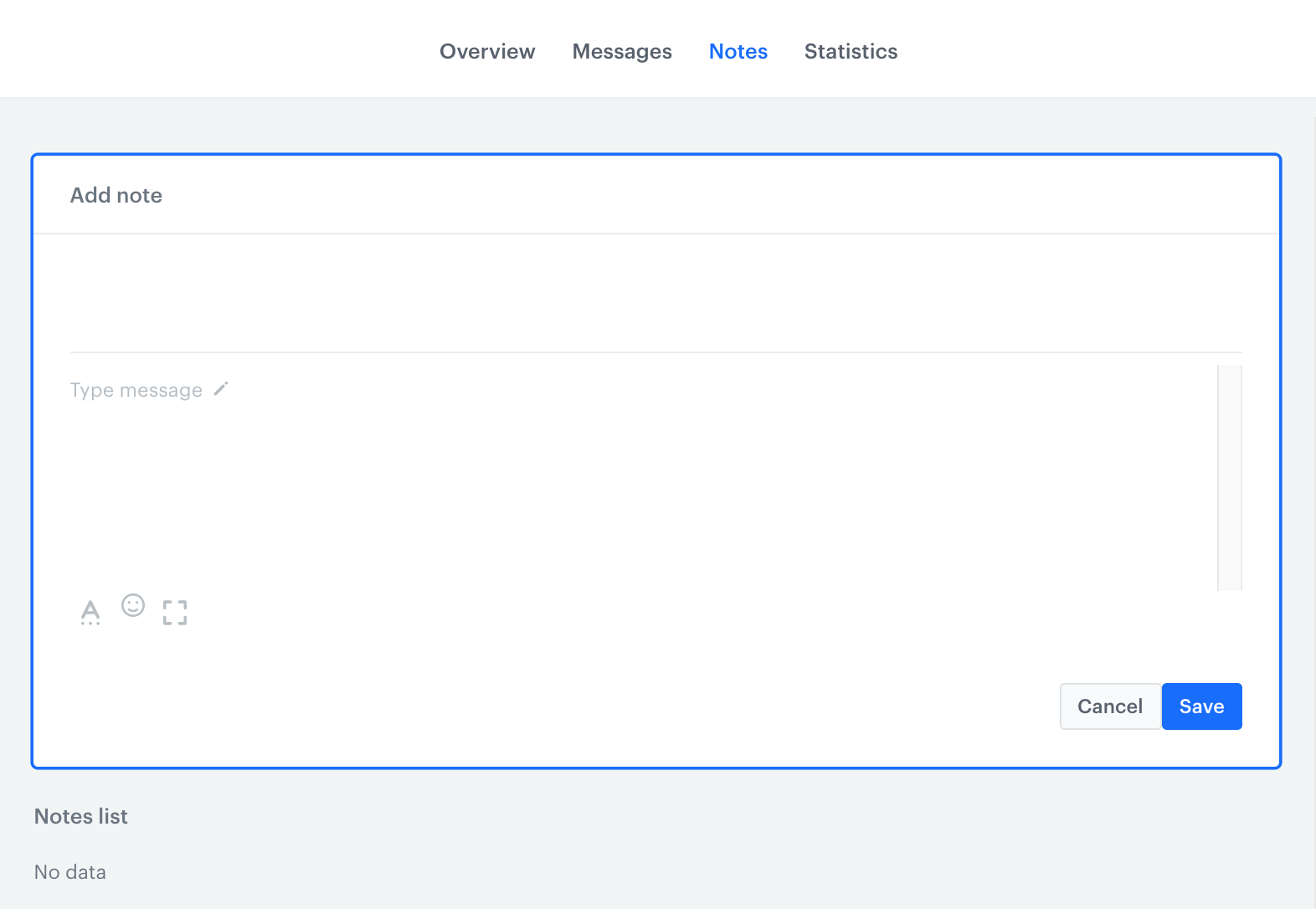
## Notes
---
<figure>
<img src="/api/docs/image/54176ad07f146575310749eba44b7c2f42c1b327/docs/crm/_gfx/profile-notes.png" alt="Adding a note in the profile" class="full" >
<figcaption> Adding a note in the profile </figcaption>
</figure>

You can add a note to a profile, if there is a non-standard piece of information about this person to be saved.

## Statistics
--- 
<figure>
<img src="/api/docs/image/54176ad07f146575310749eba44b7c2f42c1b327/docs/crm/_gfx/profile-statistics.png" alt="Predefined statistics in the profile" class="full" >
<figcaption> Predefined statistics in the profile </figcaption>
</figure>

A profile contains predefined statistics about transactions, email messages, web push notifications, mobile push communication, and display of dynamic content.  

You can create a dashboard (in the **Decision Hub**) and add it to the profile.  


<div class="admonition admonition-tip"><div class="admonition-icon"><svg xmlns="http://www.w3.org/2000/svg" fill="none" viewBox="0 0 24 24" stroke="currentColor" stroke-width="2.5"><path stroke-linecap="round" stroke-linejoin="round" d="M9.663 17h4.673M12 3v1m6.364 1.636l-.707.707M21 12h-1M4 12H3m3.343-5.657l-.707-.707m2.828 9.9a5 5 0 117.072 0l-.548.547A3.374 3.374 0 0014 18.469V19a2 2 0 11-4 0v-.531c0-.895-.356-1.754-.988-2.386l-.548-.547z" /></svg></div><div class="admonition-body"><div class="admonition-content">

You can become familiar with the following use cases which involve creating a dashboard:  
- [Call center dashboard](/use-cases/customer-dashboard-call-center)
-  [Transaction trends dashboard](/use-cases/transactions-dashboard)

</div></div></div>


## Analyses 
---
<figure>
<img src="/api/docs/image/54176ad07f146575310749eba44b7c2f42c1b327/docs/crm/_gfx/profile-analyses.png" alt="List of analyses in the profile" class="full" >
<figcaption> List of analyses in the profile </figcaption>
</figure>

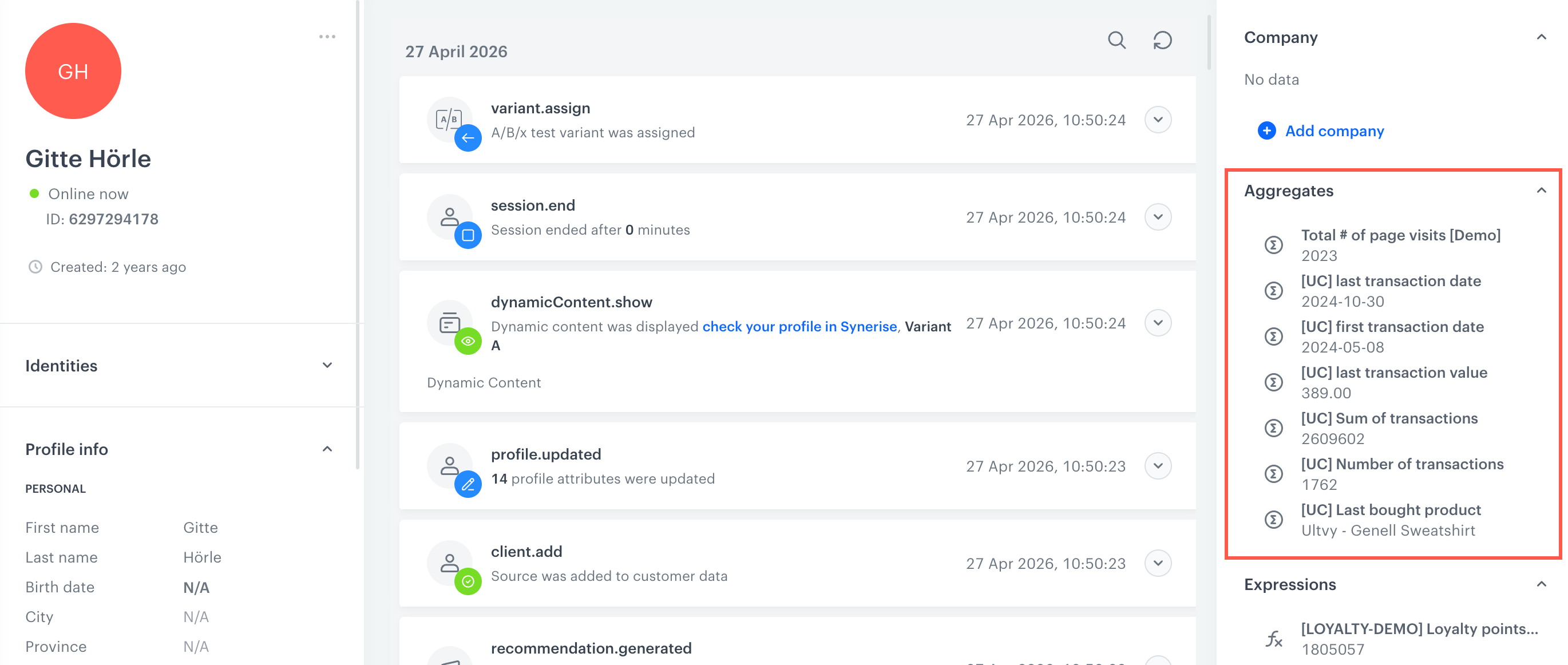
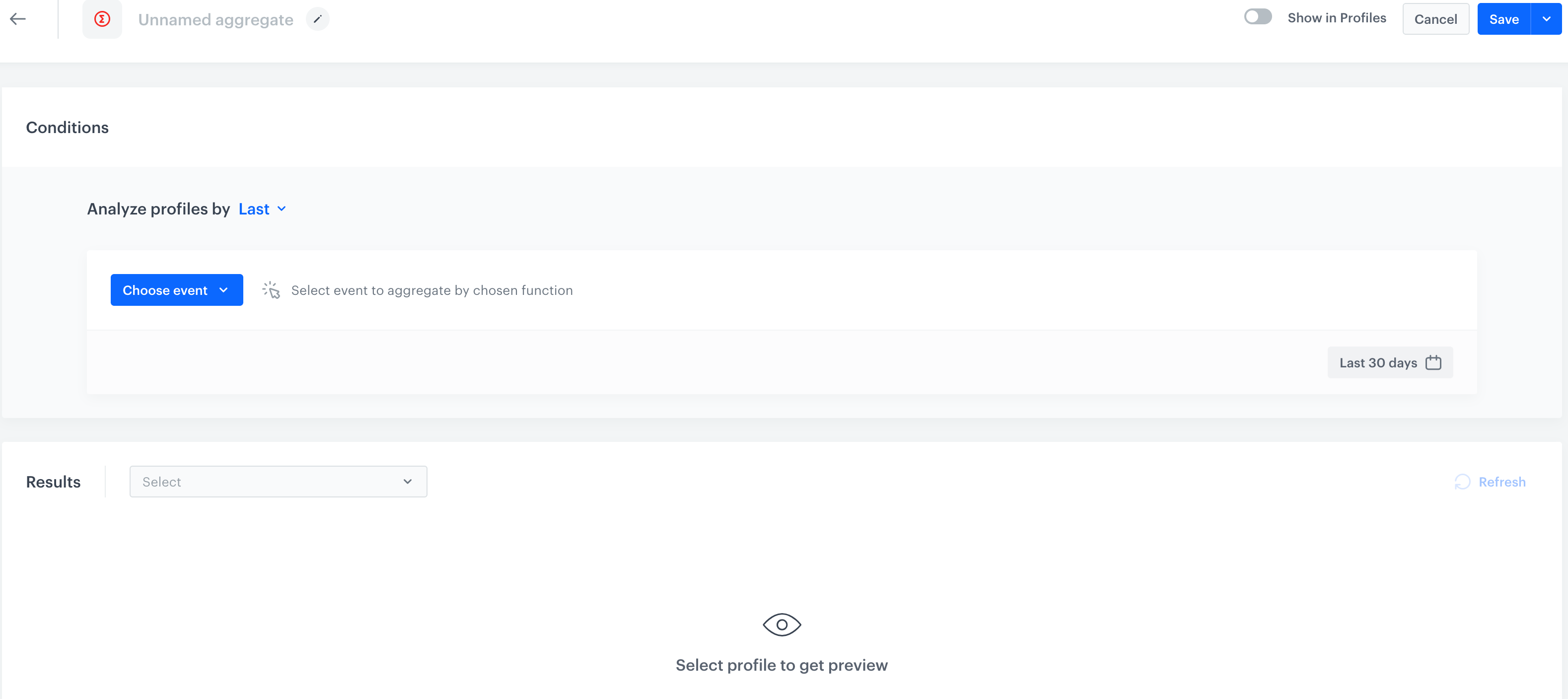
The profile contains a list of analyses that are calculated for every individual customer such as [aggregates](/docs/analytics/aggregates) and [expressions](/docs/analytics/expressions). If you create an aggregate, expression or a segmentation a particular customer falls into, it will be displayed on the profile, only if you mark it to be displayed in the profiles.  

<figure>
<img src="/api/docs/image/54176ad07f146575310749eba44b7c2f42c1b327/docs/analytics/_gfx/creating-profile-aggregates.png" alt="Aggregate wizard" class="full" >
<figcaption>Creating an aggregate. Option of displaying of the analysis in the profile is on the upper-right side </figcaption>
</figure>