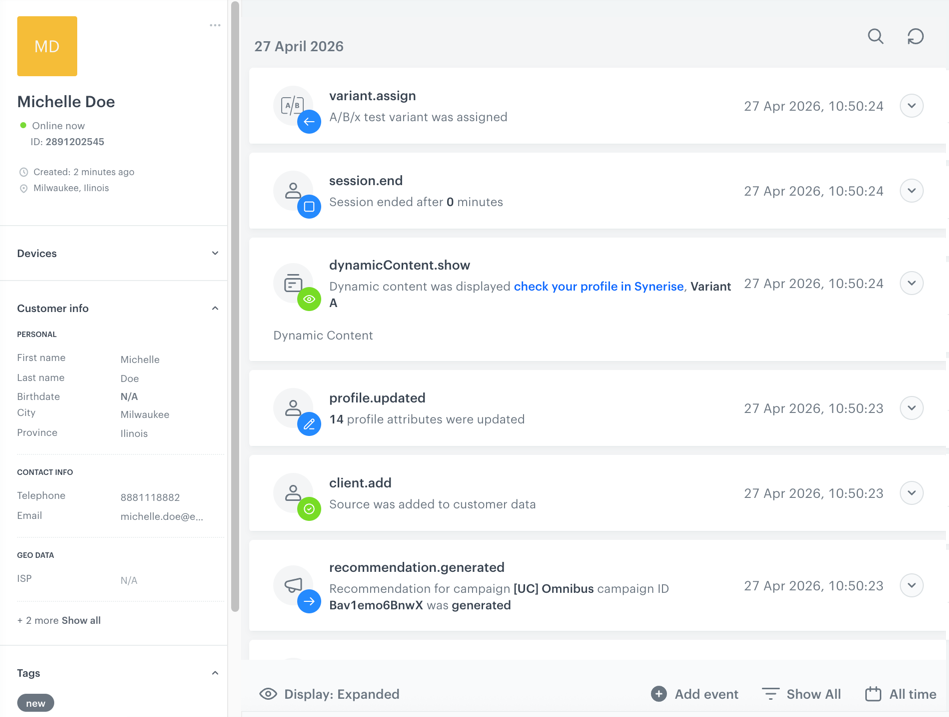
In this section in the Behavioral Data Hub, you can define the attributes you can assign to a customer. These attributes are pieces of information that describe a customer, for example, first name and last name, date of birth, nationality. Attributes are assigned to users:


<div class="admonition admonition-important"><div class="admonition-icon"><svg xmlns="http://www.w3.org/2000/svg" fill="none" viewBox="0 0 24 24" stroke="currentColor" stroke-width="2.5"><path stroke-linecap="round" stroke-linejoin="round" d="M12 8v4m0 4h.01M21 12a9 9 0 11-18 0 9 9 0 0118 0z" /></svg></div><div class="admonition-body"><div class="admonition-content">

The list doesn't cover all cases, but the most common ones.

</div></div></div>


- When a visitor to the website submits a form 
- When you [import your customers](/docs/automation/actions/synerise-integrations/import-customers) to Synerise 
- When you edit a customer's profile in **Behavioral Data Hub > Profiles**
- When you launch a workflow which updates customer's attributes in response to a specific [trigger](/docs/automation/triggers).
- When you share and synchronize segmentation results (only membership attributes)


## Useful references
---
- API: [Add or update clients method](https://developers.synerise.com/ClientManagement/ClientManagement.html#tag/Client-management)
- Use cases: [Coupon for membership anniversary or birthday](/use-cases/coupon_for_anniversary) (birthdate attribute used)

## Use of profile attributes
---
Profile attributes are used widely in the **Decision Hub**. 
- They are frequently used while building audiences. You can group customers into segments according to age, gender, tags assigned to them, area where they reside, and so on.
- Attributes come in handy in other types of analyses too. You can use them to narrow down the results of the analyses, for example, you can narrow down the results of a metric that counts the number of visits to the website by users with the email address within `example.com`.
- You can create a report where data can be organized by any attribute such as gender, date of birth, tags, last activity date, and so on.

They are used in **Automation Hub** as well. 

- A workflow can be triggered by the update of customer attributes or end up updating the attributes.
- You can trigger a workflow for the audience which you can define by using customer attributes. This way for example, you can run the workflow for customers with a particular tag assigned.
<figure>
<img src="/api/docs/image/54176ad07f146575310749eba44b7c2f42c1b327/docs/assets/_gfx/attributes-automation.png" alt="Exemplary customer property" class="full" >
<figcaption>Use of customer properties in the Audience node</figcaption>
</figure>

- You can narrow down the participants in the further parts of the workflow by using the **Profile Filter** node. The settings of the node, similarly to the **Audience** node, let you filter out customers by using the attributes.

Apart from the usage in **Decision Hub** and **Automation Hub**, you can use attributes to filter out customers on the list in **Behavioral Data Hub**.

## Types of profile attributes
---
- **Default** - These are the standard attributes which are filled in when a new customer is added or updated when a customer submits a form on a website again, when you import customers to Synerise or manually modify data in the customer's profile. Also, when you create or update a customer's profile, you can leave the attributes empty. 

  <details class="accordion"><summary>Click to see the list of default attributes</summary><div class="accordion-content"><ul> <li>email</li> <li>phone</li> <li>customId</li> <li>firstName</li> <li>lastName</li> <li>uuid</li> <li>avatarUrl</li> <li>birthDate</li> <li>company</li> <li>city</li> <li>address</li> <li>zipCode</li> <li>province</li> <li>countryCode</li> <li>sex </li> <li>agreements</li> <li>attributes</li> <li>tags</li> </ul></div></details>


  <div class="admonition admonition-tip"><div class="admonition-icon"><svg xmlns="http://www.w3.org/2000/svg" fill="none" viewBox="0 0 24 24" stroke="currentColor" stroke-width="2.5"><path stroke-linecap="round" stroke-linejoin="round" d="M9.663 17h4.673M12 3v1m6.364 1.636l-.707.707M21 12h-1M4 12H3m3.343-5.657l-.707-.707m2.828 9.9a5 5 0 117.072 0l-.548.547A3.374 3.374 0 0014 18.469V19a2 2 0 11-4 0v-.531c0-.895-.356-1.754-.988-2.386l-.548-.547z" /></svg></div><div class="admonition-body"><div class="admonition-content">

  You can find more info how to send these attributes and their values through API [here](https://developers.synerise.com/ClientManagement/ClientManagement.html#tag/Client-management). Pay attention to the correct format of the attributes.

  </div></div></div>


- **Custom** - These are the attributes which you add on your own either by using API or you can add them manually on the interface. 
  
  <div class="admonition admonition-tip"><div class="admonition-icon"><svg xmlns="http://www.w3.org/2000/svg" fill="none" viewBox="0 0 24 24" stroke="currentColor" stroke-width="2.5"><path stroke-linecap="round" stroke-linejoin="round" d="M9.663 17h4.673M12 3v1m6.364 1.636l-.707.707M21 12h-1M4 12H3m3.343-5.657l-.707-.707m2.828 9.9a5 5 0 117.072 0l-.548.547A3.374 3.374 0 0014 18.469V19a2 2 0 11-4 0v-.531c0-.895-.356-1.754-.988-2.386l-.548-.547z" /></svg></div><div class="admonition-body"><div class="admonition-content">

  When you update/create a profile over the API with an attribute that does not exist, a definition of that attribute is created automatically.

  </div></div></div>

- **Membership attributes** - An attribute which is created as a result of sharing and synchronizing segmentation results. These attributes have a boolean value (true or false) indicating whether a profile belongs to a segmentation from the current workspace or other workspaces (if you use [co-brand workspaces](/docs/settings/workspace/multibrand-workspaces)).   
- **Other** - Technically, they are custom attributes updated by various backend services in Synerise, such as the attribute that informs about the marketing agreement status update or longitude/latitude.

## Viewing profile attributes
---
- You can find a complete list of attributes you can assign to profiles in <img src="/api/docs/image/54176ad07f146575310749eba44b7c2f42c1b327/icons/behavioral-data-hub-icon.svg" alt="Behavioral Data Hub icon" class="icon"> **Behavioral Data Hub > Attributes**
    <figure>
    <img src="/api/docs/image/54176ad07f146575310749eba44b7c2f42c1b327/docs/assets/_gfx/customer-properties.png" alt="Customer properties" class="full" >
    <figcaption>The list of customer properties</figcaption>
    </figure>
- To check the attributes of a particular profile, go to **Behavioral Data Hub > Profiles**. The attributes of the profile are visible on the left side.
    <figure>
    <img src="/api/docs/image/54176ad07f146575310749eba44b7c2f42c1b327/docs/assets/_gfx/exemplary-customer.png" alt="Exemplary customer" class="full" >
    <figcaption>A profile of an example customer</figcaption>
    </figure>

## Adding profile attributes in the Synerise portal
---

<figure>
<img src="/api/docs/image/54176ad07f146575310749eba44b7c2f42c1b327/docs/assets/_gfx/add-property.png" alt="Exemplary customer property" class="full" >
<figcaption>Exemplary customer property</figcaption>
</figure>

1. Go to <img src="/api/docs/image/54176ad07f146575310749eba44b7c2f42c1b327/icons/behavioral-data-hub-icon.svg" alt="Behavioral Data Hub icon" class="icon"> **Behavioral Data Hub > Attributes > Add new attribute**.
2. In the **Source name** field, enter the name of the parameter as it is sent by the SDKs/API.
3. In the **Display name** field, enter a human-readable label for display in the Synerise portal.
4. Optionally, in the **Description** field, you can add an explanation about the purpose of this property. 
5. From the **Type** dropdown list, select the format of the property value as sent by the SDKs/API.
6. If you don't want to display this attribute in the filters across the Synerise platform, disable **Show attribute**.
6. Confirm by clicking **Save**. 

## Managing membership attributes
---

Membership attributes are created when the segmentation sharing process is initiated. The segmentation results are saved as membership attributes and are synchronized.

These attributes have a boolean value (true or false) indicating whether a profile belongs to a segmentation from the current workspace or other workspaces (if you use [Co-Brand Decisioning Layer](/docs/settings/workspace/multibrand-workspaces)).  

The membership attributes will have predefined names, format:  
- display name: `<workspace name>: mbr <segmentation name>`, however, you can change its [display name](/docs/crm/customer-properties#changing-display-name-and-description)
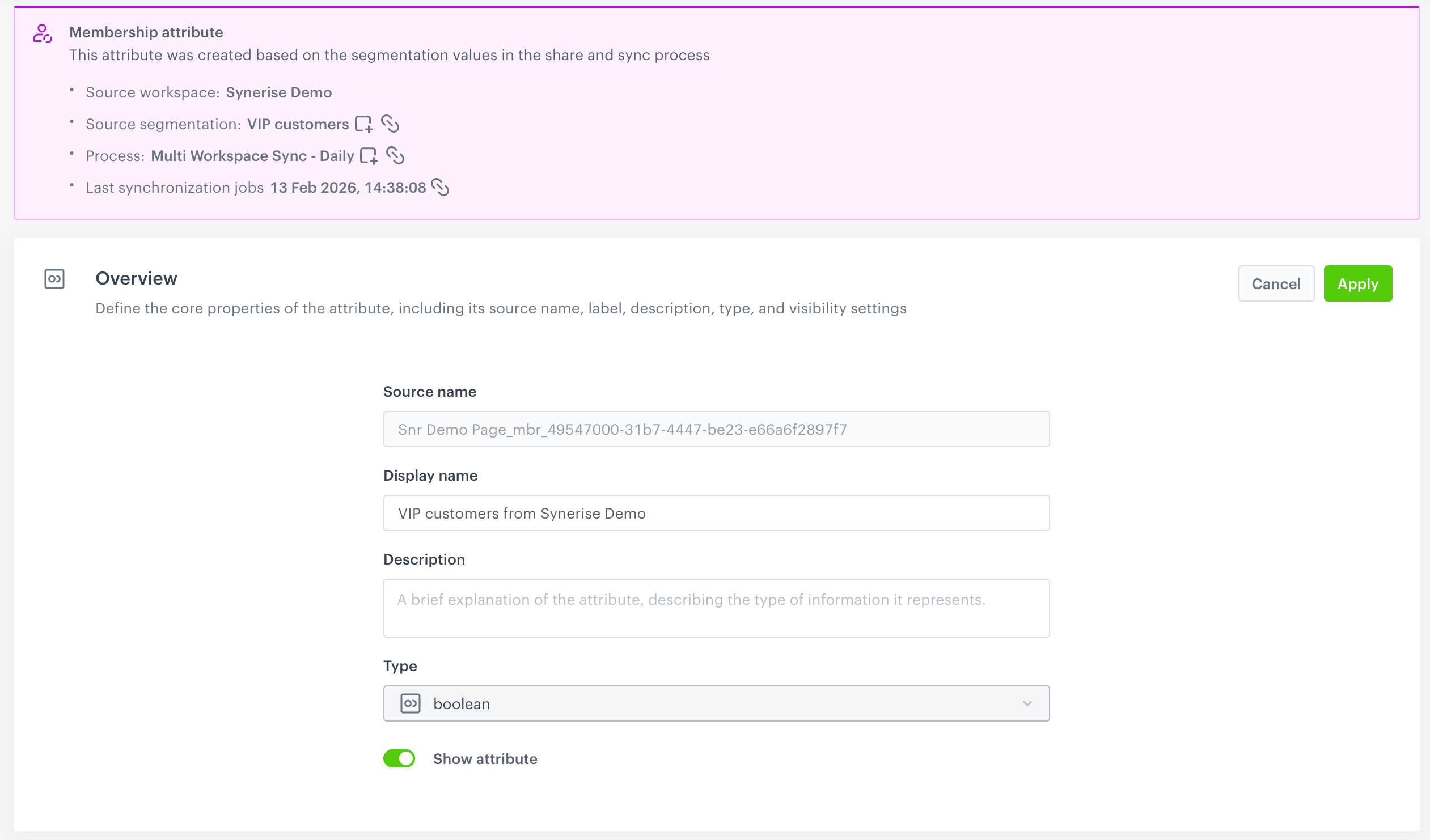
- source name: `<workspace name>:_mbr_<segmentation_id>`

Where:
- `<workspace name>` is the name of your workspace
- `<segmentation name>` is the name of the segmentation
- `<segmentation_id>` is the ID of the segmentation

When sharing segmentation results:
- within a single workspace, you can [track how profiles join or leave segmentations, helping you analyze the impact of your activities on profiles](/docs/analytics/segmentations/share-segmentation-results#i-want-to-analyze-how-profiles-joined-and-left-segmentations).
- across a [workspace group](/docs/settings/workspace/multibrand-workspaces/create-workspace-group), you can identify profiles that exist in your other workspaces and build audiences combining those profiles. This lets you optimize costs by avoiding sending duplicate campaigns.

#### Restrictions

- The value of membership attributes cannot be changed manually; it is updated only through synchronization (launched on the user's interface only).
- The attribute source name cannot be changed.
- Membership attributes are not included when importing profiles.

### Viewing attribute details
---

The scope of information available in the details of the membership attribute:

- source segmentation - you can get the ID and the link to the segmentation whose result is in the attribute. The possible values are:
  - `true` - a profile belongs to the segmentation;
  - `false` - a profile left segmentation; 
  - no attribute related to a given segmentation - the profile has never belonged to the segmentation.
- the name of the workspace the source segmentation comes from
- link and the ID to the process that updates the value of the membership attribute
- the date of latest update of the attribute value
- the same information as in sharing segmentatation to a single workspace
- the source name of the membership attribute
- display name of the membership attribute
- description
- status of attribute visibility across filters in the Synerise platform in a given workspace

<figure><img src="/api/docs/image/54176ad07f146575310749eba44b7c2f42c1b327/docs/crm/_gfx/membership-attribute-multiworkspace.png" class="full" alt="Preview of membership attribute details shared across a workspace group, accessible in Behavioral Data Hub > Attributes > Membership attributes"><figcaption>Preview of membership attribute details shared across a workspace group, accessible in Behavioral Data Hub > Attributes > Membership attributes</figcaption></figure>

1. Go to <img src="/api/docs/image/54176ad07f146575310749eba44b7c2f42c1b327/icons/behavioral-data-hub-icon.svg" alt="Behavioral Data Hub icon" class="icon"> **Behavioral Data Hub > Attributes**.  
2. On the left panel, select **Membership attributes**.  

### Changing display name and description

1. In **Display name**, you can provide a user-friendly name of the membership attribute.  
    This name will display in the [filters](/docs/analytics/i_profile-filter) in the Synerise platform.  
2. In **Description**, you can provide a description for the membership attribute that explains the purpose of it to other workspace users. 

### Changing membership attribute visibility

To display or hide this attribute in the [filters](/docs/analytics/i_profile-filter) in the Synerise platform, use the **Show attribute** toggle.