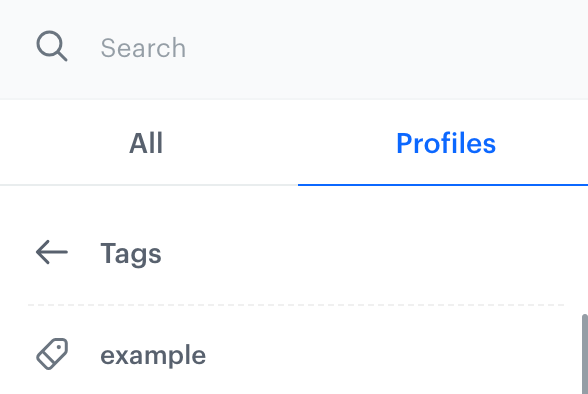
 **Behavioral Data Hub > Tags > Add tag**.
**Result**: A pop-up appears.
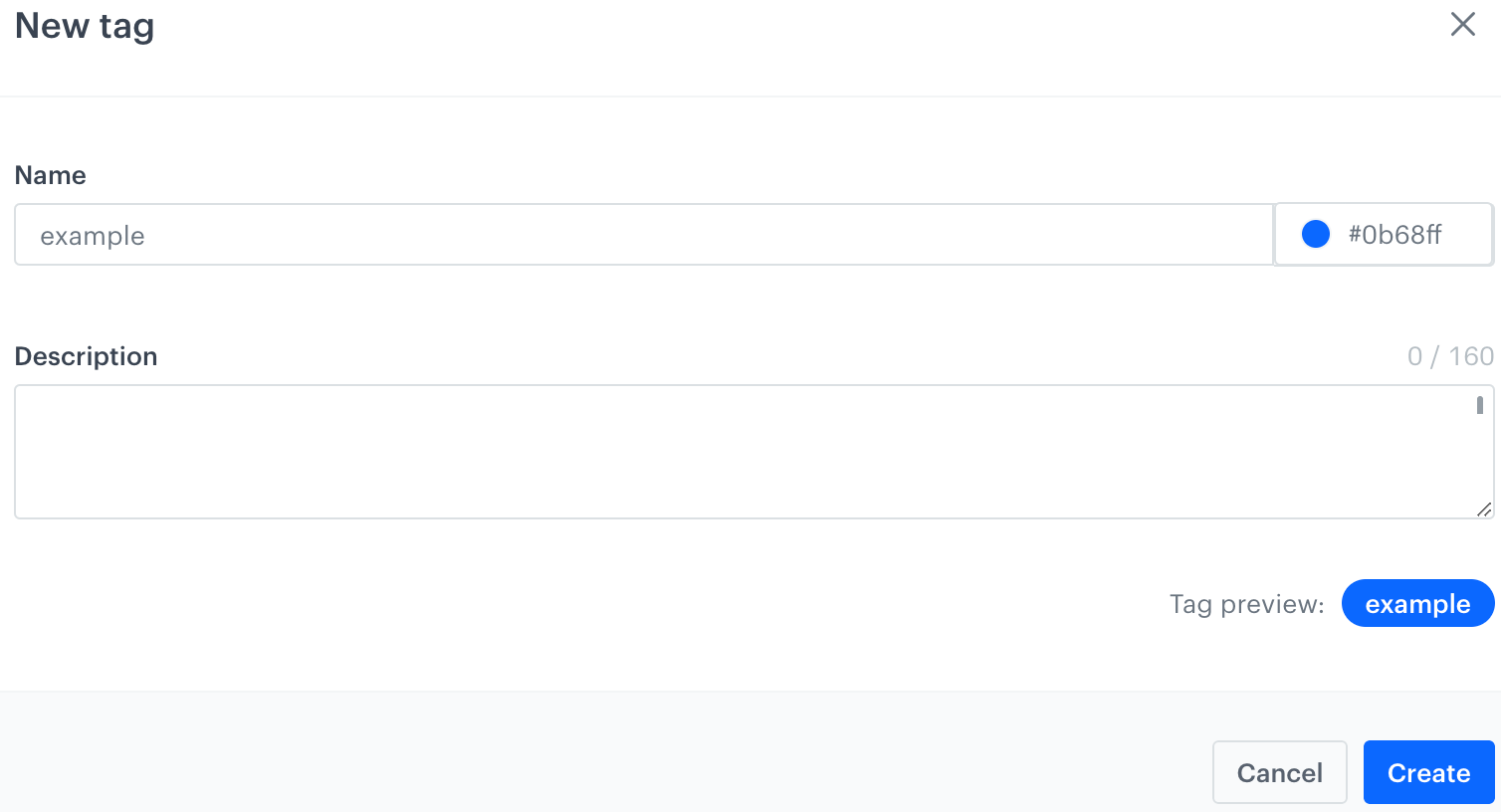
2. In the **Tag name** field, enter the name of the tag you want to add.
All characters are allowed. The limit for the tag name is 20 characters.
3. Optionally, you can change the color of the tag label by clicking the color picker next to the **Tag name** field and selecting the color.
4. Confirm the settings by clicking **Create**.
**Result**: A tag appears on the list. It is available on the filter lists in Tags tab across the Synerise platform.
**Profiles**.
2. Open the card of any profile to whom you want to assign a tag.
3. On the left pane, under the personal information of a profile, in the **Tags** section, click **Add tag**.
**Result**: A text field and list of tags appear.
4. Enter the name of the tag.
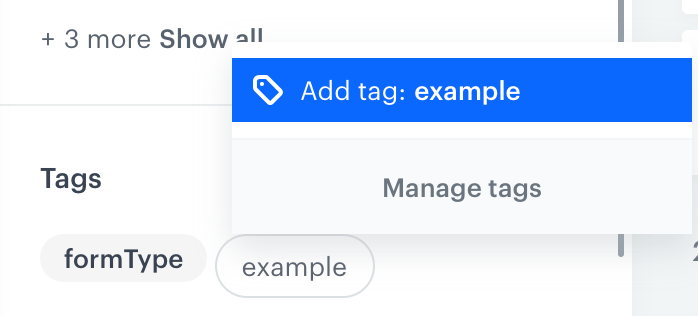
**Result**: A dropdown list appears. If the tag doesn't exist yet, in the dropdown, you can also add the new tag directly from this place.
**Behavioral Data Hub > Tags > Add tag**.
**Result**: A pop-up appears.
2. In the **Tag name** field, enter the name of the tag you want to add.
All characters are allowed. The limit for the tag name is 20 characters.
3. Optionally, you can change the color of the tag label by clicking the color picker next to the **Tag name** field and selecting the color.
4. Confirm the settings by clicking **Create**.
**Result**: A tag appears on the list. It is available on the filter lists in Tags tab across the Synerise platform.
**Profiles**.
2. Open the card of any profile to whom you want to assign a tag.
3. On the left pane, under the personal information of a profile, in the **Tags** section, click **Add tag**.
**Result**: A text field and list of tags appear.
4. Enter the name of the tag.
**Result**: A dropdown list appears. If the tag doesn't exist yet, in the dropdown, you can also add the new tag directly from this place.
 **Behavioral Data Hub > Tags**.
2. Next to the name of the tag you want to edit, click
**Behavioral Data Hub > Tags**.
2. Next to the name of the tag you want to edit, click  3. From the dropdown list, click **Edit**.
4. Click the color picker and select a new color.
5. Confirm the changes by clicking **Apply**.
### Removing profile tags
---
You can organize your tags by removing those which are unused.
1. Go to **Behavioral Data Hub > Tags**.
2. Next to name of the tag you want to edit, click
3. From the dropdown list, click **Delete**.
**Result**: A pop-up appears.
4. Confirm the action by clicking **OK**.
**Result**: A tag is deleted from the list of profile tags and removed from all profiles who were assigned with this tag.
## Assigning tags to profiles
---
You can assign tags to profiles:
- **Manually** - This option lets you assign a tag to individual profiles.
1. Go to **Behavioral Data Hub > Profiles**.
2. Open the card of any profile to whom you want to assign a tag.
3. On the left pane, under the personal information of a profile, in the **Tags** section, click **Add tag**.
**Result**: A text field and list of tags appear.
4. From the list, select the tag or [create a new one](#on-the-profile-cards).
- **Through the Automation Hub** - This option lets you create workflows which either mass-assign tags to profiles or assign tags to them based on specific conditions, for example, when a profile performs a particular action. Such workflows must contain the ["Update Profiles node"](/docs/automation/actions/change-attribute-node) which assigns a specific tag defined in the node configuration to a profile that goes through a workflow.
- When you create or update profiles with Imports or the API.
3. From the dropdown list, click **Edit**.
4. Click the color picker and select a new color.
5. Confirm the changes by clicking **Apply**.
### Removing profile tags
---
You can organize your tags by removing those which are unused.
1. Go to **Behavioral Data Hub > Tags**.
2. Next to name of the tag you want to edit, click
3. From the dropdown list, click **Delete**.
**Result**: A pop-up appears.
4. Confirm the action by clicking **OK**.
**Result**: A tag is deleted from the list of profile tags and removed from all profiles who were assigned with this tag.
## Assigning tags to profiles
---
You can assign tags to profiles:
- **Manually** - This option lets you assign a tag to individual profiles.
1. Go to **Behavioral Data Hub > Profiles**.
2. Open the card of any profile to whom you want to assign a tag.
3. On the left pane, under the personal information of a profile, in the **Tags** section, click **Add tag**.
**Result**: A text field and list of tags appear.
4. From the list, select the tag or [create a new one](#on-the-profile-cards).
- **Through the Automation Hub** - This option lets you create workflows which either mass-assign tags to profiles or assign tags to them based on specific conditions, for example, when a profile performs a particular action. Such workflows must contain the ["Update Profiles node"](/docs/automation/actions/change-attribute-node) which assigns a specific tag defined in the node configuration to a profile that goes through a workflow.
- When you create or update profiles with Imports or the API.