 **Behavioral Data Hub > Expressions > New expression**.
2. To let other users know about the purpose of the expression, you can add a short description to it.
3. To select the type of expression you want to create, click the
**Behavioral Data Hub > Expressions > New expression**.
2. To let other users know about the purpose of the expression, you can add a short description to it.
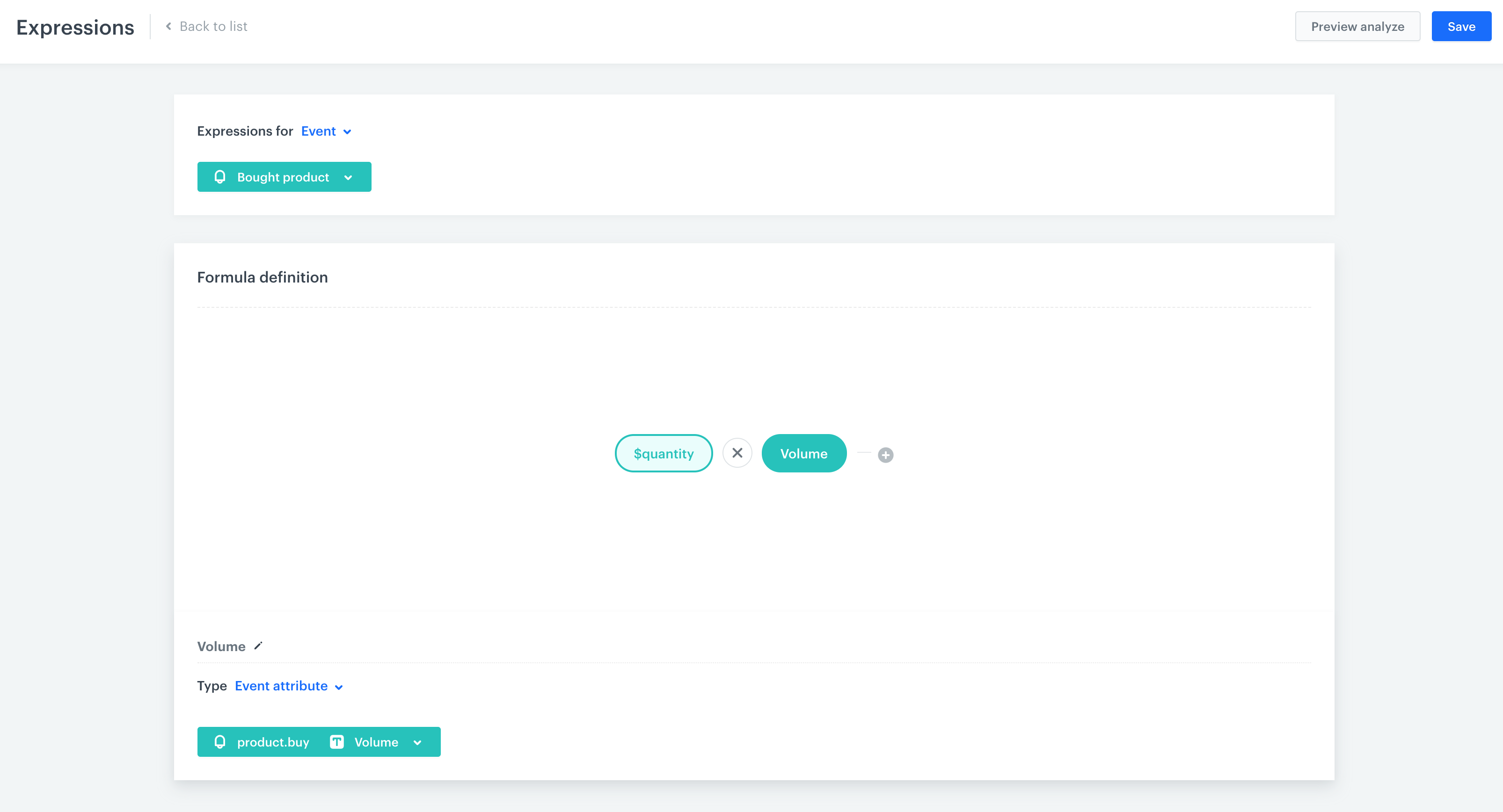
3. To select the type of expression you want to create, click the  icon. From the dropdown list select **Event**.
4. From the **Choose event** dropdown, select an event.
5. To start creating the formula of the expression, click the **Select** button.
5. You can choose one of four elements: customer, constant, dynamic key, or a [function](/docs/crm/expressions/functions-in-expressions).
6. To define the settings of the chosen element, click that element.
- In case you choose a customer, select the customer attribute you want to include in the formula.
- In case you choose a constant, type the number or text (users can write a number in words, `nine` instead of `9`).
- In case you choose a dynamic key, type in the key name (the ID of the key, for example `orderID`) and its default value. The default value will be replaced with the target one indicated in, for example, the request for expression result (when you request the expression result through Synerise Analytics API).
10. Define the dependencies between the elements in the expression by selecting the mathematical operators.
11. To complete creating the expression, click **Save**.
## Example of use
---
**Goal**: To create a metric that counts liters of sold liquid products.
**Prerequisites**: Non-standard attributes for **bought product** event: `product quantity` and `product volume`. Instruction for adding event parameters available at the [link](/docs/assets/events/adding-event-parameters).
**Steps**:
1. Go to **Behavioral Data Hub > Expressions > New expression**.
2. Enter the name of the expression.
icon. From the dropdown list select **Event**.
4. From the **Choose event** dropdown, select an event.
5. To start creating the formula of the expression, click the **Select** button.
5. You can choose one of four elements: customer, constant, dynamic key, or a [function](/docs/crm/expressions/functions-in-expressions).
6. To define the settings of the chosen element, click that element.
- In case you choose a customer, select the customer attribute you want to include in the formula.
- In case you choose a constant, type the number or text (users can write a number in words, `nine` instead of `9`).
- In case you choose a dynamic key, type in the key name (the ID of the key, for example `orderID`) and its default value. The default value will be replaced with the target one indicated in, for example, the request for expression result (when you request the expression result through Synerise Analytics API).
10. Define the dependencies between the elements in the expression by selecting the mathematical operators.
11. To complete creating the expression, click **Save**.
## Example of use
---
**Goal**: To create a metric that counts liters of sold liquid products.
**Prerequisites**: Non-standard attributes for **bought product** event: `product quantity` and `product volume`. Instruction for adding event parameters available at the [link](/docs/assets/events/adding-event-parameters).
**Steps**:
1. Go to **Behavioral Data Hub > Expressions > New expression**.
2. Enter the name of the expression.
 **Decision Hub > Metrics > New metric**.
2. Enter the name of the metric.
3. As a type, select **Simple metric**.
3. As the aggregator, set `Count`.
4. As the occurrence type, set `All`.
5. From the **Choose event** dropdown list, select `Bought product`.
6. Click
**Decision Hub > Metrics > New metric**.
2. Enter the name of the metric.
3. As a type, select **Simple metric**.
3. As the aggregator, set `Count`.
4. As the occurrence type, set `All`.
5. From the **Choose event** dropdown list, select `Bought product`.
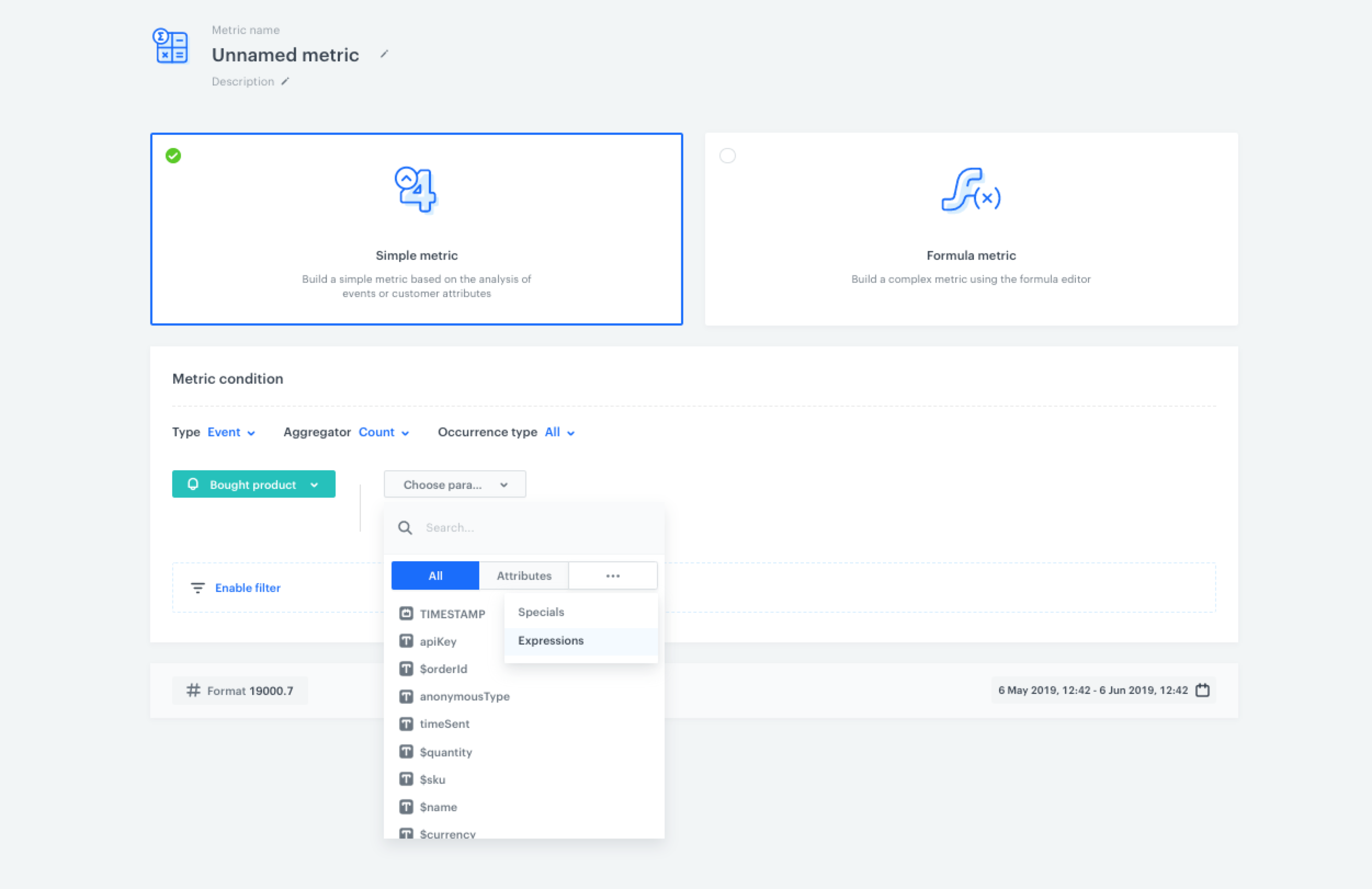
6. Click  button.
**Result**: The **Choose parameter** button appears.
7. Click the **Choose parameter** button.
**Result**: A pop-up appears.
8. On the pop-up, click the three-dot button.
**Result**: A dropdown shows.
9. From the dropdown, select **Expressions**.
10. In the list of expressions, find the event expression you have just created.
11. To select a specific time range, click the calendar icon. Confirm your choice with the **Apply** button.
12. To complete the process, click **Save**.
button.
**Result**: The **Choose parameter** button appears.
7. Click the **Choose parameter** button.
**Result**: A pop-up appears.
8. On the pop-up, click the three-dot button.
**Result**: A dropdown shows.
9. From the dropdown, select **Expressions**.
10. In the list of expressions, find the event expression you have just created.
11. To select a specific time range, click the calendar icon. Confirm your choice with the **Apply** button.
12. To complete the process, click **Save**.