Functions allow you to perform mathematical operations on the values received from customer attributes or events. Many of those functions duplicate the functions that you can find in programs such as Excel.

## Abs 
---
It returns the absolute value of the results of a customer attribute or event. In cases when you want to convert a negative number, you may use absolute value to obtain a positive number in an expression.


## Add years
---

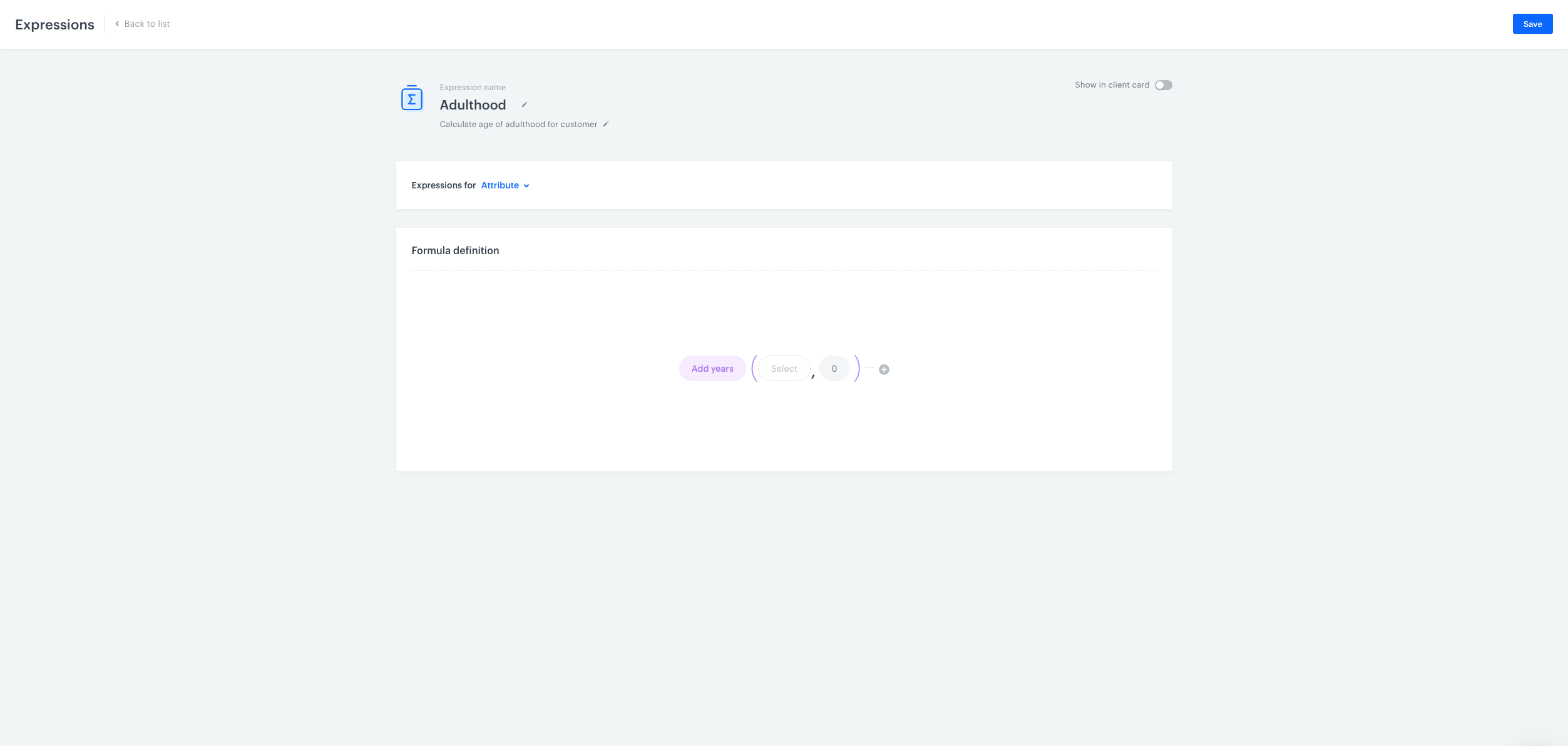
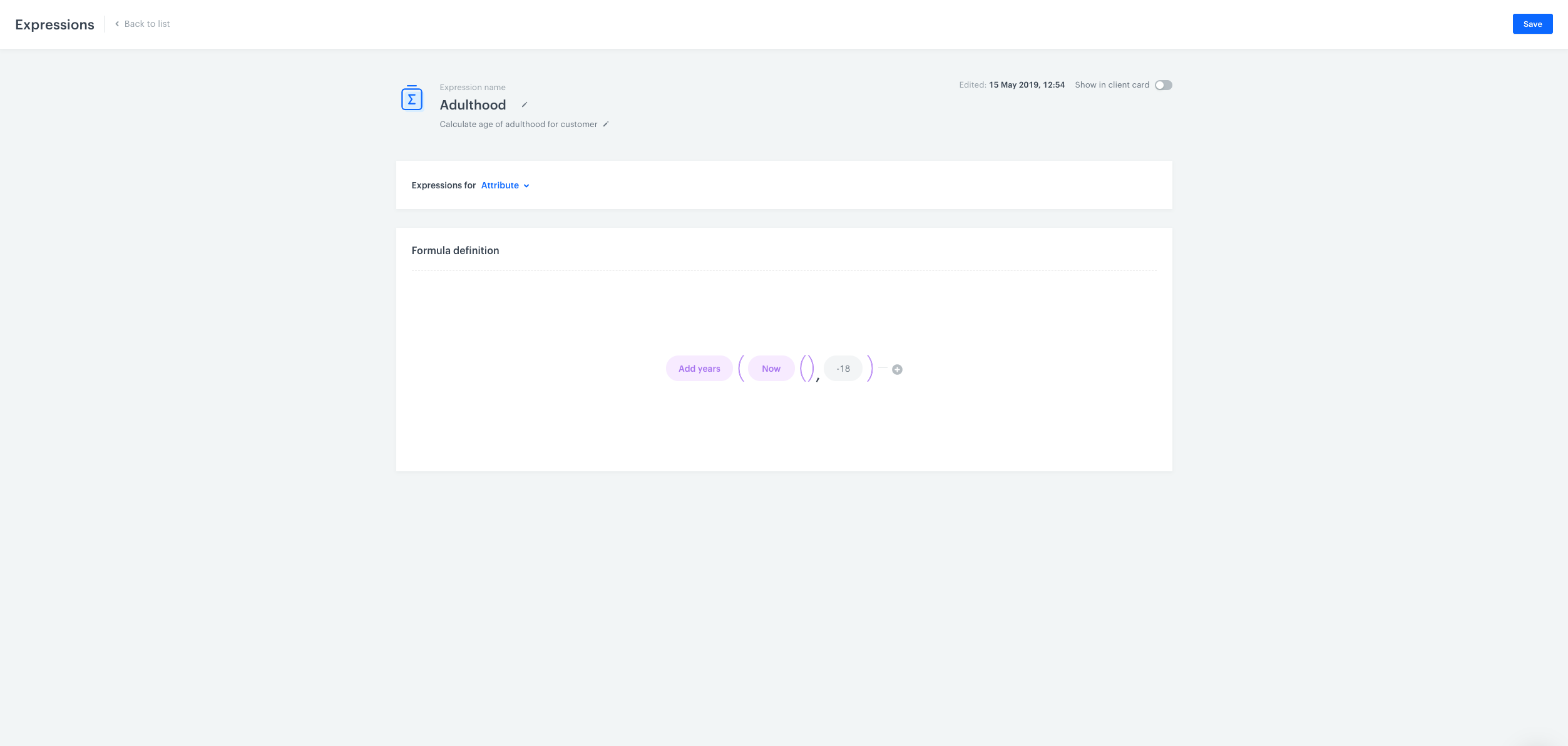
This function returns a date, ahead of the given date by the number of given years 


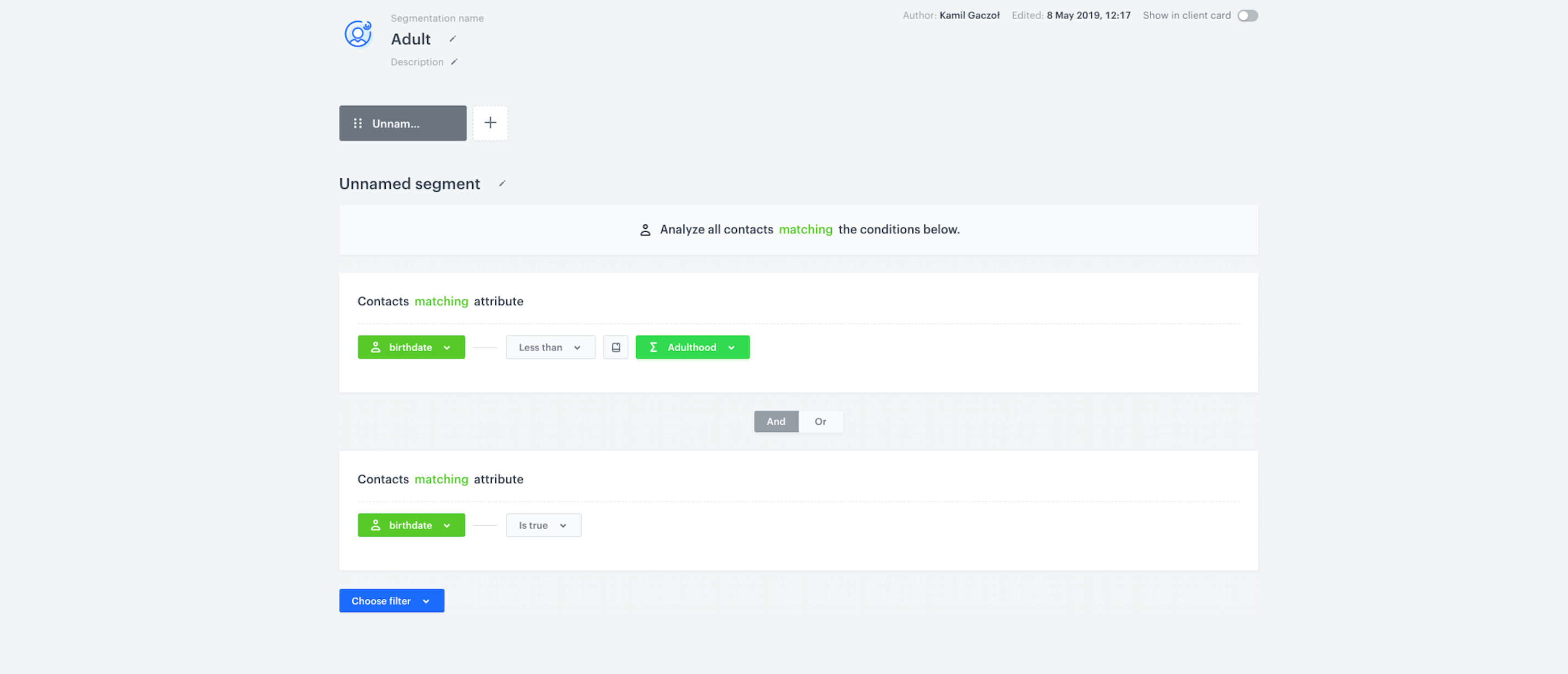
**USE CASE**: *Check whether customers reached the legal age of adulthood.*

<figure>
<img src="/api/docs/image/54176ad07f146575310749eba44b7c2f42c1b327/docs/analytics/_gfx/add_year.png" alt="Image presents the construction of the Add years formula" style="height:auto;max-width:100%" >
<figcaption>The construction of the Add years formula - stage 1</figcaption>
</figure>

 1. Add the `Add years` function that allows you to perform mathematical operations with regard to dates. 

    <figure>
    <img src="/api/docs/image/54176ad07f146575310749eba44b7c2f42c1b327/docs/analytics/_gfx/expression_add_year.png" alt="Image presents the construction of the Add years formula" style="height:auto;max-width:100%" >
    <figcaption> The construction of the Add years formula - stage 2 </figcaption>
    </figure>

2. Then, place the `Now` function within the `Add years` function. In the next field, type in the number which you want to deduct from the current date (year), so you can verify if the customer is of legal age. In some countries, citizens who are 18 years old are considered adults, so in order to deduct 18 years from the current date, we entered `-18`. To complete the process, click the **Save** button. 

    <figure>
    <img src="/api/docs/image/54176ad07f146575310749eba44b7c2f42c1b327/docs/analytics/_gfx/segment_adults.png" alt="Image presents the construction of the Add years formula" style="height:auto;max-width:100%" >
    <figcaption> The construction of the Add years formula - stage 3 </figcaption>
    </figure>

3. Create a segment that consists of adult customers. Such segmentation needs to comprise of 2 steps. In the first step, use `birthdate` as the customer attribute and `Less than` as a logical operator. Then select the expression, which you created in previous steps, as the value of the `Less than` operator. In the second step, you need to select adult customers among those whose date of birth is available on the contact card. Use `birthdate` as the customer attribute in the second step. Then, determine its value as `true`. Between step 1 and 2 use `AND` as a logical operator. 


## Ceil 
---

Ceiling rounds up the results of expression (e.g. 4.01 will be rounded up to 5).

## Exp 
---

The exponential function is a mathematical function denoted by
<code>
<i>f</i>(<i>x</i>) = exp(<i>x</i>) or <i>e</i><sup><i>x</i></sup>
</code> 
(where the argument x is written as an exponent).

Therefore, the Exp function returns the result of <i>e</i> to the power given in the brackets.

## Floor
---

This function rounds down the results of expressions (e.g. 4.99 will be rounded down to 4).

## IfNull
---

This function checks if a given value is null (empty or undefined). If it is, the function returns a specified alternative value; otherwise, it returns the original value. This is useful for handling missing or undefined data.

**Syntax**  

<figure><img src="/api/docs/image/54176ad07f146575310749eba44b7c2f42c1b327/docs/analytics/_gfx/ifnull-syntax.png" class="medium" alt="IfNull function syntax"><figcaption>IfNull function syntax</figcaption></figure>

1. The value in the node labeled 1 is checked. If it is not empty or undefined, this value is returned.
2. If the value in node 1 is empty or undefined, the alternative value in node 2 is returned instead.

**Example**  

<figure><img src="/api/docs/image/54176ad07f146575310749eba44b7c2f42c1b327/docs/analytics/_gfx/ifnull-example.png" class="medium" alt="Example of use"><figcaption>Example of use</figcaption></figure>

The value of the `firstname` attribute is checked. If it is not empty or undefined, that value is returned; otherwise, `No name` is returned.

## Ln
---

This function returns the natural logarithm of a given number.


## Max
---

This function returns the highest value in a set of values.


## Min
---

This function returns the lowest value in a set of values.


## Mod
---

This function returns the remainder after division of one number by another The result has the same sign as the divisor.


## Round
---

This function rounds the expression value to an integer number. According to mathematical principles, values from 01 do 49 are rounded down and values higher than 49 are rounded up.


## If
---

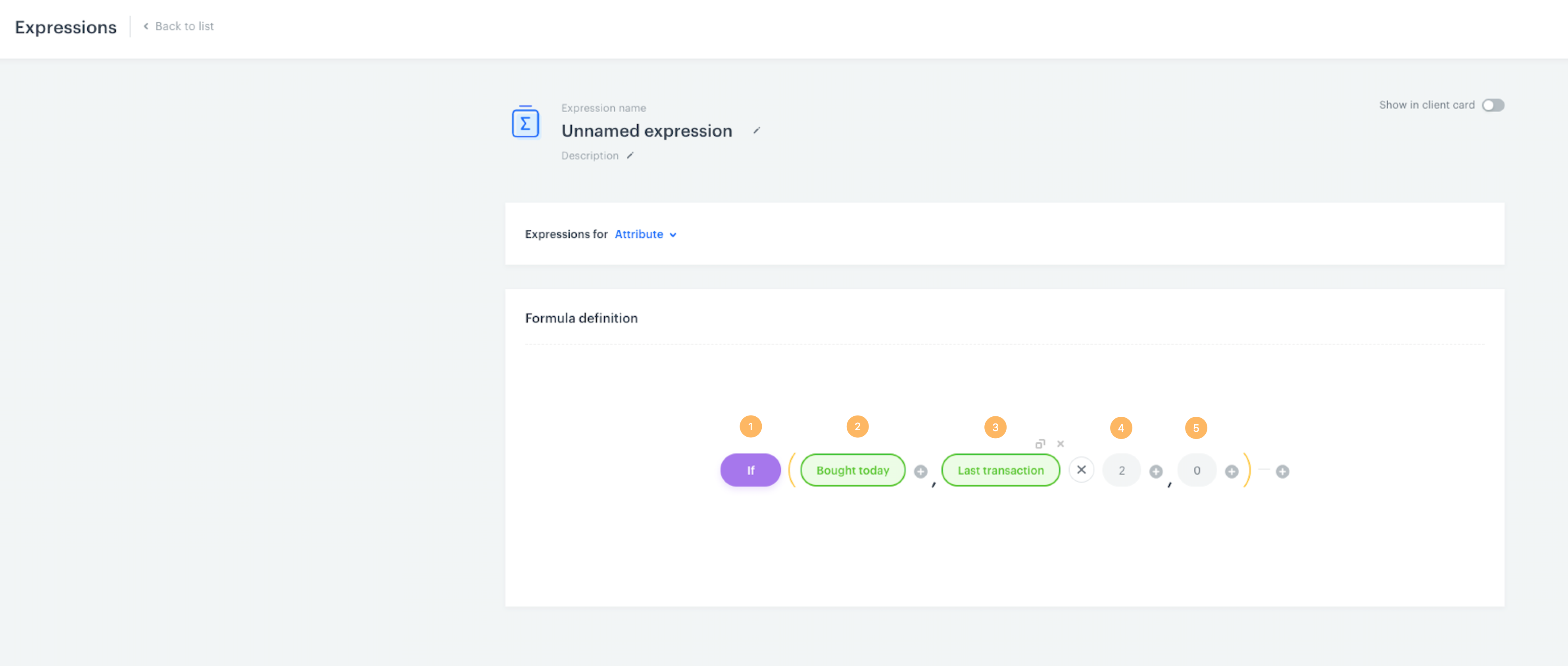
Allows logical comparisons between values. The system creates the desired structure automatically when you select this function. 

<figure>
<img src="/api/docs/image/54176ad07f146575310749eba44b7c2f42c1b327/docs/analytics/_gfx/if-function3.png" alt="Image presents the construction of the If formula" style="height:auto;max-width:100%" >
<figcaption>The construction of the If formula </figcaption>
</figure>

1. After you choose the If function, the expression will be constructed in the specific pattern explained points 2-5.
2. The first field in the brackets is taken by the condition that needs to be met, if you want a specific action to happen (**3**). In this case, the condition consists of the segment of customers who made a purchase on the current day.
3. The next place is taken by the expression that is executed when the condition is met/is true (**2**). In this example, the expression `Last transaction` will be the subject of action. If the condition is true, the value of the last transaction will be multiplied by the number in the next field (**4**).
4. This place is taken by the value which will be considered if the condition (**2**) is true. In this example, the value of the last transaction in the current day will double. 
5. This place is taken into consideration if the condition (**2**) is false. If the condition is false, the value of the expression will be equal 0. 


   <div class="admonition admonition-tip"><div class="admonition-icon"><svg xmlns="http://www.w3.org/2000/svg" fill="none" viewBox="0 0 24 24" stroke="currentColor" stroke-width="2.5"><path stroke-linecap="round" stroke-linejoin="round" d="M9.663 17h4.673M12 3v1m6.364 1.636l-.707.707M21 12h-1M4 12H3m3.343-5.657l-.707-.707m2.828 9.9a5 5 0 117.072 0l-.548.547A3.374 3.374 0 0014 18.469V19a2 2 0 11-4 0v-.531c0-.895-.356-1.754-.988-2.386l-.548-.547z" /></svg></div><div class="admonition-body"><div class="admonition-content">

   You can extend the conditions, include analytics and add subsequent functions to expressions.

   </div></div></div>


## Equals
---

It allows you to check if two values are equal. Returns `true` if they are.

## Greater 
---

This function checks if the first given value is larger than the second one. Returns `true` if it is.


## Greater or equals
---

This function checks if the first given value is larger than or equal to the second one. Returns `true` if it is. 


## Less
---

This function checks if the first given value is smaller than the second one. Returns `true` if it is.


## Less or equals
---

This function checks if the first given value is smaller than or equal to the second one. Returns `true` if it is.


## Not equals
---

This function allows you to check if two values are different. Returns `true` if they are.


## Now
---

This function allows you to insert the current date or time to your formula.


## To string
---

This function allows you to convert the result of an expression to a string.


## To number
---

This function allows you to convert the result of an expression to a numerical value. 

## To money
---

The function rounds to the second decimal place.
- If the third decimal place is `>= 5`, it's rounded up, for example:
    - `1.006` becomes `1.01`
    - `5.005001` becomes `5.01`
    - `0.0050000` becomes `0.01`
- If the third decimal place is `< 5`, it's rounded down, for example:  
    - `0.004` becomes `0.00`
    - `2.0049` becomes `2.00`

#### Example

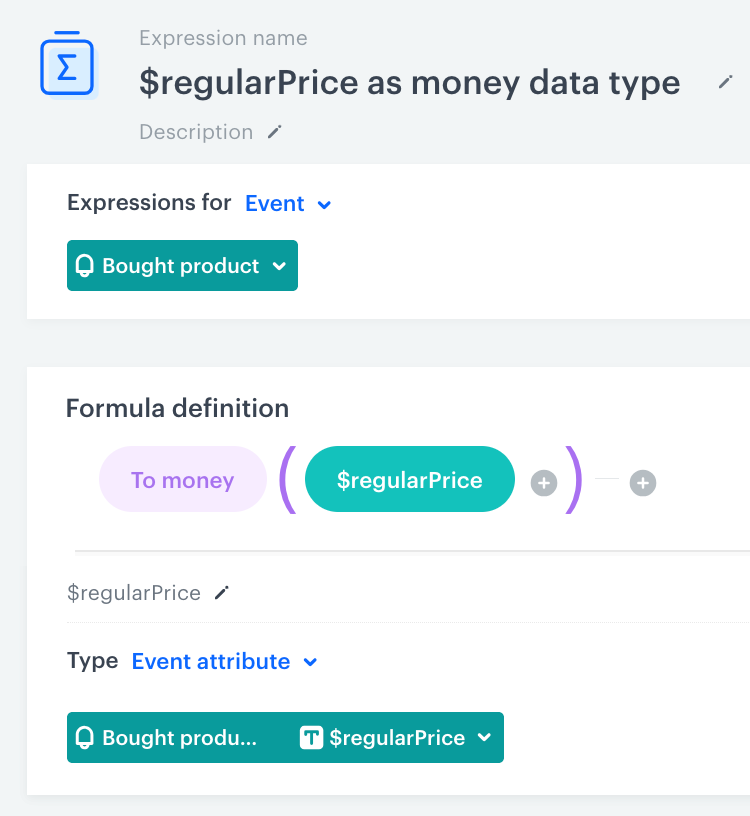
You can create an [event expression](/docs/analytics/expressions/creating-event-expression) for `product.buy` event which converts the parameter value that contains the item price to the money data type. 

<figure><img src="/api/docs/image/54176ad07f146575310749eba44b7c2f42c1b327/docs/analytics/_gfx/to-money-example.png" class="medium" alt="An event expression with To money function"><figcaption>An event expression which converts the $regularPrice parameter to the money data type</figcaption></figure>

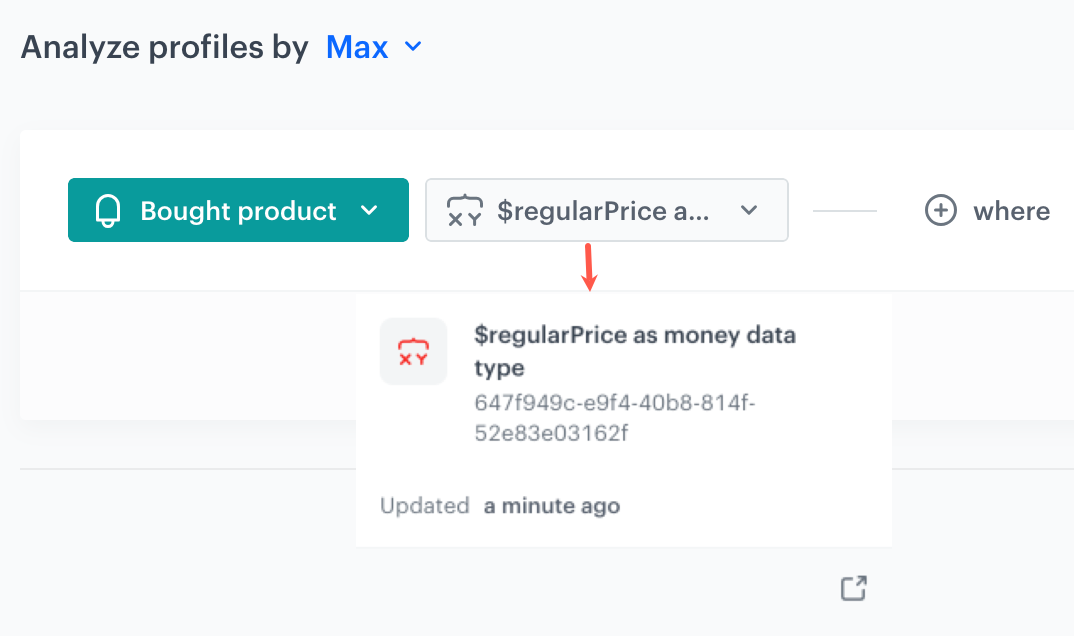
This [event expression](/docs/analytics/expressions/creating-event-expression) is useful for building a [profile aggregate](/docs/analytics/aggregates/creating-profile-aggregates) that uses the **Max** function to return the price of the most expensive item a customer has purchased in a selected period. By using this [event expression](/docs/analytics/expressions/creating-event-expression) instead of a regular event parameter in this aggregate, you avoid treating item prices as strings, which could lead to inaccurate analysis results.

<figure><img src="/api/docs/image/54176ad07f146575310749eba44b7c2f42c1b327/docs/analytics/_gfx/aggregate-to-money-example.png" class="medium" alt="An event expression with To money function"><figcaption>An profile aggregate that returns the value of the priciest purchased item; the aggregate uses the event expression as an event parameter</figcaption></figure>


## To date
---

This function converts an ISO date-time string (for example, `2024-11-15T18:00+05:00` or `2024-11-15T18:00Z`) value into a value that's only a date (`2024-11-15`). The date doesn't have any timezone and the original timezone of the string is ignored when converting into a date.

You can use this function to create expressions whose results will be used in other analyses (for example, segmentations) without consideration of the original timezone of the attribute that was converted to a date - the analysis will treat the date as being in the timezone of the workspace.


## To timestamp
---

A timestamp is a sequence of characters or encoded information identifying when a certain event occurred. Because timestamps may take various formats, you can use this function to convert a date (for example, `2024-11-19`) into a timestamp in the ISO8601 format with the timezone of the workspace (for example, `2024-11-19T01:00:00+01:00`). Later, you can perform actions on dates. It is especially useful when you want to use a [time dimension](/docs/analytics/expressions/event-expression-for-reports) in reports.  

You can also use this behavior to recalculate date-times from different timezones into the timezone of the workspace. For example, `2024-11-20T01:30:00+09:00` becomes `2024-11-19T17:30:00.000+01:00` in a workspace whose timezone is `+01:00`.


## Concat
---

This function joins two or more strings together and returns the joint string as the result.

## Regexp
---
This function lets you search for a phrase which matches the pattern defined by a regular expression in an event parameter, customer attribute, dynamic key, or a constant value. 


<div class="admonition admonition-tip"><div class="admonition-icon"><svg xmlns="http://www.w3.org/2000/svg" fill="none" viewBox="0 0 24 24" stroke="currentColor" stroke-width="2.5"><path stroke-linecap="round" stroke-linejoin="round" d="M9.663 17h4.673M12 3v1m6.364 1.636l-.707.707M21 12h-1M4 12H3m3.343-5.657l-.707-.707m2.828 9.9a5 5 0 117.072 0l-.548.547A3.374 3.374 0 0014 18.469V19a2 2 0 11-4 0v-.531c0-.895-.356-1.754-.988-2.386l-.548-.547z" /></svg></div><div class="admonition-body"><div class="admonition-content">

For an example of using regex in practice, see the ["Change date format for analytics"](/use-cases/change-date-format) use case.

</div></div></div>


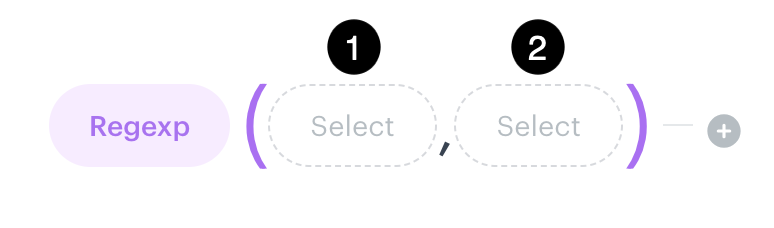
The Regexp function syntax looks as follows:
<figure><img src="/api/docs/image/54176ad07f146575310749eba44b7c2f42c1b327/docs/analytics/_gfx/regexp-syntax.png" class="medium" alt="The Regexp function broken down into syntax components"><figcaption>The Regexp function broken down into syntax components</figcaption></figure>

1. In the `1` node, you select an event parameter, customer attribute, dynamic key in which the system will search for the pattern.
2. In the `2` node, you select the **Constant** option and enter the regular expression formula.

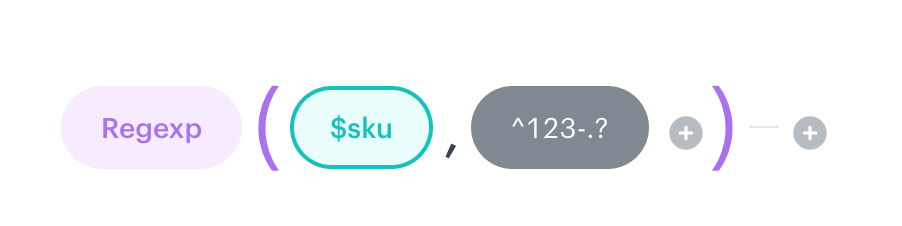
<figure><img src="/api/docs/image/54176ad07f146575310749eba44b7c2f42c1b327/docs/analytics/_gfx/regexp-example.png" class="medium" alt="Example"><figcaption>Example regexp function</figcaption></figure>

In the example above, values of the `$sku` parameter of the `product.buy` event will be searched through for phrases starting with `123-` and followed by at least one character.

## Day of month
---

This function returns the day of the month. 

<figure>
<img src="/api/docs/image/54176ad07f146575310749eba44b7c2f42c1b327/docs/analytics/_gfx/functions-day-of-month.png" alt="The construction of the Day of month formula" style="height:auto;max-width:100%" >
<figcaption>The construction of the Day of month formula</figcaption>
</figure>


<div class="admonition admonition-tip"><div class="admonition-icon"><svg xmlns="http://www.w3.org/2000/svg" fill="none" viewBox="0 0 24 24" stroke="currentColor" stroke-width="2.5"><path stroke-linecap="round" stroke-linejoin="round" d="M9.663 17h4.673M12 3v1m6.364 1.636l-.707.707M21 12h-1M4 12H3m3.343-5.657l-.707-.707m2.828 9.9a5 5 0 117.072 0l-.548.547A3.374 3.374 0 0014 18.469V19a2 2 0 11-4 0v-.531c0-.895-.356-1.754-.988-2.386l-.548-.547z" /></svg></div><div class="admonition-body"><div class="admonition-content">

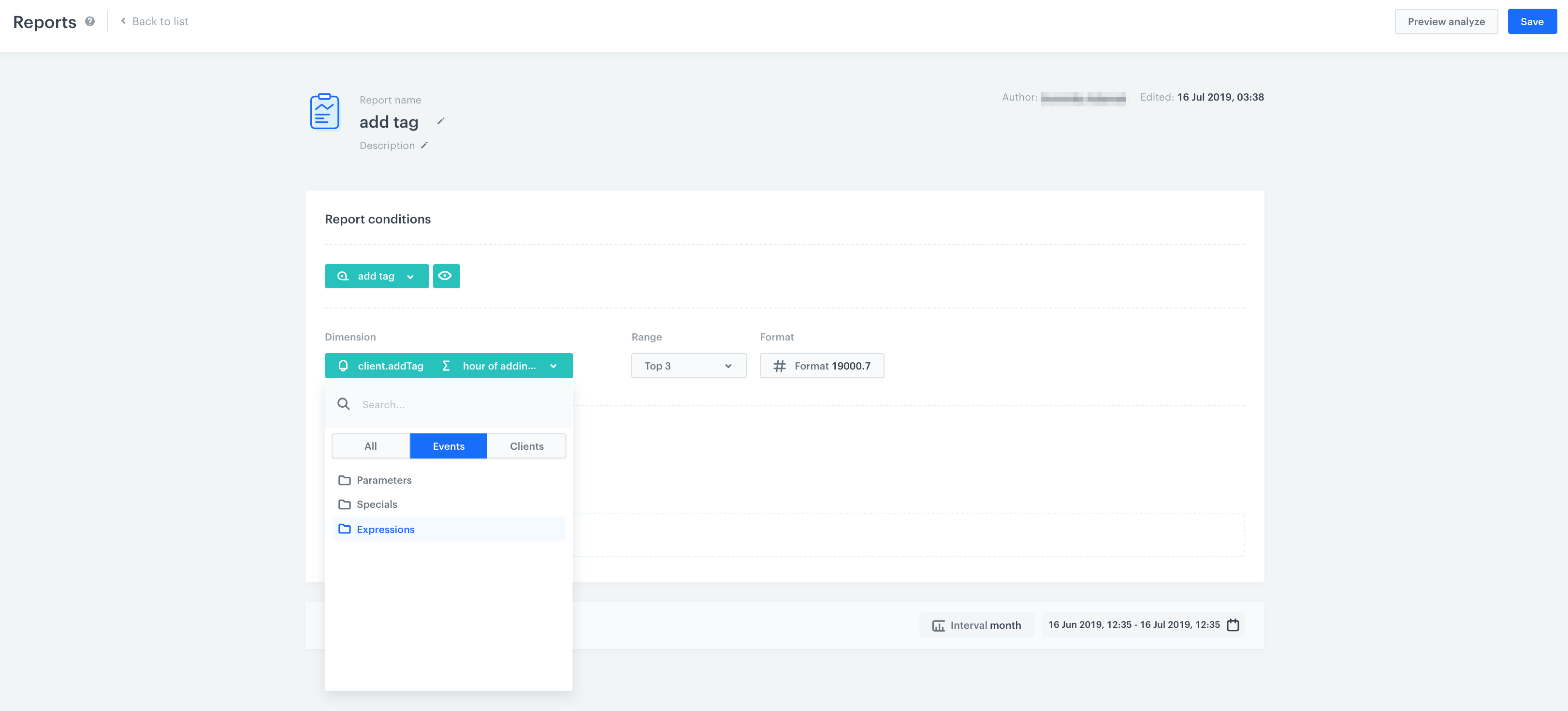
Use this function in [event expressions](/docs/analytics/expressions/creating-event-expression). Later you can use them as a dimension in [reports](/docs/analytics/reports/creating-reports).
<figure>
<img src="/api/docs/image/54176ad07f146575310749eba44b7c2f42c1b327/docs/analytics/_gfx/event_expression_functions_hour.png" alt="Expression with the Day of month formula used as dimension in reports" style="height:auto;max-width:100%" >
<figcaption>Expression with the Day of month formula used as dimension in reports</figcaption></figure>

</div></div></div>


## Day of week 
---

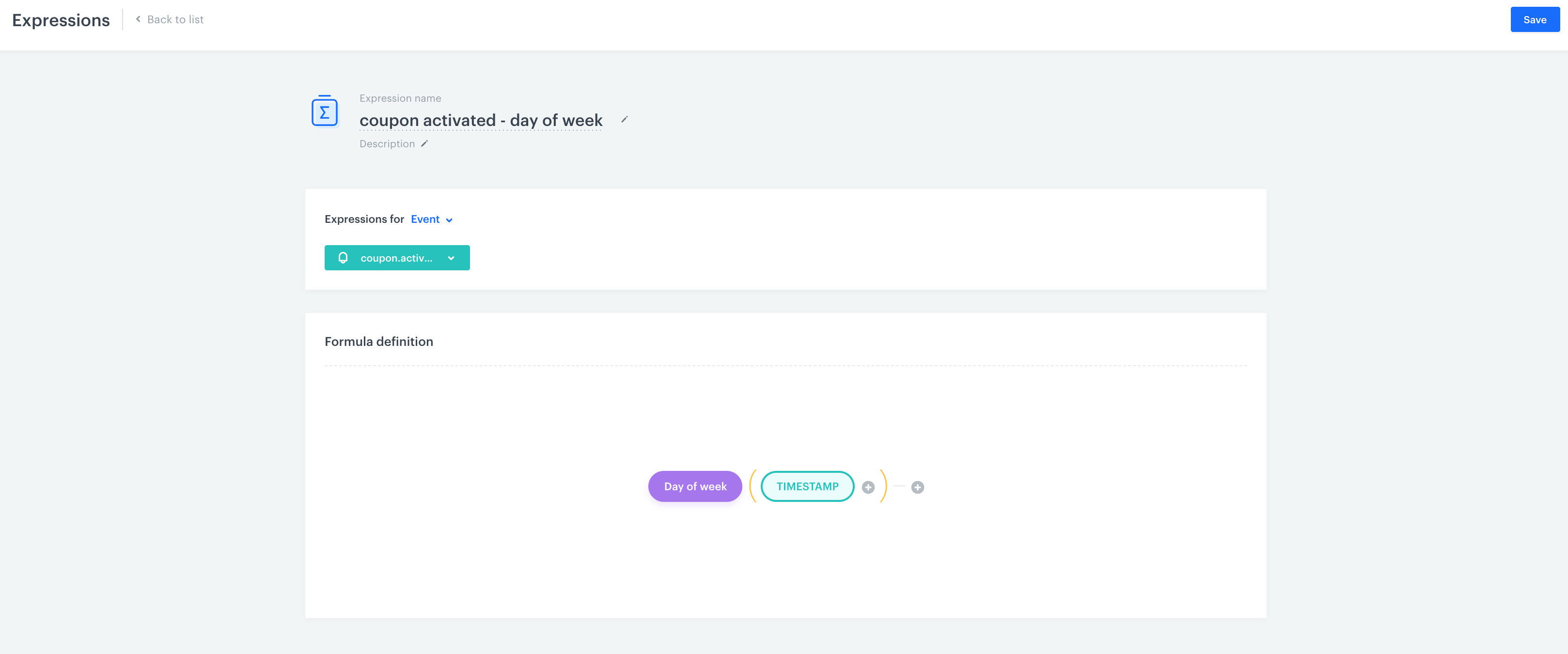
This function returns the day of the week in the form of a number (values from 1 [*Monday*] to 7 [*Sunday*]). 

<figure>
<img src="/api/docs/image/54176ad07f146575310749eba44b7c2f42c1b327/docs/analytics/_gfx/function-day-of-week.png" alt="The construction of the Day of week formula" style="height:auto;max-width:100%" >
<figcaption> The construction of the Day of week formula </figcaption>
</figure>


<div class="admonition admonition-tip"><div class="admonition-icon"><svg xmlns="http://www.w3.org/2000/svg" fill="none" viewBox="0 0 24 24" stroke="currentColor" stroke-width="2.5"><path stroke-linecap="round" stroke-linejoin="round" d="M9.663 17h4.673M12 3v1m6.364 1.636l-.707.707M21 12h-1M4 12H3m3.343-5.657l-.707-.707m2.828 9.9a5 5 0 117.072 0l-.548.547A3.374 3.374 0 0014 18.469V19a2 2 0 11-4 0v-.531c0-.895-.356-1.754-.988-2.386l-.548-.547z" /></svg></div><div class="admonition-body"><div class="admonition-content">

Use this function in [event expressions](/docs/analytics/expressions/creating-event-expression). Later you can use them as a dimension in [reports](/docs/analytics/reports/creating-reports).

</div></div></div>


## Day of year
---

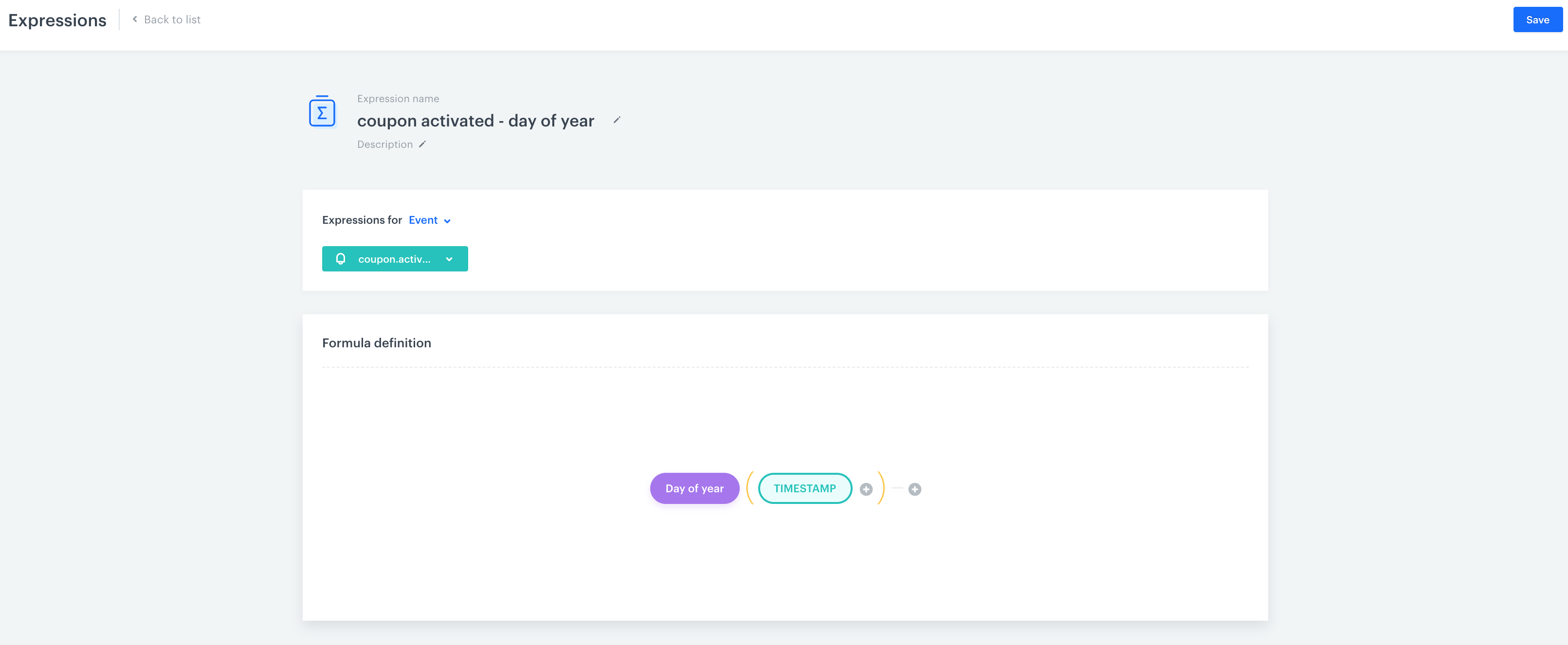
This function returns the number of the day of the year (values from 1 to 366).

<figure>
<img src="/api/docs/image/54176ad07f146575310749eba44b7c2f42c1b327/docs/analytics/_gfx/function-day-of-year.png" alt="The construction of the Day of year formula" style="height:auto;max-width:100%" >
<figcaption>The construction of the Day of year formula</figcaption></figure>
<figure></figure>


<div class="admonition admonition-tip"><div class="admonition-icon"><svg xmlns="http://www.w3.org/2000/svg" fill="none" viewBox="0 0 24 24" stroke="currentColor" stroke-width="2.5"><path stroke-linecap="round" stroke-linejoin="round" d="M9.663 17h4.673M12 3v1m6.364 1.636l-.707.707M21 12h-1M4 12H3m3.343-5.657l-.707-.707m2.828 9.9a5 5 0 117.072 0l-.548.547A3.374 3.374 0 0014 18.469V19a2 2 0 11-4 0v-.531c0-.895-.356-1.754-.988-2.386l-.548-.547z" /></svg></div><div class="admonition-body"><div class="admonition-content">

Use this function in [event expressions](/docs/analytics/expressions/creating-event-expression). Later you can use them as a dimension in [reports](/docs/analytics/reports/creating-reports).

</div></div></div>


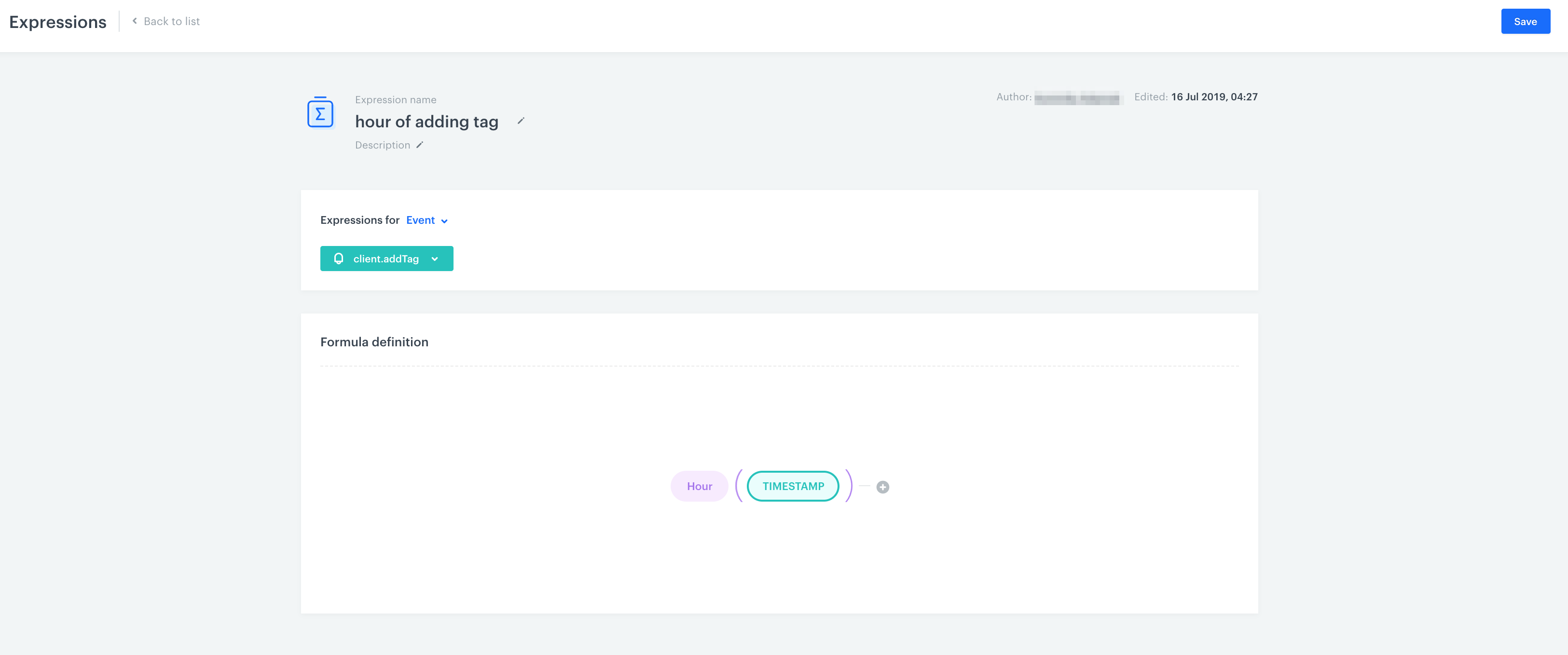
## Hour
---

This function returns the hour (values from 1 do 23). 

<figure>
<img src="/api/docs/image/54176ad07f146575310749eba44b7c2f42c1b327/docs/analytics/_gfx/function-expression-hour.png" alt="The construction of the Hour formula" style="height:auto;max-width:100%" >
<figcaption>The construction of the Hour formula </figcaption>
</figure>


<div class="admonition admonition-tip"><div class="admonition-icon"><svg xmlns="http://www.w3.org/2000/svg" fill="none" viewBox="0 0 24 24" stroke="currentColor" stroke-width="2.5"><path stroke-linecap="round" stroke-linejoin="round" d="M9.663 17h4.673M12 3v1m6.364 1.636l-.707.707M21 12h-1M4 12H3m3.343-5.657l-.707-.707m2.828 9.9a5 5 0 117.072 0l-.548.547A3.374 3.374 0 0014 18.469V19a2 2 0 11-4 0v-.531c0-.895-.356-1.754-.988-2.386l-.548-.547z" /></svg></div><div class="admonition-body"><div class="admonition-content">

Use this function in [event expressions](/docs/analytics/expressions/creating-event-expression). Later you can use them as a dimension in [reports](/docs/analytics/reports/creating-reports).

</div></div></div>


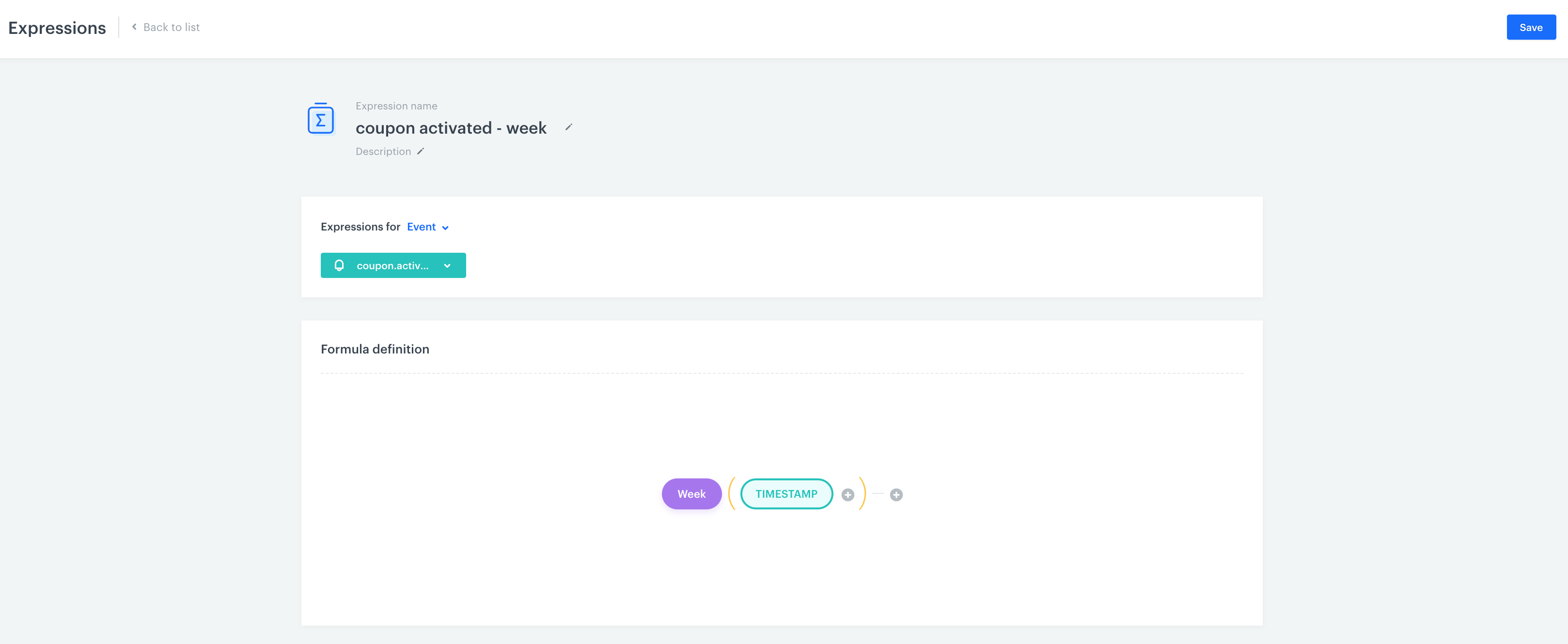
## Week
---

This function returns the number of week in a year (values from 1 to 52).

<figure>
<img src="/api/docs/image/54176ad07f146575310749eba44b7c2f42c1b327/docs/analytics/_gfx/functions-week.png" alt="The construction of the Week formula" style="height:auto;max-width:100%" >
<figcaption>The construction of the Week formula</figcaption>
</figure>


<div class="admonition admonition-tip"><div class="admonition-icon"><svg xmlns="http://www.w3.org/2000/svg" fill="none" viewBox="0 0 24 24" stroke="currentColor" stroke-width="2.5"><path stroke-linecap="round" stroke-linejoin="round" d="M9.663 17h4.673M12 3v1m6.364 1.636l-.707.707M21 12h-1M4 12H3m3.343-5.657l-.707-.707m2.828 9.9a5 5 0 117.072 0l-.548.547A3.374 3.374 0 0014 18.469V19a2 2 0 11-4 0v-.531c0-.895-.356-1.754-.988-2.386l-.548-.547z" /></svg></div><div class="admonition-body"><div class="admonition-content">

Use this function in [event expressions](/docs/analytics/expressions/creating-event-expression). Later you can use them as a dimension in [reports](/docs/analytics/reports/creating-reports).

</div></div></div>


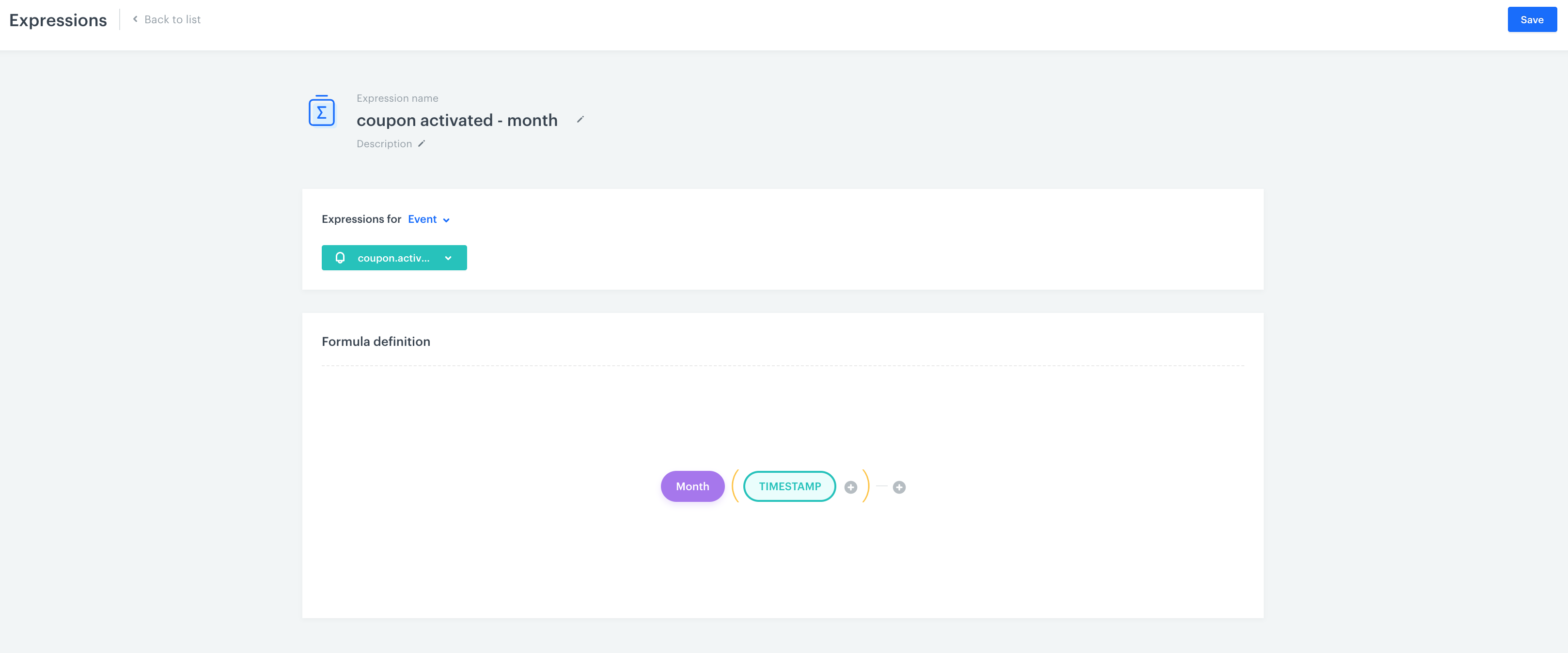
## Month
---

This function returns the number of the month (values from 1 to 12).

<figure>
<img src="/api/docs/image/54176ad07f146575310749eba44b7c2f42c1b327/docs/analytics/_gfx/funtions-month.png" alt="The construction of the Month formula" style="height:auto;max-width:100%" >
<figcaption>The construction of the Month formula</figcaption></figure>


<div class="admonition admonition-tip"><div class="admonition-icon"><svg xmlns="http://www.w3.org/2000/svg" fill="none" viewBox="0 0 24 24" stroke="currentColor" stroke-width="2.5"><path stroke-linecap="round" stroke-linejoin="round" d="M9.663 17h4.673M12 3v1m6.364 1.636l-.707.707M21 12h-1M4 12H3m3.343-5.657l-.707-.707m2.828 9.9a5 5 0 117.072 0l-.548.547A3.374 3.374 0 0014 18.469V19a2 2 0 11-4 0v-.531c0-.895-.356-1.754-.988-2.386l-.548-.547z" /></svg></div><div class="admonition-body"><div class="admonition-content">

Use this function in [event expressions](/docs/analytics/expressions/creating-event-expression). Later you can use them as a dimension in [reports](/docs/analytics/reports/creating-reports).

</div></div></div>


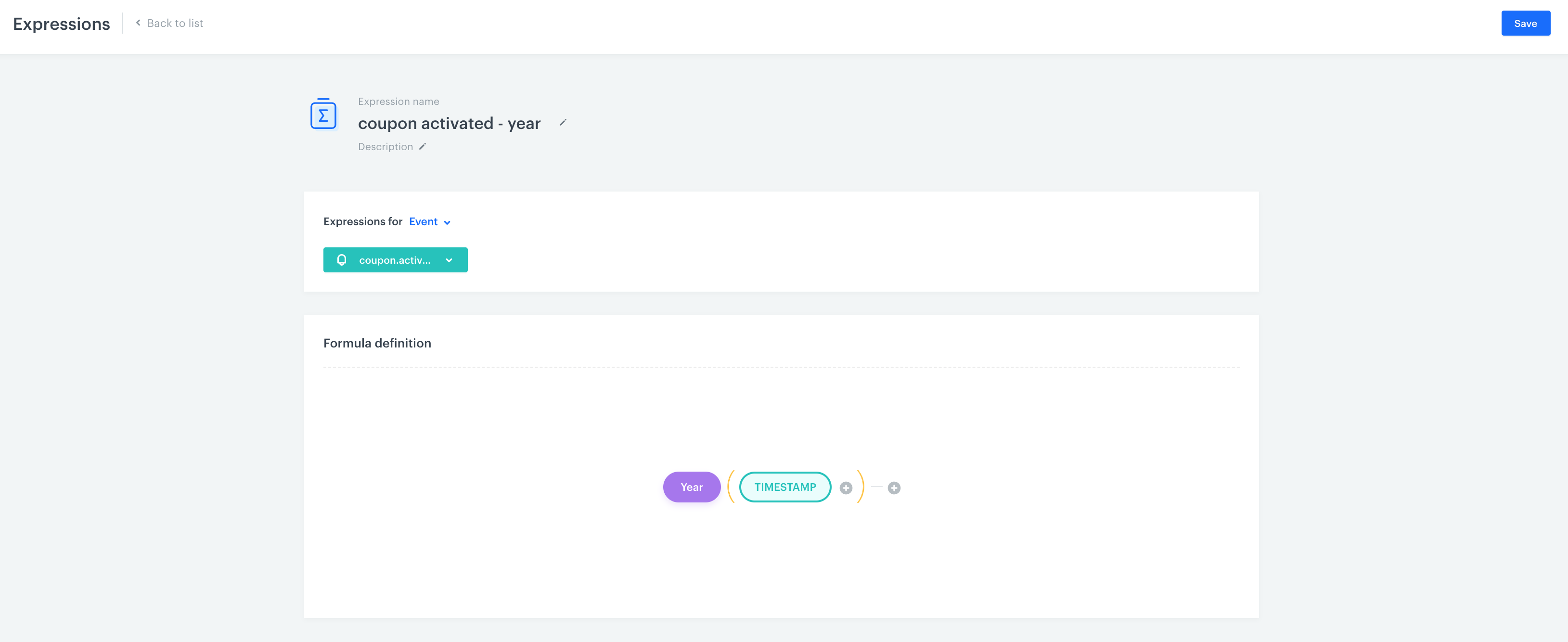
## Year
---

This function returns the year (e.g. 2018).

<figure>
<img src="/api/docs/image/54176ad07f146575310749eba44b7c2f42c1b327/docs/analytics/_gfx/functions-year.png" alt="The construction of the Year formula" class="full" >
<figcaption>The construction of the Year formula</figcaption>
</figure>


<div class="admonition admonition-tip"><div class="admonition-icon"><svg xmlns="http://www.w3.org/2000/svg" fill="none" viewBox="0 0 24 24" stroke="currentColor" stroke-width="2.5"><path stroke-linecap="round" stroke-linejoin="round" d="M9.663 17h4.673M12 3v1m6.364 1.636l-.707.707M21 12h-1M4 12H3m3.343-5.657l-.707-.707m2.828 9.9a5 5 0 117.072 0l-.548.547A3.374 3.374 0 0014 18.469V19a2 2 0 11-4 0v-.531c0-.895-.356-1.754-.988-2.386l-.548-.547z" /></svg></div><div class="admonition-body"><div class="admonition-content">

Use this function in [event expressions](/docs/analytics/expressions/creating-event-expression). Later you can use them as a dimension in [reports](/docs/analytics/reports/creating-reports).

</div></div></div>