You can check the results of an expression. Because expressions are analyses counted individually for every customer, you must indicate the identificator of a customer to see the result of an expression.
Preview of an expression
1. Go to **Behavioral Data Hub > Expressions**.
2. On the list of expressions, find the expression you want to preview.
3. Click the expression.
4. To switch on the preview mode, click the **Preview analyze** button.
5. To choose a customer for whom you want to analyze the expression:
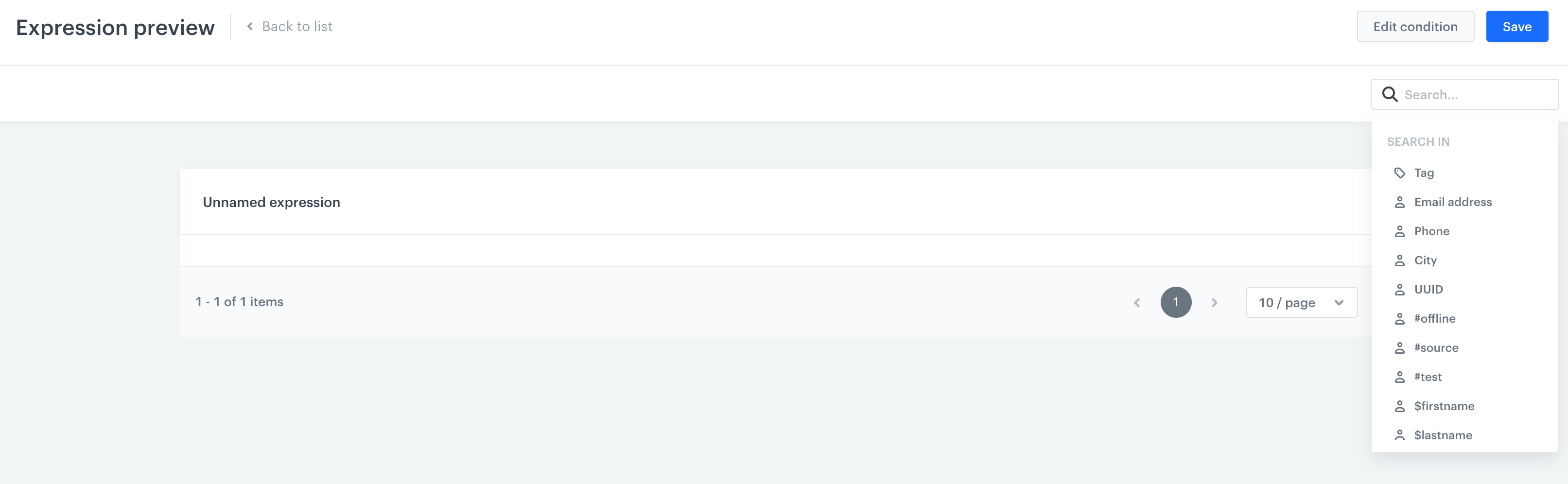
- Click the search engine.
- Enter the email address of a customer.
- Optionally, you can change the search attribute for a tag, city or phone number.
 **Behavioral Data Hub > Expressions**.
2. On the list of expressions, find the expression you want to preview.
3. Click the expression.
4. To switch on the preview mode, click the **Preview analyze** button.
5. To choose a customer for whom you want to analyze the expression:
- Click the search engine.
- Enter the email address of a customer.
- Optionally, you can change the search attribute for a tag, city or phone number.
**Behavioral Data Hub > Expressions**.
2. On the list of expressions, find the expression you want to preview.
3. Click the expression.
4. To switch on the preview mode, click the **Preview analyze** button.
5. To choose a customer for whom you want to analyze the expression:
- Click the search engine.
- Enter the email address of a customer.
- Optionally, you can change the search attribute for a tag, city or phone number.