Filtering profiles is a feature that allows you to efficiently sort and preview profiles based on shared characteristics or similar behavioral patterns. For instance, you can narrow down the list to display profiles who made purchases within a specific time frame, visited particular pages, participated in promotional campaigns, and more.
Filtered profiles on the list
You can filter the profiles using the following methods:
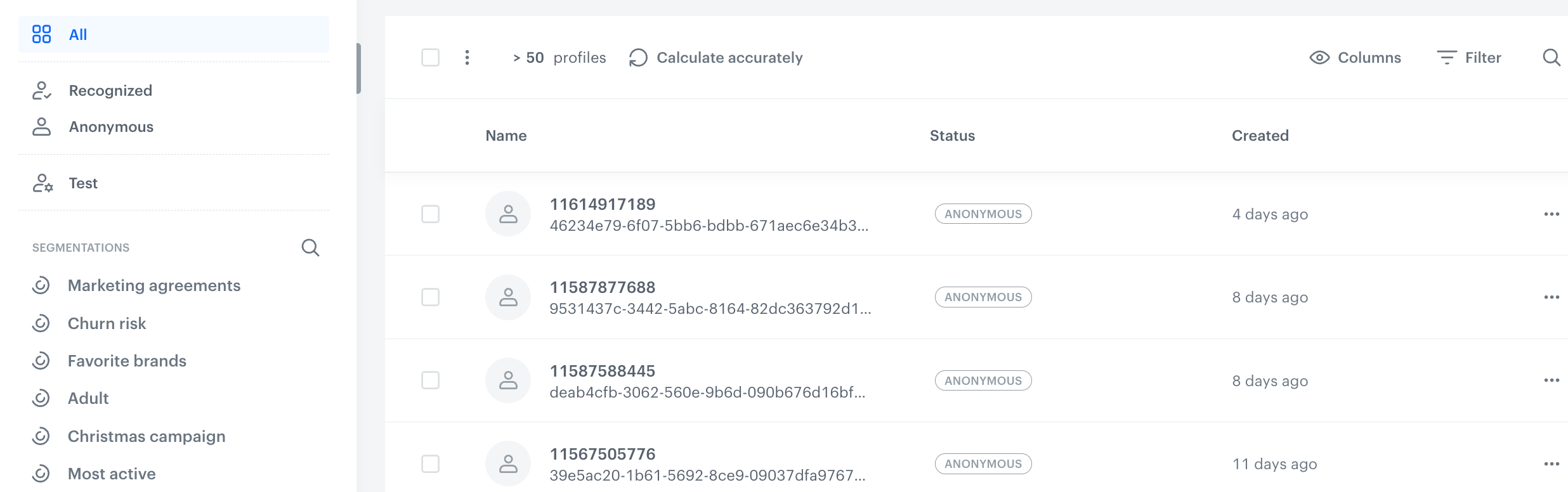
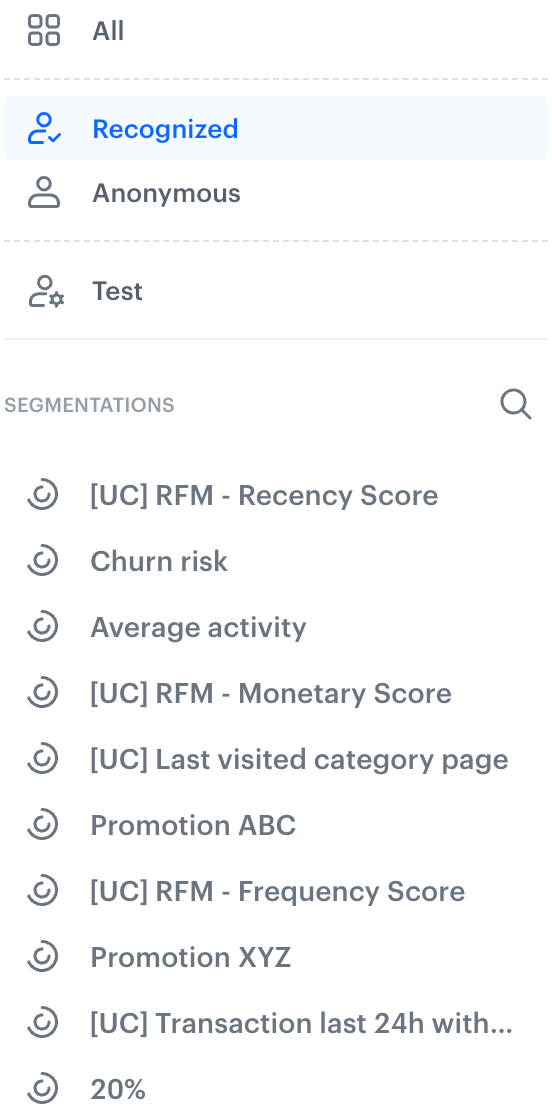
- selecting predefined filters on the left side of the screen:
- recognized,
- anonymous,
- [test](/docs/settings/configuration/test-profiles),
- all profiles from the list on the left,
- one of 10 segmentations available on the list - the list contains the first 10 segmentations from the list of segmentations, but you can use the search box to find the one you want to use;
- defining the filter conditions on the list of profiles - this way you can create a segmentation from scratch which uses any attribute or event to filter out a group of profile/companies who share the same quality.
## Predefined filters
1. Go to **Behavioral Data Hub > Profiles**.
2. At the top of the page, click **Recognized**.
Filtering out customers who visited a website last month
3. Select an option.
## Defining filters from scratch
1. Go to **Behavioral Data Hub > Profiles**.
2. At the top of the page, click **Filter**.
**Result**:
Filtering out customers who visited a website last month
3. Click the **Add condition** button.
4. Define the conditions by selecting events and/or attributes.
5. To narrow down the scope of data, you can use the date filters.
6. Confirm by clicking **Apply**.
**Results**: The list presents the filtered results and the filter icon looks as follows:
Read more information about building [segmentations](/docs/analytics/segmentations).
 **Behavioral Data Hub > Profiles**.
2. At the top of the page, click **Recognized**.
**Behavioral Data Hub > Profiles**.
2. At the top of the page, click **Recognized**.
 **Filter**.
**Result**:
**Filter**.
**Result**:

