This article guides you through the first steps in the Synerise platform: logging in, selecting a workspace, and navigating the main dashboard.
Before you start, review the [basic terms](#basic-terms) used in this article.
## Basic terms
- [Event](/glossary#event)
- **Environment** — A host for your instance of the Synerise platform.
- [Synerise objects](/glossary#synerise-object)
- [Profile](/glossary#profile)
- **User account** — An account that lets a user access a workspace and operate on the Synerise platform.
- [Workspace](/glossary#workspace)
For more terms, see the [Synerise Glossary](/glossary).
## Before you start
### Recommended browsers
Use a browser based on the Chromium engine (one of the 3 most recent versions). Other browsers are not officially supported and may display the platform incorrectly.
### Recommended resolution
Use a resolution of 1440×900 or higher. Lower resolutions may cause layout issues in the interface.
## Registering an account
To create a user account in the Synerise platform:
- If your company already uses Synerise, contact the workspace administrator and request a user account.
- If your company is new to Synerise, start by [requesting a demo](https://www.synerise.com/demo-request).
## Logging in
The login flow depends on two factors:
- Whether your company enforces single sign-on (SSO), which lets you authenticate through an identity provider such as Microsoft Entra ID
- The 2FA method configured for your workspace — email code or an authenticator application
To log in:
1. Go to the login page for your hosting environment:
- Microsoft Azure: [https://app.synerise.com/login](https://app.synerise.com/login)
- Microsoft Azure US: [https://app.azu.synerise.com/login](https://app.azu.synerise.com/login)
- Google Cloud Platform: [https://app.geb.synerise.com/login](https://app.geb.synerise.com/login)
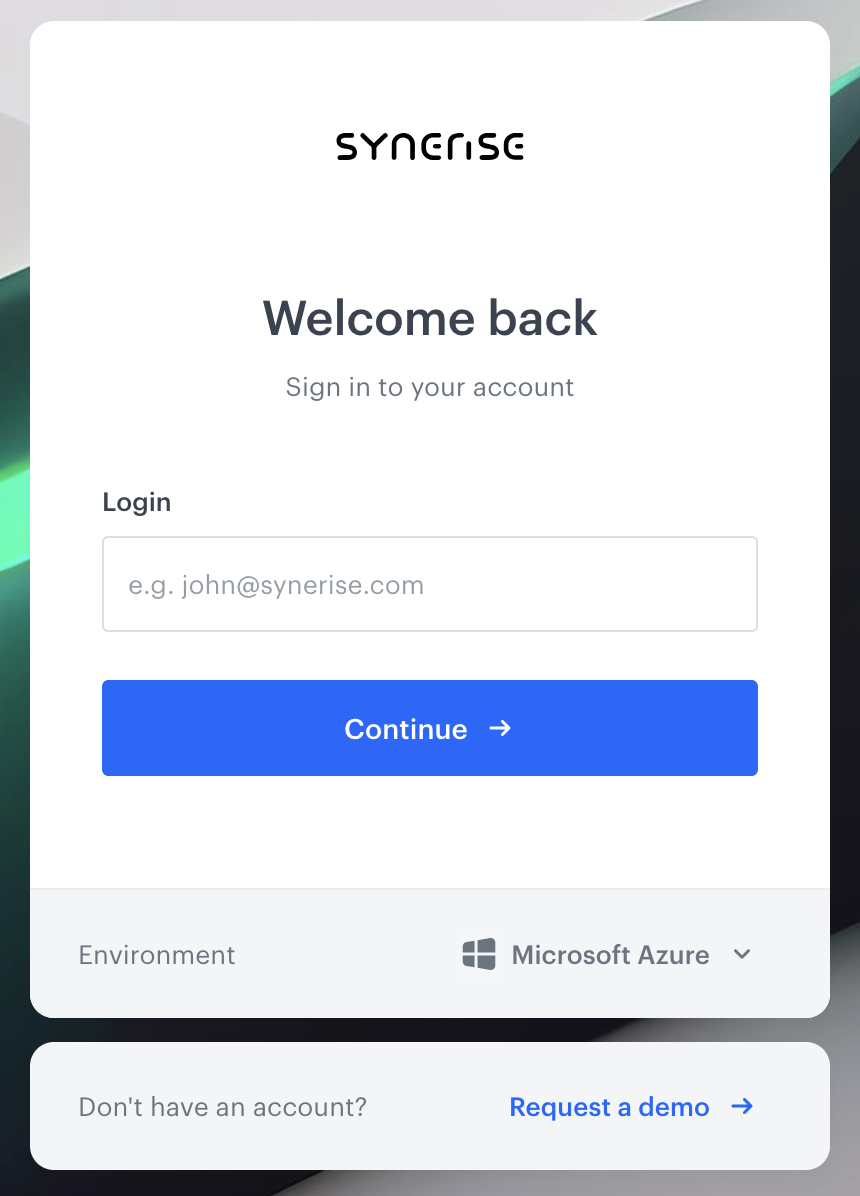
To change the environment, use the **Environment** option below the login fields.
Selecting environment
2. In the **Login** field, enter the email address associated with your account.
3. Authenticate:
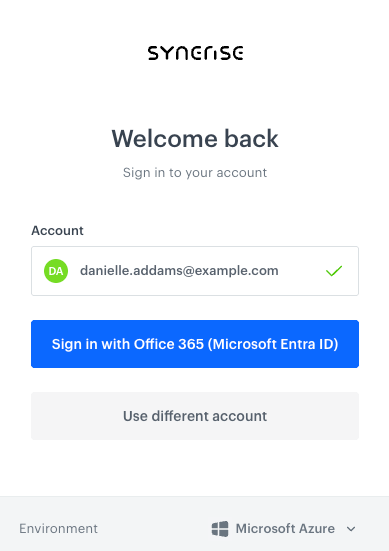
- **With SSO**: Click the button for the identity provider your company uses. You are redirected to the provider to complete authentication.
Logging in with SSO
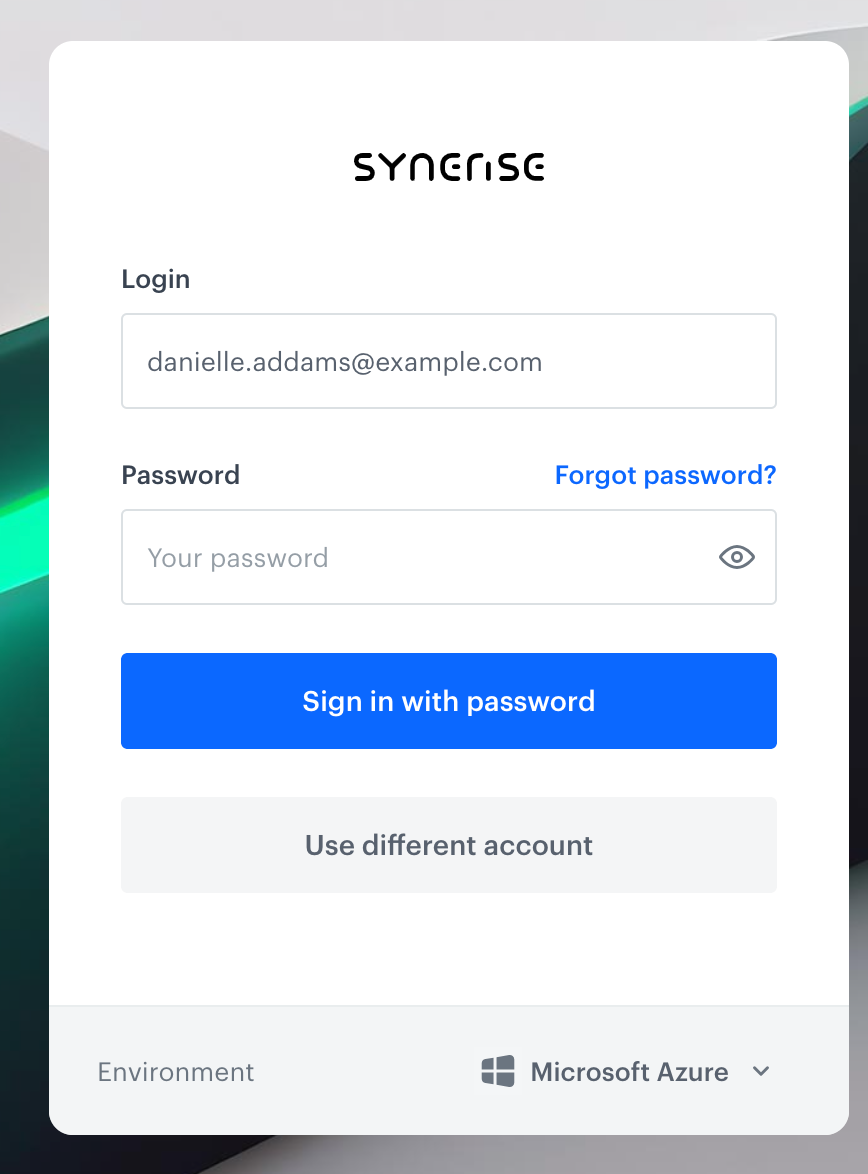
- **Without SSO**: Enter your password. If asked, provide the 6-digit code sent to your email address or retrieved from your authenticator application.
Logging in with a password
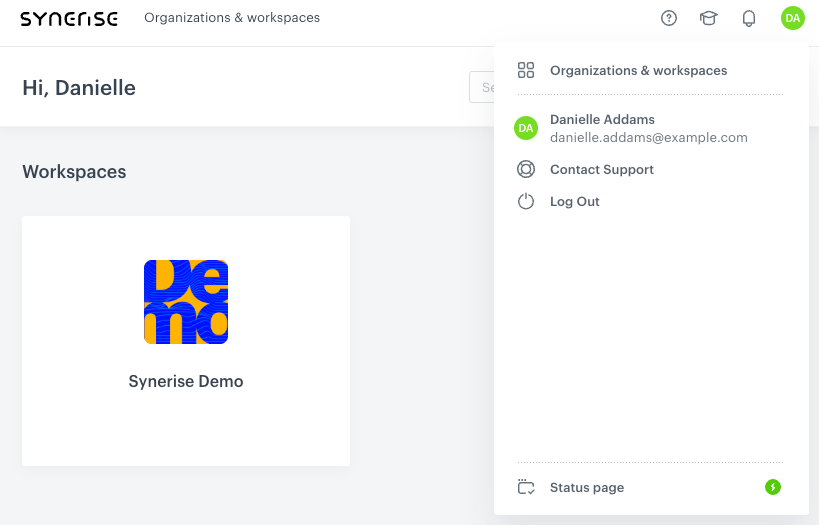
If you haven't set up a 2FA method yet, you can do so after selecting a workspace. In the workspace list view, click your account avatar in the upper-right corner, select **My account**, and follow the [Enabling 2FA methods for individual account](/docs/settings/your-account/account-security#enabling-2fa-methods-for-individual-account) procedure from step 2.
Workspace list view
## Selecting a workspace or organization
After logging in, select the workspace or [organization](/docs/settings/organizations) you want to access. Organizations are centralized hubs for managing multiple workspaces and monitoring event consumption.
Some workspaces and organizations require 2FA. If you haven't set up a 2FA method, you will not be able to access them. See [Account security](/docs/settings/your-account/account-security) to enable 2FA for your account.
Workspace list view
## Main dashboard
After selecting a workspace, you are redirected to the main dashboard. The dashboard gives you a real-time snapshot of your workspace's activity for the current day:
- Total number of profiles in the database — both recognized and anonymous
- Number of profiles acquired today
- Number of events generated today
- Number of active profiles currently on your monitored website, broken down by channel: web, mobile browser, and mobile application
- List of the most recent events generated in the workspace
### Left sidebar
The left sidebar lists all features available in your workspace. Some features may not be accessible to you depending on the [role](/docs/settings/identity-access-management/permissions) you have been granted or your company's Synerise subscription.
| Module | Description | Examples |
|---|---|---|
| **Behavioral Data Hub** | Recognized and anonymous customer profiles in your database, [live aggregates](/docs/crm/aggregates/introduction-to-aggregates), [expressions](/docs/crm/expressions/introduction-to-expressions), customer attributes, and membership attributes. | [Use case library](/use-cases?filters=tags%3D%3D"Aggregates"+%7C%7C+tags%3D%3D"Expressions") |
| **Experience Hub** | Create and send [email](/docs/campaign/e-mail), [SMS](/docs/campaign/SMS), [mobile push](/docs/campaign/Mobile), [web push notifications](/docs/campaign/Webpush), and [in-app messages](/docs/campaign/in-app-messages), as well as personalized content through [Dynamic Content](/docs/campaign/dynamiccontent) and [Screen Views](/docs/campaign/screen-views). | [Use case library](/use-cases/?ordering=DESC&sortBy=publishDate&filters=module%3D%3D"communication") |
| **Decision Hub** | Create analyses: [funnels](/docs/analytics/funnels/introduction-to-funnels), [segmentations](/docs/analytics/segmentations/introduction-to-segmentations), [metrics](/docs/analytics/metrics/introduction-to-metrics), [histograms](/docs/analytics/histograms/introduction-to-histograms), [reports](/docs/analytics/reports/introduction-to-reports), [trends](/docs/analytics/trends/introduction-to-trends), and [geoanalytics](/docs/analytics/geoanalytics/introduction-to-geoanalytics). | [Use case library](/use-cases/?ordering=DESC&sortBy=publishDate&filters=module%3D%3D"analytics") |
| **Automation Hub** | Create workflows that automate business processes and multi-step marketing strategies. Trigger actions based on alerts, and exchange data with external sources through integrations, imports, and exports. | [Use case library](/use-cases/?ordering=DESC&sortBy=publishDate&filters=module%3D%3D%22automation%22) |
| **AI Hub** | [AI Predictions](/docs/ai-hub) for analyzing event probability and finding similar profiles; [AI Recommendations](/docs/ai-hub/recommendations-v2) for determining the most suitable item for a profile; [AI Search](/docs/ai-hub/ai-search) for customized on-site search results; [promotions](/docs/ai-hub/promotions) and [personalized promotions](/docs/ai-hub/personalized-promotions). | [Use case library](/use-cases/?ordering=DESC&sortBy=publishDate&filters=module%3D%3D%22ai+search%22) |
| **Data Modeling Hub** | Create and reuse content (documents, voucher pools) and manage workspace data: events, customer attributes, tags, profile tags, and files. | [Use case library](/use-cases/?ordering=DESC&sortBy=publishDate&filters=module%3D%3D%22data+management%22) |
| **Settings** | Manage user accounts, workspace security (domain management, password policy, IP allow-list, SSO), and access control (roles, user invitations). Configure integrations (API keys, tracking code, external providers) and Experience Hub accounts, message limits, and control groups. Set up the AI engine for Recommendations, Search, and Predictions. | — |
### Search
To quickly find objects without navigating module by module, use the search bar at the top of the dashboard. You can search for profiles, workspace users, objects, templates, campaigns, workflows, data transformations, predictions, analyses, coupons, catalogs, and API keys.
### Educational resources and announcements
The top bar of the Synerise platform, accessible from every module, contains links to learning resources and platform updates.
Top bar of the Synerise platform
| Element | Description |
|---|---|
| **1: Synerise Hub** | Opens the main documentation page, where you can explore the user guide, use case library, and developer guide. |
| **2: Synerise Academy** | Opens [Synerise Academy](https://academy.synerise.com/), an e-learning platform with courses on Synerise modules and features. Completing a course and passing its exam earns you a certificate. |
| **3: Notifications** | Opens a sidebar with a changelog listing the latest fixes, improvements, new features, and use cases. |
## Feature availability
Some features in Synerise are released gradually. The access level of a feature indicates its maturity and the conditions under which it can be used.
### Private Preview
The feature is available to a select group of customers and strategic partners for early validation. Features in Private Preview are marked with a **Preview** badge next to their name in the interface. Access is by invitation only and typically involves close collaboration with the Synerise product team. The feature may have limited scope, evolving APIs, and workspace-specific constraints. It is not recommended for production traffic or mission-critical workflows. Participant feedback directly shapes the feature's roadmap and final design.
### Public Preview
The feature is available to all Synerise customers who choose to enable it in their workspace. Features in Public Preview are marked with a **Preview** badge next to their name in the interface. The feature is functional and increasingly stable, but is still being refined based on real-world usage across diverse configurations — including multi-brand setups, high-volume catalogs, and cross-market deployments. SLAs do not apply, and behavior or configuration options may change before the final release. Public Preview is suitable for testing, proof-of-concept projects, and non-critical use cases.
### General Availability (GA)
The feature is fully released and production-ready across all Synerise workspaces. It is covered by standard SLAs, fully documented, and supported through regular support channels. GA features are built to operate reliably at enterprise scale. Any future changes follow Synerise's standard versioning and deprecation policies.
 **Behavioral Data Hub** | Recognized and anonymous customer profiles in your database, [live aggregates](/docs/crm/aggregates/introduction-to-aggregates), [expressions](/docs/crm/expressions/introduction-to-expressions), customer attributes, and membership attributes. | [Use case library](/use-cases?filters=tags%3D%3D"Aggregates"+%7C%7C+tags%3D%3D"Expressions") |
|
**Behavioral Data Hub** | Recognized and anonymous customer profiles in your database, [live aggregates](/docs/crm/aggregates/introduction-to-aggregates), [expressions](/docs/crm/expressions/introduction-to-expressions), customer attributes, and membership attributes. | [Use case library](/use-cases?filters=tags%3D%3D"Aggregates"+%7C%7C+tags%3D%3D"Expressions") |
|  **Experience Hub** | Create and send [email](/docs/campaign/e-mail), [SMS](/docs/campaign/SMS), [mobile push](/docs/campaign/Mobile), [web push notifications](/docs/campaign/Webpush), and [in-app messages](/docs/campaign/in-app-messages), as well as personalized content through [Dynamic Content](/docs/campaign/dynamiccontent) and [Screen Views](/docs/campaign/screen-views). | [Use case library](/use-cases/?ordering=DESC&sortBy=publishDate&filters=module%3D%3D"communication") |
|
**Experience Hub** | Create and send [email](/docs/campaign/e-mail), [SMS](/docs/campaign/SMS), [mobile push](/docs/campaign/Mobile), [web push notifications](/docs/campaign/Webpush), and [in-app messages](/docs/campaign/in-app-messages), as well as personalized content through [Dynamic Content](/docs/campaign/dynamiccontent) and [Screen Views](/docs/campaign/screen-views). | [Use case library](/use-cases/?ordering=DESC&sortBy=publishDate&filters=module%3D%3D"communication") |
|  **Decision Hub** | Create analyses: [funnels](/docs/analytics/funnels/introduction-to-funnels), [segmentations](/docs/analytics/segmentations/introduction-to-segmentations), [metrics](/docs/analytics/metrics/introduction-to-metrics), [histograms](/docs/analytics/histograms/introduction-to-histograms), [reports](/docs/analytics/reports/introduction-to-reports), [trends](/docs/analytics/trends/introduction-to-trends), and [geoanalytics](/docs/analytics/geoanalytics/introduction-to-geoanalytics). | [Use case library](/use-cases/?ordering=DESC&sortBy=publishDate&filters=module%3D%3D"analytics") |
|
**Decision Hub** | Create analyses: [funnels](/docs/analytics/funnels/introduction-to-funnels), [segmentations](/docs/analytics/segmentations/introduction-to-segmentations), [metrics](/docs/analytics/metrics/introduction-to-metrics), [histograms](/docs/analytics/histograms/introduction-to-histograms), [reports](/docs/analytics/reports/introduction-to-reports), [trends](/docs/analytics/trends/introduction-to-trends), and [geoanalytics](/docs/analytics/geoanalytics/introduction-to-geoanalytics). | [Use case library](/use-cases/?ordering=DESC&sortBy=publishDate&filters=module%3D%3D"analytics") |
|  **Automation Hub** | Create workflows that automate business processes and multi-step marketing strategies. Trigger actions based on alerts, and exchange data with external sources through integrations, imports, and exports. | [Use case library](/use-cases/?ordering=DESC&sortBy=publishDate&filters=module%3D%3D%22automation%22) |
|
**Automation Hub** | Create workflows that automate business processes and multi-step marketing strategies. Trigger actions based on alerts, and exchange data with external sources through integrations, imports, and exports. | [Use case library](/use-cases/?ordering=DESC&sortBy=publishDate&filters=module%3D%3D%22automation%22) |
|  **AI Hub** | [AI Predictions](/docs/ai-hub) for analyzing event probability and finding similar profiles; [AI Recommendations](/docs/ai-hub/recommendations-v2) for determining the most suitable item for a profile; [AI Search](/docs/ai-hub/ai-search) for customized on-site search results; [promotions](/docs/ai-hub/promotions) and [personalized promotions](/docs/ai-hub/personalized-promotions). | [Use case library](/use-cases/?ordering=DESC&sortBy=publishDate&filters=module%3D%3D%22ai+search%22) |
|
**AI Hub** | [AI Predictions](/docs/ai-hub) for analyzing event probability and finding similar profiles; [AI Recommendations](/docs/ai-hub/recommendations-v2) for determining the most suitable item for a profile; [AI Search](/docs/ai-hub/ai-search) for customized on-site search results; [promotions](/docs/ai-hub/promotions) and [personalized promotions](/docs/ai-hub/personalized-promotions). | [Use case library](/use-cases/?ordering=DESC&sortBy=publishDate&filters=module%3D%3D%22ai+search%22) |
|  **Data Modeling Hub** | Create and reuse content (documents, voucher pools) and manage workspace data: events, customer attributes, tags, profile tags, and files. | [Use case library](/use-cases/?ordering=DESC&sortBy=publishDate&filters=module%3D%3D%22data+management%22) |
|
**Data Modeling Hub** | Create and reuse content (documents, voucher pools) and manage workspace data: events, customer attributes, tags, profile tags, and files. | [Use case library](/use-cases/?ordering=DESC&sortBy=publishDate&filters=module%3D%3D%22data+management%22) |
|  **Settings** | Manage user accounts, workspace security (domain management, password policy, IP allow-list, SSO), and access control (roles, user invitations). Configure integrations (API keys, tracking code, external providers) and Experience Hub accounts, message limits, and control groups. Set up the AI engine for Recommendations, Search, and Predictions. | — |
### Search
To quickly find objects without navigating module by module, use the search bar at the top of the dashboard. You can search for profiles, workspace users, objects, templates, campaigns, workflows, data transformations, predictions, analyses, coupons, catalogs, and API keys.
### Educational resources and announcements
The top bar of the Synerise platform, accessible from every module, contains links to learning resources and platform updates.
**Settings** | Manage user accounts, workspace security (domain management, password policy, IP allow-list, SSO), and access control (roles, user invitations). Configure integrations (API keys, tracking code, external providers) and Experience Hub accounts, message limits, and control groups. Set up the AI engine for Recommendations, Search, and Predictions. | — |
### Search
To quickly find objects without navigating module by module, use the search bar at the top of the dashboard. You can search for profiles, workspace users, objects, templates, campaigns, workflows, data transformations, predictions, analyses, coupons, catalogs, and API keys.
### Educational resources and announcements
The top bar of the Synerise platform, accessible from every module, contains links to learning resources and platform updates.
