In this section, you can set limits on how many messages (emails, SMS, mobile, and web push notifications) are sent to a **single profile** within a specified time period.

Limits can be set in several ways: either per communication channel—with separate rules for messages sent from the Experience or Automation Hubs — or per tag.

- **Experience Hub** – Limits are applied per profile for messages sent through Experience Hub within each specific channel.  
- **Automation Hub** – Limits are applied per profile for messages sent through Automation Hub within each specific channel. More details are provided later in this article.  
- **Tags** – Limits are enforced per profile regardless of the communication channel, combining all tagged messages. 
    - This means the limit counts all tagged messages, whether they come from email, SMS, push notifications, or whether they were sent through  Experience or Automation Hubs. 
    - For example, you can set different limits for tags such as "personalization" and "newsletter," enabling you to customize sending limits based on the communication’s purpose rather than the channel used. 
    - If a message has multiple tags and the limit for any one of them is exceeded, the message will not be sent.

## Communication limit events

When messages cannot be sent due to capping the following events appear on the profile's card:

- [`newsletter.capping`](/docs/assets/events/event-reference/email#newslettercapping)
- [`push.capping`](/docs/assets/events/event-reference/mobile-push#pushcapping)       
- [`sms.capping`](/docs/assets/events/event-reference/sms#smscapping)         
- [`webpush.capping`](/docs/assets/events/event-reference/webpush#webpushcapping)    

    <figure>
    <img src="/api/docs/image/54176ad07f146575310749eba44b7c2f42c1b327/docs/settings/_gfx/sms-capping-tag.png" alt="Example SMS capping event" class="medium">
    <figcaption>Example SMS capping event; this event contains information about the tag limit exhausion and the ID of the tag whose limit is exceeded</figcaption>
    </figure>

## What happens to blocked messages?
Mass messages sent via Experience Hub that exceed these limits are blocked and not queued for later sending. You can monitor the number of blocked messages in the message list and choose to resend them manually if needed.

For automated workflows, blocked messages are only retried if the profile once again meets the workflow’s defined conditions.


<div class="admonition admonition-important"><div class="admonition-icon"><svg xmlns="http://www.w3.org/2000/svg" fill="none" viewBox="0 0 24 24" stroke="currentColor" stroke-width="2.5"><path stroke-linecap="round" stroke-linejoin="round" d="M12 8v4m0 4h.01M21 12a9 9 0 11-18 0 9 9 0 0118 0z" /></svg></div><div class="admonition-body"><div class="admonition-content">

When a message fails to send (triggering a *.notSent event with error details), the attempt still counts toward your communication limits.

</div></div></div>


## Defining limits
---  


<div class="admonition admonition-warning"><div class="admonition-icon"><svg xmlns="http://www.w3.org/2000/svg" fill="none" viewBox="0 0 24 24" stroke="currentColor" stroke-width="2.5"><path stroke-linecap="round" stroke-linejoin="round" d="M12 9v2m0 4h.01m-6.938 4h13.856c1.54 0 2.502-1.667 1.732-2.5L13.732 4c-.77-.833-1.964-.833-2.732 0L4.082 16.5c-.77.833.192 2.5 1.732 2.5z" /></svg></div><div class="admonition-body"><div class="admonition-content">

Changes made to communication limit settings may take up to approximately 5 minutes to take effect due to system caching. Please allow this time before expecting the updated limits to apply.

</div></div></div>


<figure><img src="/api/docs/image/54176ad07f146575310749eba44b7c2f42c1b327/docs/settings/_gfx/communication-limit.png" class="large" alt="The main view of the communication limit in Settings > Communication Limit"><figcaption>The main view of the communication limit in Settings > Communication Limit</figcaption></figure>

### For Communication and/or Automation

1. Go to <img src="/api/docs/image/54176ad07f146575310749eba44b7c2f42c1b327/icons/settings-icon.svg" alt="Settings icon" class="icon"> **Settings > Communication Limits**.
2. On the section for the dedicated channel (email, SMS, mobile push, or web push), click **Show**.  
    **Result**: The following toggles appear:  
    <figure><img src="/api/docs/image/54176ad07f146575310749eba44b7c2f42c1b327/docs/settings/_gfx/automation-and-communication-toggles.png" class="large" alt="The main view of the communication limit in Settings > Communication Limit"><figcaption>The main view of the communication limit in Settings > Communication Limit</figcaption></figure>
3. To:  
    - impose limit on messages sent through Experience Hub, enable the **Automation limits** toggle.
    - impose limit on messages sent through Experience Hub, enable the **Communication limits** toggle.
3. In the **Limit** section, enter the maximum number of messages you want to send to a profile within time unit specified in the **Period** field.
4. In the **Period** field, enter the time unit of the limit (number and unit, for example, 1 day)
    
   <details class="accordion"><summary>Example configurations</summary><div class="accordion-content"><figure> <img src="/api/docs/image/54176ad07f146575310749eba44b7c2f42c1b327/docs/settings/_gfx/campaign-limits-example.png" alt="Exemplary communication limit config" class="full"> <figcaption> 5 emails per one day </figcaption> </figure> In the above configuration, a profile can receive up to 5 mass emails per day. Before sending an email, the system checks how many of them a profile received during last 24 hours. <figure> <img src="/api/docs/image/54176ad07f146575310749eba44b7c2f42c1b327/docs/settings/_gfx/campaign-limits-example-two.png" alt="Exemplary communication limit config" class="full"> <figcaption> 25 emails per 30 days </figcaption> </figure> In the above configuration, a profile can receive up to 25 mass emails per 30 days. Before sending an email, the system checks how many of them a profile received during last 30 days.</div></details>

1. Repeat step 3 and 4 for preferable message types in Experience and Automation Hubs.
2. Confirm settings by clicking **Apply**.  
    **Result**: When a limit is exceeded, a capping event is generated in the activity list of the profile that was supposed to receive the message but didn’t due to the limit being reached. This event includes information about the capping type (`cappingType`). If the limit was exceeded in Automation Hub, the ID of the workflow is included.  
    <figure>
    <img src="/api/docs/image/54176ad07f146575310749eba44b7c2f42c1b327/docs/settings/_gfx/newsletter-capping-automation.png" alt="Example email capping event" class="medium">
    <figcaption>Example email capping event</figcaption>
    </figure>


### For tags


<div class="admonition admonition-note"><div class="admonition-icon"><svg xmlns="http://www.w3.org/2000/svg" fill="none" viewBox="0 0 24 24" stroke="currentColor" stroke-width="2.5"><path stroke-linecap="round" stroke-linejoin="round" d="M13 16h-1v-4h-1m1-4h.01M21 12a9 9 0 11-18 0 9 9 0 0118 0z" /></svg></div><div class="admonition-body"><div class="admonition-content">

The instructions on how to apply tags to campaigns is available in [Tagging campaigns](/docs/campaign/tagging-campaigns)

</div></div></div>


1. Go to <img src="/api/docs/image/54176ad07f146575310749eba44b7c2f42c1b327/icons/settings-icon.svg" alt="Settings icon" class="icon"> **Settings > Communication Limits**.
2. On the **Tags** section, click **Show**.  
3. Click **Add tag**.  
    **Result**: A dropdown list appears. The list contains tags only from the predefined **campaigns** folder.
4. Select the tags from the list.  
5. For each tag you select, define a limit:  
    1. In the **Limit** field, enter the maximum number of messages you want to send to a profile within time unit specified in the **Period** field.
    2. In the **Period** field, specify the duration of the limit using a number and a time unit (for example, “1 day”).  
    **EXAMPLE**: Defining a limit to 1 message, 1 day means that a profile can receive a campaign with a specific tag only once a day.
6. Confirm the settings by clicking **Apply**.  
    **Result**: When a tag limit is exceeded, a capping event is generated in the activity list of the profile that was supposed to receive the message but didn’t due to the limit being reached. This event includes information about the capping type (`cappingType`) and the ID of the tag (`cappedTagIds`) for which the limit was exceeded.  
    <figure>
    <img src="/api/docs/image/54176ad07f146575310749eba44b7c2f42c1b327/docs/settings/_gfx/sms-capping-tag.png" alt="Example SMS capping event" class="medium">
    <figcaption>Example SMS capping event</figcaption>
    </figure>


## Granular workflow limits vs global automation limits
---

Automation Hub defines its own limits:
- how many times a workflow can be triggered in a specific time unit
- how many times a trigger can be activated in a workflow
- how many times an action can be repeated in a workflow


  <div class="admonition admonition-note"><div class="admonition-icon"><svg xmlns="http://www.w3.org/2000/svg" fill="none" viewBox="0 0 24 24" stroke="currentColor" stroke-width="2.5"><path stroke-linecap="round" stroke-linejoin="round" d="M13 16h-1v-4h-1m1-4h.01M21 12a9 9 0 11-18 0 9 9 0 0118 0z" /></svg></div><div class="admonition-body"><div class="admonition-content">

  You can read about automation limits in [Limits](/docs/automation/automation-capping).

  </div></div></div>


  While defining the limits in the **Settings > Communication Limits** menu, remember about the limits for workflows in Automation Hub and the other way round. Otherwise conflicts may occur between them. 

  **Suggestions**:
- Keep track of the active workflows and carefully estimate the number of sent messages through them (in your calculations include both marketing messages and system emails such as transaction summary, discount coupon emails, if you use Automation Hub to send such emails).
- Pay attention to workflows triggered by frequently occurring profile activities, which contain actions that sent messages to profiles.
- Consult each modification of limit of action nodes (Send Email, Send SMS, Send Web Push) with the global limits.

## Ignoring limits

### Automation Hub
---
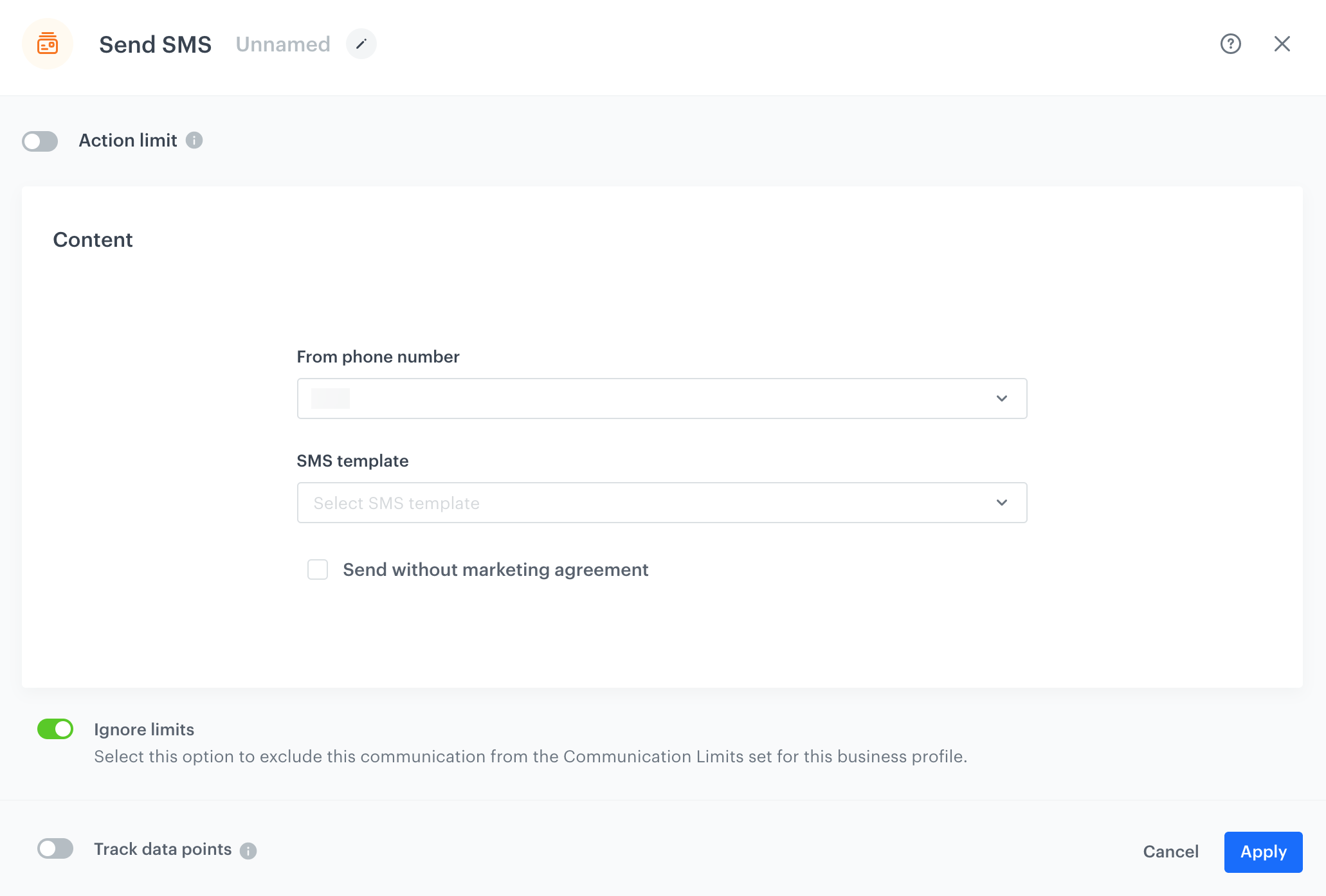
If your workflows send system messages such as transaction confirmations, information about shipping, notifications about delay of the order delivery, and so on, you may want to make exceptions to such kind of the messages.  

For such circumstances, in the action nodes: [Send Email](/docs/automation/actions/send-email), [Send Web Push](/docs/automation/actions/send-webpush-node), [Send Mobile Push](/docs/automation/actions/send-mobile-push), and [Send SMS](/docs/automation/actions/send-sms-node), you may enable the **Ignore limits** option, which causes sending the message even if the  the global limits for messages sent to a profile per day defined in **Settings > Communication Limits** are exceeded.

<figure>
<img src="/api/docs/image/54176ad07f146575310749eba44b7c2f42c1b327/docs/automation/_gfx/ignore-global-limits.png" alt="Ignore limits option in Send SMS node" class="full">
<figcaption>Enabled Ignore limits option in Send SMS node</figcaption>
</figure>

### Experience Hub

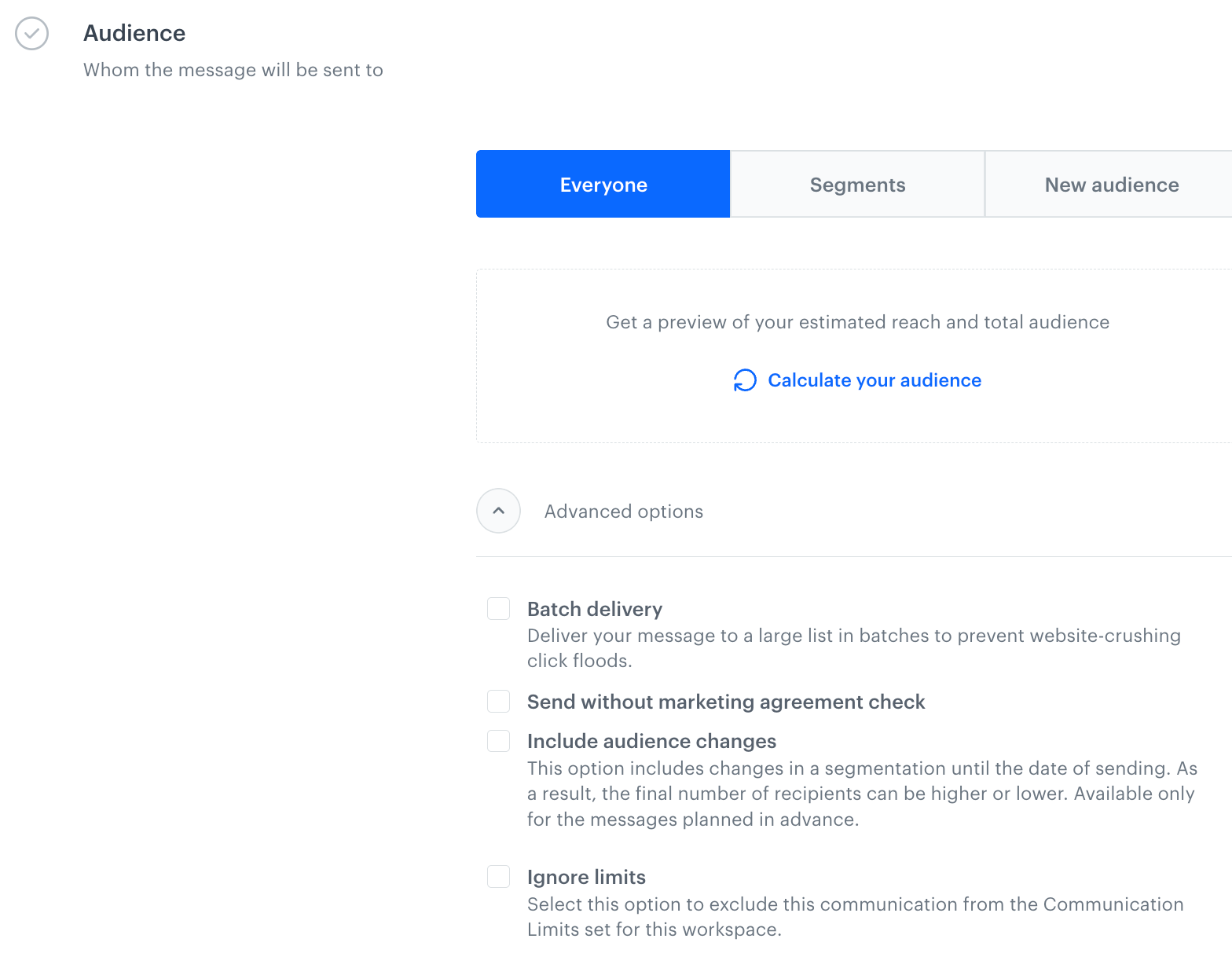
If you would like to ignore limits on the message you send through Experience Hub, you can use the **Ignore limits** option in the **Audience** settings.  

<figure>
<img src="/api/docs/image/54176ad07f146575310749eba44b7c2f42c1b327/docs/settings/_gfx/communication-ignore-limits.png" alt="Ignore limits option in the Audience section while creating a message" class="medium">
<figcaption>Ignore limits option in the Audience section while creating a message</figcaption>
</figure>