
In this section, you can configure global loyalty settings that apply to all [promotions](/docs/ai-hub/promotions) in your workspace. The settings are organized into four groups.

To access these settings, go to <img src="/api/docs/image/54176ad07f146575310749eba44b7c2f42c1b327/icons/settings-icon.svg" alt="Settings icon" class="icon"> **Settings > (Configuration) Loyalty**.  


<div class="admonition admonition-important"><div class="admonition-icon"><svg xmlns="http://www.w3.org/2000/svg" fill="none" viewBox="0 0 24 24" stroke="currentColor" stroke-width="2.5"><path stroke-linecap="round" stroke-linejoin="round" d="M12 8v4m0 4h.01M21 12a9 9 0 11-18 0 9 9 0 0118 0z" /></svg></div><div class="admonition-body"><div class="admonition-content">

Some settings can only be configured by means of the [Update settings for current Workspace](https://developers.synerise.com/LoyaltyandEngagement/LoyaltyandEngagement.html#tag/Promotion-settings/operation/endpointSettingsUpdateSettingsPUT) API method. Before sending an update, to avoid overwriting values configured in the user interface, retrieve the current settings by using the [Get settings for current Workspace](https://developers.synerise.com/LoyaltyandEngagement/LoyaltyandEngagement.html#tag/Promotion-settings/operation/endpointSettingsGetSettingsGET) API method.
</div></div></div>


## General

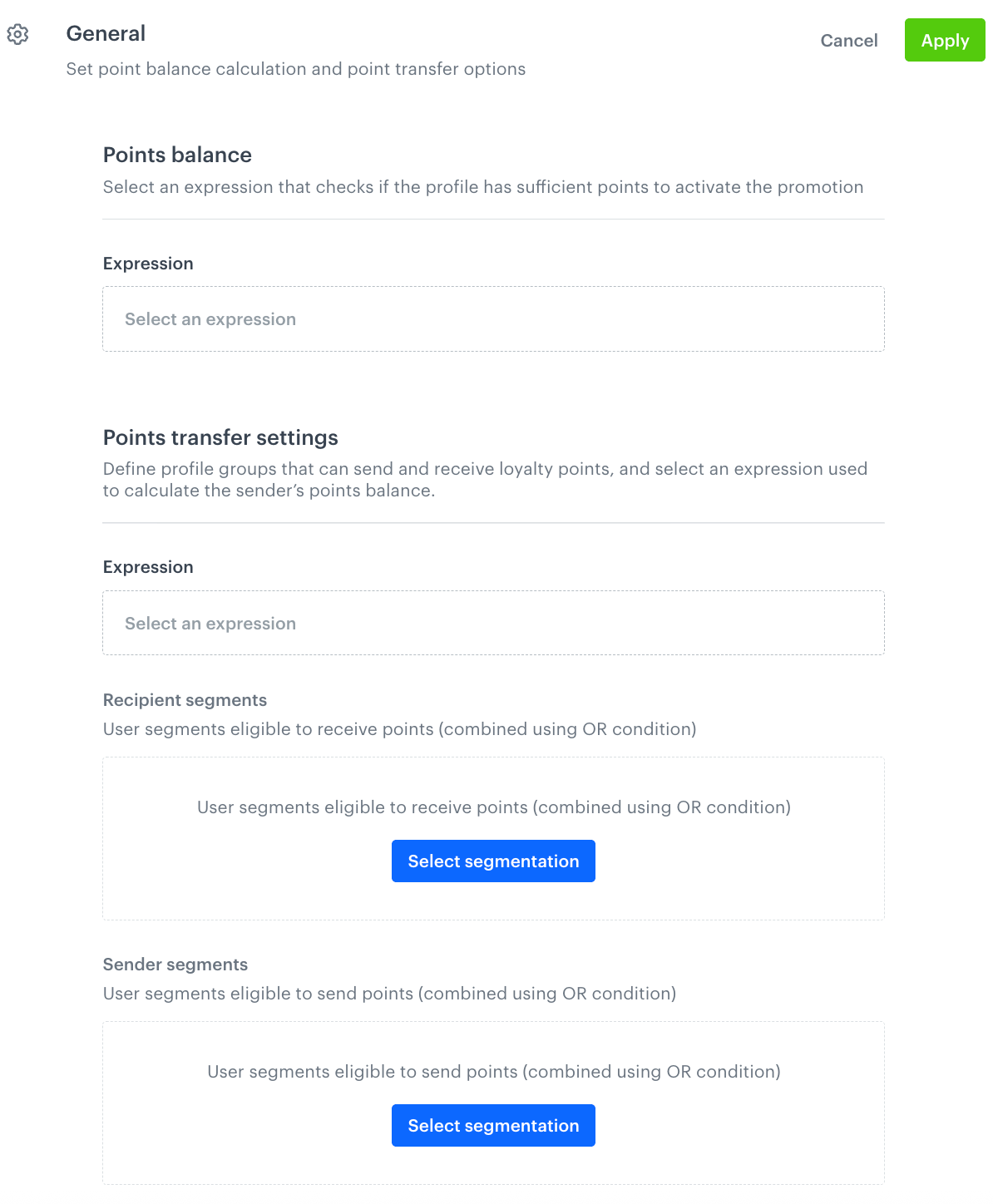
In this section, you can configure the expression used to check a profile's point balance and define profile groups eligible to transfer loyalty points.

1. Go to <img src="/api/docs/image/54176ad07f146575310749eba44b7c2f42c1b327/icons/settings-icon.svg" alt="Settings icon" class="icon"> **Settings > (Configuration) Loyalty**.
2. On the **General** section, click **Show**.  
    **Result**:  
    <figure><img src="/api/docs/image/54176ad07f146575310749eba44b7c2f42c1b327/docs/settings/_gfx/promotion-settings-general.png" class="medium" alt="The General section of the global promotion settings"><figcaption>The General section of the global promotion settings</figcaption></figure>  

3. In the **Points balance** section, from the **Expression** dropdown, select an expression that checks whether a profile has sufficient points to activate a promotion:  
    
   <div class="admonition admonition-tip"><div class="admonition-icon"><svg xmlns="http://www.w3.org/2000/svg" fill="none" viewBox="0 0 24 24" stroke="currentColor" stroke-width="2.5"><path stroke-linecap="round" stroke-linejoin="round" d="M9.663 17h4.673M12 3v1m6.364 1.636l-.707.707M21 12h-1M4 12H3m3.343-5.657l-.707-.707m2.828 9.9a5 5 0 117.072 0l-.548.547A3.374 3.374 0 0014 18.469V19a2 2 0 11-4 0v-.531c0-.895-.356-1.754-.988-2.386l-.548-.547z" /></svg></div><div class="admonition-body"><div class="admonition-content">

   In [Loyalty programs basics](/use-cases/loyalty-programs-basics) use case, you can learn how to create an expression that calculates point balance.

   </div></div></div>

4. In the **Points transfer settings** section, define which profile groups can send and receive loyalty points:
    1. From the **Expression** dropdown, select an expression used to calculate the sender's point balance.
    2. In the **Recipient segments** section, click **Select segmentation** and select the segmentation(s) with profiles who are eligible to receive points. If you select several segmentations, they are combined using an OR condition.
    3. In the **Sender segments** section, click **Select segmentation** and select the segmentation(s) with profiles who are eligible to send points. If you select several segmentations, they are combined using an OR condition.
5. Click **Apply**.

## Security & Locks

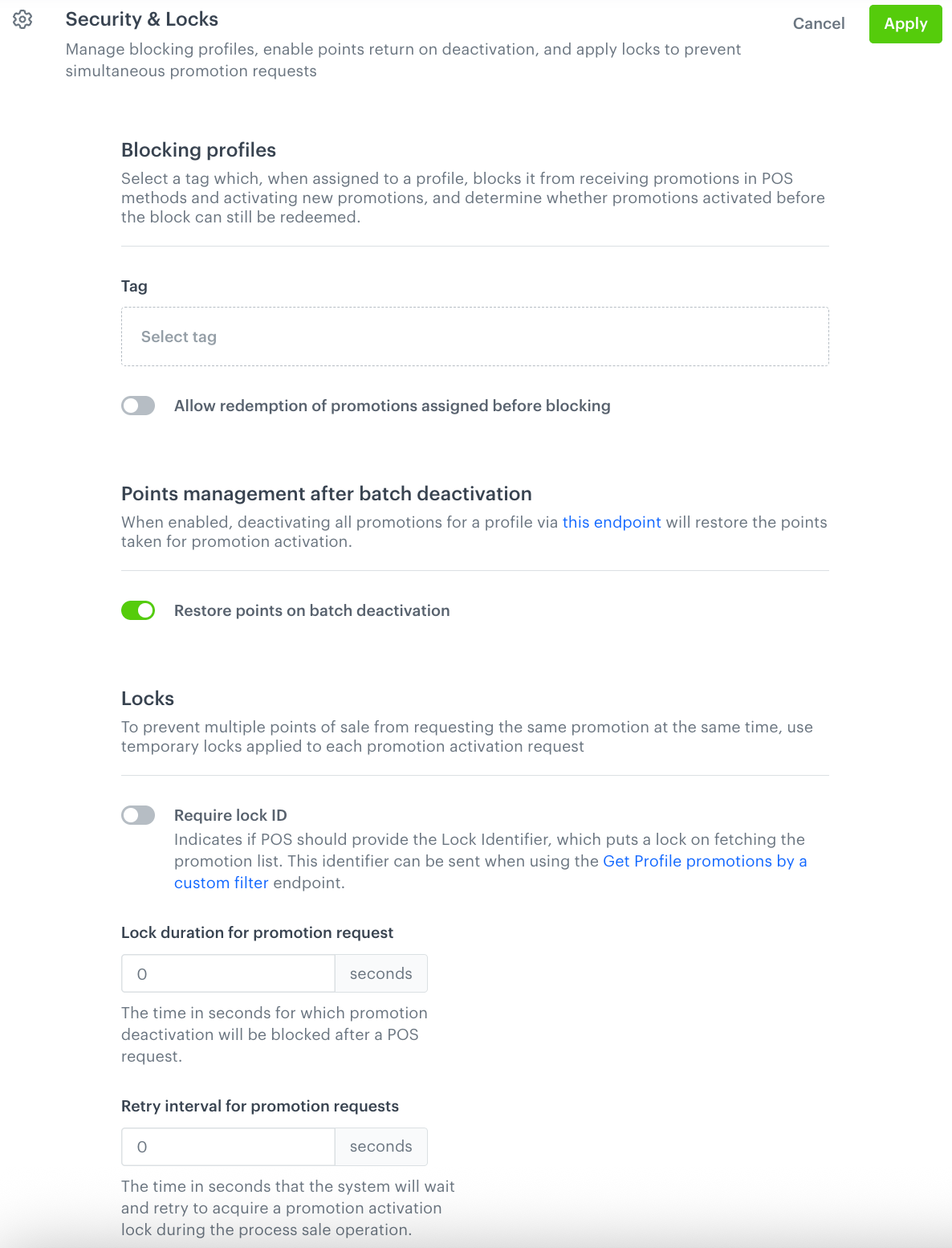
In this section, you can configure which profiles are blocked from receiving promotions, manage points restoration on deactivation, and apply locks to prevent simultaneous promotion requests from multiple points of sale.

1. Go to <img src="/api/docs/image/54176ad07f146575310749eba44b7c2f42c1b327/icons/settings-icon.svg" alt="Settings icon" class="icon"> **Settings > (Configuration) Loyalty**.
2. On the **Security & Locks** section, click **Show**.  
    **Result**:  
    <figure><img src="/api/docs/image/54176ad07f146575310749eba44b7c2f42c1b327/docs/settings/_gfx/promotion-settings-security-locks.png" class="medium" alt="The Security and Locks section of the global promotion settings"><figcaption>The Security and Locks section of the global promotion settings</figcaption></figure>  

3. In the **Blocking profiles** section, configure which profiles are blocked from receiving promotions:
    1. From the **Tag** dropdown, select a tag.  
        Profiles assigned with this tag are blocked from receiving promotions through POS methods and from activating new promotions.
    2. To allow profiles to redeem promotions that were assigned before the tag was applied, enable **Allow redemption of promotions assigned before blocking**.
4. In the **Points management after batch deactivation** section, to return the loyalty points spent on promotion activation when all of a profile's promotions are deactivated through [the batch deactivation endpoint](https://developers.synerise.com/LoyaltyandEngagement/LoyaltyandEngagement.html#tag/Promotions/operation/BatchDeactivateAsProfile), enable **Restore points on batch deactivation**. 
5. In the **Locks** section, configure temporary locks that prevent multiple points of sale from requesting the same promotion at the same time:
    1. To require POS to provide a Lock Identifier when fetching the promotion list, enable **Require lock ID**. This identifier can be sent using the [Get Profile promotions by a custom filter](https://developers.synerise.com/LoyaltyandEngagement/LoyaltyandEngagement.html#tag/Promotions/operation/GetClientPromotionsByACustomFilter) endpoint.
    2. In **Lock duration for promotion request**, enter the time in seconds during which promotion deactivation is blocked after a POS request.
    3. In **Retry interval for promotion requests**, enter the time in seconds the system waits before retrying to acquire a promotion lock during the process sale operation.
6. Click **Apply**.

## Basket & pricing rules

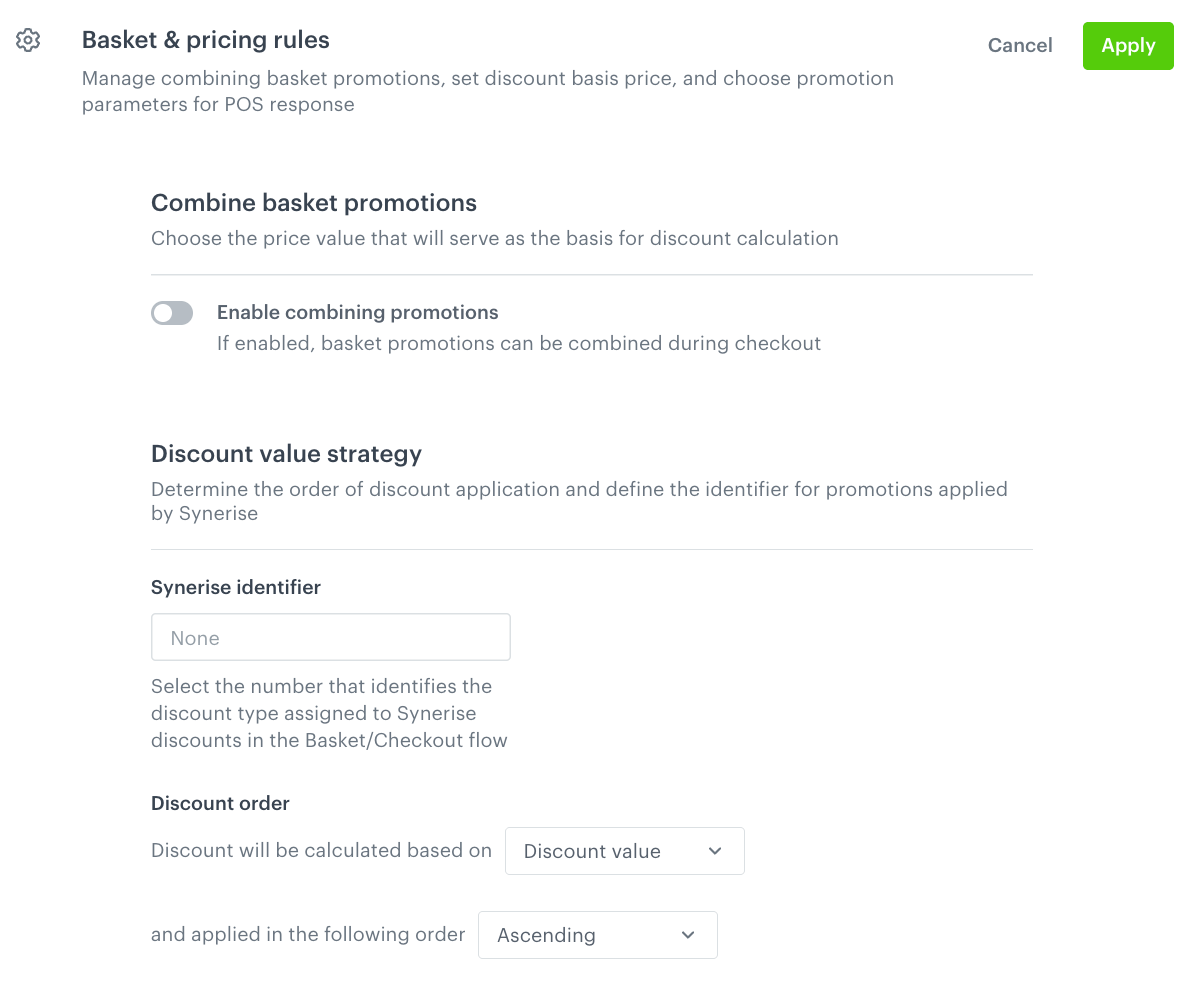
In this section, you can configure whether basket promotions can be combined during checkout and define how discounts are ordered and calculated.

1. Go to <img src="/api/docs/image/54176ad07f146575310749eba44b7c2f42c1b327/icons/settings-icon.svg" alt="Settings icon" class="icon"> **Settings > (Configuration) Loyalty**.
2. On the **Basket & pricing rules** section, click **Show**.  
    **Result**:  
    <figure><img src="/api/docs/image/54176ad07f146575310749eba44b7c2f42c1b327/docs/settings/_gfx/promotion-settings-basket-pricing-rules.png" class="medium" alt="The Basket and pricing rules section of the global promotion settings"><figcaption>The Basket and pricing rules section of the global promotion settings</figcaption></figure>  

3. In the **Combine basket promotions** section, configure combining promotions:
    1. To allow multiple basket promotions to apply to a single checkout, enable **Enable combining promotions**.
    2. If combining is enabled, select the price to use as the basis for discount calculation:
        - **Always use original price** — each discount is calculated from the original item price.
        - **Use current price (discounted if applicable)** — each subsequent discount is calculated from the price after the previous discount was applied.
4. In the **Discount value strategy** section, define the order in which discounts are applied:
    1. In the **Synerise identifier** field, enter the number that identifies the discount type assigned to Synerise discounts in the Basket/Checkout flow.
    2. In the **Discount order** field, select the value used as the basis for ordering (for example, **Discount value**).
    3. Select the direction in which discounts are applied: **Ascending** or **Descending**.
5. Click **Apply**.

## Promotions settings

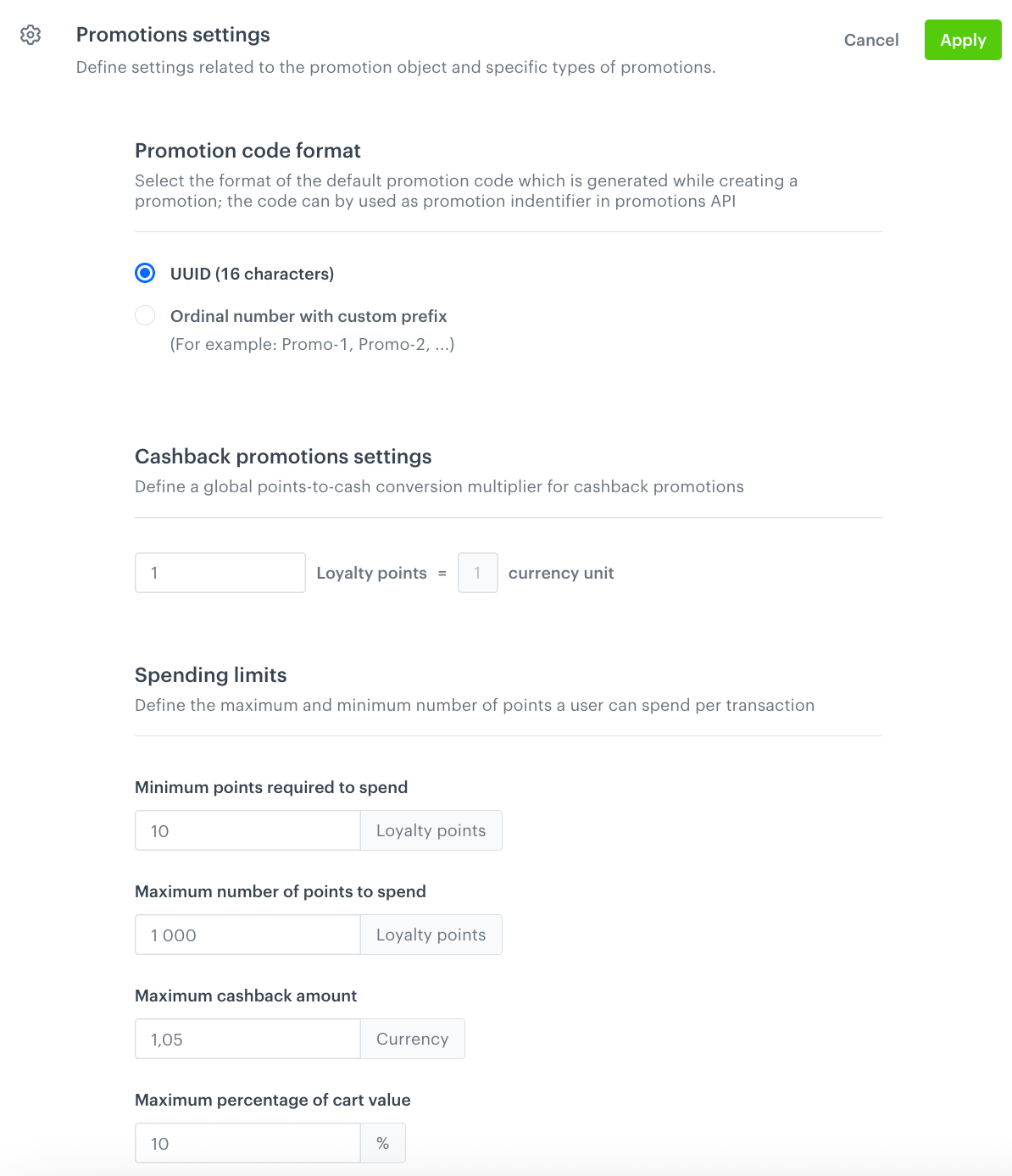
In this section, you can define the format of automatically generated promotion codes and configure cashback and spending limit rules.

1. Go to <img src="/api/docs/image/54176ad07f146575310749eba44b7c2f42c1b327/icons/settings-icon.svg" alt="Settings icon" class="icon"> **Settings > (Configuration) Loyalty**.
2. On the **Promotions settings** section, click **Show**.  
    **Result**:  
    <figure><img src="/api/docs/image/54176ad07f146575310749eba44b7c2f42c1b327/docs/settings/_gfx/promotion-settings.png" class="medium" alt="The Promotions settings section"><figcaption>The Promotions settings section</figcaption></figure>   

3. In the **Promotion code format** section, select the format for the default promotion code generated when creating a promotion. The code can be used as the promotion identifier in the promotions API:
    - **UUID (16 characters)** — generates a UUID as the promotion code.
    - **Ordinal number with custom prefix** — generates a code with a custom prefix and an incremental number (for example, Promo-1, Promo-2).
4. In the **Cashback promotions settings** section, enter the global points-to-cash conversion multiplier for cashback promotions. Define how many loyalty points equal one currency unit. These settings serve as global defaults for cashback promotions. When [Creating promotions for entire basket](/docs/ai-hub/promotions/creating-promotions-for-entire-basket), you can choose to apply these global rules or define a custom multiplier and spending limits for that promotion only.


5. In the **Spending limits** section, define the point spending boundaries per transaction:
    1. In **Minimum points required to spend**, enter the minimum number of loyalty points a profile must spend per transaction.
    2. In **Maximum number of points to spend**, enter the maximum number of loyalty points a profile can spend per transaction.
    3. In **Maximum cashback amount**, enter the maximum cashback value expressed in currency units.
    4. In **Maximum percentage of cart value**, enter the maximum cashback amount as a percentage of the cart value.
6. Click **Apply**.
