 **Automation Hub > Workflows > New workflow**.
2. Enter the name of the workflow.
3. On the dashboard, click **Add trigger**.
4. Select the **Data Changed** node.
5. Open the configuration window by clicking the node.
6. From the **Choose value** dropdown list, select **Attributes > newsletter_agreement_enabled**.
7. From the **Choose operator** dropdown list, select **Equal (String)**.
8. In the text field, enter `enabled`.
9. Click **Apply**.
10. On the **Data Changed** node, click **THEN**.
11. From the list, add a **Delay** node.
12. Open the configuration window by clicking the added node.
13. Change the delay to 60 seconds and click **Apply**.
14. If you want to only include customers who have not agreed to a newsletter before, add a filter node:
1. On the **Delay** node, click **THEN**.
2. From the dropdown list, select the **Profile Filter** node.
3. Open the configuration window by clicking the added node.
4. From the **Choose filter** dropdown list, select **Clients > Attributes > newsletter_agreement** (you can use the search field).
- If you use email address as a unique profile identifier, select **Clients > Attributes > newsletter_agreement**.
- If you [configured emails as non-unique](/docs/settings/configuration/non-unique-emails), select **Clients > Attributes** and then the attribute you configured as the email agreement indicator.
5. From the **Choose operator** dropdown list, select **Equal**.
**Result**: A text field appears.
6. In the text field, enter `enabled`.
7. Confirm by clicking **Apply**.
8. On the filter node, click **MATCHED**.
9. From the dropdown list, select the **End** node.
**Result**: If a profile already has newsletter subscription enabled, the journey ends at this point.
15. Continue configuring the automation depending on the scenario you need:
- [Enable agreement immediately (single opt-in)](#single-opt-in)
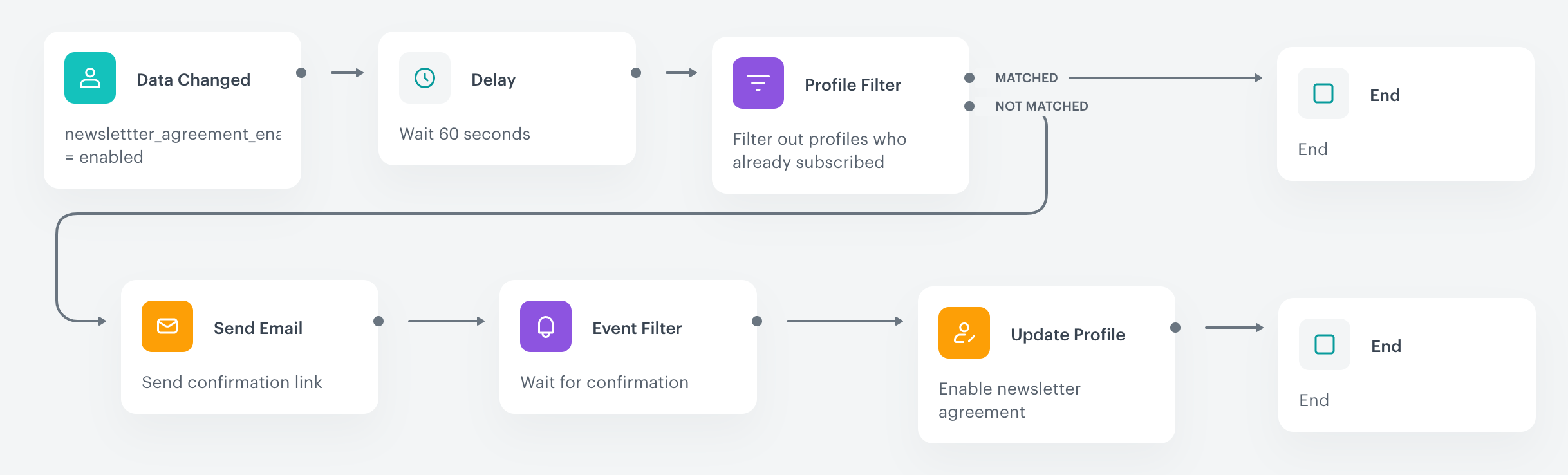
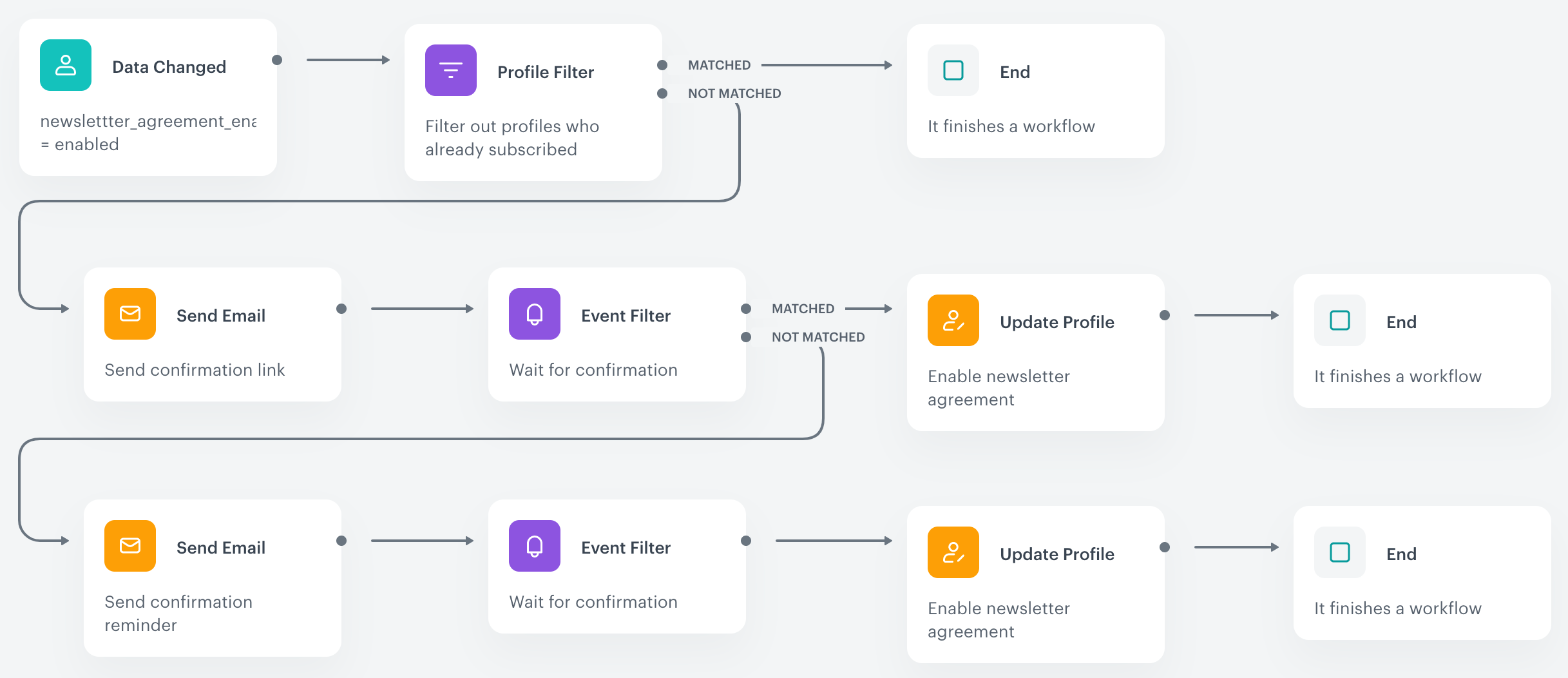
- [Enable agreement after confirmation (double opt-in)](#double-opt-in)
## Single opt-in
1. On the last node you added:
- If you added the optional filter for profiles who previously agreed to newsletters, click **NOT MATCHED** on the filter node.
- If you didn't add that filter, click **THEN** on the **Delay** node.
2. Select the **Update Profile** node.
3. Open the configuration window by clicking the new node.
4. From the left dropdown list, select the attribute:
- If you use email address as a unique profile identifier, select **Attributes > newsletter_agreement**.
- If you [configured emails as non-unique](/docs/settings/configuration/non-unique-emails), select **Attributes** and then the attribute you configured as the email agreement indicator.
5. From the right dropdown list, select **Change**.
6. In the text field that appears, enter `enabled`.
7. Click **Apply**.
8. If you want to send a notification, add a notification node:
1. On the **Update Profile** node, click **THEN**.
2. From the dropdown list, select the **Send Email** node.
3. Open the configuration window by clicking the new node.
4. In the **Sender details** section:
1. In the **From email address** field, select the email address from which the email is sent.
2. In the **From name** field, enter the name of the sender that displays in the customer mailbox.
3. In the **"Reply to" email address** field, select the email customers can reply to.
4. In the **"Reply to" name** field, enter the name of the sender.
5. Select the **Send without marketing agreement** checkbox.
5. In the **Content** section:
1. In the **Subject** field, enter the subject of the email (shown in the customer's mailbox).
2. In the **Template** field, select the template of the notification email.
6. In the **UTM and URL parameters** section, click **Skip step** and **Yes**.
7. In the **Additional parameters** section, click **Skip step** and **Yes**.
8. Click **Apply**.
9. On the last added node, click **THEN**.
10. From the dropdown list, select the **End** node.
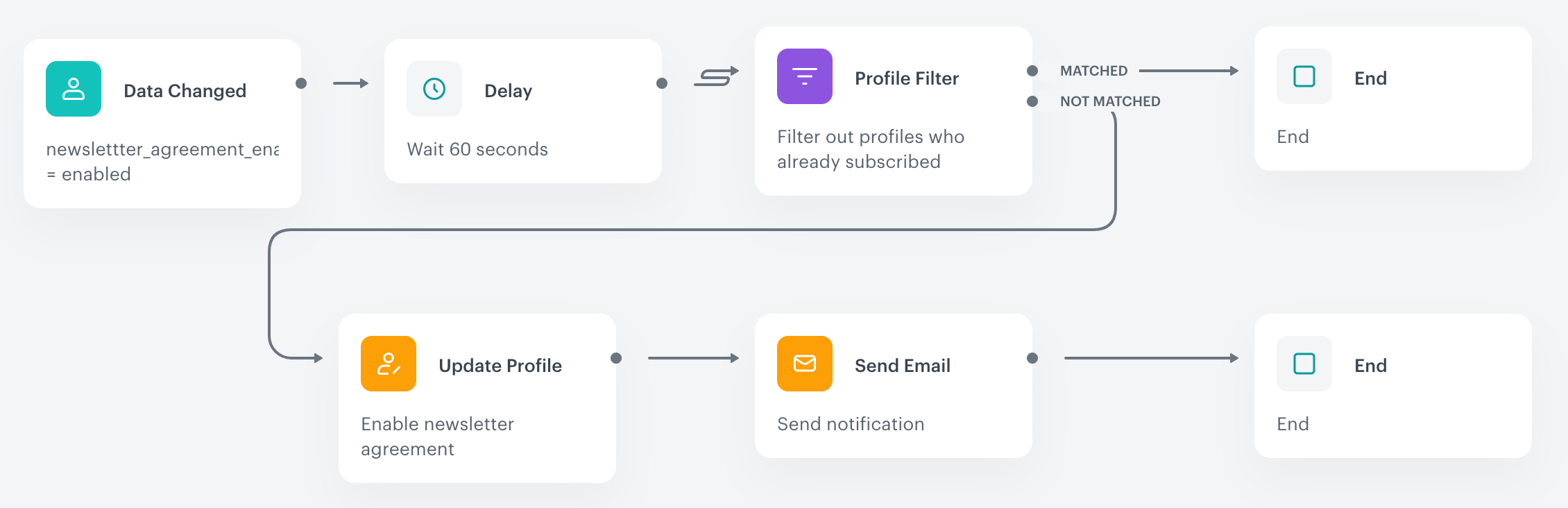
**Result**: The workflow looks similar to this:
**Automation Hub > Workflows > New workflow**.
2. Enter the name of the workflow.
3. On the dashboard, click **Add trigger**.
4. Select the **Data Changed** node.
5. Open the configuration window by clicking the node.
6. From the **Choose value** dropdown list, select **Attributes > newsletter_agreement_enabled**.
7. From the **Choose operator** dropdown list, select **Equal (String)**.
8. In the text field, enter `enabled`.
9. Click **Apply**.
10. On the **Data Changed** node, click **THEN**.
11. From the list, add a **Delay** node.
12. Open the configuration window by clicking the added node.
13. Change the delay to 60 seconds and click **Apply**.
14. If you want to only include customers who have not agreed to a newsletter before, add a filter node:
1. On the **Delay** node, click **THEN**.
2. From the dropdown list, select the **Profile Filter** node.
3. Open the configuration window by clicking the added node.
4. From the **Choose filter** dropdown list, select **Clients > Attributes > newsletter_agreement** (you can use the search field).
- If you use email address as a unique profile identifier, select **Clients > Attributes > newsletter_agreement**.
- If you [configured emails as non-unique](/docs/settings/configuration/non-unique-emails), select **Clients > Attributes** and then the attribute you configured as the email agreement indicator.
5. From the **Choose operator** dropdown list, select **Equal**.
**Result**: A text field appears.
6. In the text field, enter `enabled`.
7. Confirm by clicking **Apply**.
8. On the filter node, click **MATCHED**.
9. From the dropdown list, select the **End** node.
**Result**: If a profile already has newsletter subscription enabled, the journey ends at this point.
15. Continue configuring the automation depending on the scenario you need:
- [Enable agreement immediately (single opt-in)](#single-opt-in)
- [Enable agreement after confirmation (double opt-in)](#double-opt-in)
## Single opt-in
1. On the last node you added:
- If you added the optional filter for profiles who previously agreed to newsletters, click **NOT MATCHED** on the filter node.
- If you didn't add that filter, click **THEN** on the **Delay** node.
2. Select the **Update Profile** node.
3. Open the configuration window by clicking the new node.
4. From the left dropdown list, select the attribute:
- If you use email address as a unique profile identifier, select **Attributes > newsletter_agreement**.
- If you [configured emails as non-unique](/docs/settings/configuration/non-unique-emails), select **Attributes** and then the attribute you configured as the email agreement indicator.
5. From the right dropdown list, select **Change**.
6. In the text field that appears, enter `enabled`.
7. Click **Apply**.
8. If you want to send a notification, add a notification node:
1. On the **Update Profile** node, click **THEN**.
2. From the dropdown list, select the **Send Email** node.
3. Open the configuration window by clicking the new node.
4. In the **Sender details** section:
1. In the **From email address** field, select the email address from which the email is sent.
2. In the **From name** field, enter the name of the sender that displays in the customer mailbox.
3. In the **"Reply to" email address** field, select the email customers can reply to.
4. In the **"Reply to" name** field, enter the name of the sender.
5. Select the **Send without marketing agreement** checkbox.
5. In the **Content** section:
1. In the **Subject** field, enter the subject of the email (shown in the customer's mailbox).
2. In the **Template** field, select the template of the notification email.
6. In the **UTM and URL parameters** section, click **Skip step** and **Yes**.
7. In the **Additional parameters** section, click **Skip step** and **Yes**.
8. Click **Apply**.
9. On the last added node, click **THEN**.
10. From the dropdown list, select the **End** node.
**Result**: The workflow looks similar to this: