
By default, an email address is a unique identifier of a profile created in the Synerise app and it's used to recognize customers. However, you may change this configuration, so the `customID` becomes the primary identifier in your workspace.  


<div class="admonition admonition-warning"><div class="admonition-icon"><svg xmlns="http://www.w3.org/2000/svg" fill="none" viewBox="0 0 24 24" stroke="currentColor" stroke-width="2.5"><path stroke-linecap="round" stroke-linejoin="round" d="M12 9v2m0 4h.01m-6.938 4h13.856c1.54 0 2.502-1.667 1.732-2.5L13.732 4c-.77-.833-1.964-.833-2.732 0L4.082 16.5c-.77.833.192 2.5 1.732 2.5z" /></svg></div><div class="admonition-body"><div class="admonition-content">

- This is a one-way change. You can go from unique to non-unique email, however, you can't configure it the other way round.
- After the change, integrations and automations that refer to the `newsletter_agreement` profile attribute will need to be updated to use a new email agreement attribute.
- After the change, [Synerise API endpoints](https://developers.synerise.com/ProfileManagement/ProfileManagement.html#tag/Profile-management) that use the `agreements.email` property in profiles will need to be updated to use the new email agreement attribute.
</div></div></div>


The **non-unique emails** option:
1. Allows you to indicate a `customId` to be the unique identifier of a profile. When a profile has `customId` assigned, it is considered to be recognized. In the Web SDK, some APIs, and on the interface in the Synerise platform, this ID is called `custom_identify` instead.
2. Keeps a predefined email address attribute, however, it will not be used anywhere, it must exist to maintain the integrity.
3. Enforces creating additional attributes: email address and marketing agreement which will be used for communication with a customer. 


## Prerequisites
---
Before you enable the option of non unique emails on the interface, perform the actions listed below:

1. Define `customId` for every customer - each identified customer and new ones must be assigned with a `customId`.
2. Change the identification methods which require email address as the identifier. 
3. Create the new email address and supplement customer data with this attribute.
4. Create a marketing agreement attribute (which can take the following values: `enabled`, `disabled`, `confirmation`) and supplement customer data with this attribute.
4. If you [track forms](/developers/web/tracking-form-data), you must switch to the new method:
    
   <pre><code class="language-plain">SR.event.sendFormData('', {custom_identify: "424234234234"})</code></pre>

     
|        | Has email address | Has customID | Log in<br>action   | Effect                                                                                   |
|--------|---------------|----------|--------------------|------------------------------------------------------------------------------------------|
| Scenario 1 | No            | No       | For the first time | A customer becomes<br>recognized and they<br>are assigned with a hash<br>and UUID        |
| Scenario 2 | Yes           | Yes      | No                 | Nothing happens                                                                          |
| Scenario 3 | Yes           | Yes      | Subsequent log in  | Hash is changed, UUID is reset,<br>but before it happens, it is<br>saved to the customer |

## Enabling non-unique emails
---
<figure>
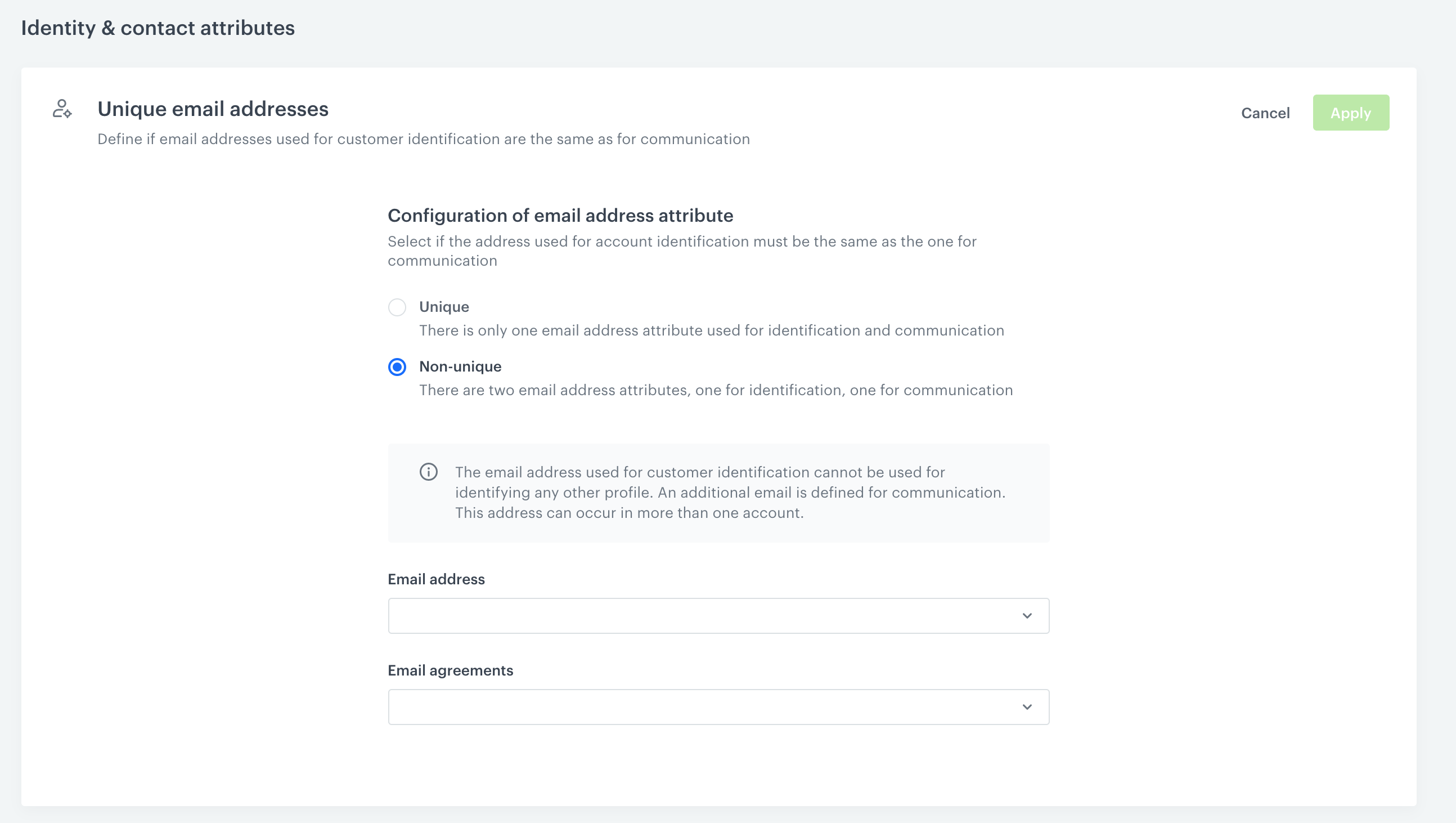
<img src="/api/docs/image/54176ad07f146575310749eba44b7c2f42c1b327/docs/settings/_gfx/non-unique-email-option.png" alt="A blank configuration of email attribute uniqueness" class="full">
<figcaption> A blank configuration of email attribute uniqueness </figcaption>
</figure>

1. Go to **Settings > Identifiers**.
2. In the **Unique email addresses & reset UUID settings** section, click **Show**.
3. Select the **Non-unique** option.
4. From the **Email address** dropdown list, select the customer attribute that stores the email used for communication.
5. From the **Email agreements** dropdown list, select the attribute that stores marketing agreement.
6. Confirm by clicking **Apply**.

## Managing user context
---
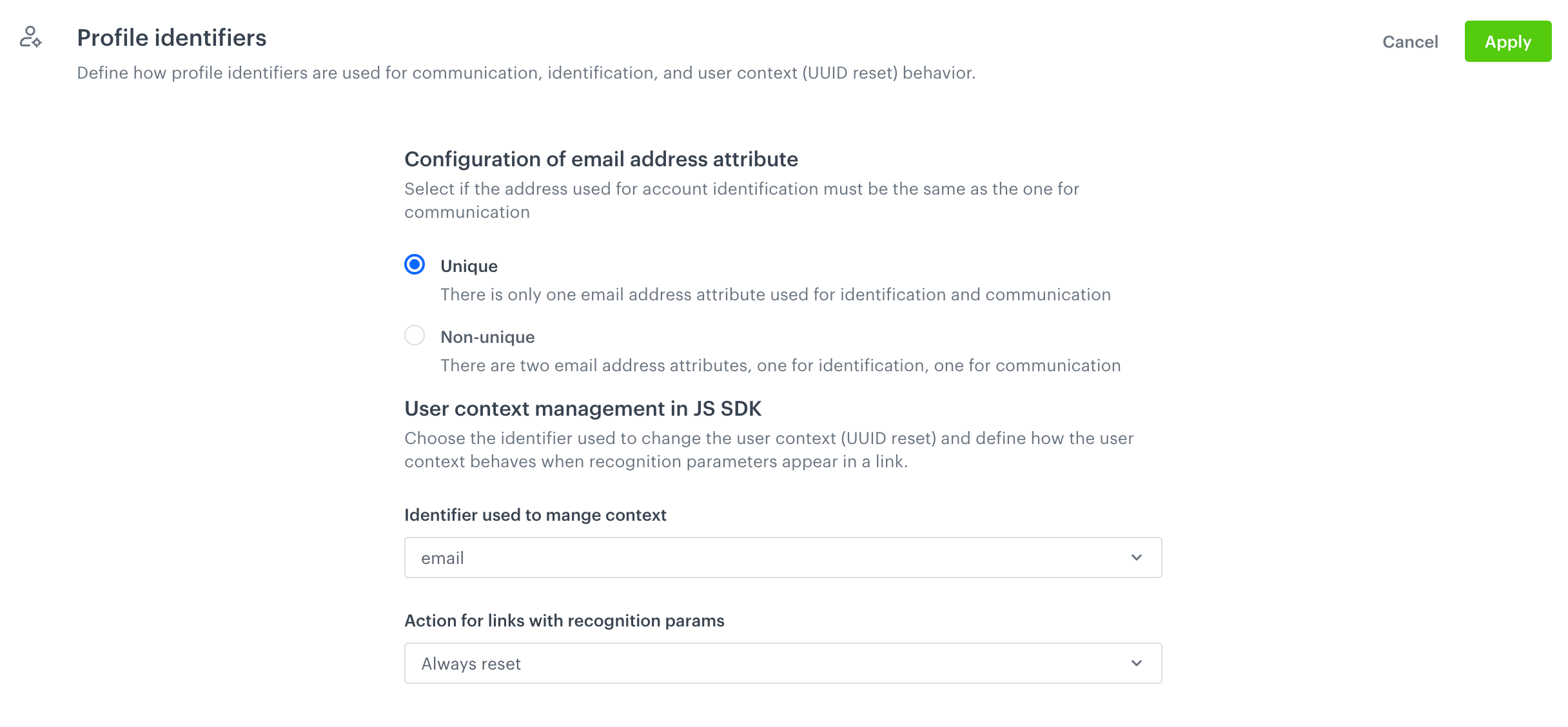
You can choose which identifier (email or custom_identfy) to use for managing user context (UUID) in the JS SDK when [submitting form data](/developers/web/tracking-form-data/tracking-form-data-sdk), and decide how the user context should be handled [when a link contains user-identifying parameters (snrs_cl and snrs_he)](/developers/web/user-identification#recognizing-customers-from-link-parameters).

This feature works independently from [resetting customer UUIDs with a query parameter](/developers/web/uuids#with-query-parameter).

1. Go to **Settings > Identifiers**.
3. In the **User context management in JS SDK** section, from the **Identifier used to mange context** dropdown list, select one of the following options:  
    - **email** (which is selected by default if the workspace uses unique emails) 
    - **custom_identifier** (the only option if the workspace uses non-unique emails).
4. From the **Action for links with recognition params** dropdown list, select what happens with the user context when a link contains user-identifyng parameters:

    | Option name                                                                     | Explanation                                                                                                                                                                                                                                                                    |
    |---------------------------------------------------------------------------------|--------------------------------------------------------------------------------------------------------------------------------------------------------------------------------------------------------------------------------------------------------------------------------|
    | Always reset                                                                    | The user context will be updated according to the link parameters. An anonymous user will be identified as the user specified in the link. If the current user context differs from the one in the link, the user context (UUID) will switch to match the link’s user context. |
    | Do not reset if a user is already recognized                                    | An anonymous user will be identified as the user specified in the link. However, if a user is already recognized in the browser and differs from the user in the link, the existing user context (UUID) will remain unchanged.                                                 |
    | Never reset (this is the only option if your workspace uses [JWT authentication](/developers/web/jwt-auth)) | The user context in the browser—anonymous or not—takes precedence over the context from the link and remains unchanged; link parameters are ignored.                                                                                                                           |

    <figure><img src="/api/docs/image/54176ad07f146575310749eba44b7c2f42c1b327/docs/settings/_gfx/managing-user-context.png" class="large" alt="Managing user context section"><figcaption>Managing user context section</figcaption></figure>

5. Confirm changes by clicking **Apply**. 

## FAQ
---
You can find answers to frequently asked questions regarding non-unique emails [here](/troubleshooting/faq/faq_settings#configuration).