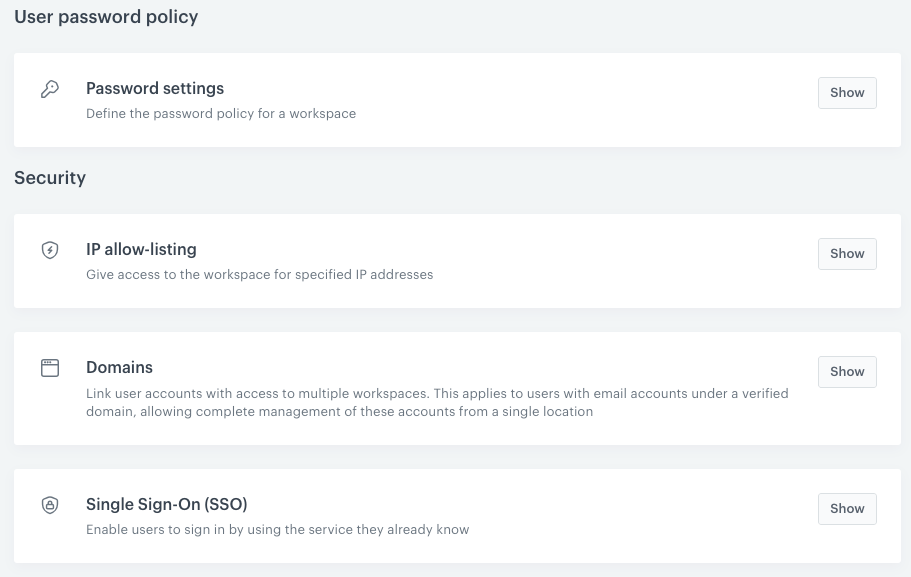
Access Control settings section enables you to configure security related aspects of Identity and Access Management.
In this article, you can find instructions on:
- [Password settings](/docs/settings/identity-access-management/access-control/password-settings) - To define the strength of user's passwords
- [IP allow-listing](/docs/settings/identity-access-management/access-control/ip-allow-listing) - To define the list of IP addresses from which users can log in to your workspace
- [Domain management](/docs/settings/identity-access-management/access-control/managed-domains) - It is required if you want to have greater capabilities to manage users (registered within the verified domain) in your workspace
- [Single sign-on](/docs/settings/identity-access-management/access-control/single-sign-on) - To allow users to authenticate once with your IdP and then access Synerise or other enabled Service Providers, without the necessity to authenticate with each of those applications separately.
List of the Access Control features
## Prerequisites
---
- You must be granted a set of permissions that allow access to Settings and editing within this hub.
- **For Managed domains**: You must have access to domain management or to the root folder in the hosting behind the domain.
- **For Single Sign-on**:
- You must [verify the ownership](/docs/settings/identity-access-management/access-control/managed-domains) of at least one domain (could be more if needed).
- Create a backup user that won't be using the same email address in the Identity Provider account. This is not required if you start with the **Both methods** authentication mode (explained in the ["Configuration parameters explanation"](/docs/settings/identity-access-management/access-control/single-sign-on#configuration-parameters-explanation) section).
- You must be granted user permissions to access Settings and configure Identity provider.
- You must have access to Identity Provider's admin panel to configure SAML application.
You will need the data from the Identity Provider. For details on using the Identity Provider's application, refer to the Identity Provider's documentation