This section provides a possibility to define the password policy for a workspace. The policy defined in this section is used the Change password section in the [Account Security](/docs/settings/your-account/account-security) section.
If a user belongs to more than one workspace, the system selects here the strongest password policy among the workspaces a user is assigned to.
Example of a password policy
1. Go to **Settings > Access Control**.
2. In the **Password settings** section, click **Show**.
3. In the **Length** section, to define the minimum and maximum number of characters in a password, use the slider.
4. In the **Characters** section:
1. To require uppercase character in a password, enable the **Uppercases (A-Z)** option and enter the number.
2. To require lowercase characters in a password, enable the **Lowercases (a-z)** option and enter the number.
3. To require numbers in a password, enable the **Numbers (0-9)** option and enter the number.
4. To require special characters in a password, enable the **Symbols (0-9)** option and enter the number. The allowed special characters are: `!"#$%&'()*+,-./:;<=>?@[\]^_{|}~`
5. In the **Login and validity rules**:
1. To define if and when a password expires, enable the **Password expires after** option and enter the number of days after which the password expires.
2. To define when an account is blocked due to the password expiration, enable the **Account block after days** option and enter the number of days.
When an account is blocked due to this setting, the user must reset a password.
1. To force variety of passwords, enable the **The password must be different from the lass** option and enter the number of previous passwords that cannot be used as a new password.
2. To define the number of unsuccessful logins that temporarily blocks an account, enable the **Number of login attempts** option and enter the number.
3. To define the time after which an inactive user is logged out, enable the **Logout when the user is idle after** option and enter the number of seconds.
6. Confirm the changes by clicking **Apply** in the upper-right corner of the section (you may need to scroll up).
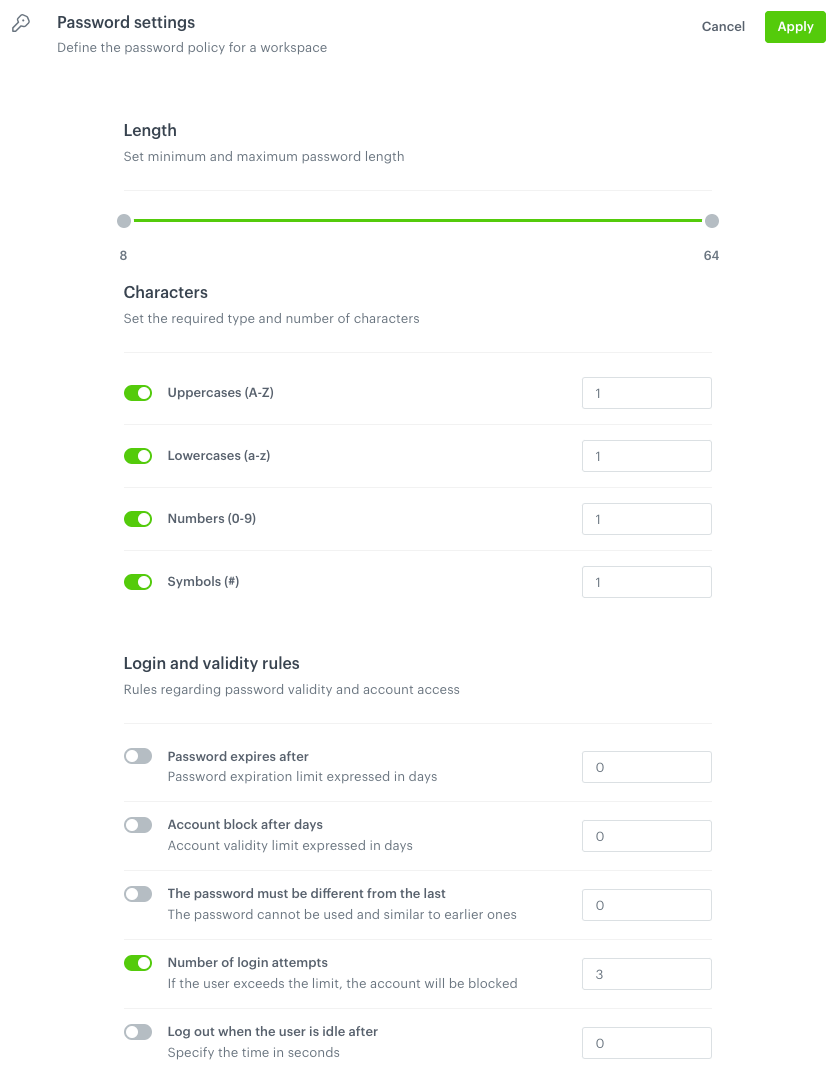
 **Settings > Access Control**.
2. In the **Password settings** section, click **Show**.
3. In the **Length** section, to define the minimum and maximum number of characters in a password, use the slider.
4. In the **Characters** section:
1. To require uppercase character in a password, enable the **Uppercases (A-Z)** option and enter the number.
2. To require lowercase characters in a password, enable the **Lowercases (a-z)** option and enter the number.
3. To require numbers in a password, enable the **Numbers (0-9)** option and enter the number.
4. To require special characters in a password, enable the **Symbols (0-9)** option and enter the number. The allowed special characters are: `!"#$%&'()*+,-./:;<=>?@[\]^_{|}~`
5. In the **Login and validity rules**:
1. To define if and when a password expires, enable the **Password expires after** option and enter the number of days after which the password expires.
2. To define when an account is blocked due to the password expiration, enable the **Account block after days** option and enter the number of days.
When an account is blocked due to this setting, the user must reset a password.
1. To force variety of passwords, enable the **The password must be different from the lass** option and enter the number of previous passwords that cannot be used as a new password.
2. To define the number of unsuccessful logins that temporarily blocks an account, enable the **Number of login attempts** option and enter the number.
3. To define the time after which an inactive user is logged out, enable the **Logout when the user is idle after** option and enter the number of seconds.
6. Confirm the changes by clicking **Apply** in the upper-right corner of the section (you may need to scroll up).
**Settings > Access Control**.
2. In the **Password settings** section, click **Show**.
3. In the **Length** section, to define the minimum and maximum number of characters in a password, use the slider.
4. In the **Characters** section:
1. To require uppercase character in a password, enable the **Uppercases (A-Z)** option and enter the number.
2. To require lowercase characters in a password, enable the **Lowercases (a-z)** option and enter the number.
3. To require numbers in a password, enable the **Numbers (0-9)** option and enter the number.
4. To require special characters in a password, enable the **Symbols (0-9)** option and enter the number. The allowed special characters are: `!"#$%&'()*+,-./:;<=>?@[\]^_{|}~`
5. In the **Login and validity rules**:
1. To define if and when a password expires, enable the **Password expires after** option and enter the number of days after which the password expires.
2. To define when an account is blocked due to the password expiration, enable the **Account block after days** option and enter the number of days.
When an account is blocked due to this setting, the user must reset a password.
1. To force variety of passwords, enable the **The password must be different from the lass** option and enter the number of previous passwords that cannot be used as a new password.
2. To define the number of unsuccessful logins that temporarily blocks an account, enable the **Number of login attempts** option and enter the number.
3. To define the time after which an inactive user is logged out, enable the **Logout when the user is idle after** option and enter the number of seconds.
6. Confirm the changes by clicking **Apply** in the upper-right corner of the section (you may need to scroll up).